
Error experienced
CI Sync Job errors with “HMAC mismatch” error.
Error verification
HMAC configuration errors typically cause jobs to error in the beginning stages, with the agent not being able to validate payloads. Jobs that have errored as a result of this will display an error message stating that payloads have not been able to be validated, with further reason as to why.
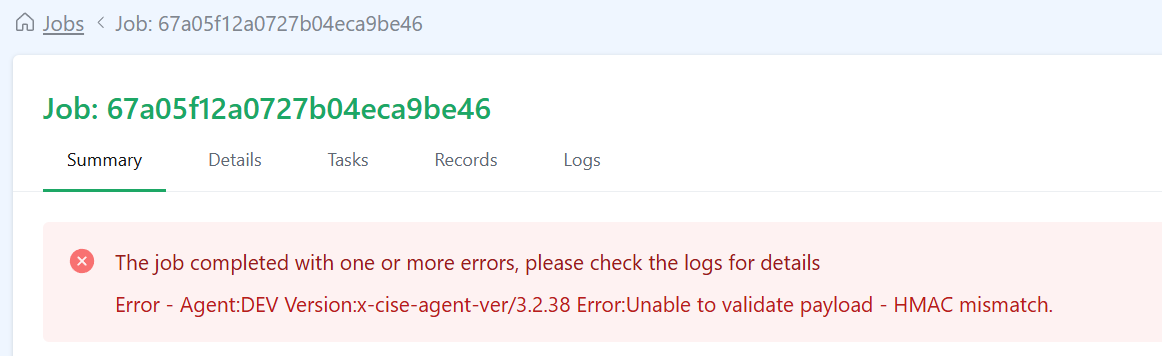
In some cases, jobs may appear to hang and error after a period of inactivity.
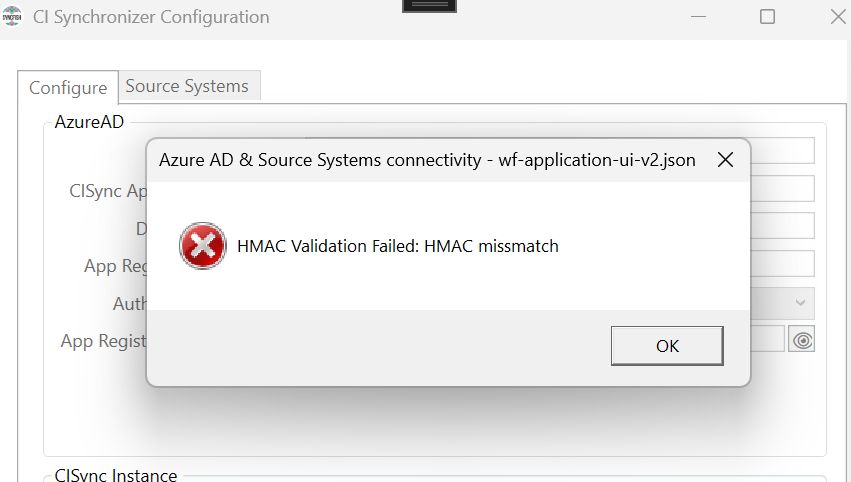
You can further confirm this issue is caused by a HMAC mismatch by opening the CISynchronizer Configuration utility. The utility will attempt to validate the connection to the platform and will display any issues.
Cause
CI Sync uses a shared secret between the server and the agent for the server to sign task payloads so the agent can verify the server’s authenticity. If a key rollover fails, the keys may be out of sync and the agent will no longer trust the payloads received from the server.
Fix
The shared HMAC secret can be manually regenerated through the CI Synchronizer Configuration tool.
Upon opening the Configuration tool, an error message may appear regarding any HMAC issues the agent may be having.
-
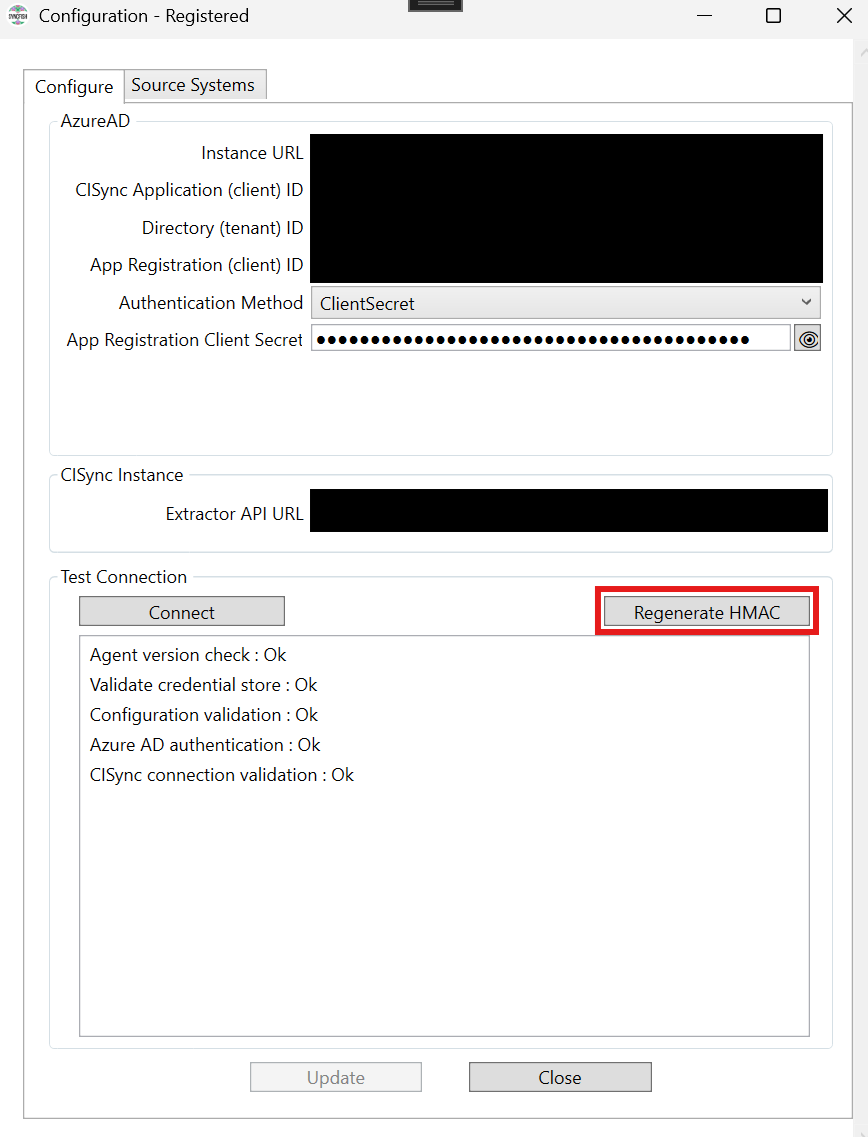
Under the Test Connection section of the Configuration tool, there should be a Regenerate HMAC button. If this is not present, you may be running an older version of the agent. Please contact Syncfish via Syncfish Support so we can assist.
-
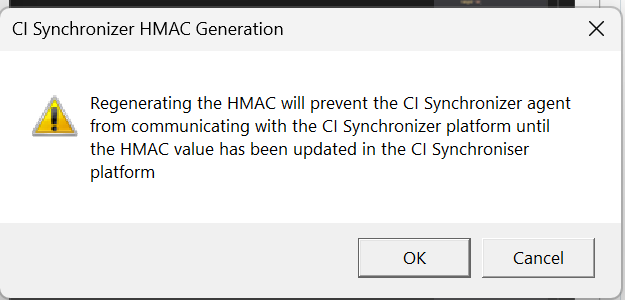
Clicking Regenerate HMAC will open a warning prompt, prompting you that regenerating the HMAC value will prevent the worker from communicating with the CI Synchronizer platform and that the newly generated value will need to be updated in the CI Synchronizer platform.
-
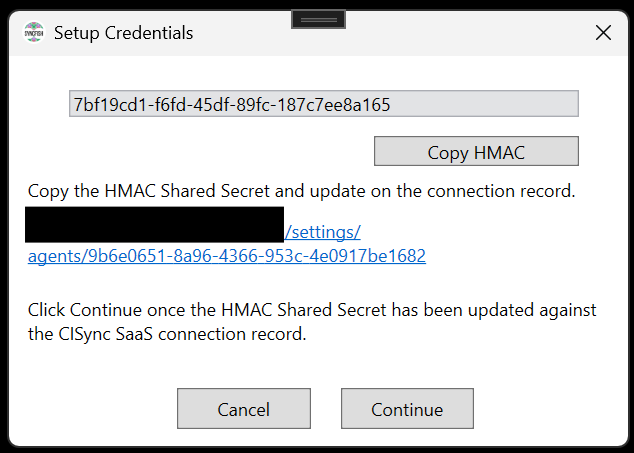
Once the previous dialogue box has been confirmed, a new window should appear displaying a newly generated HMAC shared secret as well as a hyperlink to the agent connection in your CI Synchronizer instance.
-
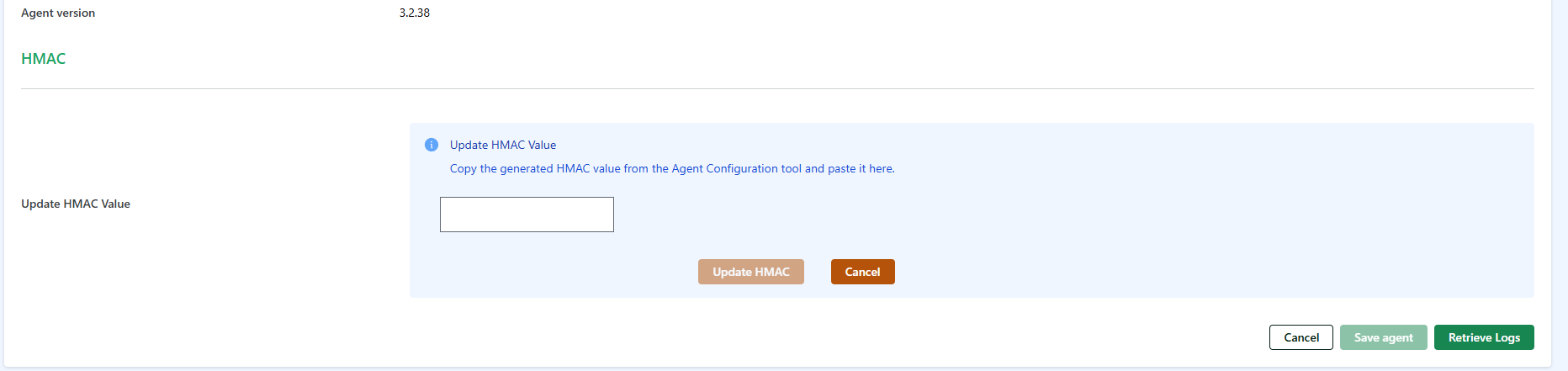
Copy the HMAC shared secret generated by the configuration tool and paste it into the
Update HMAC Valuefield in the agent connection page and click the Update HMAC button
-
Once the value has been updated in the CI Synchronizer platform return to the Configuration utility and click Continue. The HMAC shared secret and connection to the platform should be validated.
Fix verification
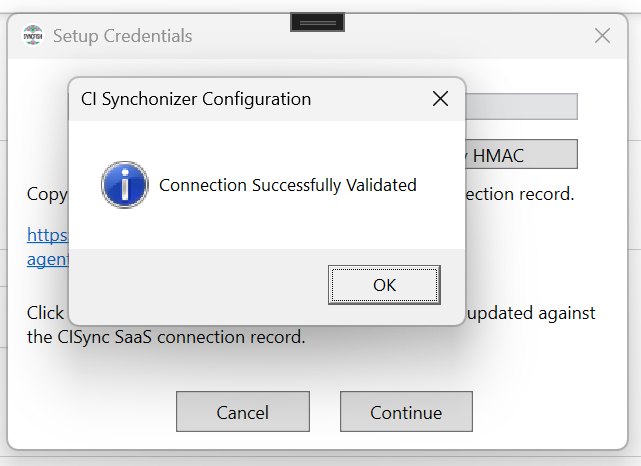
You should see a Connection Successfully Validated confirmation.
Related articles
There are currently no related articles.
Control Information
|
Created |
|
|---|---|
|
Reviewed |
|
|
Data Classification |
PUBLIC
|