
Aim
To explain the information customers need to provide to Syncfish so their new instance of CI Synchronizer can be provisioned.
Overview
Syncfish need the following information as inputs to the instnace provisioning process:
-
Your preferred prefix value for the URL of your CI Sync instance.
-
Your PROD ServiceNow hosting location (this informs the preferred hosting location of your CI Sync instance).
-
Your Entra ID Tenant ID.
Refer to the instructions below to obtain each input item, then provide the details to your Syncfish representative (ideally using a table like the following one).
|
# |
Item |
Format of Customer Supplied Response |
|---|---|---|
|
1 |
CI Sync URL Prefix |
https://yourcompanyname.syncfish.app |
|
2 |
ServiceNow Hosting Location |
Name of a city (e.g. Phoenix) |
|
3 |
Entra ID Tenant ID |
GUID value (xxxxxx-xxxx-xxxx-xxxx-xxxxxxxxxx) |
CI Sync URL Prefix
Context
Your customer specific CI Sync instance has a unique URL specific to each customer.
The URL is then used by users needing to access the user interface (browser UI) of your company specific CI Sync SaaS instance.
The customer name (or other representation of customer name) is stored as a prefix within the URL. Customers can proivde their preferred URL prefix based on the following format:
https://yourcompanyname.syncfish.app
Instructions
Decide how your company name should be represented in the CI Sync URL, and return this to Syncfish.
ServiceNow (PROD) Hosting Location
Context
Unless there is a good reason not to, Syncfish recommend hosting your customer specific CI Sync SaaS instance in the same geographic area as where your ServiceNow PROD instance is hosted.
After you provide your ServiceNow hosting location to Syncfish, we will inform you of the suggested hosting location (which will be an Azure region/data centre) closely located to your ServiceNow.
Instructions
Use these steps to locate the hosting location of your ServiceNow PROD instance.
-
Login to your ServiceNow PROD instance with admin privileges.
-
Navigate to the following page in ServiceNow:
https://<yourCompanyDomain>.service-now.com/stats.do. -
Once stats.do is loaded, locate the second row called “Connected to cluster node”.
Find the part of the string that identifies the data centre location (it is second portion of the string as shown by the red arrow below).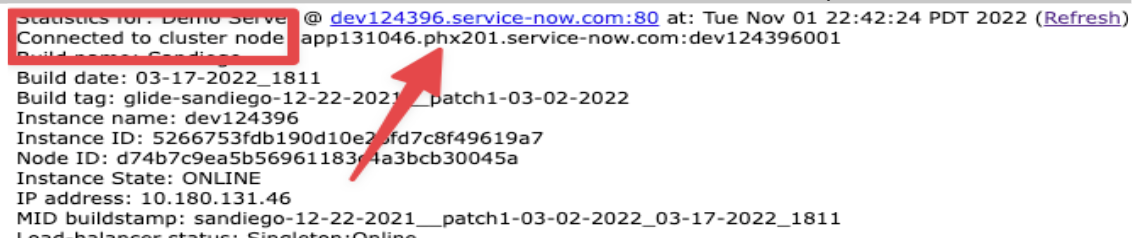
In this example, the code required is “phx”.
NOTE: If you don’t see this value then you have likely not logged into ServiceNow with admin rights. -
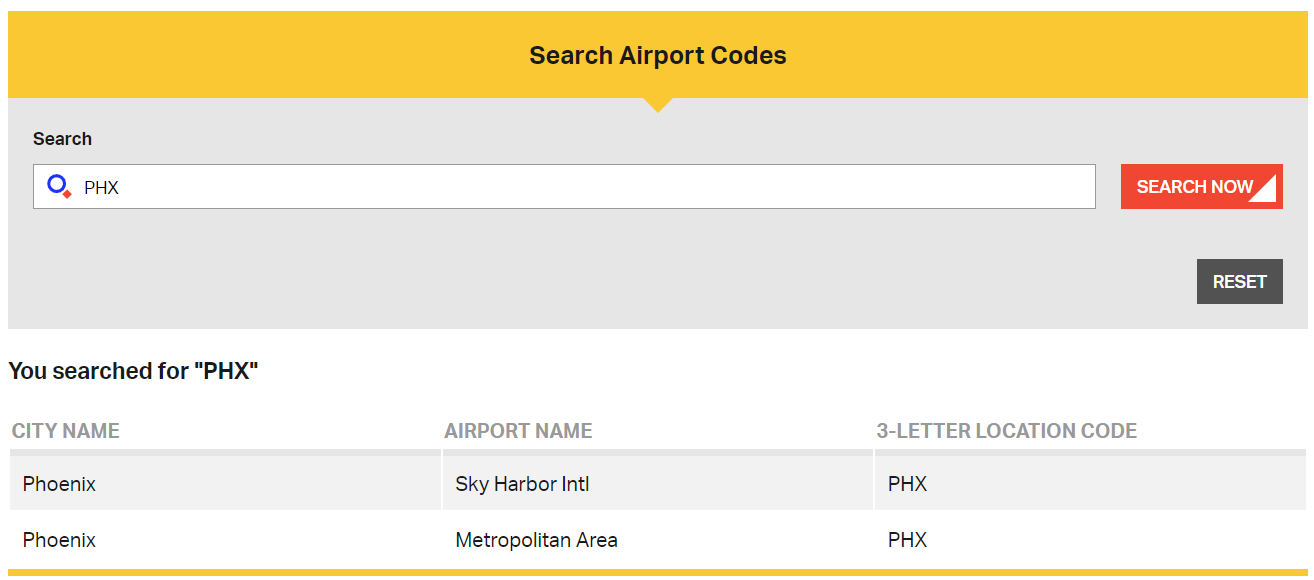
The codes used by ServiceNow are IATA locations (i.e. airport codes) which you can search as follows:
-
Visit https://www.iata.org/en/publications/directories/code-search/.
-
Use the “Search Airport Codes” section on the page (not the “Search Airline Codes”).
-
In the example of “phx” you can tell your ServiceNow is hosted in Phoenix, Arizona.
-
Entra ID Tenant ID
Context
Your customer specific CI Sync instance validates the Tenant ID contained in tokens issued by either (1) the browser session of users accessing the UI of your CI Sync SaaS instance and (2) the CI Sync On-Prem Agent when it pushes data to ingestion API of your CI Sync SaaS instance.
Your Entra ID Tenant ID used by the Syncfish provisioning process to store the Tenant ID against your customer specific CI Sync SaaS instance. By storing the Tenant ID against your instance, the CI Sync SaaS platform can validate user tokens or CI Sync Agent tokens have originated from your organisation. This is an important security feature of CI Sync.
Instructions
To find your Tenant ID:
-
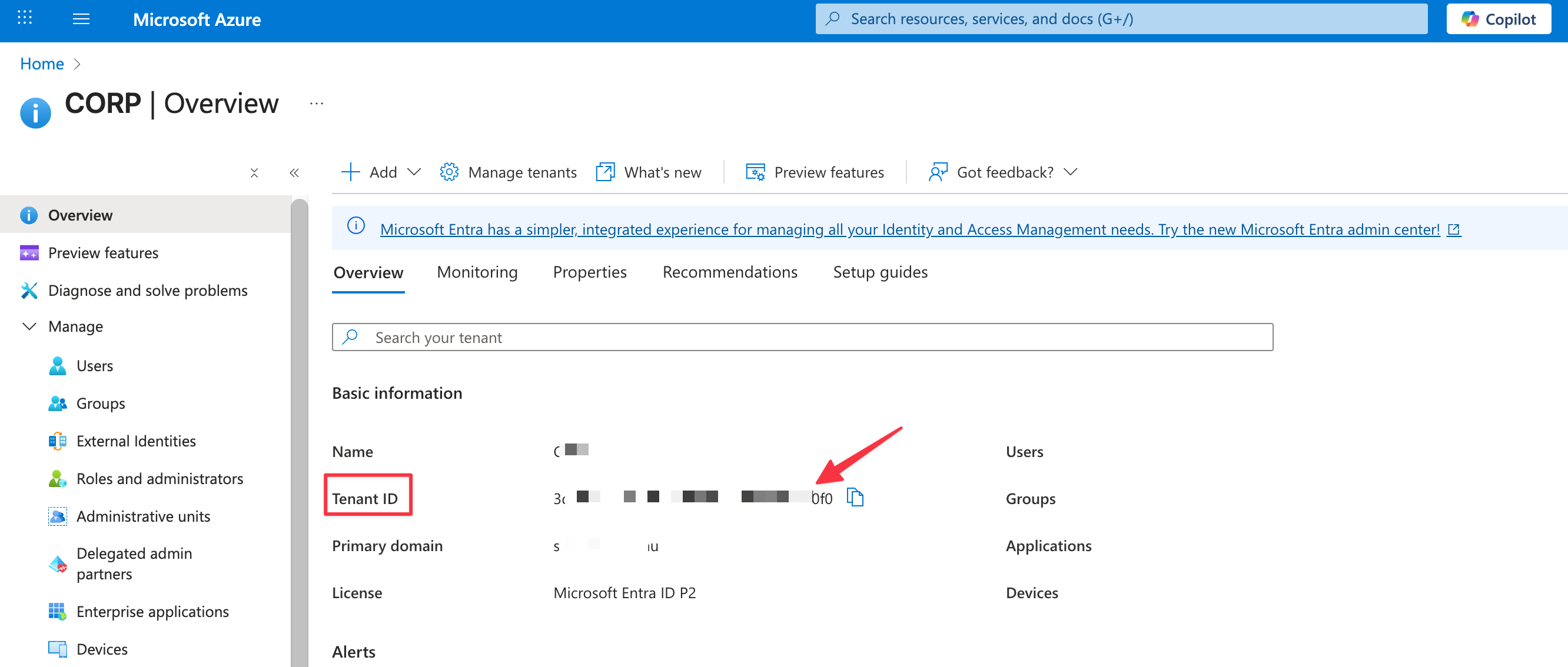
Login to your Azure Portal and navigate to Microsoft Entra ID.
-
Select Overview.
-
Copy/paste and return to Syncfish the Tenant ID value (a GUID value).
Related Articles
There are currently no related articles.
Control Information
|
Created |
|
|---|---|
|
Reviewed |
|
|
Data Classification |
PUBLIC
|