
Synopsis and Purpose
CI Sync can read from virtualisation platforms (including cloud providers) and from OS level discovery products so that customers can sync the various virtualisation objects into their ServiceNow CMDB. Two of the key object types are Virtual Machine Instances and Virtual Machines (VMs). The scope of this FAQ is solely about those two object types (VM Instances vs VMS).
Not only does CI Sync create specific CIs for VM Instances and VMs (i.e. creates CIs in the specifically intended CMDB CI Tables/Classes intended for those objects), CI Sync also attempts to create relationships (sometimes called dependencies) between the CIs. Attempts is highlighted because CI Sync’s ability to create relationships between VM Instances and VMs depends on several key factors:
-
Does the CMDB contain both sets of CIs (i.e. are there a full suite of CIs for both VM Instances and VMs)? CI Sync can’t create a relationship between the two CIs unless both of the CIs exist (this includes CIs that may have been created manually or from another ingestion source other than CI Sync).
-
Do each of the CIs contain sufficient attribute values to allow CI Sync to match the two different CIs to one another? CI Sync attempts to match from VM Instances to the VMs, and CI Sync uses attributes like Serial Number, MAC Address/s and Name when attempting to find a matching VM. If there is insufficient data in these attributes, CI Sync won’t be able to match the CIs and won’t be able to create a CI-to-CI relationship record in the CMDB.
This purpose of this FAQ is two-fold as follows
-
To explain the overall topic in more detail so customers have a strong understanding of how the data behaves in the CMDB.
-
To assist customers diagnosis the reason why CI-to-CI relationships are not being created as expected (if that occurs).
Overview of the Objects
CI Sync has connectors for various virtualisation platforms such as VMware and Nutanix. CI Sync also has connectors for the major cloud providers such as Azure, AWS and GCP. These platforms and cloud providers deliver virtualisation of compute resources, and they all present an object type commonly called a VM Instance. A VM Instance is not the same as VM itself.
CI Sync also has connectors for various discovery products such as Lansweeper, SCCM, etc and discovery “bi-product” solutions such as Defender for Endpoint, InTune, etc. These products interrogate running compute workloads at the OS level using protocols such as WMI for Windows servers/computers and SSH for Linux servers/computers. If a discovered computer/server runs on a virtualisation platform (e.g. Nutanix, VMware), or is running in the cloud (e.g. in Azure, AWS, GCP), then the object type is of course called a VM.
In summary
-
Information about VM Instances is read from a hypervisor (or cloud provider). The hypervisor provide a kind of “top down” view of the virtual resource.
-
Information about VMs is read from a discovery source that has queried the operating system using protocols like WMI or SSH. These protocols provide a kind of “bottom up” view of the virtual resource.
As a result, CI Sync elicits two different object types when reading from the products/providers noted above. The two different objects are closely related to one another, but they are entirely different in the way ServiceNow expects them to be stored and used.
What is a Virtual Machine Instance?
-
A VM Instance is an object that represents the presence or existance of a Virtual Machine (VM).
-
A VM Instance object does NOT represent the running Operation System itself (or what runs on and inside the VM Operating System).
-
A VM Instance contains attributes and related records like the following:
-
The physical host (e.g. the ESX Host) on which the Virtual Machine Instance has been allocated.
-
Running State (is the instance On or Off).
-
The quantity of CPU/s allocated to the instance (i.e. allocated by the hypervisor).
-
The quantity and size of disks allocated to the instance (i.e. allocated by the hypervisor).
-
The Virtual Network Interface Cards (vNICs) allocated to the instance.
-
What is a Virtual Machine (VM)?
-
A VM is an object that represents the computer/server itself. That is, an object that represents the running OS and what has been allocated to, and installed upon, that running OS. A good example is Windows Server VM or a Linux Server VM.
-
A VM contains attributes and related records like the following:
-
The OS name and version the VM is running.
-
The installed software on the VM.
-
The patches applied to the OS and software on the VM.
-
The services or processes running on the VM.
-
And so on.. everything we commonly expect can be interogated from protocols like WMI and SSH.
-
Frequently Asked Questions about this Topic
How does ServiceNow treat Virtual Machine Instances vs Virtual Machines within the CMDB?
The ServiceNow CMDB design deals with VM Instances and VMs differently.
See the table below which shows the default CMDB Class (table) where ServiceNow expects these CIs to be stored.
|
Source System |
Object Type |
Default ServiceNow CMDB Class |
|---|---|---|
|
VMware |
Virtual Machine Instance |
cmdb_ci_vmware_instance |
|
Nutanix |
Virtual Machine Instance |
cmdb_ci_nutanix_vm_instance |
|
Azure |
Virtual Machine (Instance) |
cmdb_ci_vm_instance |
|
AWS |
EC2 Instance |
cmdb_ci_ec2_instance |
|
GCP |
VM Instance |
cmdb_ci_vm_instance |
|
|
||
|
Lansweeper |
Windows Server Virtual Machine (VM) |
cmdb_ci_win_server |
|
Lansweeper |
Linux Virtual Machine (VM) |
cmdb_ci_linux_server |
|
Lansweeper |
Unix Virtual Machine (VM) |
cmdb_ci_unix_server |
|
Lansweeper |
Windows Computer Virtual Machine (VM) |
cmdb_ci_computer |
Key points about CIs being stored in the above CMDB Classes
-
The attribute coverage of the CIs is governed by the CMDB Class where each CI is stored. Therefore, ServiceNow limits (by design) what attributes are available to each of the object types (CIs) shown above.
-
The suggested relationships from ServiceNow are governed by the different CMDB Classes. For example:
-
ServiceNow does not include a suggested relationship between the VM CIs (i.e. CIs in cmdb_ci_computer class or derivatives) and the Host devices/CIs (e.g. an ESX server) that host the running VM CIs.
-
ServiceNow does include a suggested relationship between the VM Instance CIs (in the various cmdb_xxxxx_instance classes) and the Host devices/CIs (e.g. an ESX server) that present the VM Instance CIs.
-
Taking the above into account, CI Sync has implemented default rules to ensure alignment with ServiceNow’s best practice guidelines, including from the Common Services Data Model (CSDM).
How does CI Sync establish CI-to-CI Relationships (dependencies) between Virtual Machine Instance CIs and Virtual Machine CIs in the CMDB?
CI Sync wil attempt to establish a relationship (dependency) between Virtual Machine Instance CIs and Virtual Machine CIs. Here’s how it works:
-
When CI Sync processes VM Instance records (from VMware, Nutanix, Azure, AWS, GCP, etc) CI Sync tries to match an existing VM in the cmdb_ci_computer table (or deritive tables) using attributes available on the VM Instance record.
-
Typical attributes used for matching can include Serial Number, MAC Address/s, Hostname/Name.
-
The attributes available to perform the match depends on the source system where the VM Instance record originates from. For example, GCP only provies a hostname, but VMware and Nutanix provides multiple attributes that CI Sync can use to attempt a match.
When CI Sync is able to match a VM Instance CI to a corresponding VM CI, an “instantiates” relationship type is created. This table shows the relationship types created for each virtualisation source system.
|
Source System |
VM Instance to VM Relationship Type Created by CI Sync |
|---|---|
|
VMware |
For existing Syncfish customers up to June 2026
For NEW Syncfish customers from July 2026 and onwards
Syncfish provide a Connection Setting that allows customers to influence which of the above two relationship types are used. For information this connection setting read:Swap the direction of Virtual Machine Instance to Computer relationships for VMware vSphere |
|
Nutanix |
Virtual Machine Instance Instantiates Computer |
|
Azure |
Virtual Machine [instance] Instantiates Computer#1 |
|
AWS |
EC2 Instance Instantiates Computer |
|
GCP |
VM Instance Instantiates Computer |
#1 In the Azure Portal, Virtual Machine Instances are shown/labelled simply as “Virtual Machines” (which can further confuse this entire topic).
What can customers do to reduce the likelihood of CI Sync jobs not creating the intended CI-to-CI Relationships
These are the best practice recommendations for this topic:
-
Run the CI Sync job/s that processes the VM Instances before the running the CI Sync job/s that process the VMs (i.e. run sync jobs from virtualisation products or cloud providers before running sync jobs from discovery products like Lansweeper, SCCM and so on).
-
Make sure there is sufficient attribute/value coverage on attributues such as Serial Number, MAC Address/s and Name on both the VM Instance CIs and the VM CIs. This is unlikely to be an issue when CI Sync is used to sync both sets of objects/CIs. Instead, this may be an issue if CI Sync is being used with one set of objects (e.g. VM Instance CIs only), and another source, including manual data entry, is being used to create VM CIs in the CMDB.
Troubleshooting and Advanced Diagnosis
How will customers know if CI Sync can’t find a match between Virtual Machine Instance CIs and Virtual Machine CIs?
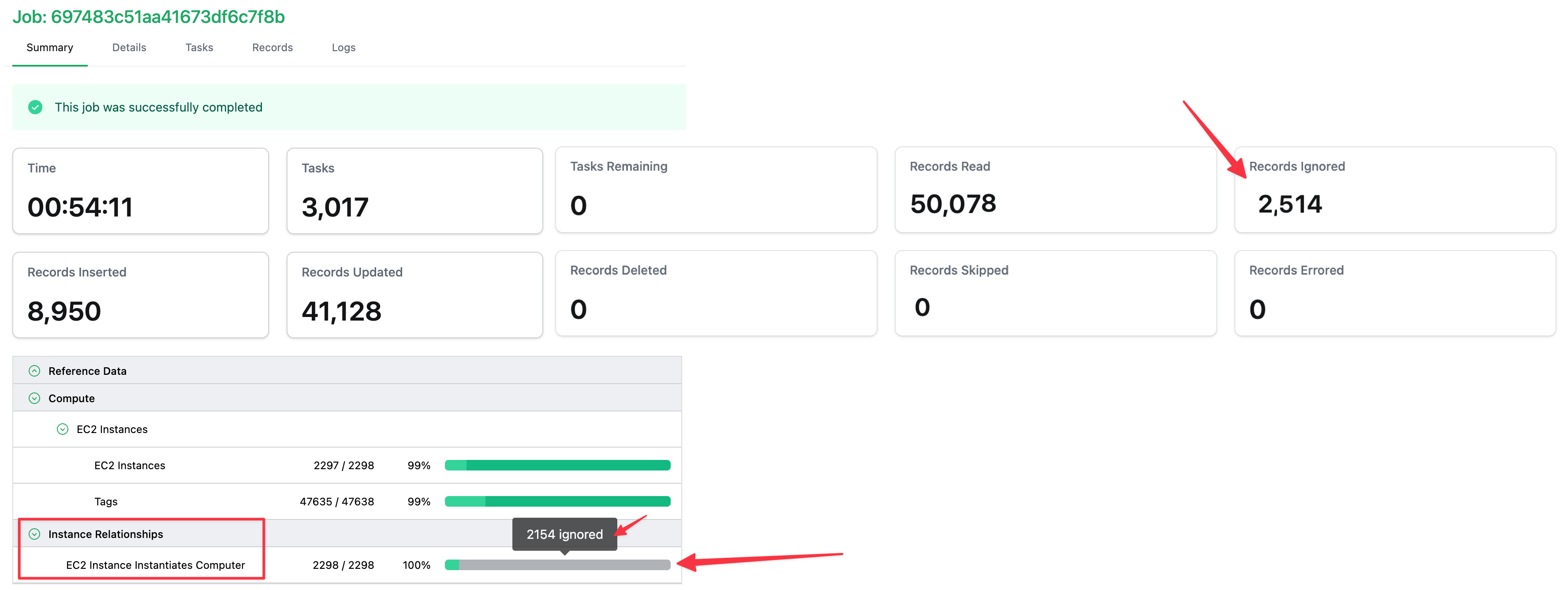
CI Sync will report “ignored” results when CI Sync cannot create a relationship between VM Instance CIs and corresponding VM CIs. Customers will notice the ignored results in the job log of a sync job from one of the virtualisation products or cloud provider data source.
The screen shot below is from an AWS sync job log showing many ignored results when CI Sync tried to create CI-to-CI relationships for “EC2 Instance instantiates Computer”.
How can customers diagnose the underlying cause of CI Sync not matching Virtual Machine Instance CIs and Virtual Machine CIs?
Customers can perform self-diagnosis on this topic before contacting Syncfish.
-
Login to your CI Sync SaaS instance (so you can use the CI Sync Web UI).
-
Navigate to the Settings page and scroll down to the Destination Connections section.
-
Locate the connection related to the ServiceNow instance you are using for this diagnosis, and click the Update link.

-
Scroll down and locate the Additional Settings Heading and locate the Connection Setting called “JSONATA Debugging” and do the following:
-
Tick the “Overwrite Default” checkbox.
-
Enable the slider to “On”, and then scroll to the bottom of the page and click the “Save Connection” button.

-
Additional Notes:
-
The heading will say “Test Environment” vs “Prod Environment” depending on whether the particular ServiceNow connection has been tagged by you as “TEST” or “PROD”.
-
For more information about this specific CI Sync Connection Setting visit this page: Logging and Debugging
-
-
-
Run a new CI Sync job after enabling this setting (to increase the logging detail).
-
Once the job completes
-
Navigate to the job log
-
Locate the progress indicator showing the ignored results
-
Click the progress indicator bar to jump to the individual task log entries.
-
View the detailed information about the ignored task by clicking one of the ignored tasks.
-
Review the “Response Message” details to understand the match query performed by CI Sync, including the CI name attempting to be matched.
-

The output message can be a bit daunting on first review. Please contact Syncfish Support for diagnosis support once you’ve enabled JSONATA Debugging and have run a new sync job.
Related Articles
-
The Logging and Debugging Connection Setting
-
Swap the direction of Virtual Machine Instance to Computer relationships for VMware vSphere
Control Information
|
Created |
|
|---|---|
|
Reviewed |
|
|
Data Classification |
PUBLIC
|