
Error experienced
During Agent registration when on the Configure Tab of the CI Sync agent the user clicks the Connect button and the below error is seen.
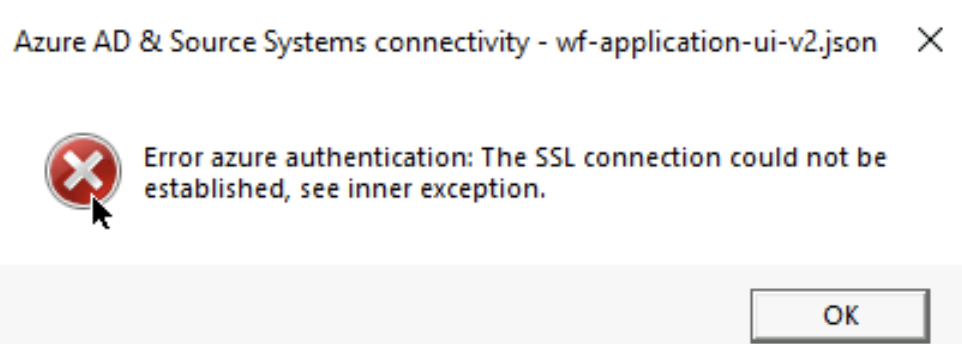
Error verification
No other error verification information is applicable.
Cause
This problem can occur via the following scenarios:
-
A Proxy Server is used but the details have not been entered into the Advanced Tab of the CI Sync agent.
-
The proxy server does not contain a certificate chain that allows it (the proxy) to trust the Let’s Encrypt cert used by the CI Sync Agent.
-
A Proxy Server is NOT being used and the computer hosting the CI Sync Agent does not trust the Let’s Encrypt cert used by the CI Sync Agent.
Fix
Scenario 1:
The Proxy Server configuration on the computer hosting the CI Sync agent can be either set at the Windows Operating System or defined within the CI Sync agent. If the Proxy Server has been configured via the Windows Operating System it does not need to be configured within the CI Sync application.
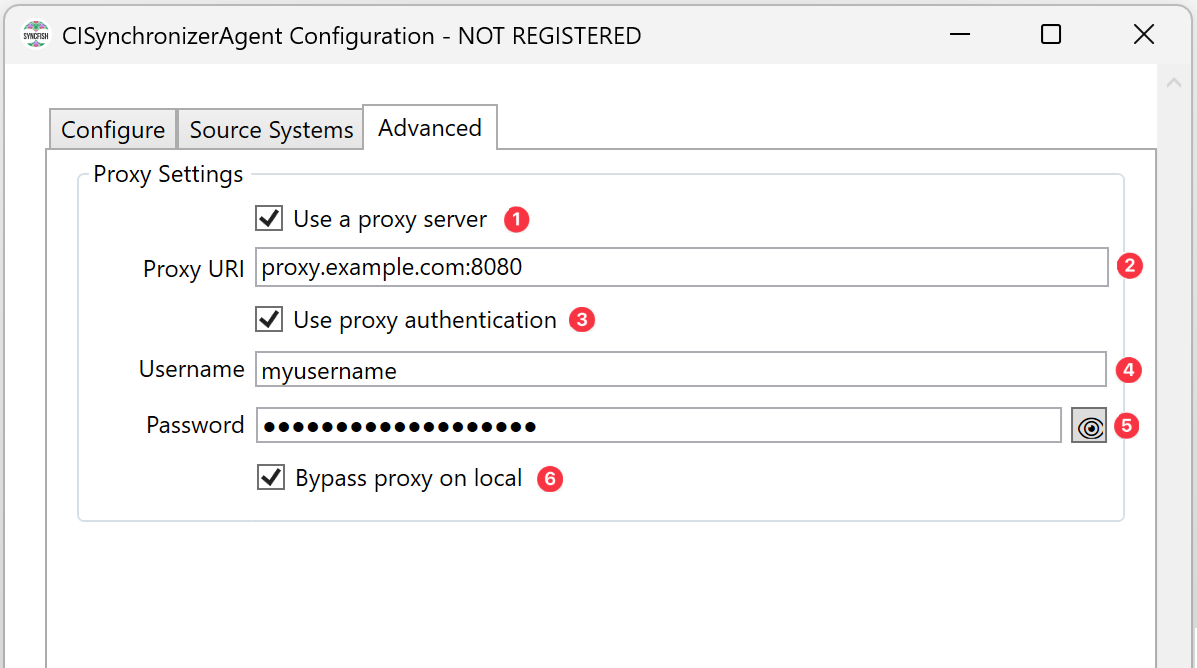
Check if the CI Sync traffic is traversing a proxy, and if so, enter the relevant proxy details into the CI Sync Agent UI.
-
Using the CI Sync Configuration Utility, navigate to the Advanced Tab (as shown below) to enter the relevant values.
-
The table below explains each field and the required value for the screen above.
|
# |
Field Name on the Advanced Tab |
Value you need to enter |
|
1 |
Use proxy server Note: This checkbox will determine if CI Sync On-Prem will use the proxy settings for all HTTP requests. |
Check the box if you want to use a proxy server |
|
2 |
Proxy URI Note: Specifies your proxy server name or the IP address of the proxy server, followed by ':' and the port number your proxy server is listening on. |
Example using the proxy server name:
Example using the proxy server IP address:
|
|
3 |
Use proxy authentication Note: This checkbox will determine if your proxy server mandates authentication. |
Check the box if your proxy server will require authentication. |
|
4 |
Username Note: Username is only required if ‘Use proxy authentication’ has been checked. |
Username to authenticate against your proxy server. |
|
5 |
Password Note: Password is only required if ‘Use proxy authentication’ has been checked. |
Password to authenticate against your proxy server. |
|
6 |
Bypass proxy on local Note: This checkbox will determine if requests to your local network will not use the proxy server. |
Check the box if you do not want to use the proxy server for local network requests. |
-
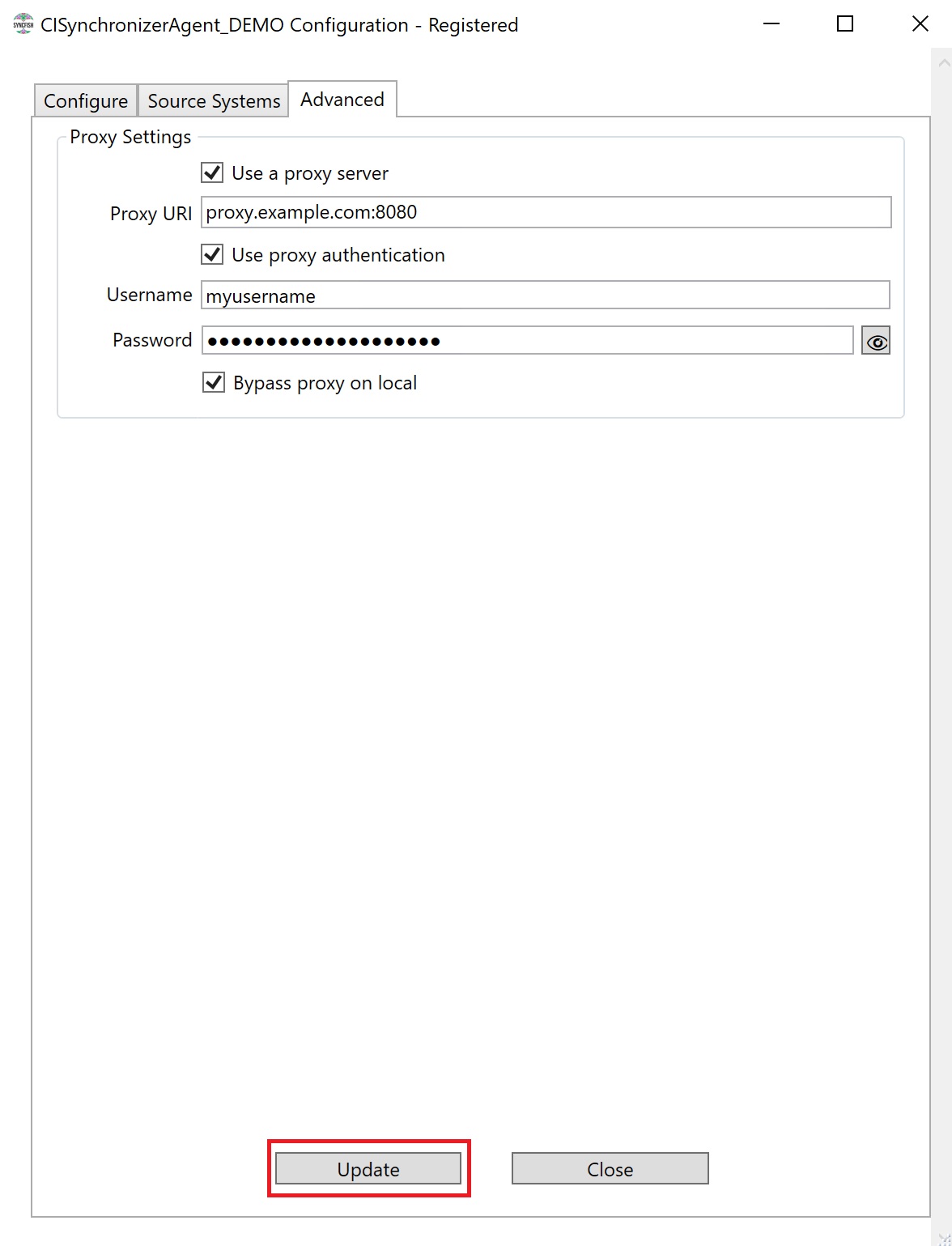
Finally, after entering your proxy settings, click "Update" to validate and save them.
-
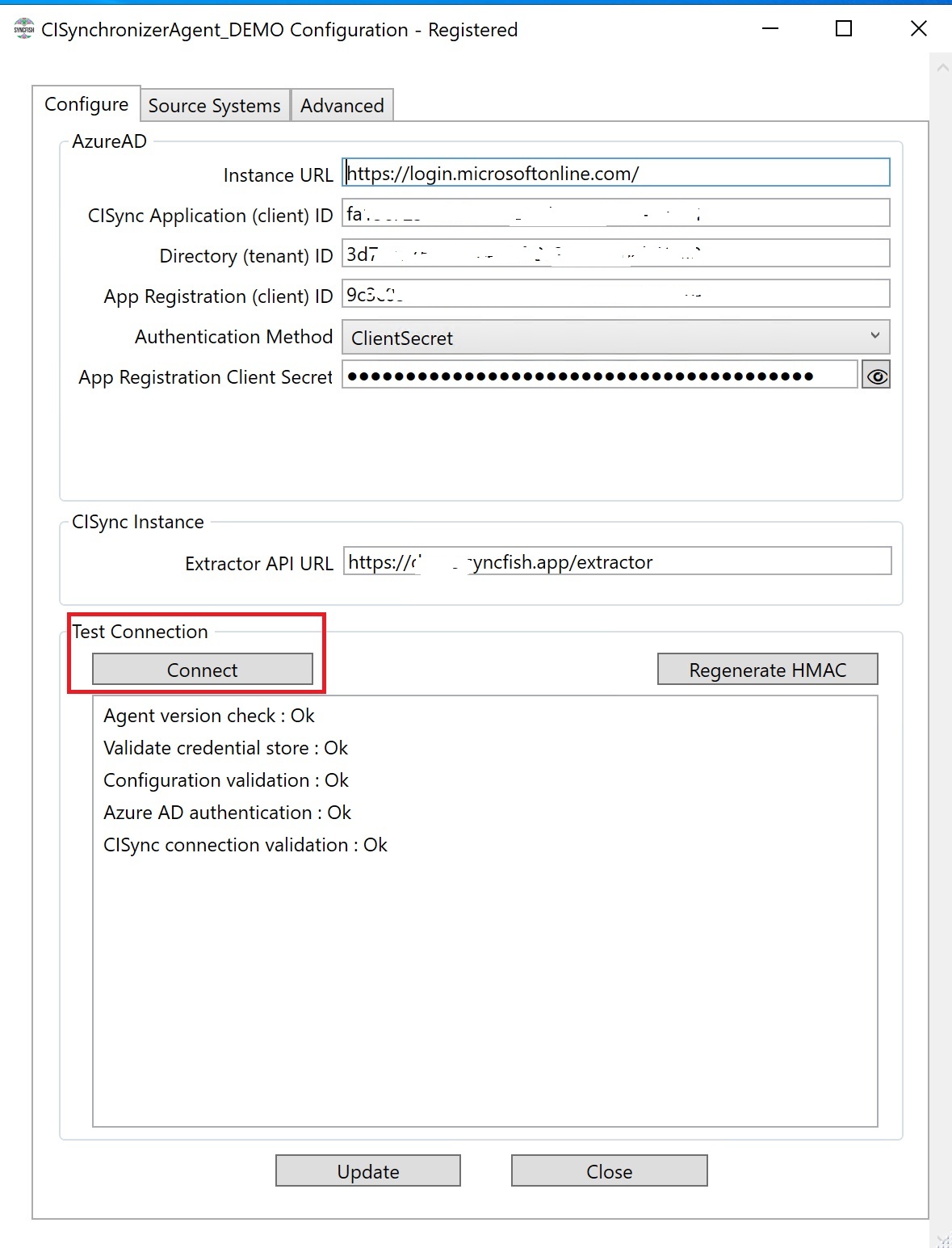
On the Configure tab Click the Connect button under the “Test Connection” heading.
-
Azure AD authentication: should now show Ok
Fix
Scenarios 2 & 3:
It is also possible the server may not be trusting the digital certificate that’s used by the CI Sync Agent when it attempts to establish an SSL session. If the Server is Linux, then this could be the cause of the SSL error in which case the server will need to be updated to ensure a Let’s Encrypt SSL cert is trusted.
Related Articles
There are currently no related articles.
Control Information
|
Created |
|
|---|---|
|
Reviewed |
|
|
Data Classification |
PUBLIC
|