
Error experienced
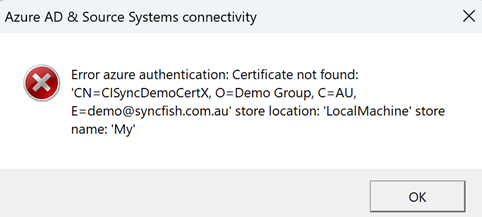
Error azure authentication: Certificate not found
Error verification
This error can occur if the Certificate Subject (sometimes referred to as the Certificate Name) contains carriage returns when stored in the Windows Certificate Store.
Cause
The CI Sync agent expects to read certificates from the Windows Certificate Store and uses the subject name of the certificate to find the certificate record. This error occurs when the CI Sync can’t locate the certificate in the Windows Certificate Store.
The Subject name of certificates typically include multiple values that compose the distinguished name information, such as common name, country, organization, etc.
When certificates have multiple values, the certificate Subject will typically include carriage returns when displayed in the Windows Certificate Store (see below).
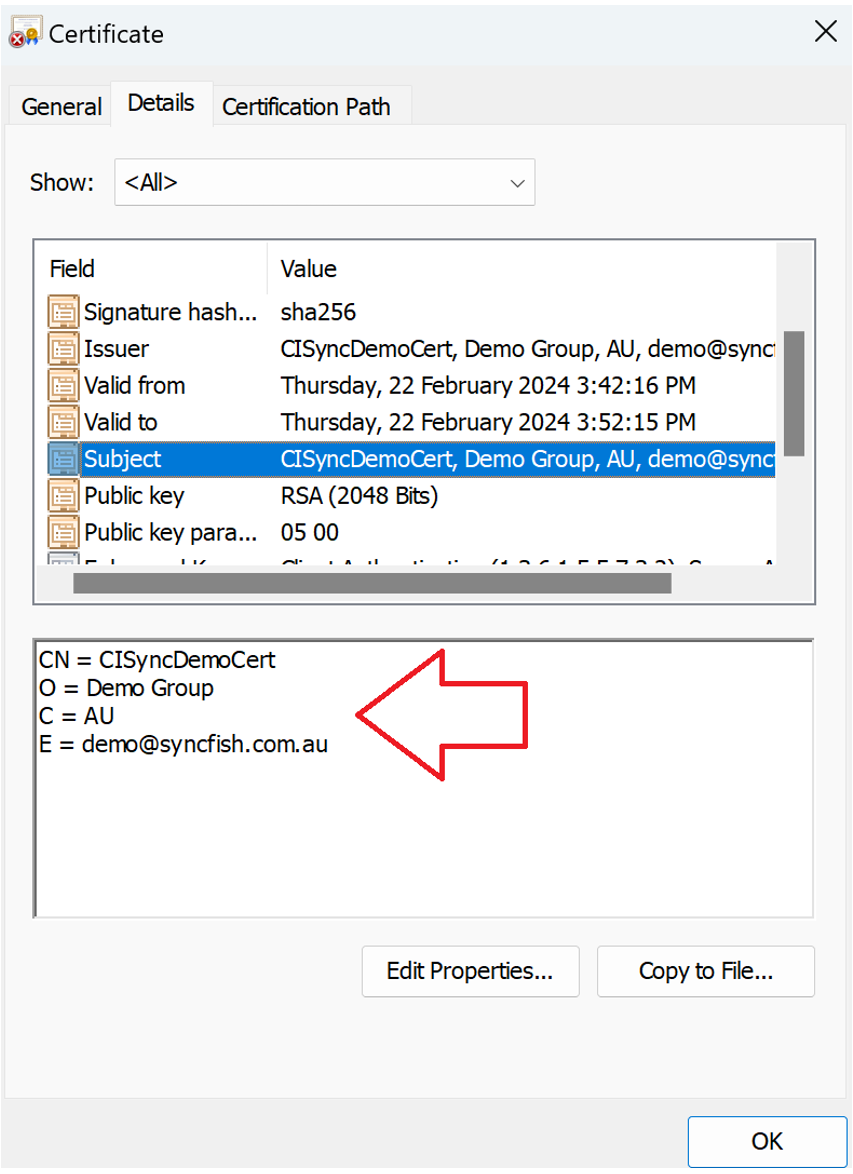
If the Subject name in the Windows Certificate Store includes carriage returns it impacts the way the CI Sync Config Utility is able to search and find the certificate using the Certificate Name you enter into the CI Sync Config Utility.
In these circumstances you will need to construct the certificate name in a particular manner when you enter it into the CI Sync Config Utility.
Fix
The individual values of the Subject (as they appear in the Windows Certificate Store) need to be converted into comma separated values and also have the blank spaces trimmed before and after the equal sign (as per the example below).
You then need to copy/paste the newly formatted string value into the Certificate Name field in the CI Sync Config Utility UI form and execute a Test Connection once again.
The example below shows how to construct the correct format:
-
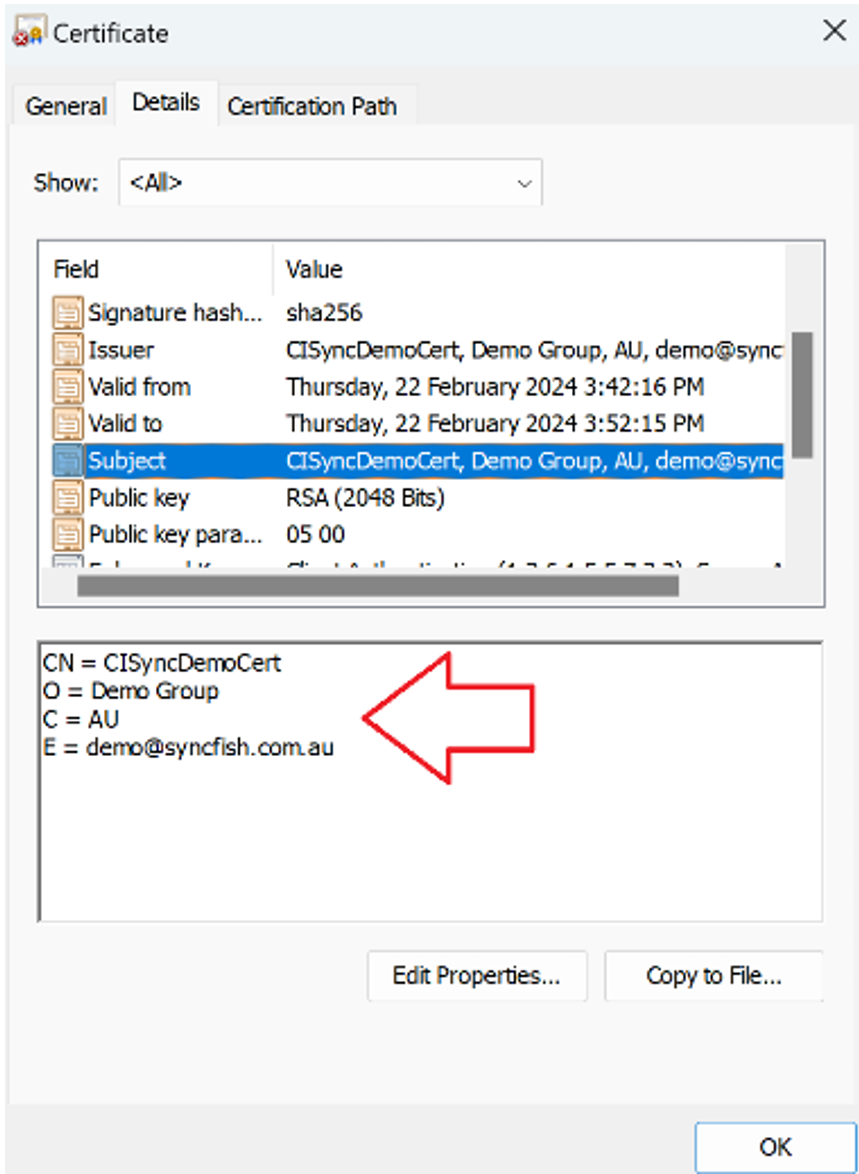
Locate the certificate in the Windows Certificate Store and click the Subject field.
-
Copy the content of the Subject field into text editor. It will appear (in the text editor) including carriage returns as shown below.
CN = CISyncDemoCert
O = Demo Group
C = AU
E = demo@syncfish.com.au
-
Edit the Subject string and change the format as shown below:
CN=CISyncDemoCert, O=Demo Group, C=AU, E=demo@syncfish.com.auImportant Notes:
→ The blank spaces must be removed before and after each equal sign.
→ A single space must be entered after each comma.
→ Make sure there is no trailing space at the very end of the string.
-
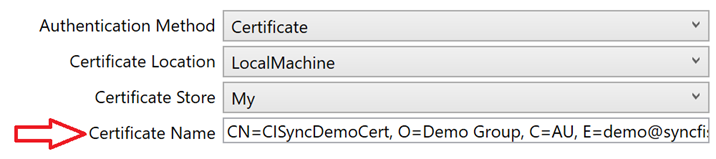
Return to the CI Sync Config Utility UI and paste the newly constructed string into the Certificate Name field as shown below.
-
Click the Connect button under the Test Connection section of the UI.
Related Articles
There are currently no related articles.
Control Information
|
Created |
|
|---|---|
|
Reviewed |
|
|
Data Classification |
PUBLIC
|