
Error experienced
RecVer schema version 3.x.x does not match expected 3.x.y.
Please run Setup & Test from the Agent configuration UI to upgrade to RecVer schema."
Error verification
No other error verification information is applicable.
Cause
This issue may occur due to a recent version of configuration was deployed that will have a dependency on a more recent RecVer database schema upgrade used by the CI Sync Agent.
Context
CI Sync utilises a SQL database to maintain record version information to facilitate delta synchronizations and in some cases, delete detection. From time to time the schema for this database may need to be upgraded when new functionality is required.
For RecVer versions < 3.1.0, schema upgrades were performed by the CI Sync config utility when the user clicks the Setup & Test button.
From version 3.1.0 onwards, schema upgrades are performed within a pre-flight step that is executed at the beginning of the job.
Once the CI Sync upgrade reached 3.1.0, the Config Utility automatically sets the “Bypass setup, I have manually setup the databases” to avoid unnecessary schema checks within the Setup & Test process. However, should this checkbox be unticked, the schema checks should pass automatically and report “RecVer Schema Version is 3.1.x: Ok”.
Fix
The CI Sync Agent Config Utility automatically checks the recVer database schema and upgrades it to meet the latest version when running the Setup & Test operation for a source system connection.
Select one of the options below to upgrade the RecVer schema.
Option 1 - Using CI Sync Agent - with your Windows account
If your own Windows account is granted SA on the SQL Server:
-
From the Windows Server hosting the CI Sync Agent, open the CI Sync Agent Config Utility.
-
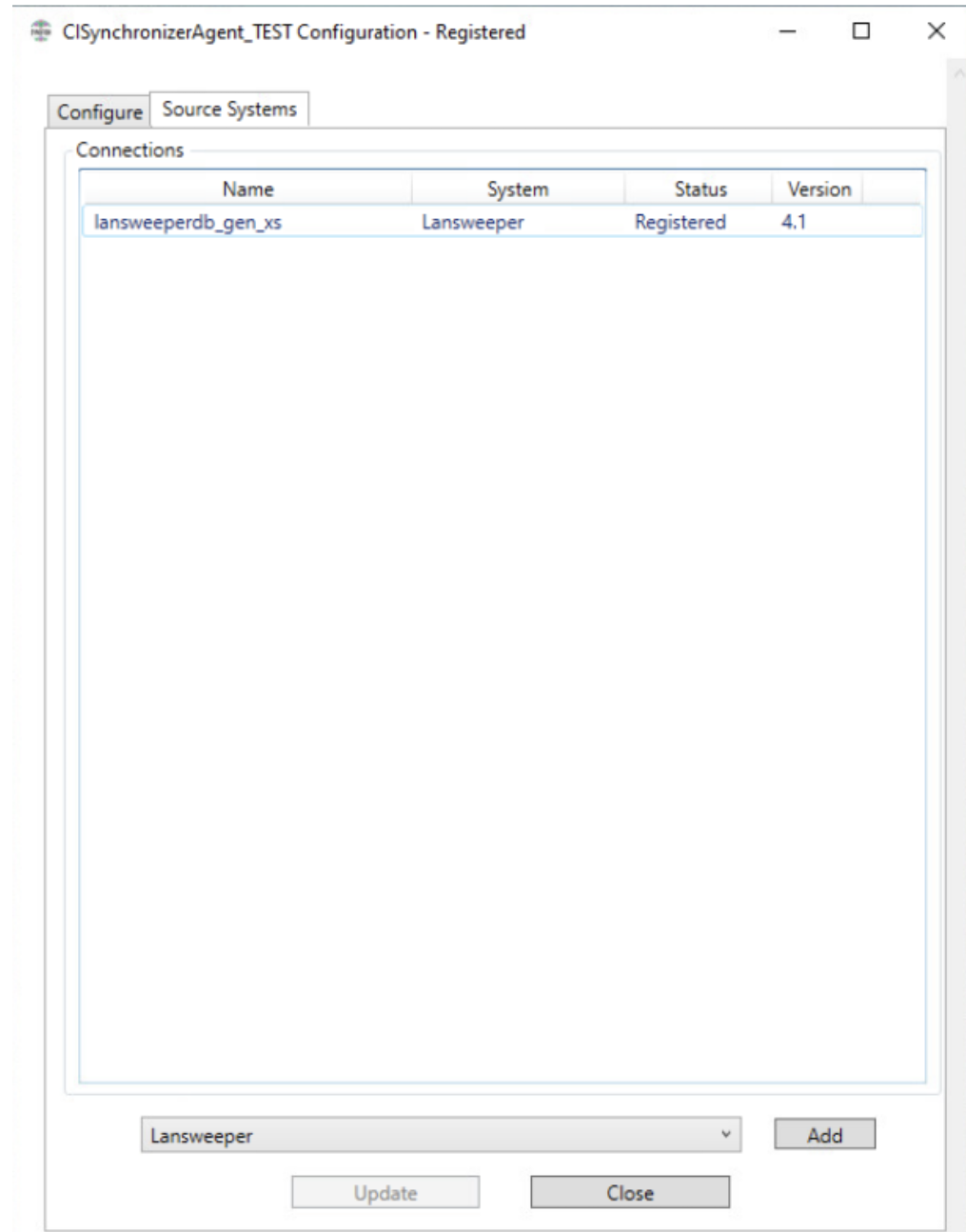
Locate the Connection record in the Connections list on the “Source Systems” tab, and double-click on the connection to be upgraded:
-
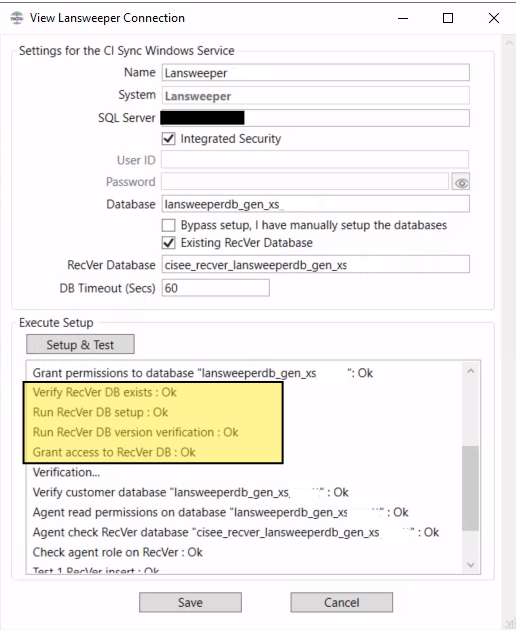
From the connection details screen, click the Setup & Test button
Note:
In most cases, you need to have “Bypass setup” unchecked.
Only when your RecVer has been setup with specific permissions
should the Bypass option be checked.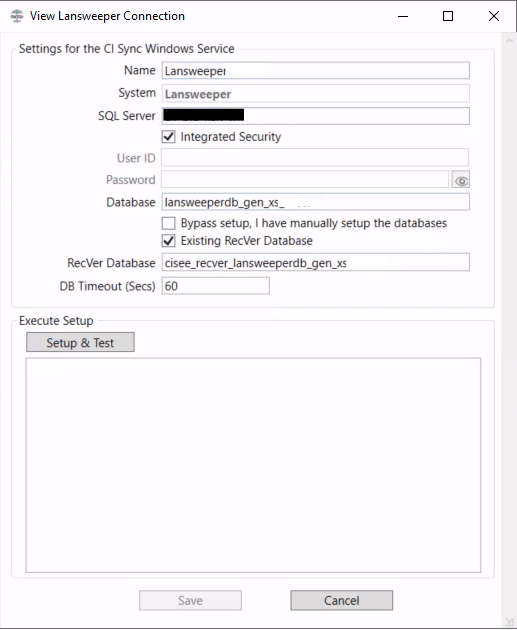
-
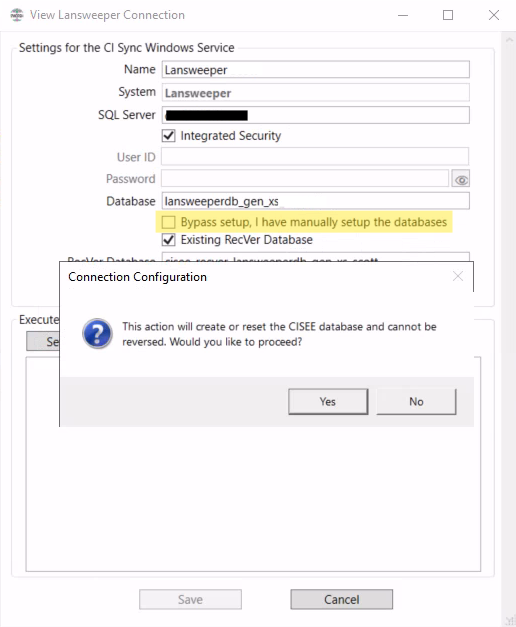
Confirm by clicking Yes
-
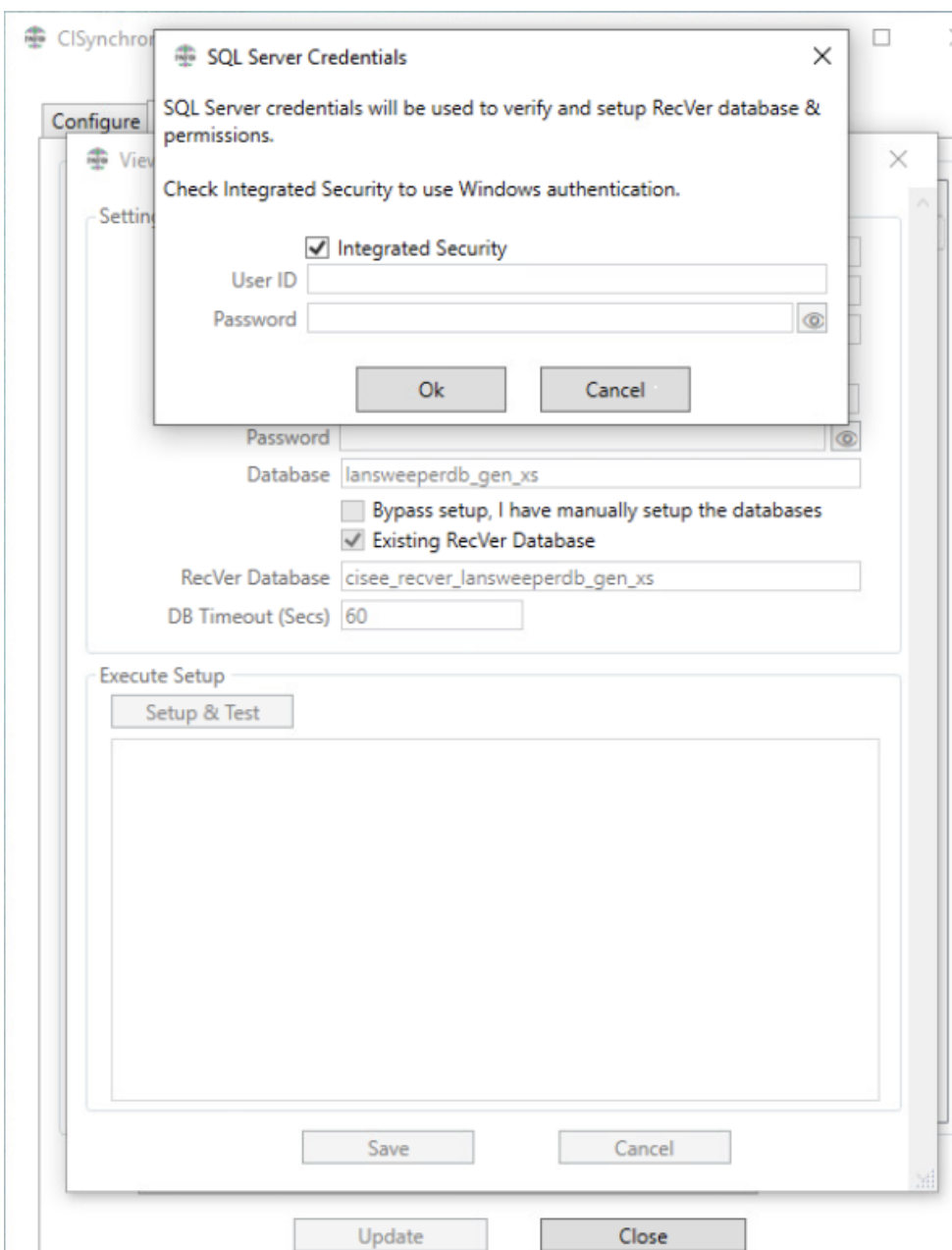
Provide authentication credentials for SQL Setup. If your account has the SQL Server dbo role, you can use Integrated Security. Otherwise, uncheck the checkbox and enter native SQL login credentials that has the dbo role.
-
The upgrade should complete with the Tests output messages in the text area control displaying a status of Ok.
-
The recVer schema updates will have been applied successfully.
Option 2 - DBA manual upgrade via SQL Server Management Studio (SSMS)
Have your Team DBA execute the following steps:
-
Download the SQL script from:
https://sfcisynceedownloads.blob.core.windows.net/setup/cisee-recver-upgrade-script-3.1.1.sql -
Load the SQL script into SSMS
-
Replace "$(recver_database_name)" with "cisee_recver_lansweeperdb"
-
Execute the Script
-
The script should execute successfully and the recVer database should be upgraded.
Related Articles
There are currently no related articles.
Control Information
|
Created |
|
|---|---|
|
Reviewed |
|
|
Data Classification |
PUBLIC
|