
Error experienced
"error": "Agent:SQLserver01 Version:x-cise-agent-ver/2.2.0.0 Error:A network-related or instance-specific error occurred while establishing a connection to SQL Server. The server was not found or was not accessible. Verify that the instance name is correct and that SQL Server is configured to allow remote connections. (provider: SQL Network Interfaces, error: 26 - Error Locating Server/Instance Specified)"
Error verification
No other error verification information is applicable.
Cause
This error can be caused by any of the below occurring.
-
Permissions modification of the account used to run the CI Sync (EE) Agent service in SQL.
-
Removal of the account used to run the CI Sync (EE) Agent service in SQL.
Fix
Database Permissions
-
Obtain the user account running the CI Sync (EE) Service on the Lansweeper server.
-
Login to the SQL server hosting the CI Sync (EE) database and the lansweeper database
-
Open SQL Server Management Studio
-
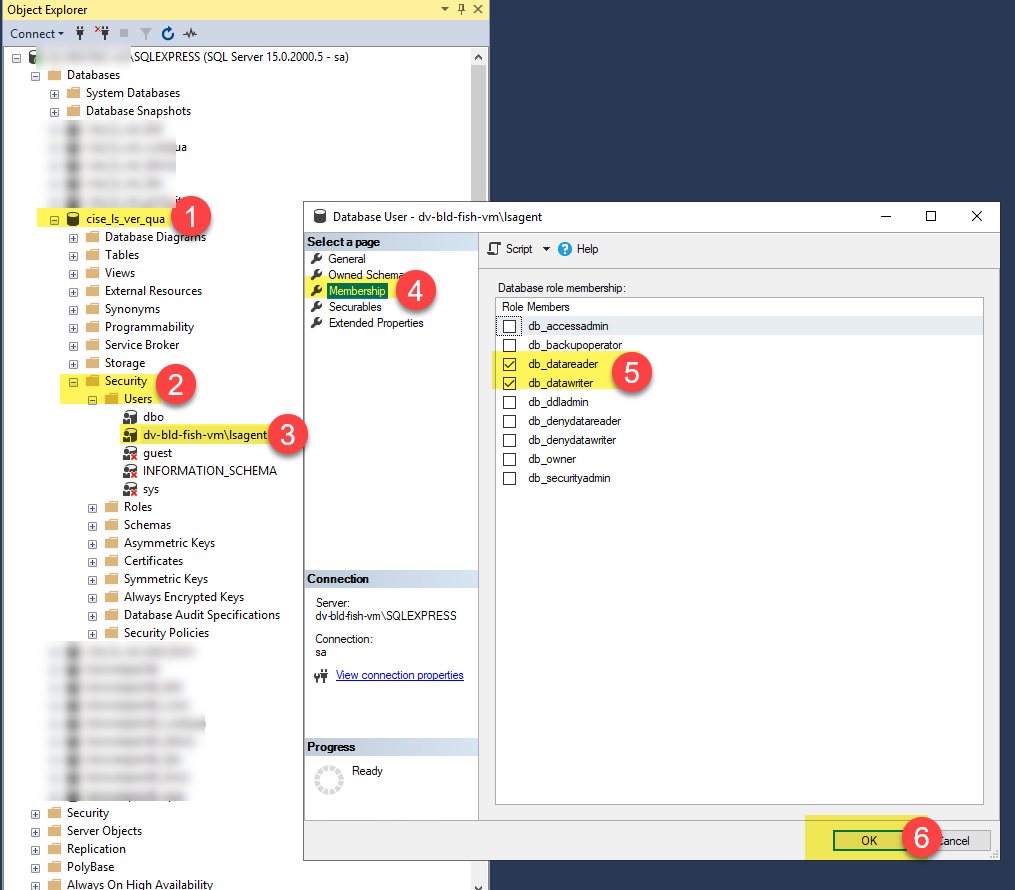
Expand the cise_ls_ver database > Security > Users and ensure the account running the CI Sync (EE) service on the Lansweeper server has access to this database.
-
Ensure that account under membership has the db_datareader and db_datawriter for the cise_ls_ver database
-
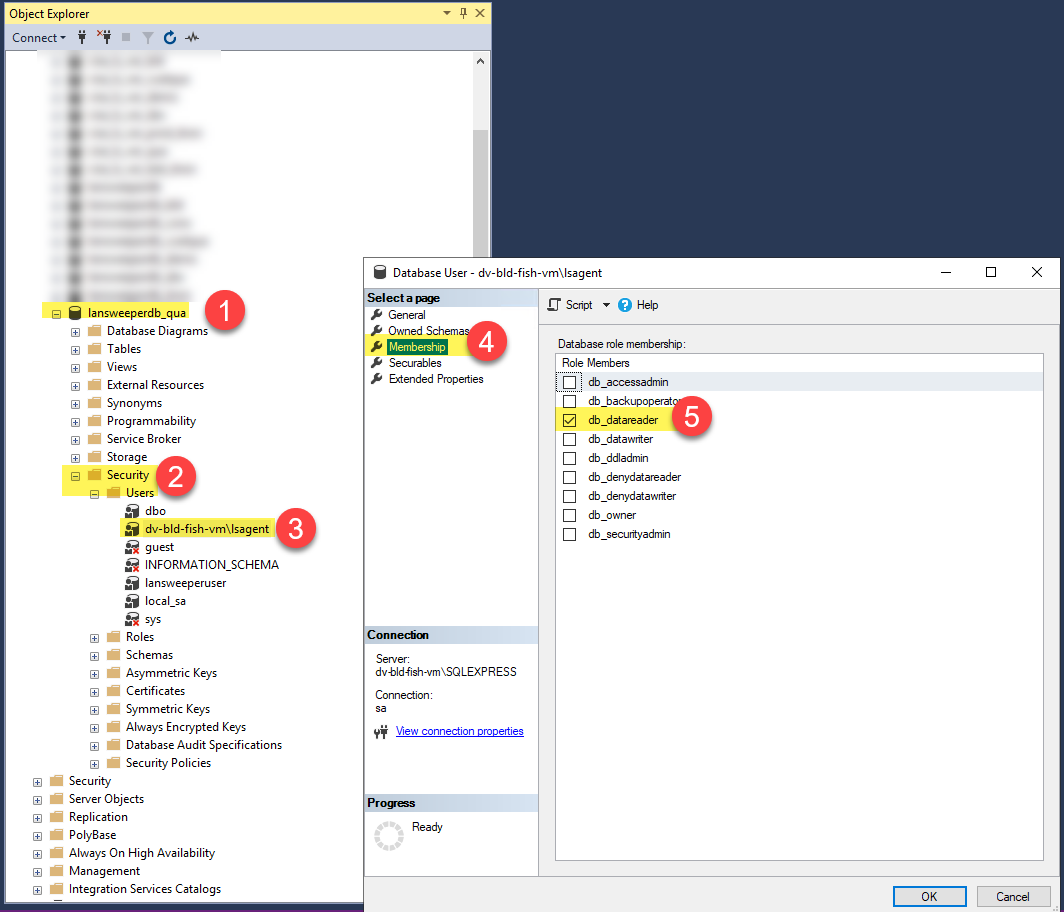
Ensure that account under membership has the db_datareader for the lansweeperdb database
-
On the Lansweeper server restart the CI Sync (EE) service.
-
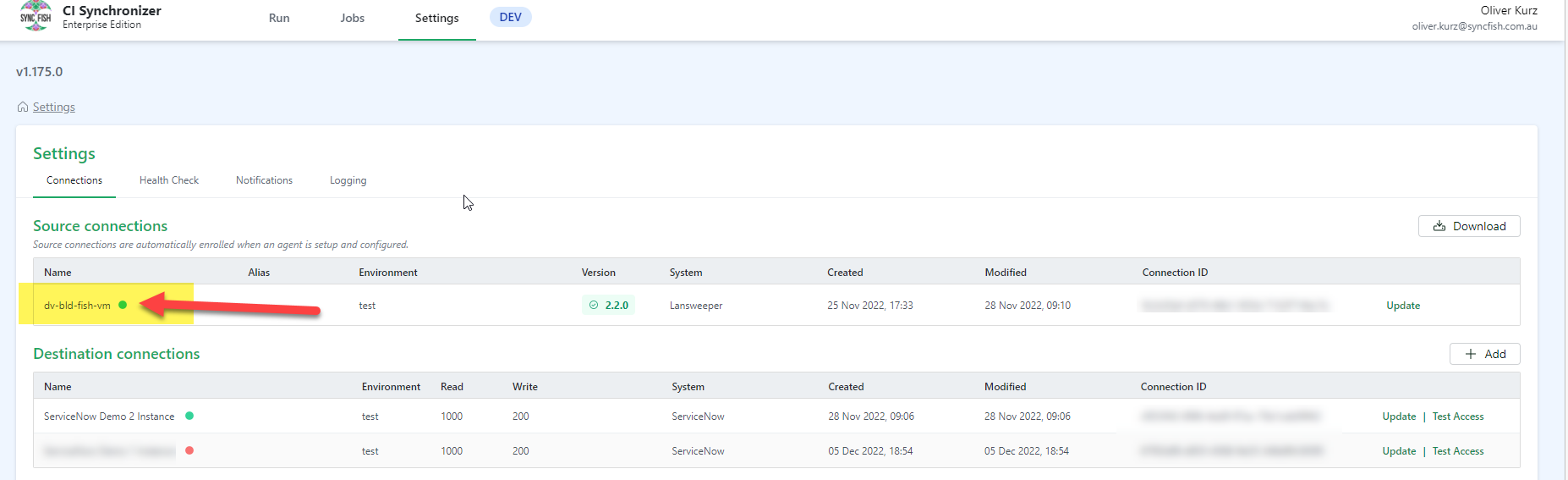
Login to the CI Sync Web UI and go to Settings and check the Source Server is OK
-
Perform a Sync to confirm CI Sync (EE) is performing correctly again.
Database Port
-
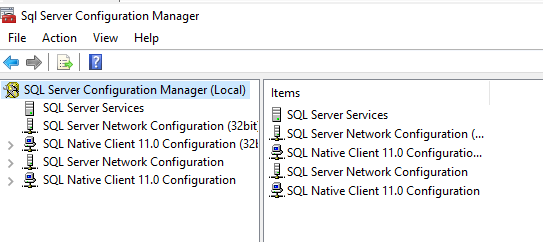
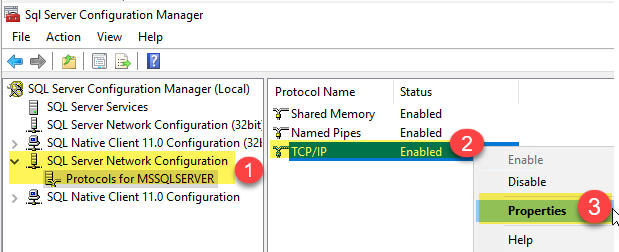
Login to SQL Server and open Sql Server Configuration Manager
-
Expand SQL Server Network Configuration > TCP/IP and right click and choose Properties
-
Click on IP Addresses tab and confirm the TCP Port being used.
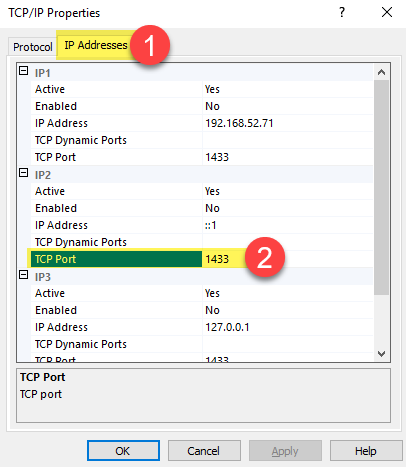
If the port has been changed from the default of 1433 the new port will need to be reflected in the appsettings.json
-
Logon to the Server hosting CI Sync (EE) and go to the folder hosting the agent such as C:\Program Files\CISyncAgentLansweeperPROD\ then open appsettings.json
-
If the default SQL port has changed please add the entry <SQLserver,port> to the “Server” section of the file as per below as an example.

-
Save the appsettings.json file and then restart the CI Sync (EE) Windows service
-
Check the C:\Program Files\CISyncAgentLansweeperPROD\Logs folder and most recent file for any errors
-
Perform a Sync to confirm the instance is all OK
Related Articles
There are currently no related articles.
Control Information
|
Created |
|
|---|---|
|
Reviewed |
|
|
Data Classification |
PUBLIC
|