
Aim
The CI Sync Agent is a Windows Service that uses a SQL Server engine to track Assets that need to sync via CI Sync. Various SQL based source systems also leverage a SQL Server Database (e.g. The Lansweeper and SCCM Source Connectors).
This article guides the user on how to setup a Rebuild Index Maintenance plan on SQL Server to maximise performance via minimising index fragmentation.
Process
Important Note
Some versions of SQL Server SSMS 21 did not support Maintenance Plans - see the blog post below on how to address this.
Announcing the release of SQL Server Management Studio (SSMS) 21.2.5 | Microsoft Community Hub
This guide assumes:
-
SQL Server Management Studio (SSMS) is installed and setup
-
SSMS is running on the same server as the RecVer and Lansweeper databases
Step 1 - Setup a Rebuild Index Maintenance Plan
The scope of the maintenance plan should include the following:
-
The CI Sync RecVer DB and
-
Any other SQL based source systems being used by CI Sync (e.g. Lansweeper or SCCM)
-
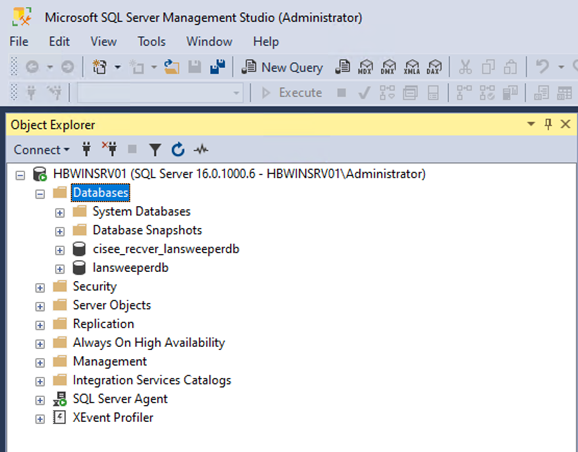
Login to SQL Server and open SQL Server Management Studio and expand Databases
-
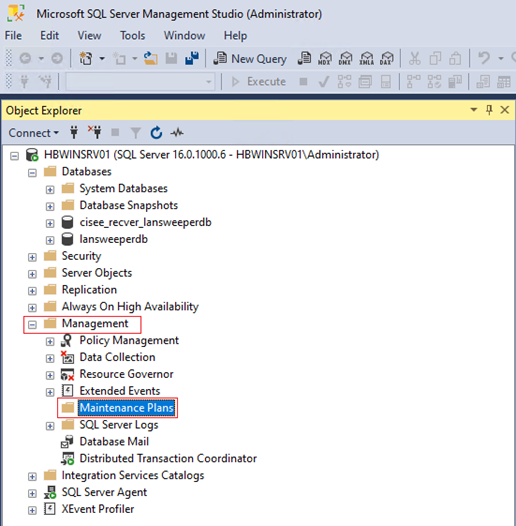
Expand Management then click on Maintenance Plans
-
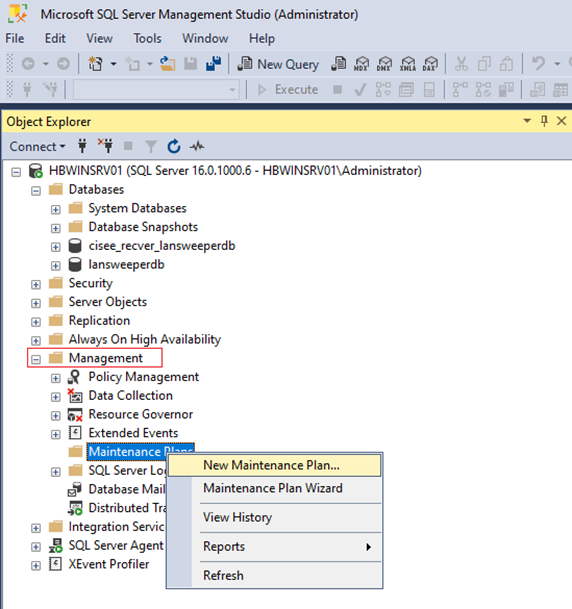
Right click on Maintenance Plans and click New Maintenance Plan
-
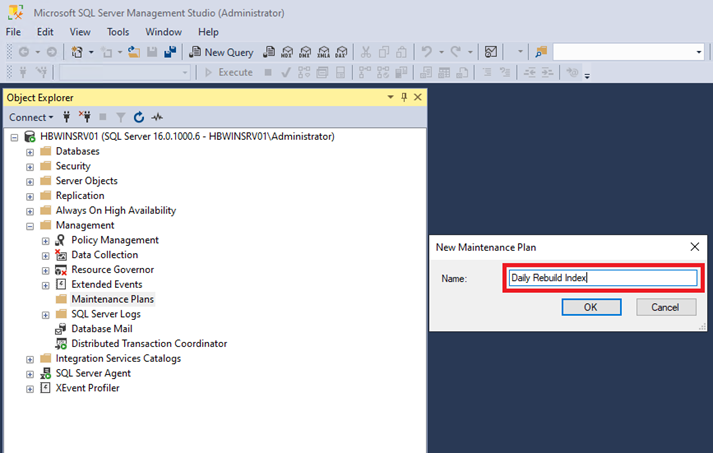
Name the plan Daily Rebuild Index or similar and click OK.
-
On the left of SQL click on Toolbox and expand Maintenance Plan Tasks
Note: If you cannot see Toolbox then on the SQL menu click View then Toolbox.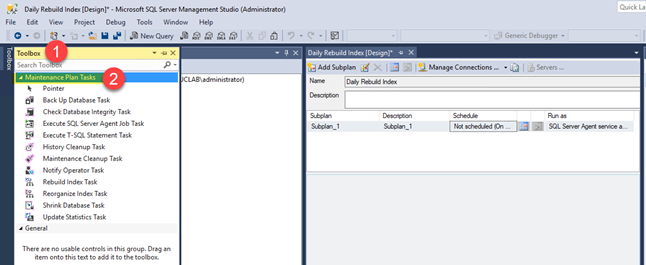
-
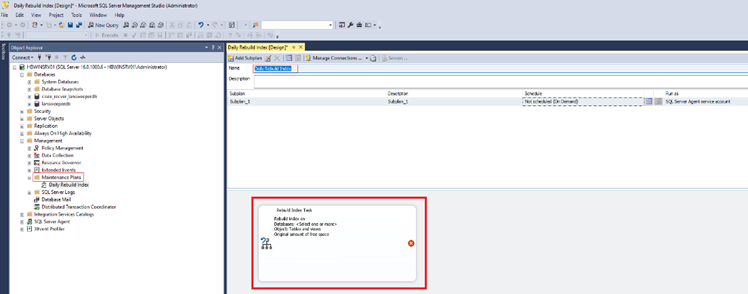
Click on Rebuild Index Task and drag it to the new plan
-
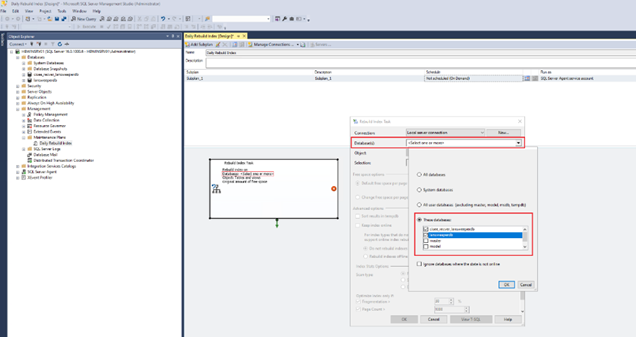
Double Click on the Rebuild Index Task then:
-
Drop down Databases
-
Select the RecVer database
-
If using Lansweeper, Syncfish recommend you also select the lansweeperdb database
-
If using SCCM, Syncfish recommend you also select the sccm database
-
-
Click OK
-
Then again click OK
-
-
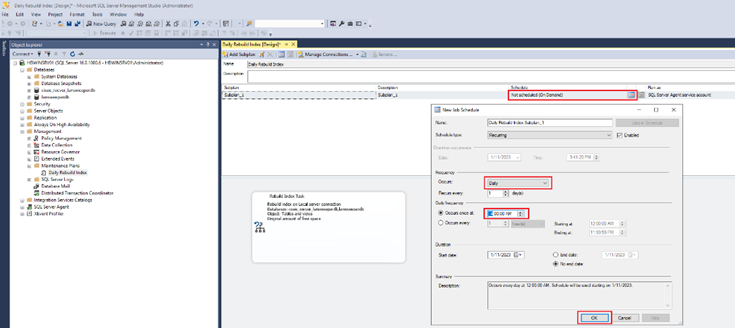
Click on the Schedule and set to Daily and chose a Time of Day to run the job. Then click OK
Choose a time that does not clash with Backups and other tasks scheduled on SQL Server.
-
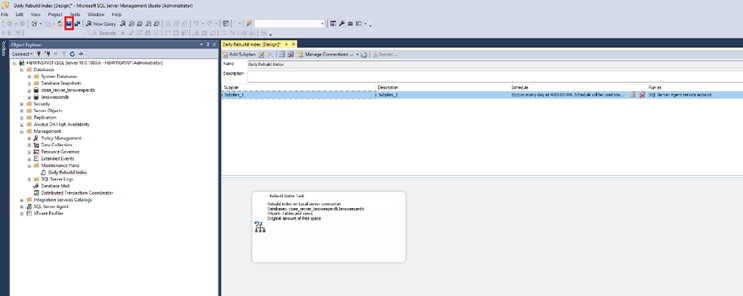
Click Save. The maintenance plan has been setup.
Step 2 - Setup a Refresh Statistics Maintenance Plan
The scope of the maintenance plan should include the following:
-
The CI Sync RecVer DB and
-
Any other SQL based source systems being used by CI Sync (e.g. Lansweeper or SCCM)
-
Login to SQL Server and open SQL Server Management Studio and expand Databases
-
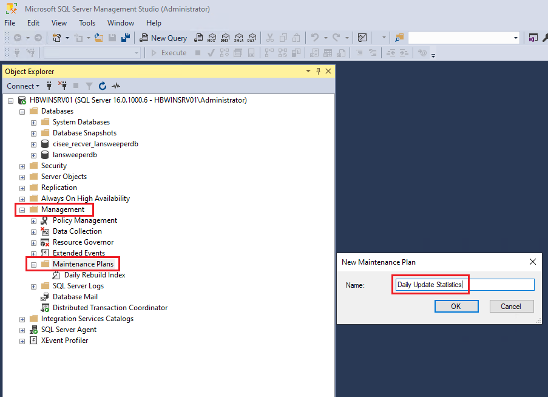
Expand Management then click on Maintenance Plans
-
Right click on Maintenance Plans and click New Maintenance Plan
-
Name the plan Daily Update Statistics or similar and click OK.
-
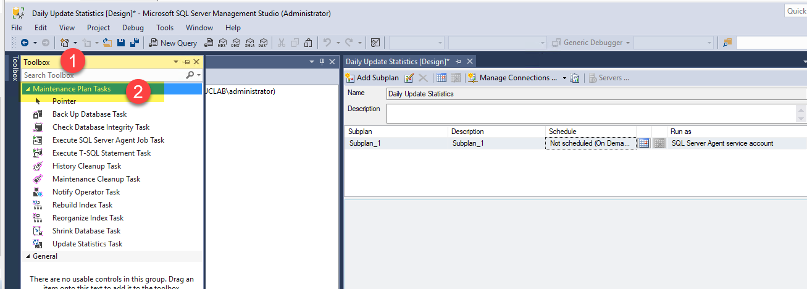
On the left of SQL click on Toolbox and expand Maintenance Plan Tasks
Note: If you cannot see Toolbox then on the SQL menu click View then Toolbox.
-
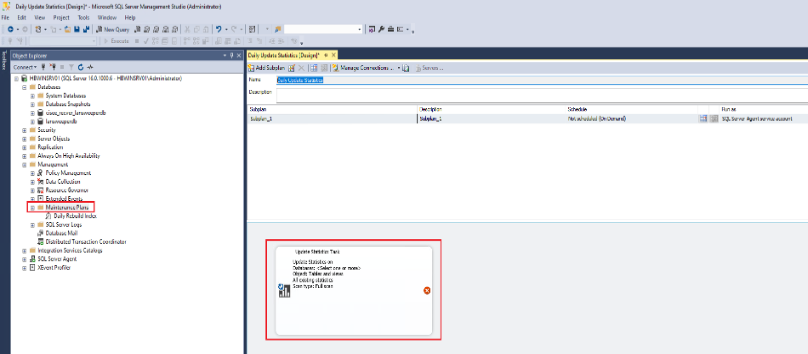
Click on Update Statistics Task and drag it to the new plan
-
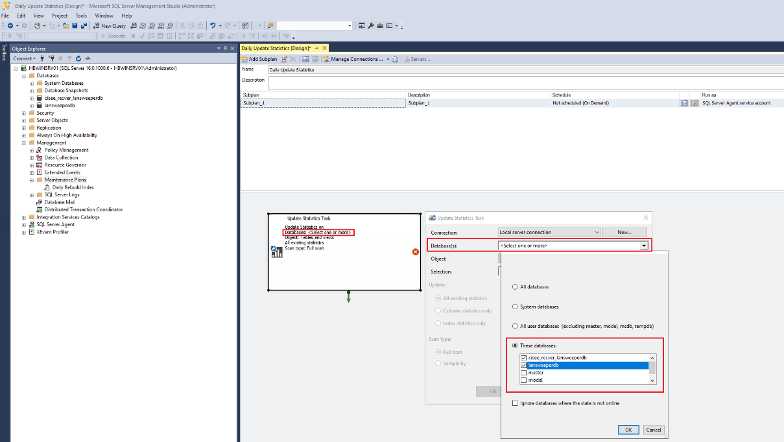
Double Click on the Update Statistics Task then:
-
Drop down Databases
-
Select the RecVer database
-
If using Lansweeper, Syncfish recommend you also select the lansweeperdb database
-
If using SCCM, Syncfish recommend you also select the sccm database
-
-
Click OK
-
Then again click OK
-
-
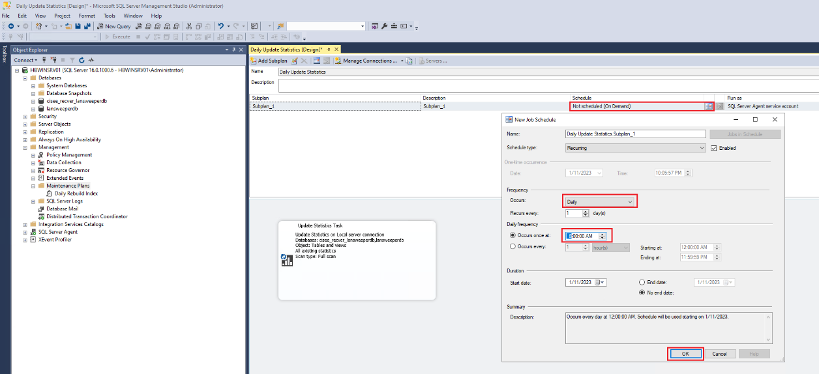
Click on the Schedule and set to Daily and chose a Time of Day to run the job. Then click OK
Choose a time that does not clash with Backups and other tasks scheduled on SQL Server.
-
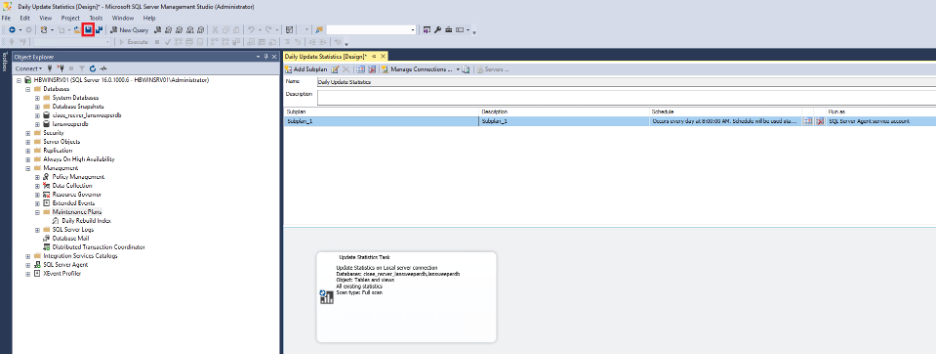
Click Save. The maintenance plan has been setup.
-
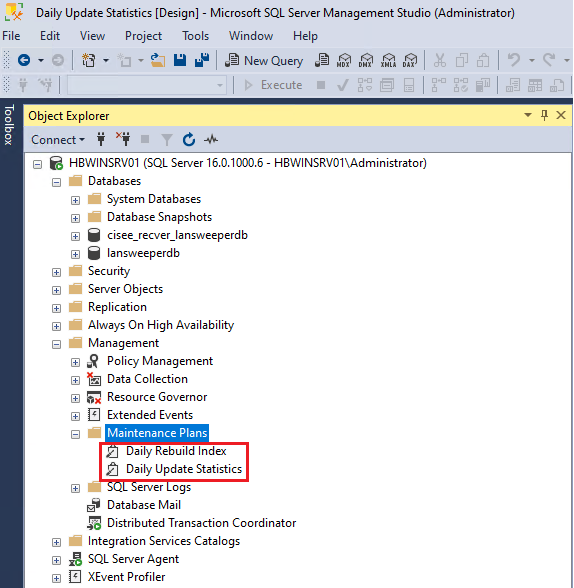
Refresh the Maintenance Plans and expand to confirm the new job appears in the list (i.e. the new job has been created)
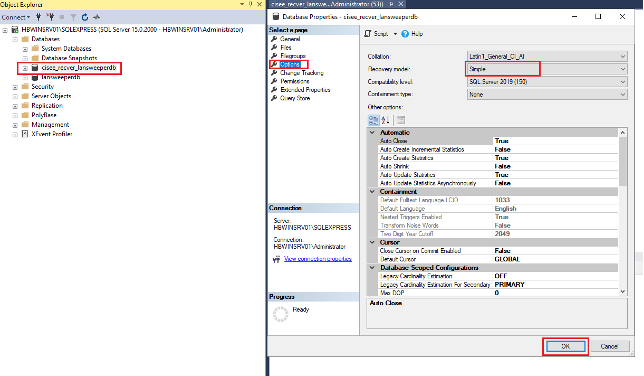
Step 3 - Confirm the CI Sync RecVer Database is in Simple Recovery Mode
Simple recovery mode prevents the creation of transaction log files which could impact disk space over time.
-
Login to SQL Server and open SQL Server Management Studio and expand Databases, then
-
Right-click on the CI Sync RecVer database (named accordingly when it was created as part of setting up a Source System Connection during Step 5) and select Properties.
-
Click the Options page
-
Check the Recover Mode of the RecVer database and make sure it’s set to Simple as the Recovery Mode (if it isn’t then set to “Simple”)
-
Click OK
-
Step 4 - Validate the Maintenance Plan is effective
The final step is to validate the Maintenance Plan does its job.
-
Does the Maintenance Plan effective rebuild and defrag indexes effectively?
Validate that indexes on the Lansweeper and CI Sync Rec Ver DBs do not exhibit a high level of index fragmentation. You should aim for 50% fragmentation or less as a good target. If fragmentation still remains over 50%, especially on the tables with many records, review the Maintenance Plan. -
Does the Maintenance Plan update database statistics?
Run some checks after maintenance plan execution to verify this. Some example detection scripts are below to identify fragmentation and statistics freshness.
Other Suggestions for SQL Database Health
Your SQL DBA may want to consider the following additional jobs.
-
MSDB history clean-up
-
Database integrity checks
-
Job report file clean-up (i.e. a purge of report files created by the job)
See also:
Related Articles
There are currently no related articles.
Control Information
|
Created |
|
|---|---|
|
Reviewed |
|
|
Data Classification |
PUBLIC
|