
Aim
This KB has two aims:
-
To explain the difference between your TEST version of CI Sync Rules/Configuration vs your PROD version of the CI Sync Rules/Configuration.
-
To explain how you as the customer can promote your TEST Rules/Configuration to your PROD Rules/Configuration within the CI Sync Web UI.
Context
Each CI Sync instance has two sets of rules/configuration:
-
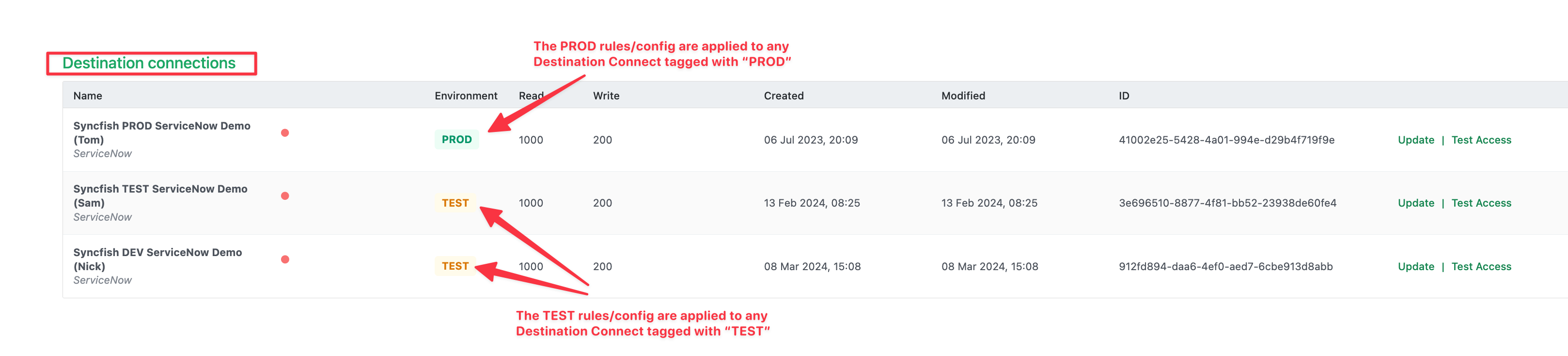
One set of rules/config exist against those destination connections tagged as “TEST”.
-
A second set of rules/config exist against those destination connections tagged as “PROD”.
This screen shot shows how the PROD vs TEST destination connections are tagged, and therefore how two sets of rules/config are applied behind the scenes.
Having two sets of rules/config supports you or Syncfish to make changes to the rules/config in a non-production context first so you can run test sync jobs to prove the rules/config is working as expected.
After testing the rules/config in a non-production/TEST context, the rules can be promoted to the production context by applying the rules/config to your PROD destination.
In most cases customers can self-promote the rules/config between your TEST and PROD destination connections. In some cases Syncfish assistance may be required to manage the promotion. In the latter case the CI Sync Web UI will make this clear.
The process section below explains how customers use the CI Sync Web UI to promote between TEST and PROD.
Process
Important Note
When promoting changes, the entire set of test rules/config will promote to production.
There is no ability to selectively promote items from TEST to PRODUCTION.
It is a recommended best practice to test & promote often so that:
-
You benefit from changes or fixes in Production as soon as possible
-
Any testing efforts are focused and simpler to execute
-
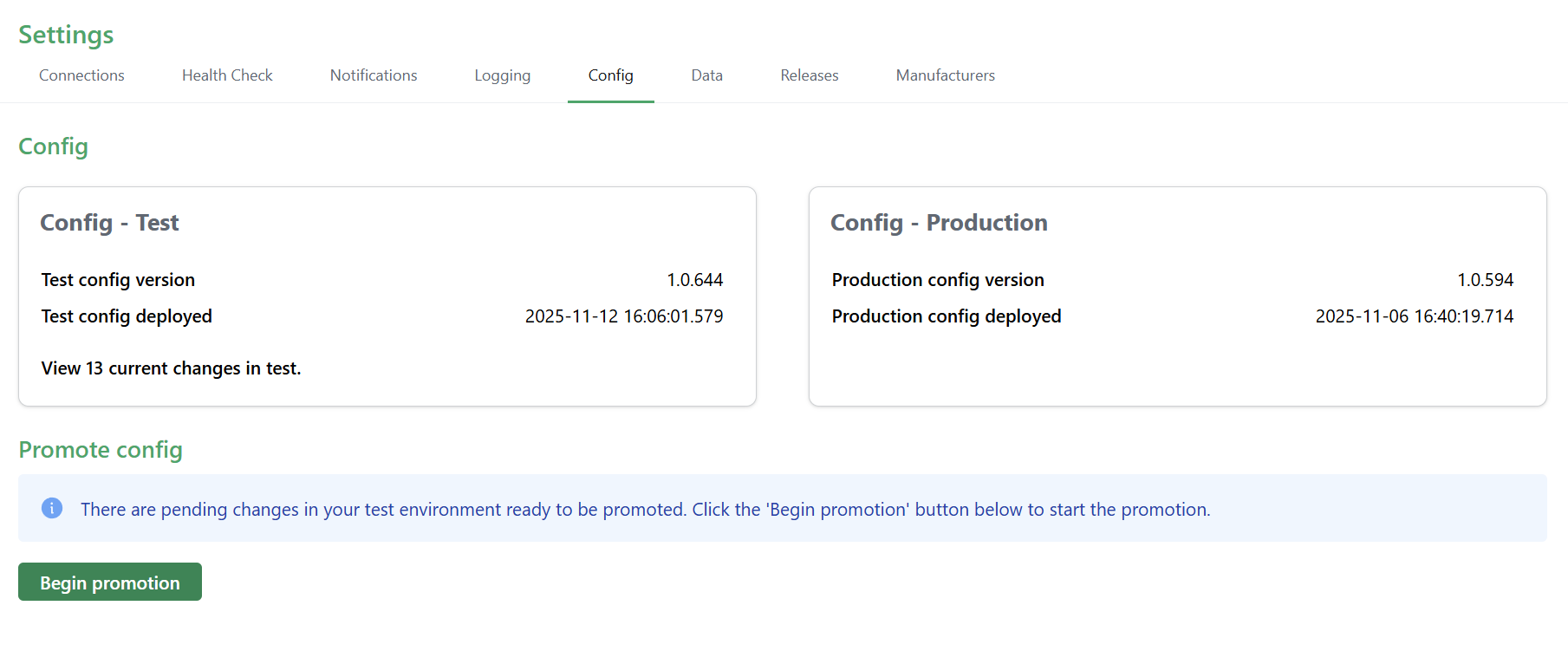
Within your CI Sync instance, navigate to the Settings | Config page.
-
Notice your Test config version number and date/time of deployment, compared with your Production config version number and date/time of deployment.
-
If the Test and Production versions are the same, there is nothing to promote (i.e. no further action is required). The Promote config button will be disabled in this case.
-
If the Test and Production version are different, and if you have completed testing in test and are indeed ready to apply the test config to prod, then under the Promote Config section, click the Begin Promotion button.
-
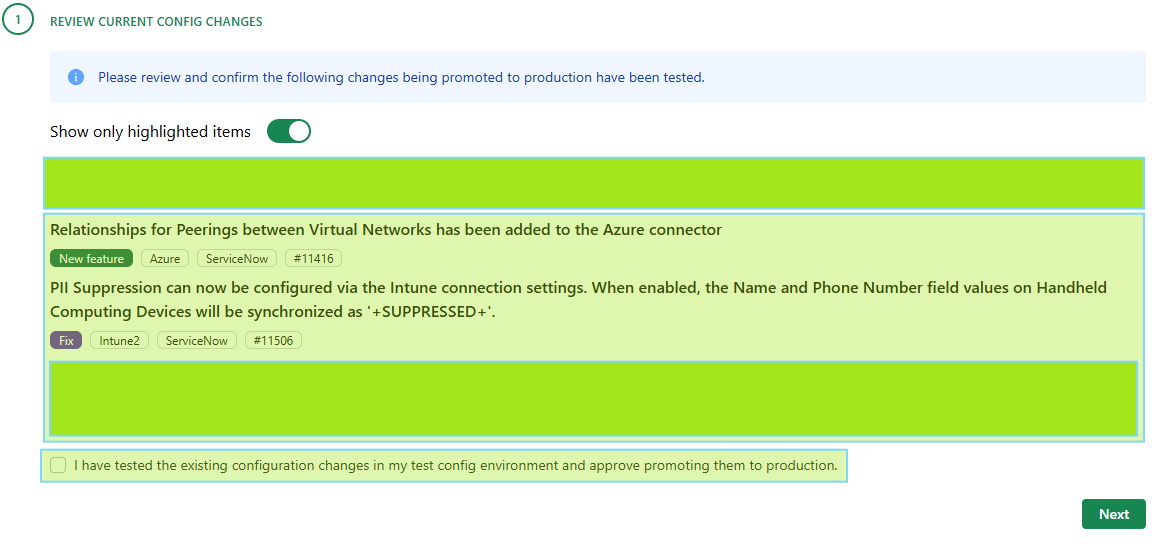
The Review Current Config Changes step is displayed where items in the TEST environment are displayed with an explanation, whether a feature or fix, the applicable Source and Destination Connectors for the item and a Syncfish reference number.
Note: The items listed may be Connector-specific changes commonly available or customer-specific items - you will only see common and items relating to your instance.
Review the items confirming you have tested that functionality and once complete, check the confirmation checkbox. Then click Next.
-
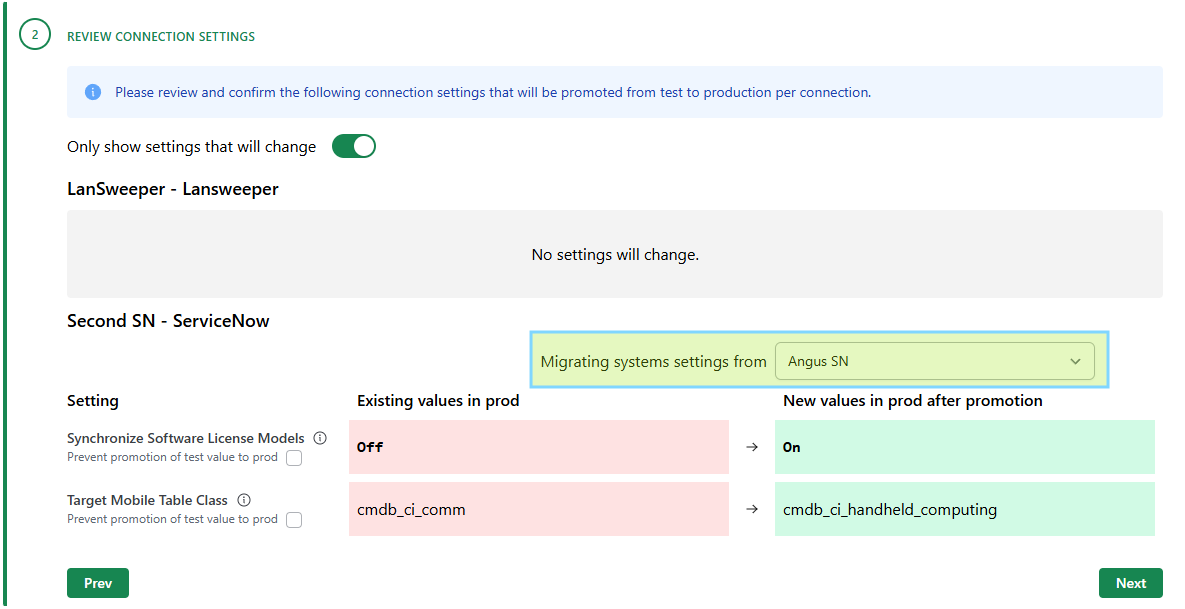
The Review Connection Settings step allows you to review Connection Settings that exist on either the Source Connection or the Destination Connection.
Particularly with the Destination Connection (typically ServiceNow) if there are more than one sub-prod ServiceNow Connections that exist - a comparison can be made between the Test Connection and the Production Connection using the “Migrating systems settings from” pick list. Pick the Test ServiceNow Connection you have been using for testing.
Any differences between the Connections will be highlighted - showing the values in Production currently in red and what system settings will change in green.
-
For any system settings that should not promote from TEST to PROD, you can check the “Prevent promotion of test value to prod” option. This will prevent the test setting value promoting to the production environment.

-
Once all the items have been tested and the system settings reviewed and accepted, final confirmation is sought. Check the box and click Promote.

-
Your settings will then be promoted from TEST to Production if possible.
If a Syncfish-assisted promotion is required, your Promotion Approval is flagged as a result of executing the wizard and a flag will be set for the Support Team to promote your changes and a link to the Syncfish Support Desk is provided to expedite this if you wish.
This scenario is illustrated below.-20251114-073350.png?cb=6209943cec1cf9cd00f182a16e7e83c5)
Related Articles
There are currently no related articles.
Control Information
|
Created |
|
|---|---|
|
Reviewed |
|
|
Data Classification |
PUBLIC
|