
Aim
Enable Meta-data logging in CI Sync to reconcile what was read from the source system and written into ServiceNow
Process
This article helps the reader to understand the tools available to dive into the metadata that can be captured for Assets when performing CI Sync jobs. Metadata covers both the asset attributes from the Source system and the Target systems.
Enable metadata logging within CI Sync
-
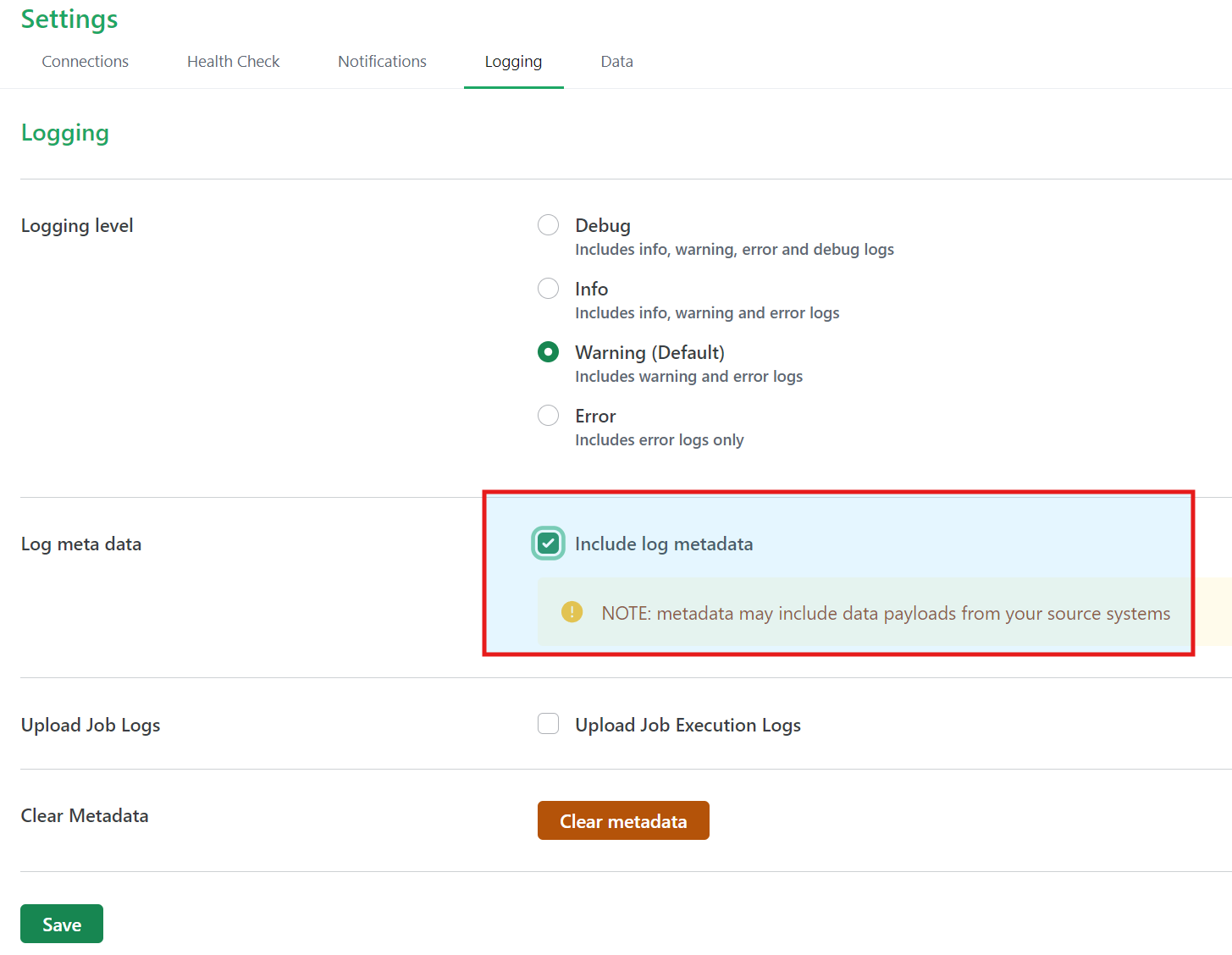
Within your CI Sync instance, navigate to the Settings | Logging page.
-
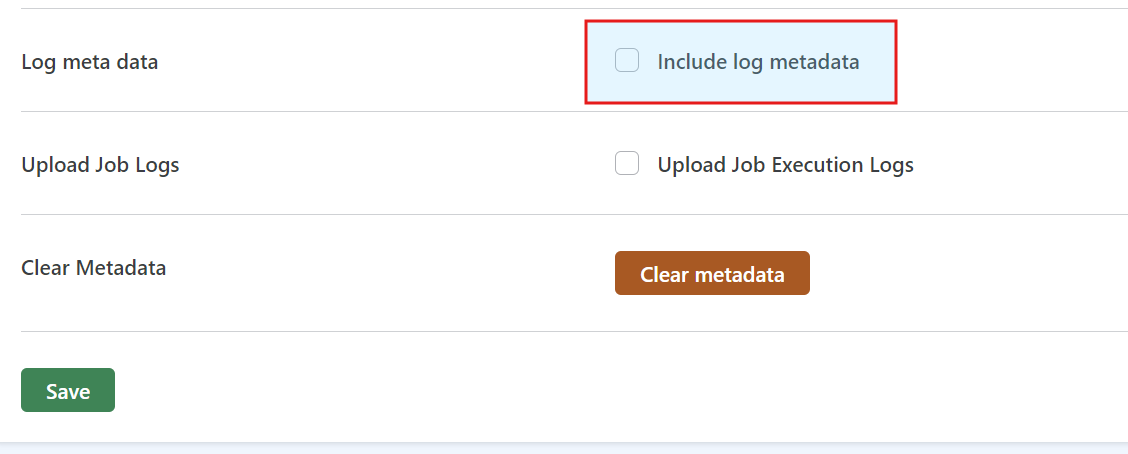
Locate and check the Include log metadata option.
-
Click Save to apply your changes.
Be aware metadata may include data payloads from your source systems.
Execute a CI Sync Job
Once metadata logging has been enabled, any subsequent CI Sync Jobs triggered, either manually executed or scheduled, will capture metadata. There is no additional configuration or execution parameters on Jobs that need to be set. Just run CI Sync Jobs per your normal method.
Once metadata is enabled, only certain Tasks in a CI Sync Job will capture additional metadata.
-
Tasks that fetch or remove Search Keys for Assets in ServiceNow WILL NOT include metadata.
-
Tasks that fetch Asset data from the Source Connection WILL include metadata, if the capture of metadata has been enabled (as per this KB).
Understanding the Incoming Payload to CI Sync
The Incoming Payload for a given Asset in CI Sync is the asset information detail that CI Sync will transform into a suitable format when inserting that Asset into the Target destination.
To view the incoming payload metadata for any given Asset
-
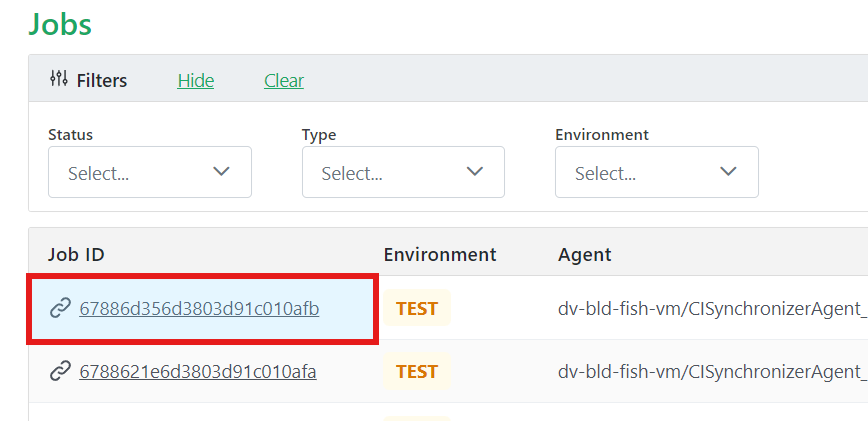
Navigate and click into the Job to investigate in more detail.
-
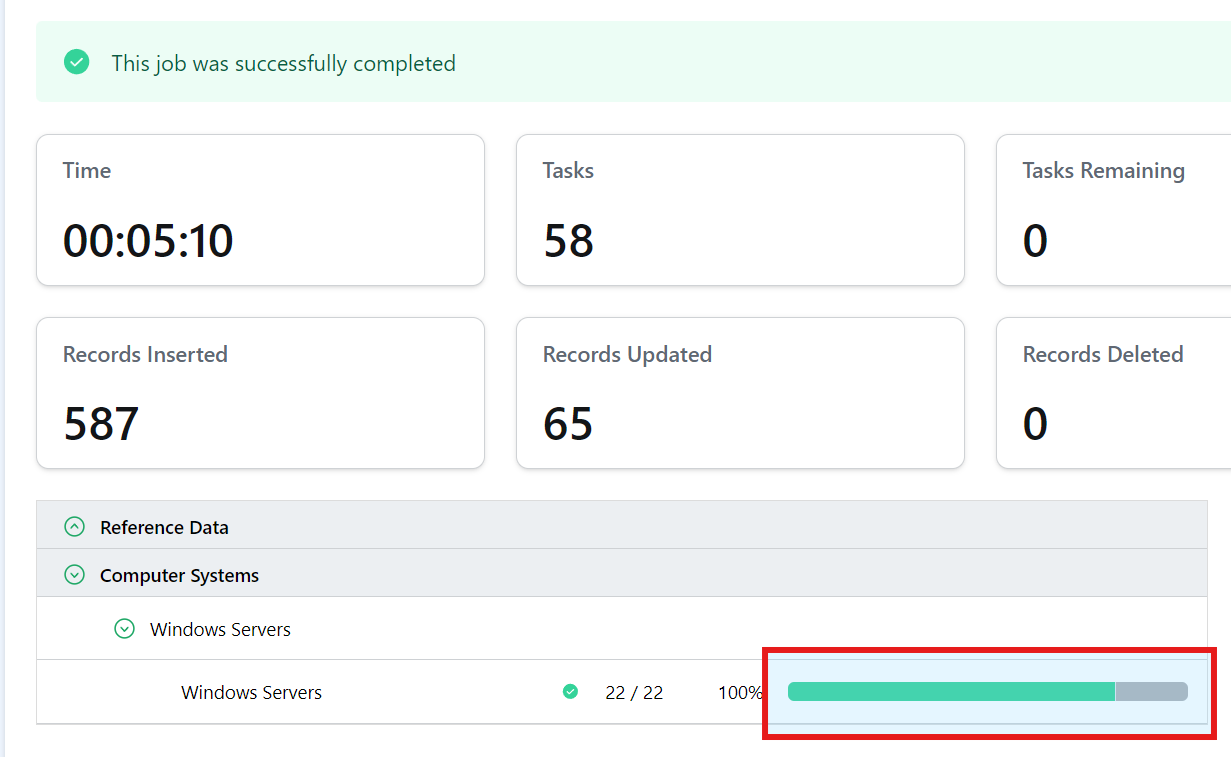
Within the CI Sync Job, locate the Asset Class to investigate and click the green bar which represents the Assets which were successfully synced. Alternatively, click the section of grey bar (if any) to search for Assets that did not successfully sync.
-
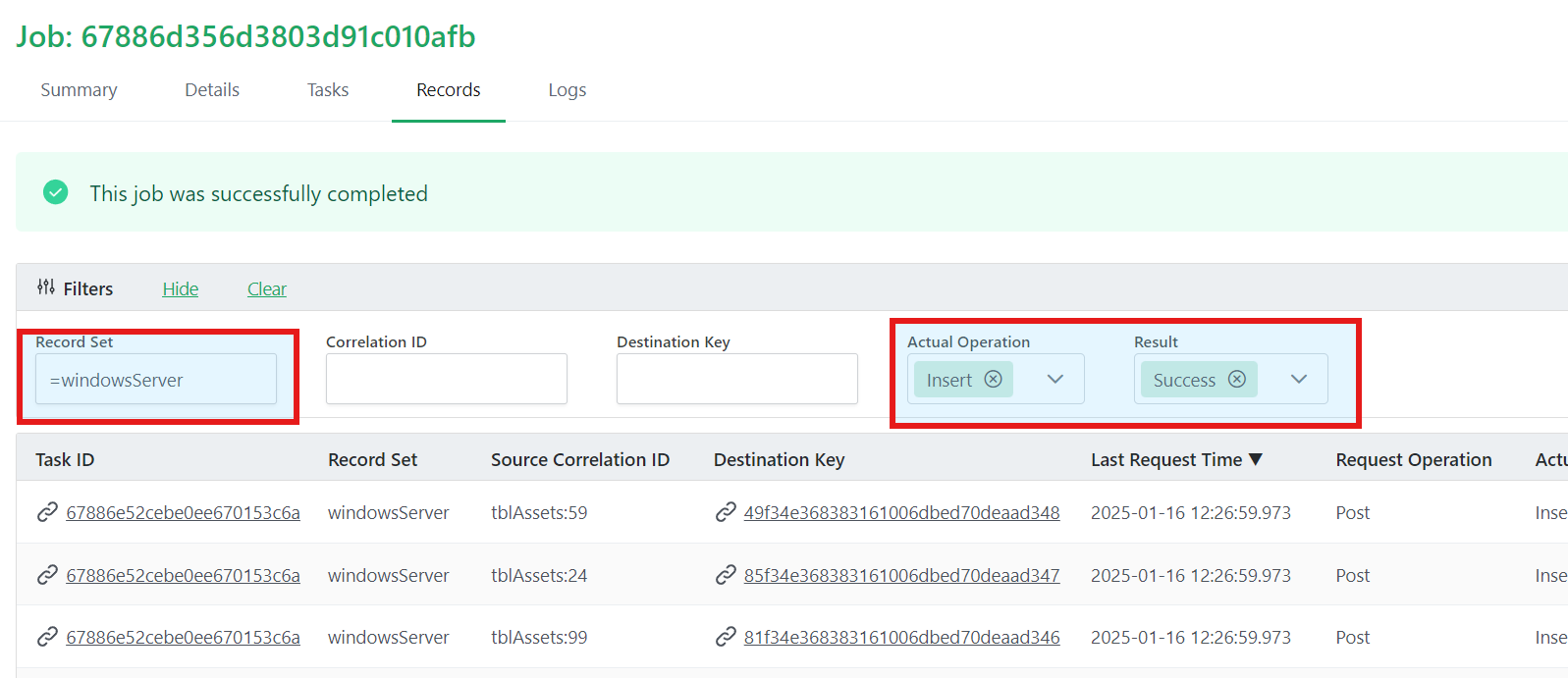
You will be linked to a list of Records on that Job Task that represent the Assets synced correctly.
Note that the list is pre-filtered by the CI Class, Operation and Result. -
Additional filters for Correlation ID and Destination Key are present to allow further filtering of the list.
-
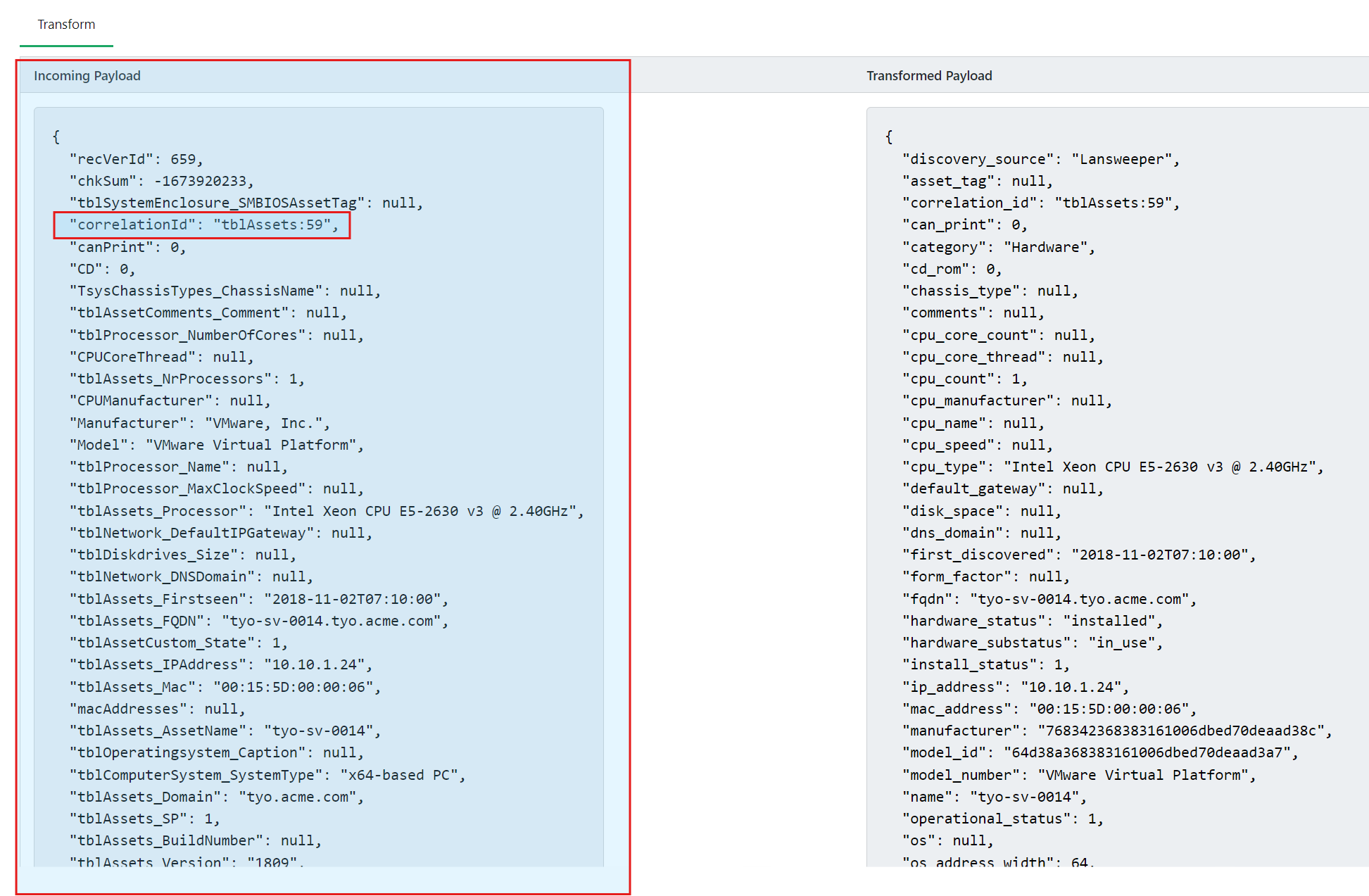
To review the Incoming Payload - after clicking the Asset Record, scroll down the page to the section that says Transform. You will see listed the Incoming Payload and the Transformed Payload.
-
The Incoming Payload represents information about a given Asset that is coming directly from the Source Connection - in this example Lansweeper. Of note in the highlighted payload below is the Correlation ID which is used to correlate Assets between the Source and Destination systems.
Understanding the Outgoing Payload from CI Sync
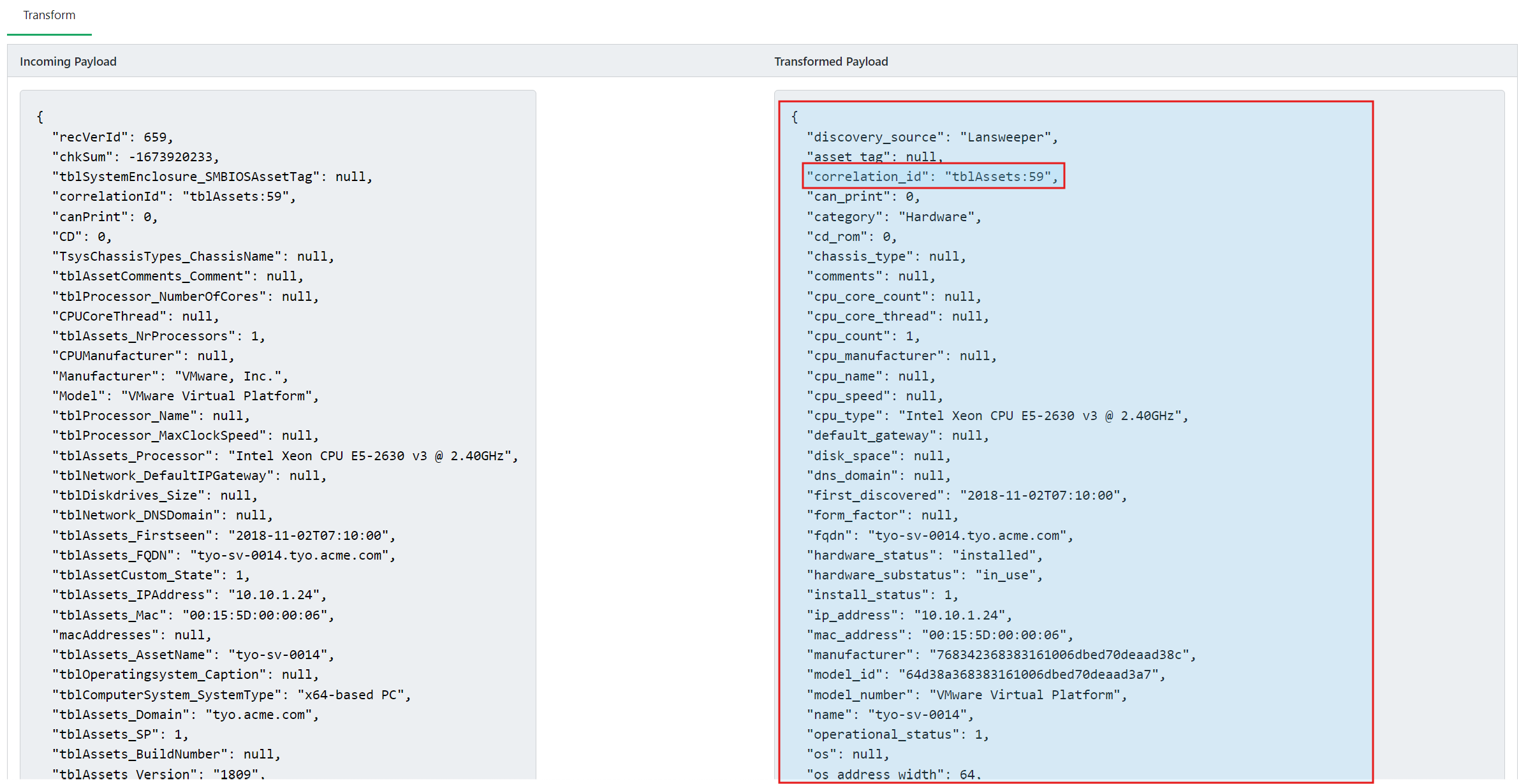
Conversely, the Outgoing Payload from CI Sync represents the Incoming Payload after being transformed within CI Sync into an acceptable and recognizable format to the Target Destination.
The Correlation ID is the key field that correlates the Asset between the Source and Target Destinations so the Asset can be easily traced and identified.
Comparing Incoming Payload to Outgoing Payload
The Transformed Payload/Outgoing Payload from CI Sync will often be smaller in size than the Incoming Payload - this is often because some Attributes supported by the Source Destination may not be supported in the Target Destination.
Once metadata logging has been enabled per the above, and the Incoming Payload and Transformed Payload are presented side by side and can easily be investigated to review if data from the Source system is being transferred to the Target system.
Understanding Asset Mapping & Search Rules
To understand how CI Sync correlates and matches Assets between Source and Target systems, the terminology below is useful to understand.
Search Rules
-
Search Rules can be defined as a combination of one or more asset attributes that can be used to uniquely identify an Asset.
-
Each Search Rule may include one or more Attributes.
-
Search Rules may be specific to a particular Asset Class (if the Attributes being used in the Search Rule are very specific) or may be applicable to multiple Asset Classes if the attribute is more general e.g. Serial Number.
Search Keys
-
Search Keys are the result of evaluated Search Rules on Assets.
-
An Asset will have as many Search Keys are there are Search Rules for that Asset Class - provided attributes to evaluate the Search Rule are present for the Asset.
-
When CI Sync attempts to sync Assets it will use the pre-evaluated Search Keys in CI Sync to identify if the Asset is currently present at the Target destination.
Mapping Records
When CI Sync syncs and Asset to the Destination, a Mapping record will be created which stores:
-
Source Connection ID
-
Target Connection ID
-
Source system Asset Correlation ID
-
Target system Table
-
Target system Asset ID
Once a Mapping Record is created, Search Keys for that Asset ID will NOT be used in future, only the Mapping record.
Understanding the above - there are 3x key matching scenarios being:
-
Asset is not present in the Target Destination; Search Keys show matched = false
-
Asset is present in the Target Destination but not yet synced → Search Key = matched
-
Asset is present in the Target Destination and has already synced previously - mapped
Scenario 1 - Asset is not present in the Target Destination
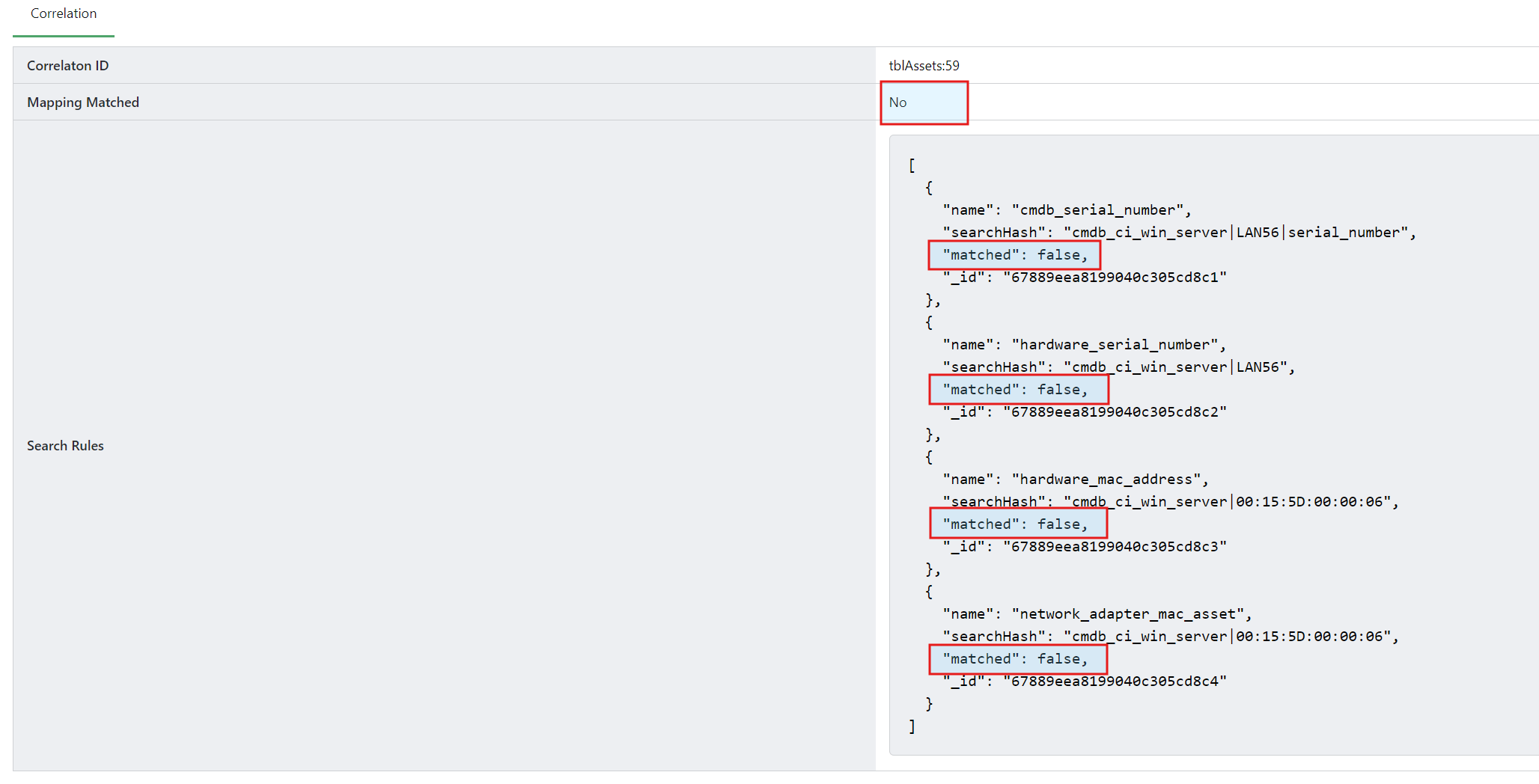
This is represented in the diagram below where:
-
Mapping Matched = No - to indicate a Mapping Record for that Asset ID does NOT exist
-
Search Rules - all Search Rules have returned matched: false, indicating an Asset using those attributes could not be found in the Target system.
-
The Asset will be inserted in the Target system and a mapping record created.
Scenario 2 - Asset is present in the Target Destination, but not yet synced
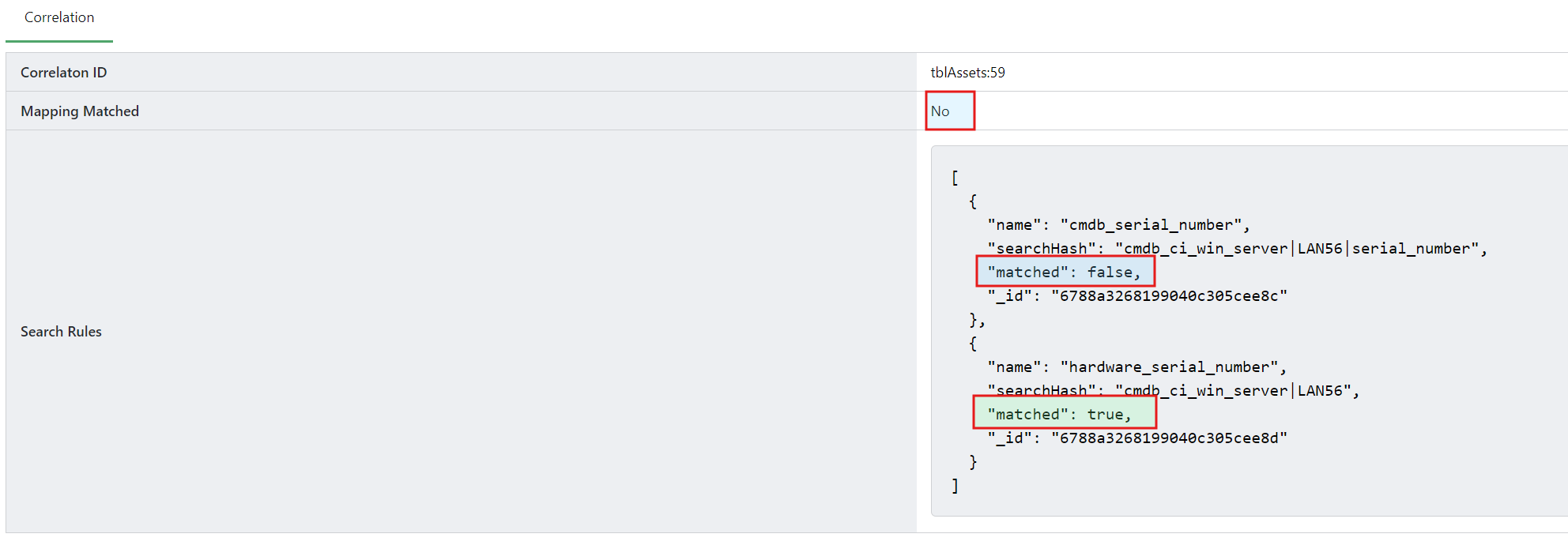
This is represented in the diagram below where:
-
Mapping Matched = No - to indicate a Mapping Record for that Asset ID does NOT exist
-
Search Rules - Search Rules have been evaluated. After the second Search Rule found a match, it was identified that an Asset with that Serial Number existed in the Target system.
-
The Asset will be updated in the Target system and a mapping record created
Scenario 3 - Asset is present in the Target Destination and has already previously synced
This is represented in the diagram below where:
-
Mapping Matched = Yes - to indicate a Mapping Record for that Asset ID was found.
-
Search Rules - Is empty. As a Mapping Record was found - no Search Rules were evaluated.
-
The Asset will be updated in the Target system using the existing Mapping Record.

Disabling metadata logging and clearing metadata
After the required analysis or tracing using metadata has been completed, it is suggested to:
-
Disable the logging of metadata and
-
Clear metadata currently cached
To do this:
-
Navigate to Settings → Logging
-
Uncheck the Include log metadata option, click Save.
-
Click Clear metadata, the confirm by clicking Confirm and clear metadata

-
Metadata will be cleared in the background and the message will be disappear once complete.

Related Articles
There are currently no related articles.
Control Information
|
Created |
|
|---|---|
|
Reviewed |
|
|
Data Classification |
PUBLIC
|