
Task List
|
Task # |
Task |
Performed by |
|---|---|---|
|
1 |
Prepare Lansweeper Cloud for use with CI Sync |
Lansweeper Cloud Admin |
|
2 |
Add Lansweeper Cloud as a Source System using the CI Sync SaaS UI |
CI Sync Admin |
|
3 |
Check status of new Lansweeper Cloud Source System connection |
CI Sync Admin |
|
4 |
Assess if additional updates are required in ServiceNow |
ServiceNow Admin |
|
5 |
Do Not Synchronize Installed Software from two different source systems |
CI Sync Admin |
Task 1: Prepare Lansweeper Cloud for use with CI Sync
This task explains how to prepare Lansweeper Cloud for use with your customer specific instance of CI Sync.
Doing this allows your CI Sync SaaS Agent to authenticate to your Lansweeper Cloud so you can run CI Sync jobs between Lansweeper Cloud and your CMDB.
-
Go to Lansweeper Cloud and log in with your Lansweeper credentials.
-
Use the Change Site button to select the specific Lansweeper Cloud Site that you want to use as a source system connection within CI Sync.
-
Click your Login Profile button in the bottom-left corner, then select Developer Tools.
-
Select All API Clients > Add new API client.
-
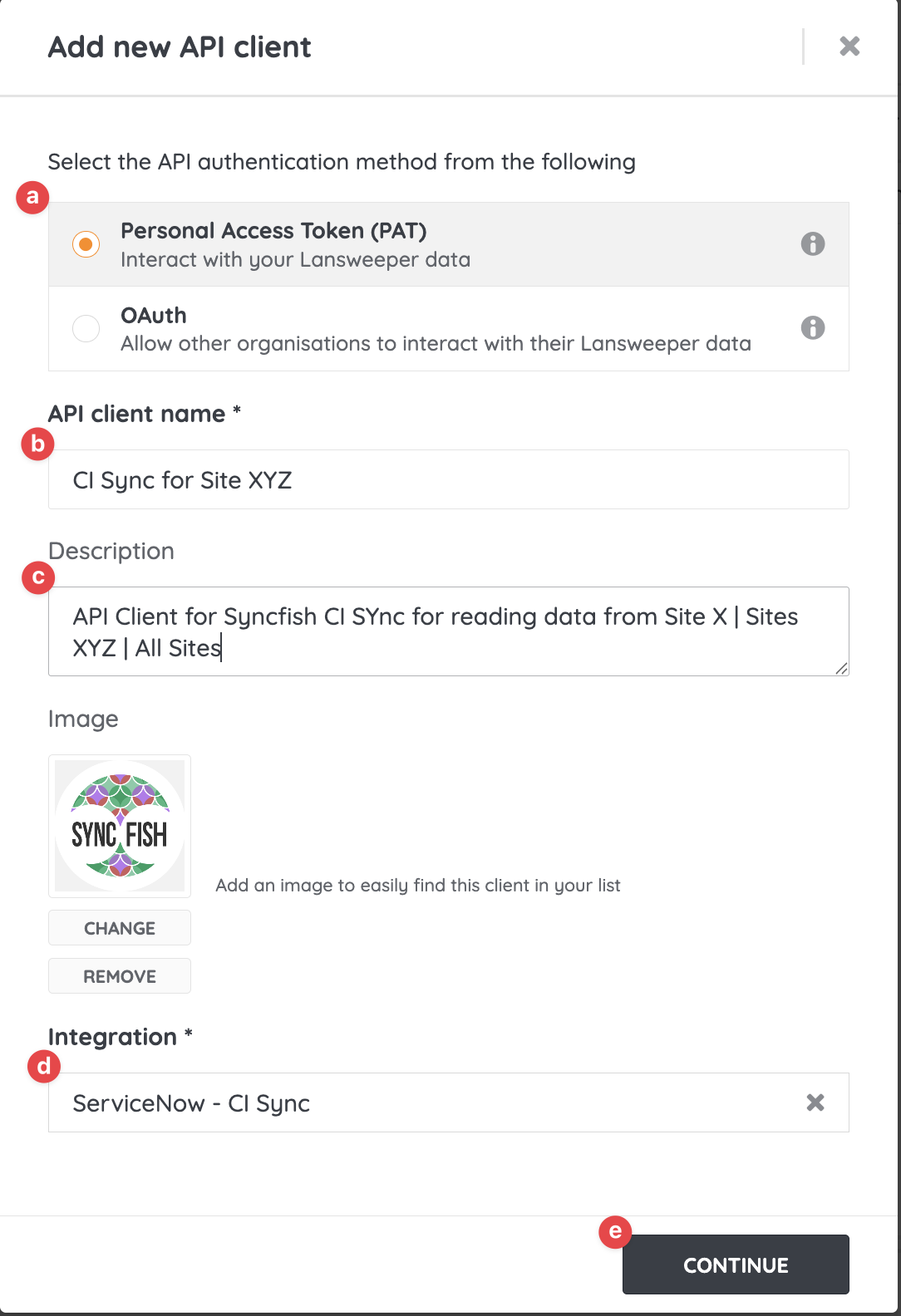
Complete the fields using these instructions
-
Select Personal Access Token (PAT) as the API Authentication method.
-
Enter a meaningful name for the API Client Name (see guidance notes above for recommendations on naming).
-
Enter a Description (one that sets further context).
-
Select ServiceNow - CI Sync for the Integration.
-
Finally click the Continue button when ready.
-
-
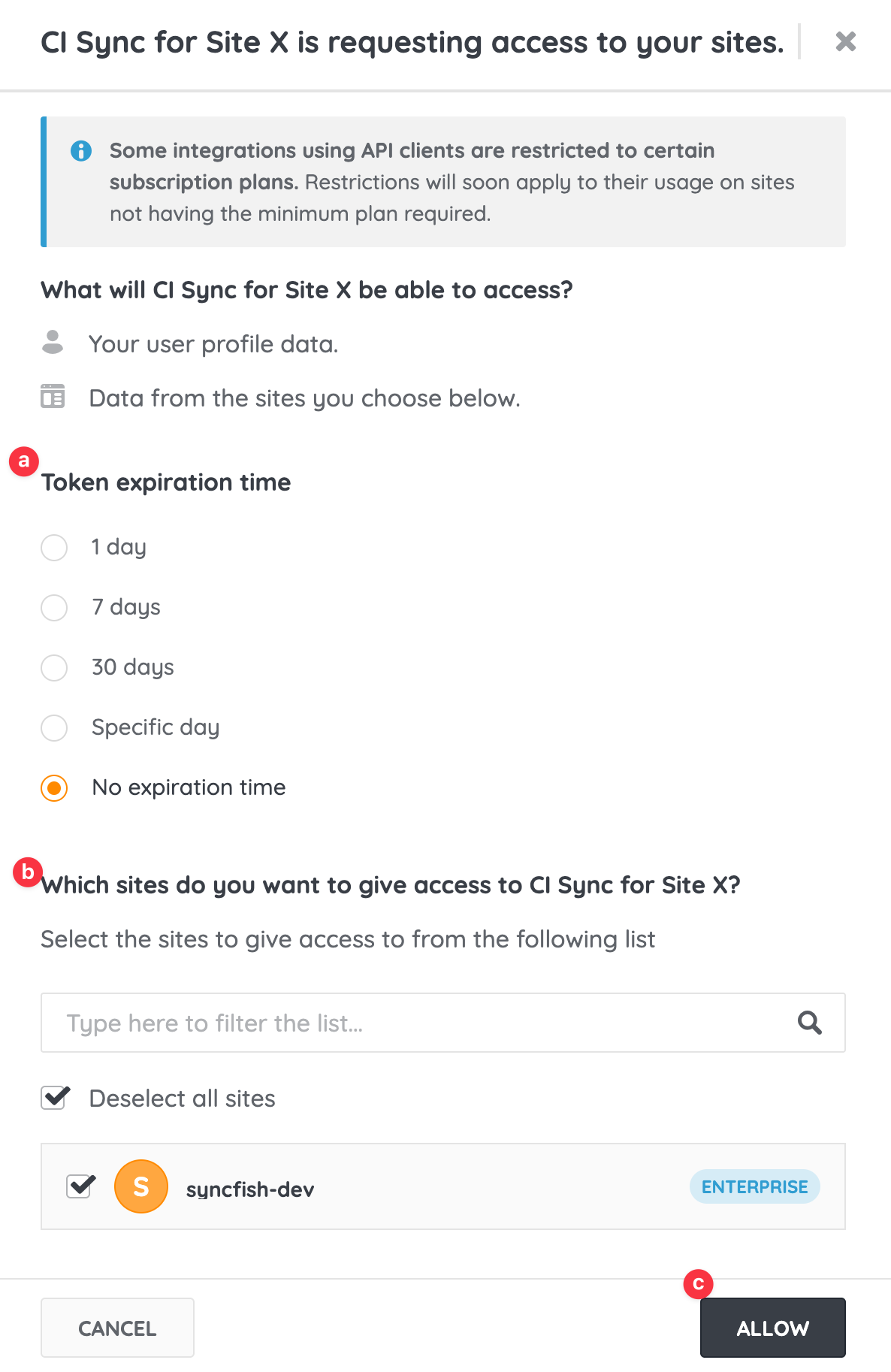
Complete the next page using these instructions
-
Choose the Token expiration time according to your security standards.
-
Note: When the token expires you will need to generate a new one in Lansweeper Cloud and copy/update the token in your CI Sync SaaS UI (i.e. update the source connection in CI Sync with the new token value).
-
-
Set the scope of sites you would like this API Client to grant access to CI Sync.
-
Finally click the Allow button.
-
-
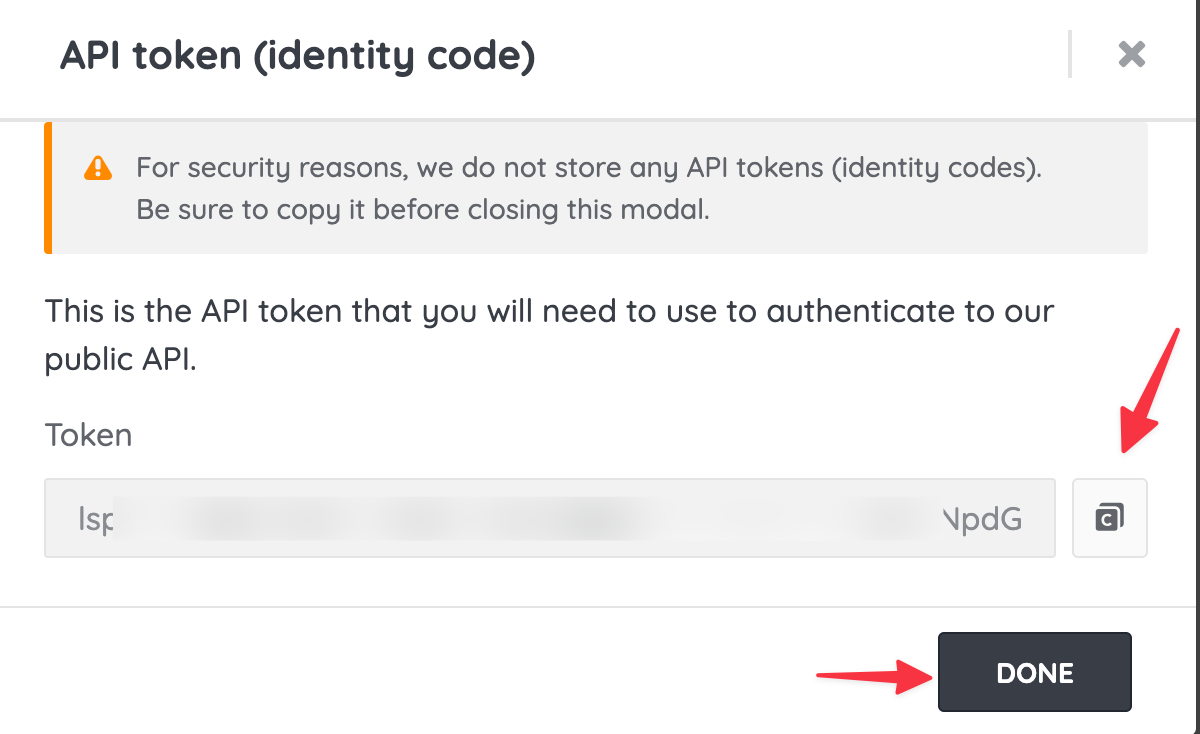
Use the final page (the API Token Identify Code page) to take a copy the generated API Token value and then click Done. Note: Once you leave this page you cannot obtain the token value again (you will need to regenerate a new token if you don’t copy the token value now).
Data Capture Summary
As a reminder, you should have captured the following information when completing the above steps.
-
The value of the API Token (from Step 7 above). This is the API Token for the CI Sync API Client in Lansweeper Cloud.
These values will be used later by the person following the instructions in Task 2 immediately below.
Task 2: Add Lansweeper Cloud as a Source System using the CI Sync SaaS UI
-
Login to your CI Sync SaaS instance at https://YourCo.syncfish.app
-
In the CI Sync UI, navigate to Settings > Connections.
-
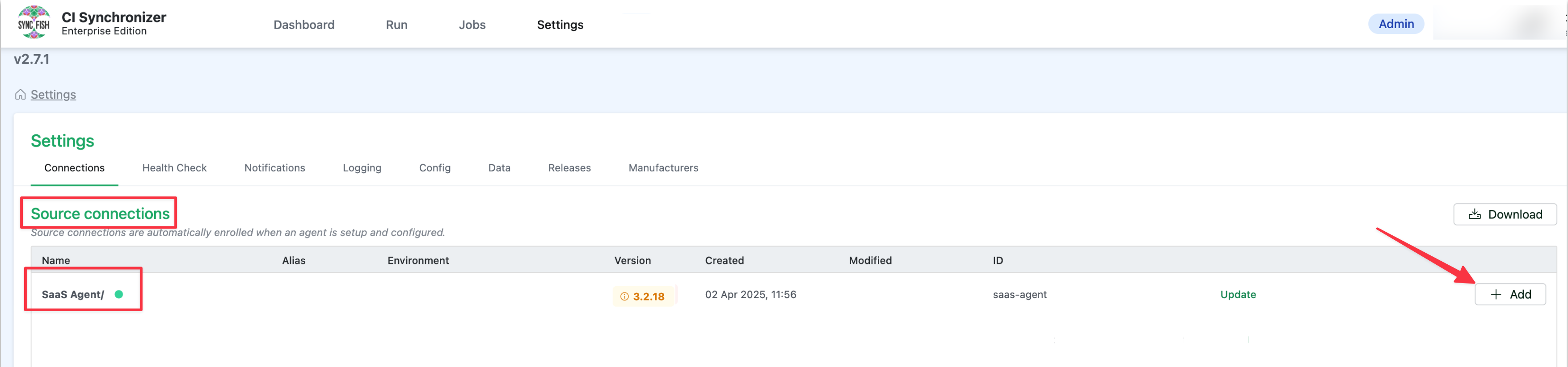
Find the “SaaS Agent” sub-heading under the Source Connections section. If you don’t see “SaaS Agent” it means your CI Sync instance hasn’t been configured for this feature. Please contact your Sync representative to discuss.
-
On the right hand side of the form, click the +Add button.
-
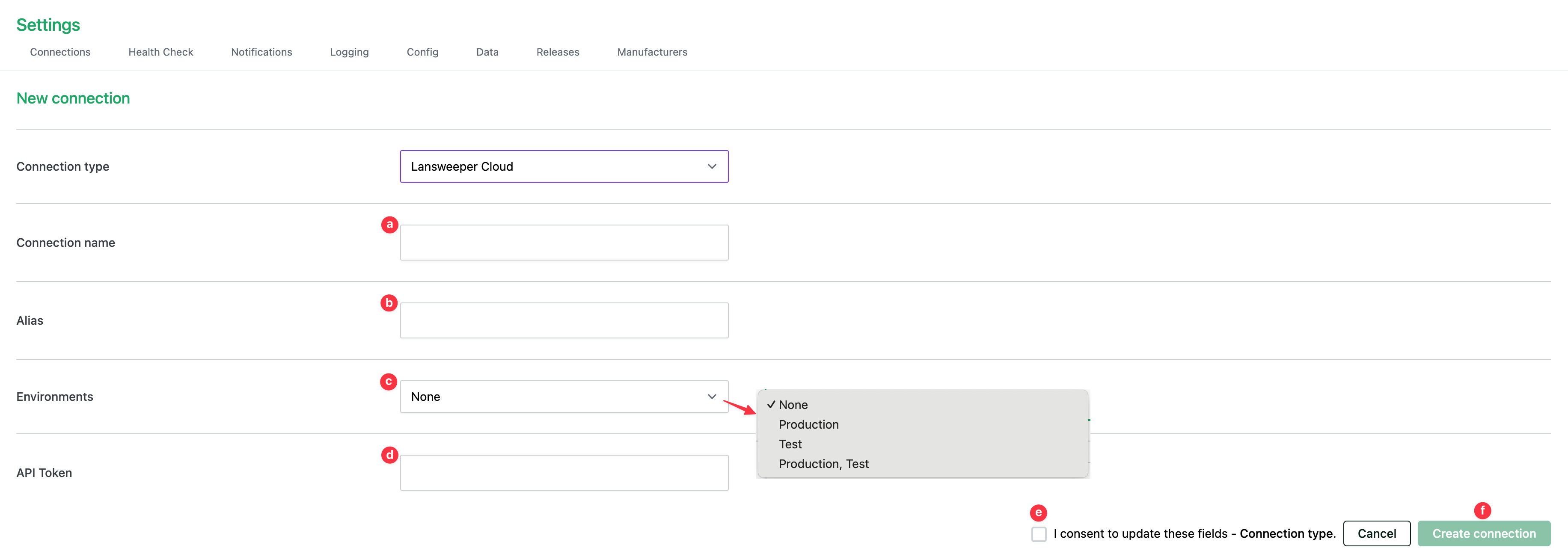
The New Connection form now appears. Use the Connection Type drop down list to select the source system you wish to add (in this case Lansweeper Cloud).
-
Update the fields using these instructions
-
Connection name
-
This is a friendly name that represents the source system connection.
-
The name you enter here will appear when you create a new sync job and are selecting from the available source system list.
-
Note: Syncfish recommend using a textual suffix on the connection name if you have multiple Lansweeper Sites in your Lansweeper Cloud environment.
-
-
Alias: Please ingore this field (it is not used for the CI Sync Cloud Agent and is being deprecated).
-
Environments
-
Select from the available choices Production, Test, or Production/Test (the latter being both).
-
The selection you make for this field affects which source systems appear when you create a new sync job (i.e. when you are selecting the source system list based on the “Environment” you have chosen for the sync job). See this page for more details on creating a CI Sync job: Run a Small Initial Sync Job (then run more).
-
FYI: CI Sync allows a source system to be both Production/Test because CI Sync only reads from a source system (it doesn’t write to it). Destination systems can only be Test or Production (not both).
-
-
API Token
-
Paste the API Token for the CI Sync API Client (sometimes called a “PAT Token”) captured by your Lansweeper Admin in Task 1 above.
-
-
The click the Consent to update fields checkbox.
-
Finally click the Create connection button.
-
You will be returned to the main settings screen and your new source system connection will appear in the list as shown below.

Task 3: Check status of new Lansweeper Cloud Source System connection
-
To check the status of the newly added Lansweeper Cloud Source System connection click the green Check Status link. This will test whether your CI Sync Lansweeper Cloud connection can successfully reach and authenticate to the Azure Entra ID defined in the connection itself.
-

If the connection is successful, you will see a green dot next to the source connection name.
-

To test again in the future, you can click the green Refresh Status button.
-
If the test is unsuccessful, you will see a red dot next to the source connection name and an error message underneath. If you need assistance resolving an error, please contact Syncfish support.
This means you are ready to run a sync job using the new source connection using these high-level instructions: Run a Small Initial Sync Job (then run more).
Task 4: Assess if additional updates are required in ServiceNow
Guidance Note
Syncfish recommend the person setting up the source system described in this guide discusses this particular task with their ServiceNow system administrator.
A ServiceNow administrator will need to perform these steps.
Syncfish recommend following these instructions in your non-production ServiceNow environment for testing synchronization jobs.
Only once exhaustive testing in non-production is complete, repeat this process in your ServiceNow production environment.
In this section your ServiceNow SME will assess various updates to ServiceNow to support this CI Sync connector:
-
Task 4a: Assess if the CMDB CI Class Models plug-in is needed for this connector
-
Task 4b: Assess if any custom tables or attributes are needed for this connector
-
Task 4c: Assess if additional permissions are required for this connector
-
Task 4d: (Optional though recommended) Assess your ServiceNow CI forms and update to include additional Related Lists specific to this connector
-
Task 4e: Read and understand more about the data and functionality related to this connector
Task 4a: Assess if the CMDB CI Class Models plug-in is required for this connector
Context
A number of record sets (asset types/resource types) available to sync using the Lansweeper Cloud Connector rely upon CMDB CI Classes that are only available via the CMDB CI Class Models plug-in.
You therefore need to install the CMDB CI Class Models plug-in to your ServiceNow instance.
If you already have the plug-in you may want to upgrade it to the latest version (as ServiceNow occasionally updates the plug-in to include extra CI Classes/tables).
|
Source System |
Specific Record Sets that require the CMDB CI Class Models plug-in |
|
Lansweeper |
|
|
Lansweeper OT
|
|
Instructions
Follow these steps to add this plug-in (and similar steps to locate it and upgrade it if required):
-
Assess the use/inclusion of this plug-in within your ServiceNow (ensure you are comfortable installing this plug-in).
-
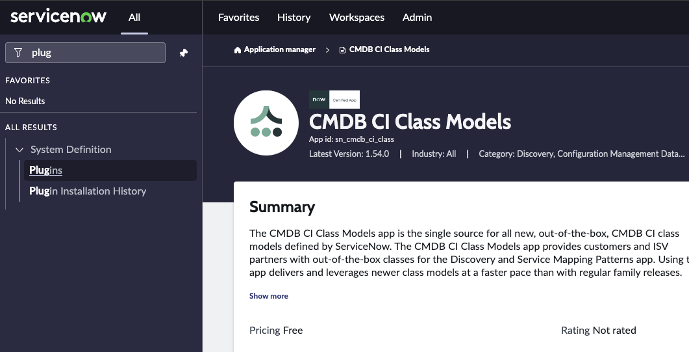
Search for Plugins via the ServiceNow navigation menu.
-
Locate the CMDB CI Class Models plug-in.
-
Click Add -> Install and follow the instructions provided.
Task 4b: Assess if custom tables or attributes are needed for this connector
Use Case - If you are planning to use CI Sync to sync Digital Certificates into the CMDB
Context
CI Sync can synchronize Digital Certificates (discovered by Lansweeper on Windows PCs and Servers) into the CMDB. CI Sync can also set a relationship between each Windows Server (or Windows PC) and the Digital Certificates installed upon each Windows Server or PC.
CI Sync relies upon a custom table called u_cmdb_ci_certificates to store the Digital Certificates.
Syncfish provides a ServiceNow updateset to prepare your ServiceNow instance for CI Sync. The updateset does the following:
-
Creates the custom table mentioned above.
-
Applies the ACL on the custom tables and assigns the ACL to the ServiceNow role called “Asset” (which is one of the roles granted to the CI Sync Integration Account created during S3 - Configure ServiceNow for CI Sync).
Task Steps
Follow these steps to apply the updateset provided by Syncfish:
-
Download the update set from Syncfish at the below URL:
https://downloads.syncfish.app/servicenow/cisync-cmdb-certificates.xml -
Login to your ServiceNow instance with Admin permissions.
-
Open a browser and navigate to your ServiceNow instance
-
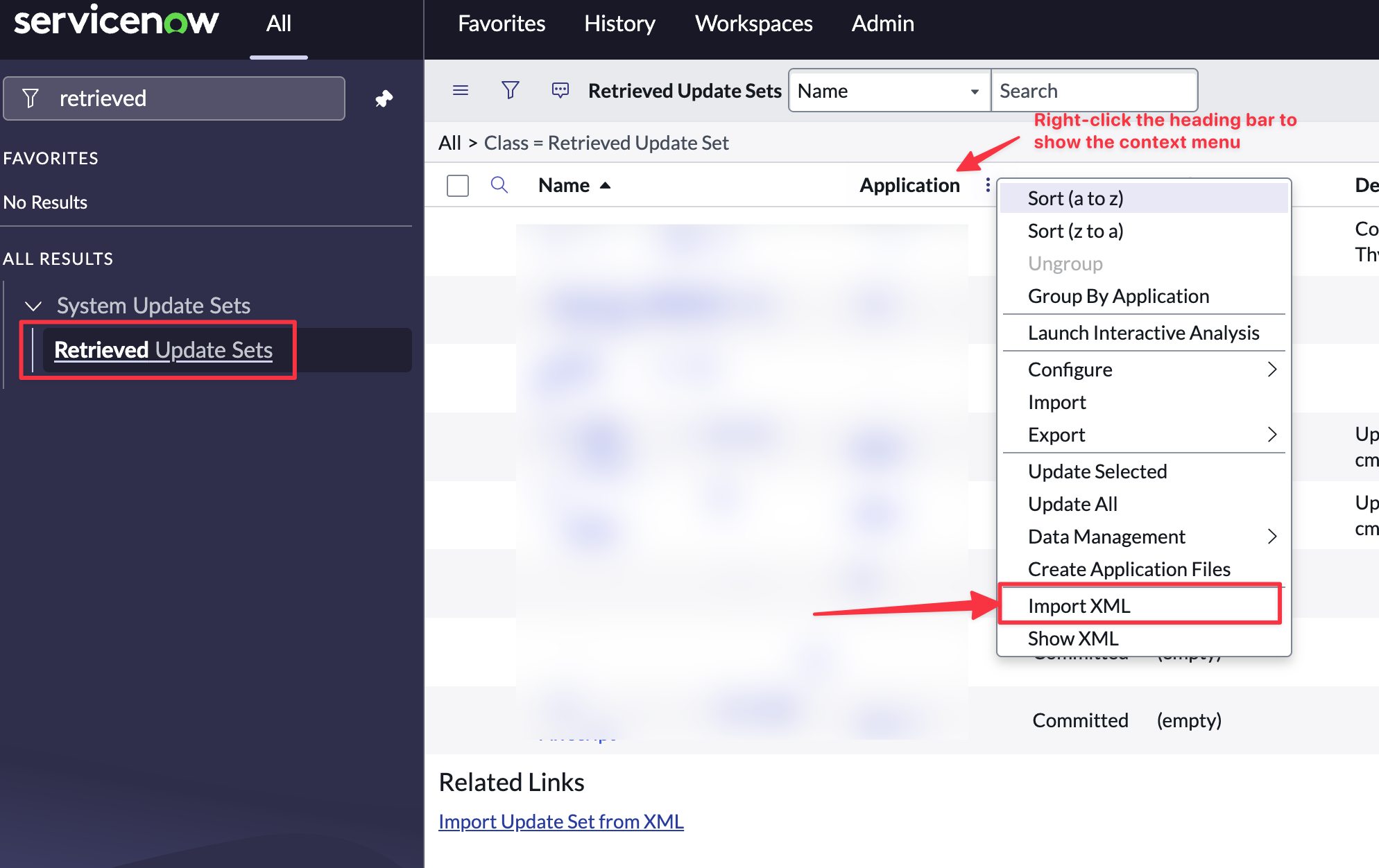
In the left nav menu search for “Retrieved Update Sets” and click to open
-
Right click on the column heading row and select “Import XML”
-
Select “Choose File”
-
Select the downloaded file “cisync-cmdb-certificates.xml”
-
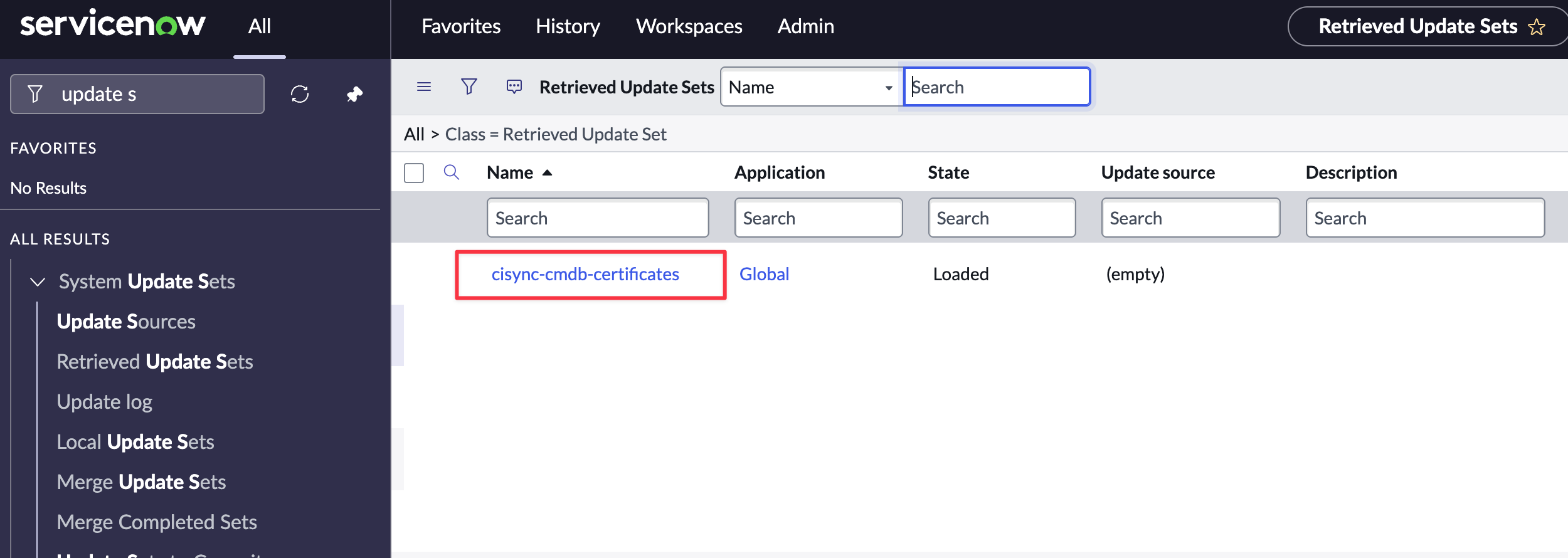
Click to open the Update Set
-
Click “Preview Update Set”
-
If there are no preview errors, Click “Close”.
-
Click “Commit Update Set”.
-
Your ServiceNow instance is now ready to receive Digital Certificate data from Lansweeper Cloud via sync jobs from CI Sync.
Task 4b: Assess if additional permissions are required for this connector
Use Case - If you are planning to use CI Sync to create Application Service Mapping relationships in ServiceNow
Context
CI Sync needs additional permissions to create/update Application Service relationships in ServiceNow.
The ServiceNow out-of-the-box role described in the instructions below provides the required permissions and therefore this role needs to be applied to your CI Sync Integration User if you intended to use CI Sync’s Application Service Mapping feature.
Please contact Syncfish if a custom role is preferred over this out-of-the-box role.
Instructions
-
Navigate to the cisync user account (e.g. “cisync.integration” or the name you used earlier in this page).
-
Select the Roles tab and click the Edit… button
-
Filter/Select the roles below and click the Save button
-
app_service_admin
-
-
Click Save. Then use the “Roles” tab to check the above role has been applied.
Task 4d: (Optional though recommended) Assess your ServiceNow CI forms and update to include additional Related Lists specific to this connector
Context
CI Sync populates various child tables (related lists) associated with parent CIs.
The following table shows the Related Lists (per CI Class) populated by this CI Sync connector.
|
CI Class |
Related List
|
Related List Name as it appears in the ServiceNow UI when adding it to a CI Form |
|
Apple Macs |
Memory Modules |
Memory Module->Configuration Item |
|
Network Adapters |
Network Adapter->Configuration Item |
|
|
Windows PC |
Memory Modules |
Memory Module->Configuration Item |
|
Network Adapters |
Network Adapter->Configuration Item |
|
|
Physical Disks |
Storage Device-> Computer |
|
|
File Systems |
File System-> Computer |
|
|
Mapped Network Drives |
File System->Computer |
|
|
Software Installations |
Software Installed |
|
|
Patches |
Patch->Configuration Item |
|
|
Windows Services |
Windows Service->Configuration Item |
|
|
Registry Entries |
Tracked Configuration File->Related CI |
|
|
Licence Entitlements |
Licence Entitlement→Allocated to |
|
|
Android |
Software (via Airwatch) |
Software Installed |
|
iPad |
Software (via Airwatch) |
Software Installed |
|
iPhone |
Software (via Airwatch) |
Software Installed |
|
Windows Server |
Memory Modules |
Memory Module->Configuration Item |
|
Network Adapters |
Network Adapter->Configuration Item |
|
|
IP Addresses |
CI IPs |
|
|
Physical Disks |
Storage Device-> Computer |
|
|
File Systems |
File System-> Computer |
|
|
Mapped Network Drives |
File System->Computer |
|
|
Software Installations |
Software Installed |
|
|
Patches |
Patch->Configuration Item |
|
|
Windows Services |
Windows Service->Configuration Item |
|
|
Registry Entries |
Tracked Configuration File->Related CI |
|
|
Licence Entitlements |
Licence Entitlement→Allocated to |
|
|
Linux Server |
Memory Modules |
Memory Module->Configuration Item |
|
Network Adapters |
Network Adapter->Configuration Item |
|
|
IP Addresses |
CI IPs |
|
|
Physical Disks |
Storage Device-> Computer |
|
|
File Systems |
File System-> Computer |
|
|
Software Installations |
Software Installed |
|
|
VMWare ESXI Server |
Network Adapters |
Network Adapter->Configuration Item |
|
IP Addresses |
CI IPs |
|
|
Associated Datastores |
VMware vCenter Datastore->vCenter Reference |
|
|
VMs |
VMs |
|
|
VMWare vCenter |
Clusters |
VMware vCenter Cluster->vCenter Reference |
|
Datacentres |
VMware vCenter Datacenter->vCenter Reference |
|
|
Datastores |
VMware vCenter Datastore->vCenter Reference |
|
|
vCenter Network |
VMware vCenter Network->vCenter Reference |
|
|
Virtual Machine Instances |
VMware Virtual Machine Instance->vCenter Reference |
|
|
Hyper-V Server |
Hyper-V Instances |
Hyper-V Virtual Machine Instance->Server |
|
Hyper-V Networks |
Hyper-V Virtual Network->Server |
|
|
IP Switch |
Switch Ports |
Switch Port -> CMDB CI |
|
The following two related lists are only applicable if the CI Sync Default Rule has been override to Synchronize Software Product Models as Master Data in ServiceNow. For more details See Lansweeper On-Prem Rule: Rule 12 – Synchronization of Software Product Models as Master Data in ServiceNow for Lansweeper On-Prem) |
||
|
Software Model |
Model ID |
Software → Model ID |
|
Software Package |
Model ID |
Model ID |
|
The following two related lists are only required if the customer will be synchronizing Software Licence Keys from Lansweeper. |
||
|
Windows PC |
Licence Entitlements |
Licence Entitlement→Allocated to |
|
Windows Server |
Licence Entitlements |
Licence Entitlement→Allocated to |
Instructions
Below are the steps to modify a ServiceNow CI form to expose a new Related List.
-
Login to your ServiceNow instance with Admin permissions.
-
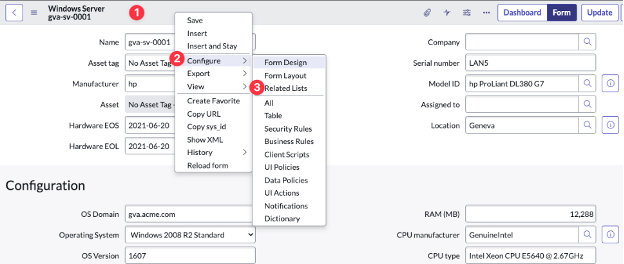
Navigate to any CI in the relevant CI Class (i.e. one/all of those listed in the table in the Context section above). For example, navigate to a Windows Server CI).
-
Right-click in the heading area of the form, then click Configure and then Related Lists from the sub-menus.
-
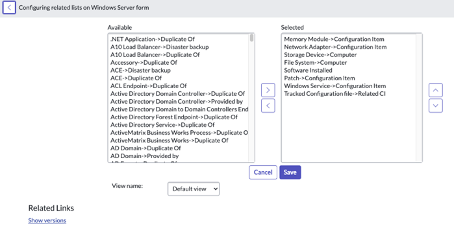
Identify the Related List you want to expose on the CI form using the table in the Context section above.
-
Find the Related List in the left hand column which lists all Available Related Lists.
-
Click the Related List and then click add (the selection arrow) to move the item to the Selected column and then click Save.
-
Repeat for each additional CI Class listed in the table in the Context section above.
Task 4e: Read and understand more about the data and functionality related to this connector
Synchronizing Digital Certificate data from Lansweeper Cloud allows organisations to take control of certificates, including expiry and replacement management on their Windows Server CIs (and Windows PC CIs if relevant) within ServiceNow.
Organisations can create dashboards based on the data sync’d by CI Sync and can also create workflows to automate the allocation of remediation tasks to the operational teams responsible for groups of CIs.
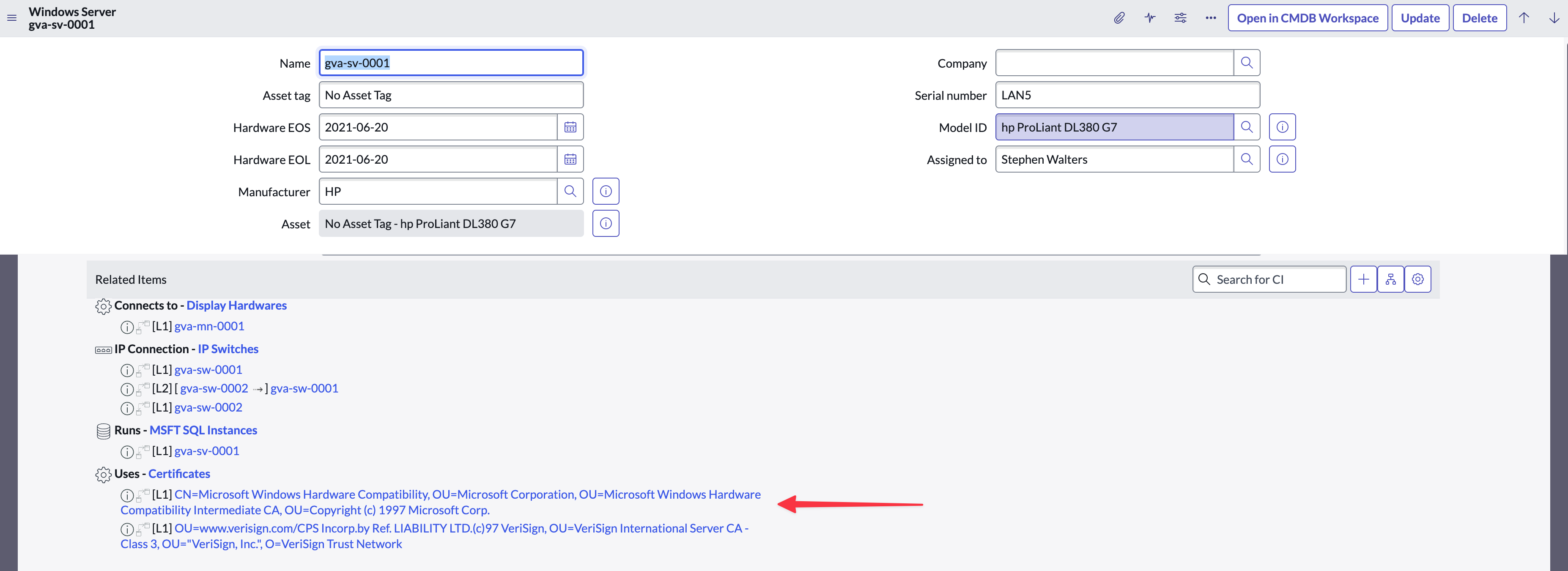
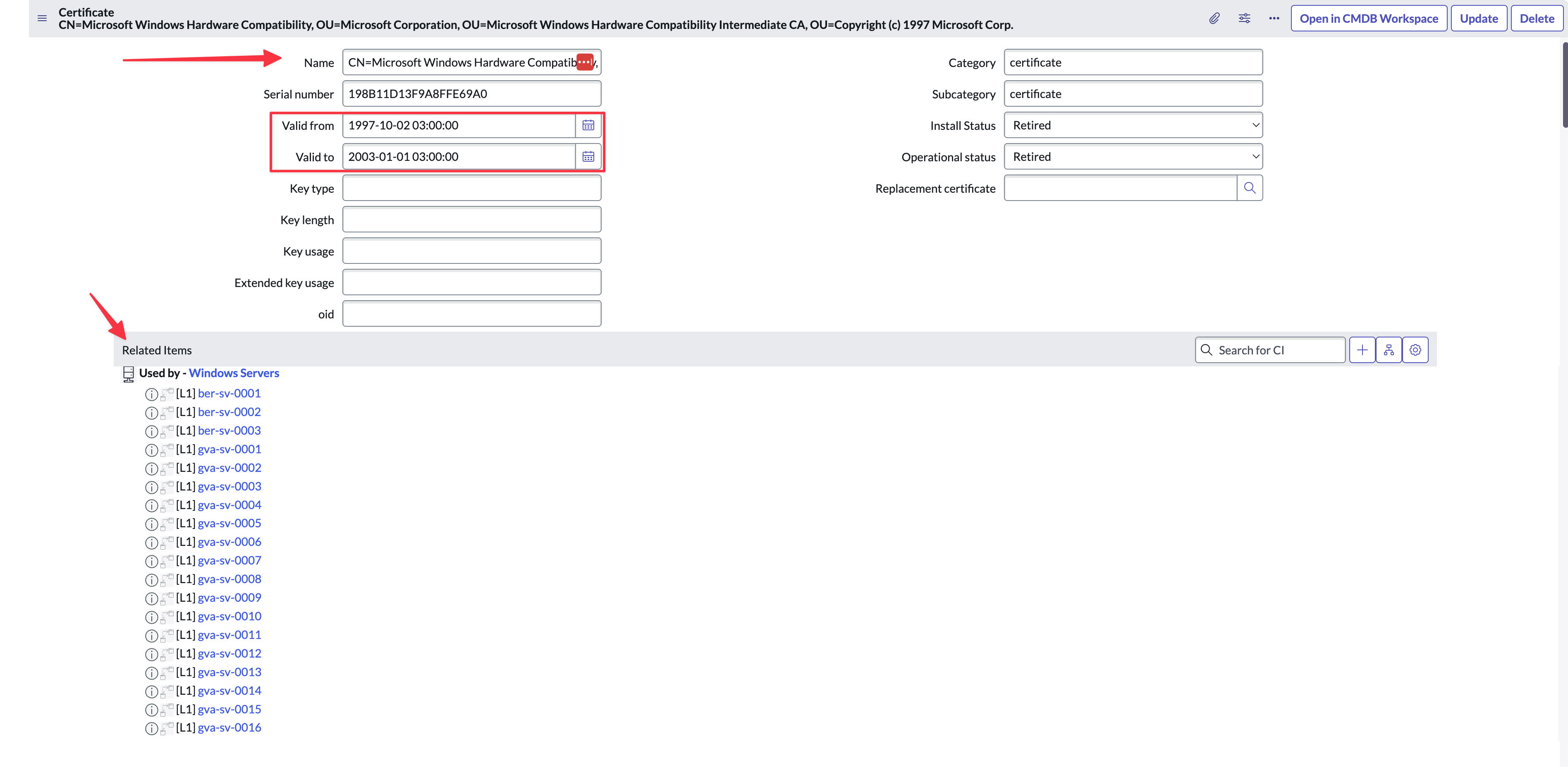
Below are several simple screen shots to show the results in ServiceNow as a starting point to visualise the data being sync’d.
Example of a Windows Server CI showing the Digital Certificates installed on that server, represented by ServiceNow relationship records.
Example of a Digital Certificate record showing it’s key attributes and the list of CIs that have the certificate installed.
Task 5: Do Not Synchronize Installed Software from two different source systems
Customers should be aware that if you synchronize Installed Software (i.e. the installed software applications for the same IT asset) from two different source systems (e.g. from Intune and Defender, or from Lansweeper and Defender, or InTune and SCCM, etc etc) for the same device you will end up with duplicate software instance records in your CMDB.
The cause of this issue is the naming convention of Installed Software is inconsistent between different source systems, and therefore CI Sync cannot reliably correlate the Installed Software per CI within the CMDB. By way of example:
-
In InTune, “Microsoft Teams” is stored as “MSTeams” (and there is no Manufacturer attribute in InTune).
-
However, in Defender for Endpoint, “Microsoft Teams” is stored as “Teams”.
Important Recommendation from Syncfish
Syncfish do NOT recommend synchronizing Installed Software from two different source systems.
Below are some notes to action this in advice in the CI Sync Web UI:
-
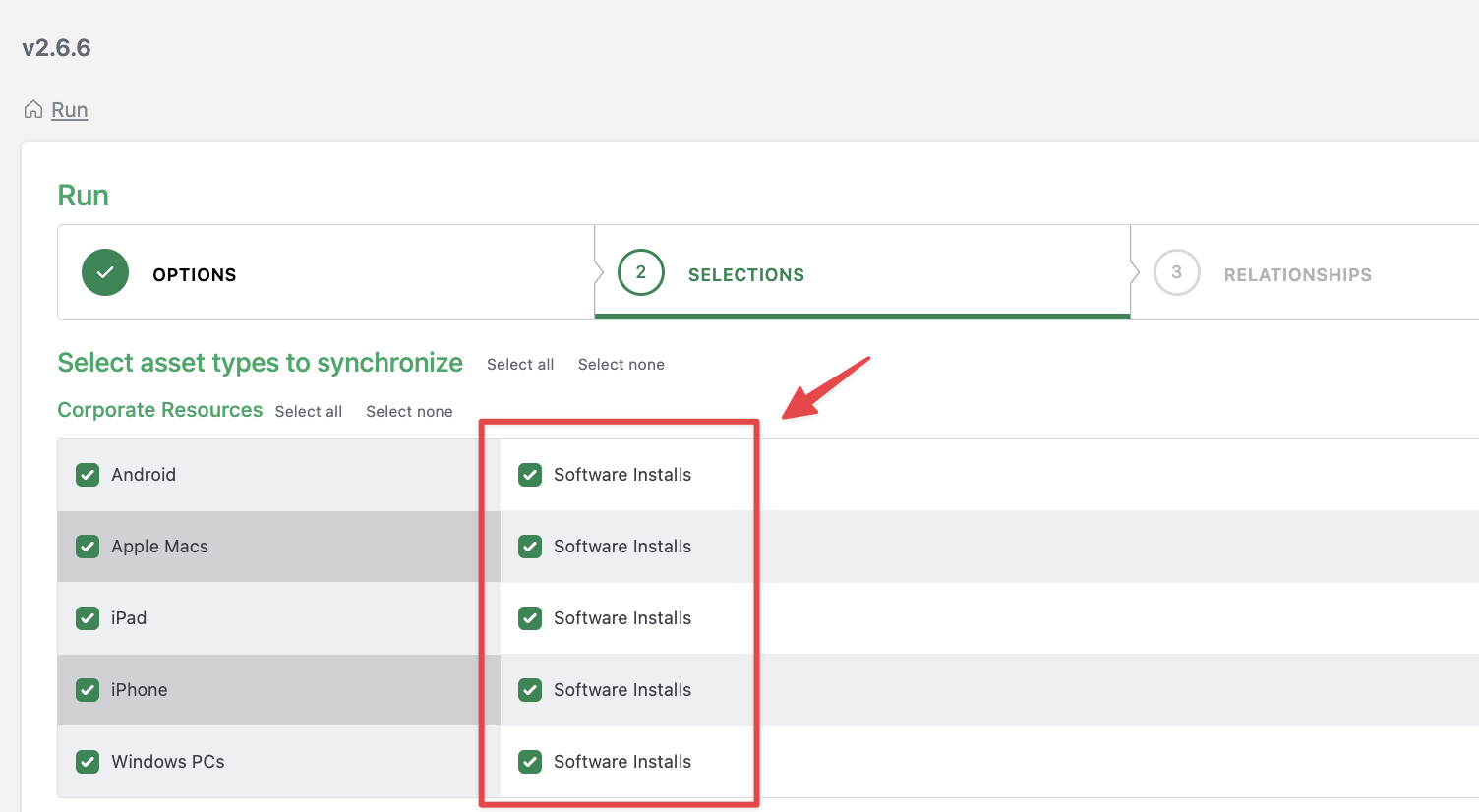
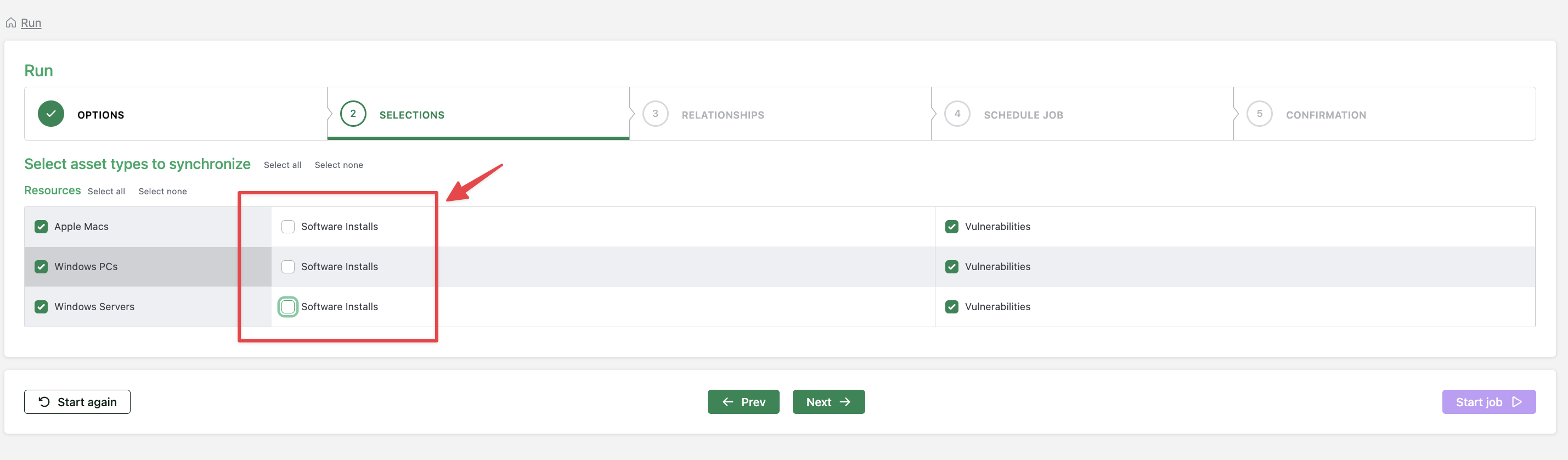
When you are creating a sync job via the CI Sync UI and reach the Selections page, do not select “Software” or “Software Installs” from a given source system if you have already selected Installed Software on another source system sync job.
The screen shot below shows a sample of the Selection page for InTune as the source system for a CI Sync job. If you have selected Software Installs for InTune you should not select Software Installs for a Microsoft Defender for Endpoint sync job (as shown on the subsequent screen shot below)
The screen shot shows the Selection page for Microsoft Defender for Endpoint as the source system for a CI Sync job. You should NOT select Software Installs via Microsoft Defender for Endpoint because you have selected Software Installs via the InTune source system.
The same logic/approach applies to any other source system that offers Installed Software, such as SCCM or Lansweeper. The key message is: do NOT recommend synchronizing Installed Software from two different source systems.