
Task List
|
Task # |
Task |
Performed by |
|---|---|---|
|
1 |
Prepare AWS for use with CI Sync |
AWS Admin |
|
2 |
Configure AWS Authentication Including: Task 2 (Supplement) - Optionally Grant additional permissions in AWS if using the Extended Relationships feature in CI Sync |
AWS Admin |
|
3 |
Add AWS as a Source System using the CI Sync SaaS UI |
CI Sync Admin |
|
4 |
Check status of the new AWS Source System connection |
CI Sync Admin |
|
5 |
Assess if additional updates are required in ServiceNow |
ServiceNow Admin |
Task 1: Prepare AWS for use with CI Sync
This task explains how to prepare AWS for use with your customer specific instance of CI Sync.
Doing this allows your CI Sync SaaS Agent to authenticate to your AWS so you can run CI Sync jobs between AWS and your CMDB.
-
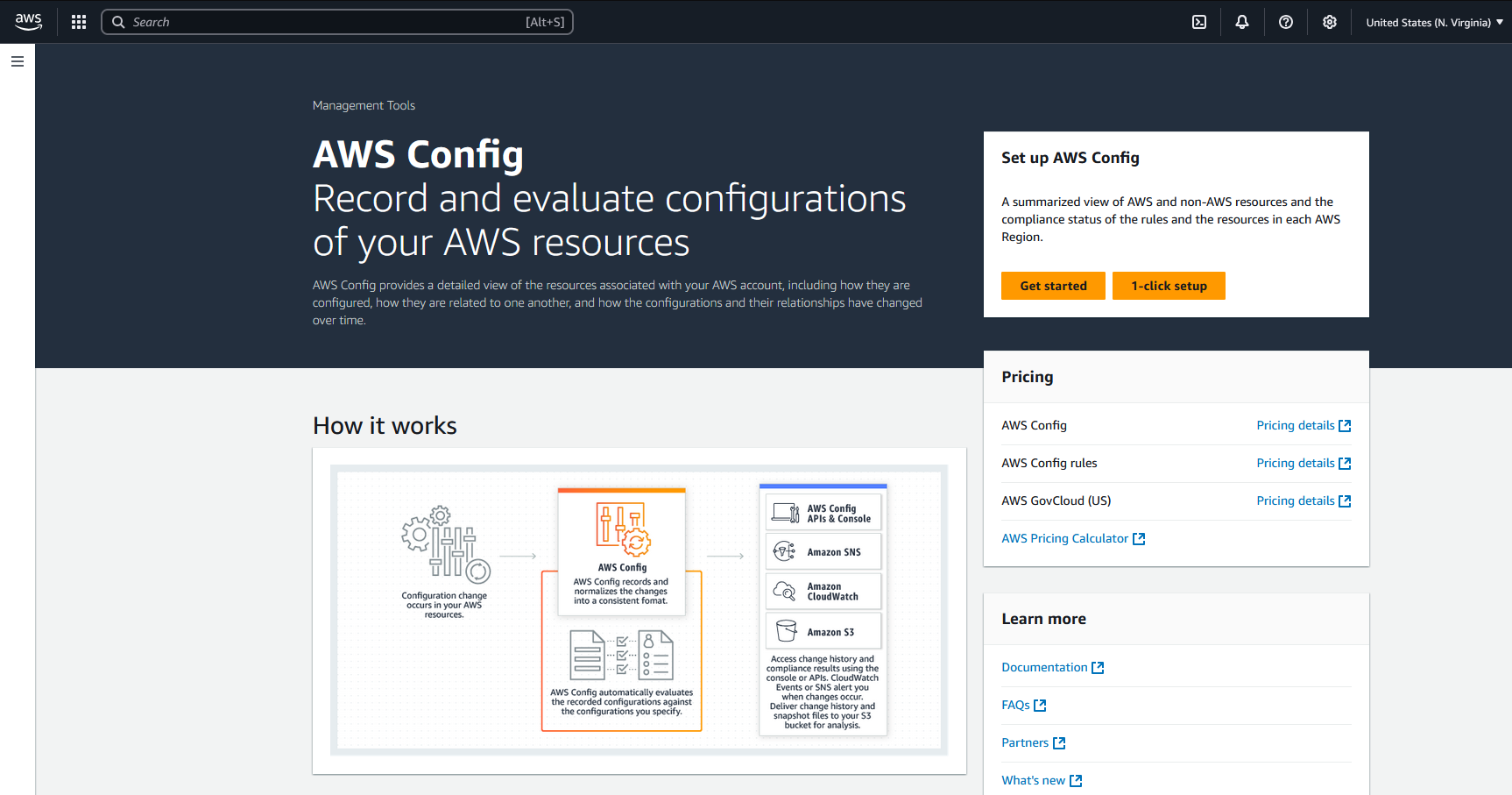
Setup AWS Config using the 1-Click Setup at https://aws.amazon.com/config/
-
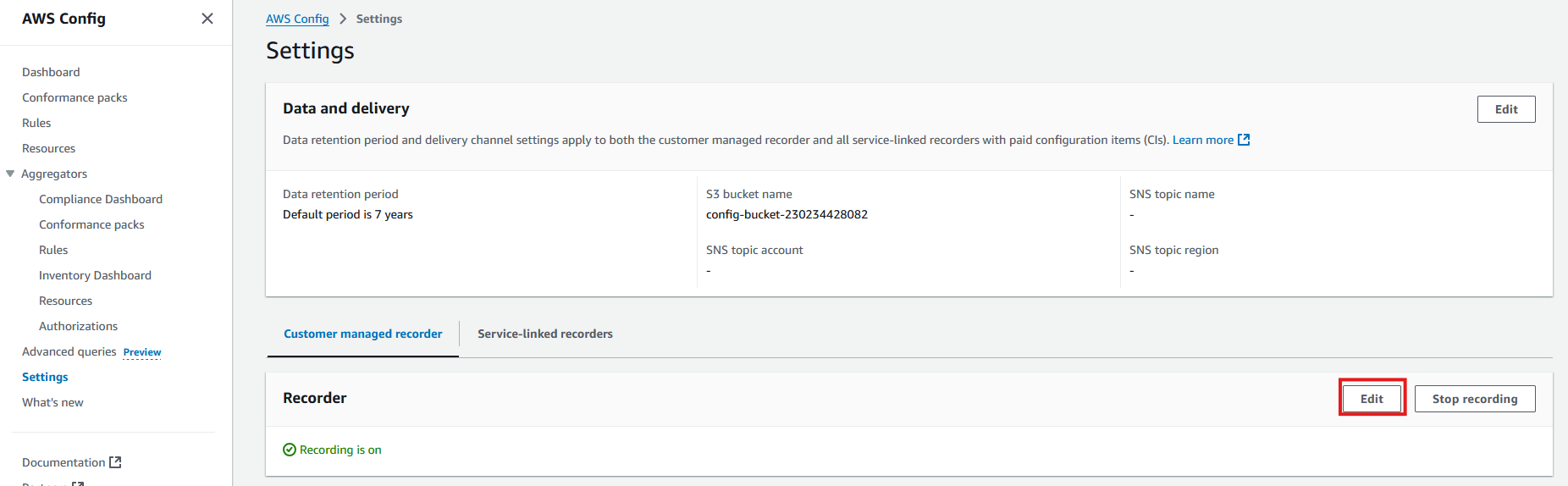
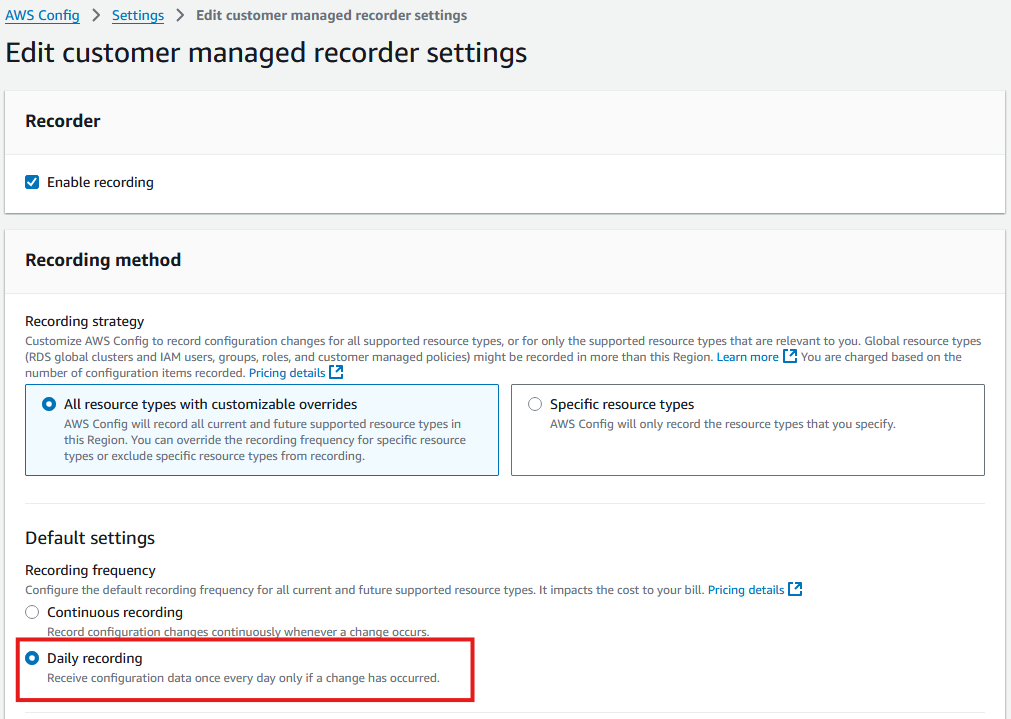
Update the Recording settings to Daily recording:
-
Go To Settings, Under Recorder select Edit
-
Change Recording frequency to Daily recording
-
Important Notes
Within an AWS account there are typically a very large number of IAM resources.
If you have decided to use Continuous recording (which Syncfish do not recommend) then you should override the Continuous recording setting to exclude IAM resources (i.e. to ensure IAM resources are NOT subject to Continuous recording).
-
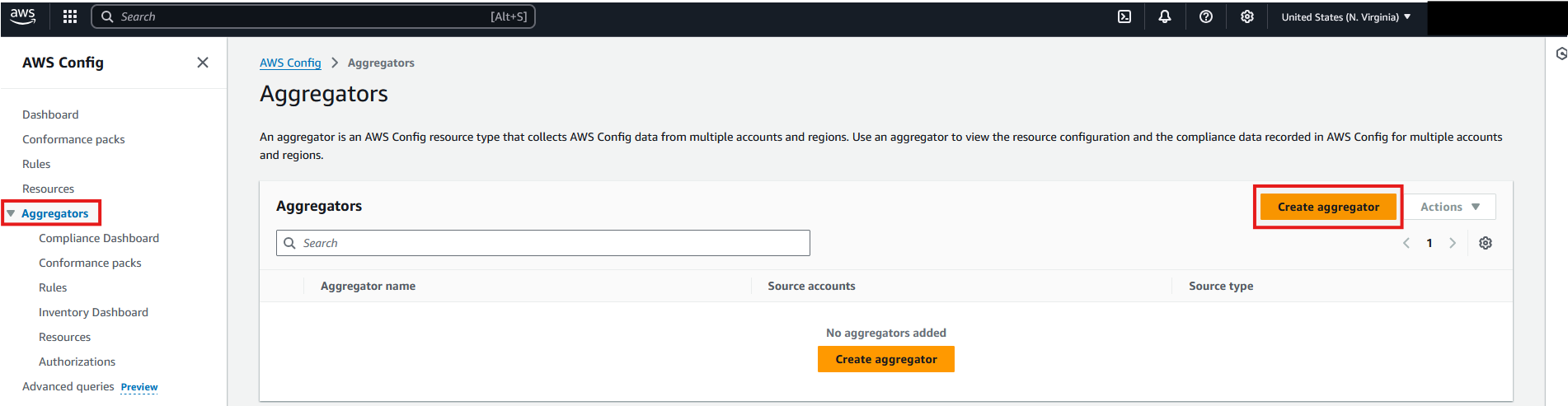
Within AWS Config, create a new Aggregator for use by CI Sync.
-
Setup the new Aggregator as follows:
-
Select “Allow AWS Config to replicate data….”
-
Enter a meaningful and univserally unique name (e.g. “CISync-Aggregator”).
-
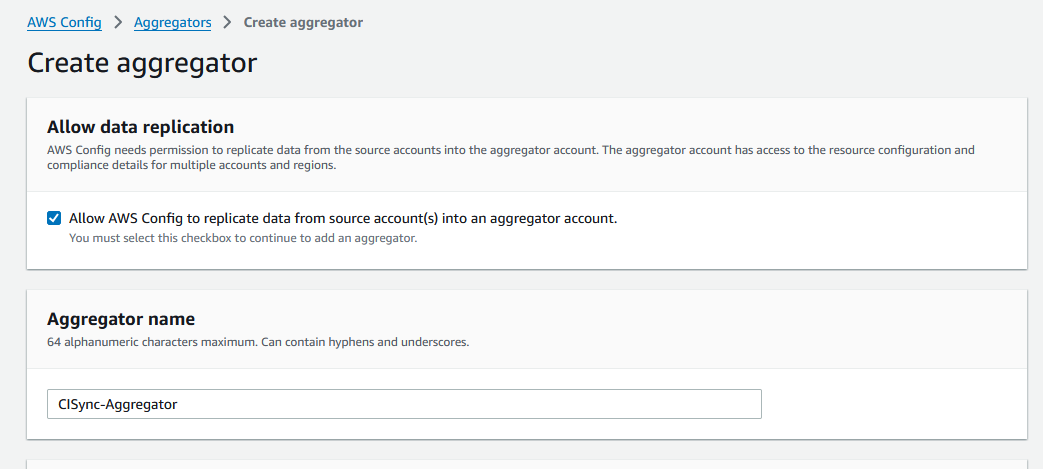
Data Capture Note
The Aggregator Name will be required by the CI Sync Admin when they use instructions further below to add AWS as a Source Connection when CI Sync.
-
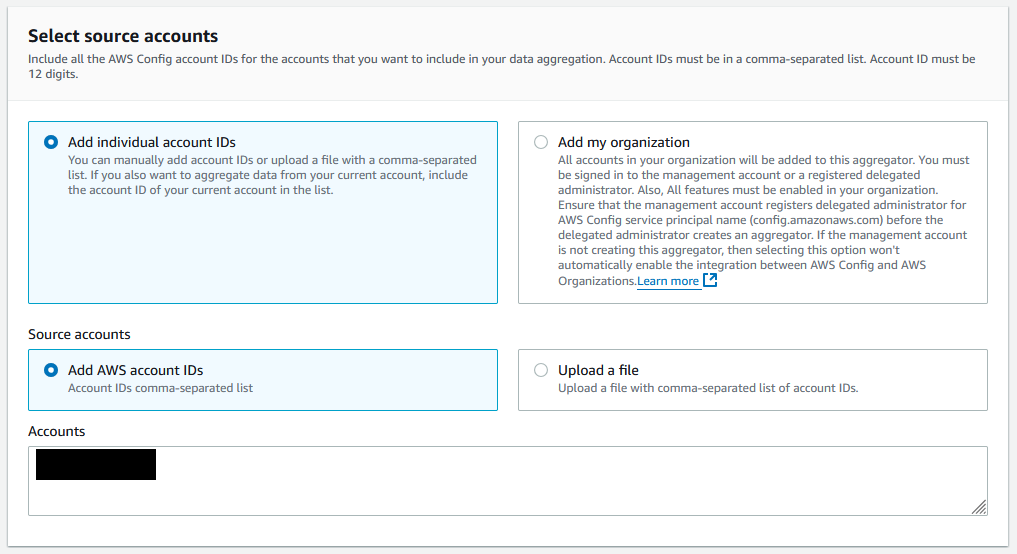
Select the AWS Source Accounts to be included in the scope of this CI Sync Aggregator.
-
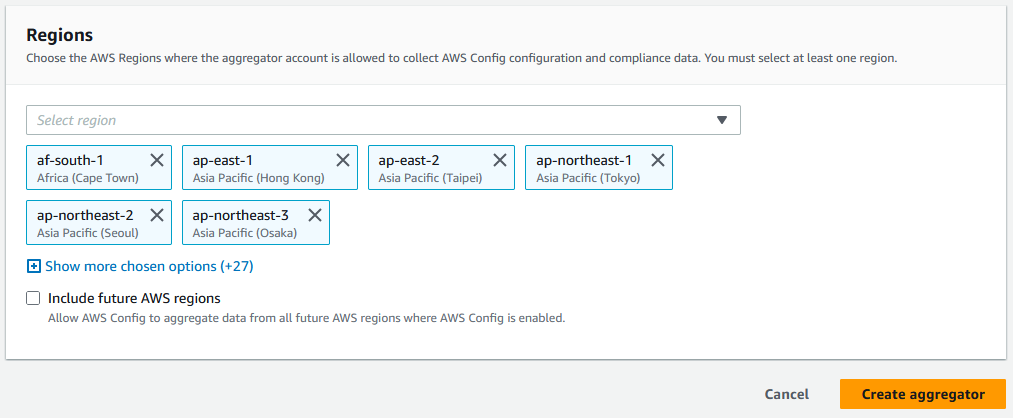
Specify the AWS Region/s to be included in the scope of this CI Sync Aggregator (i.e. the AWS Regions containing the resources that you intend to synchronize into your CMDB).
-
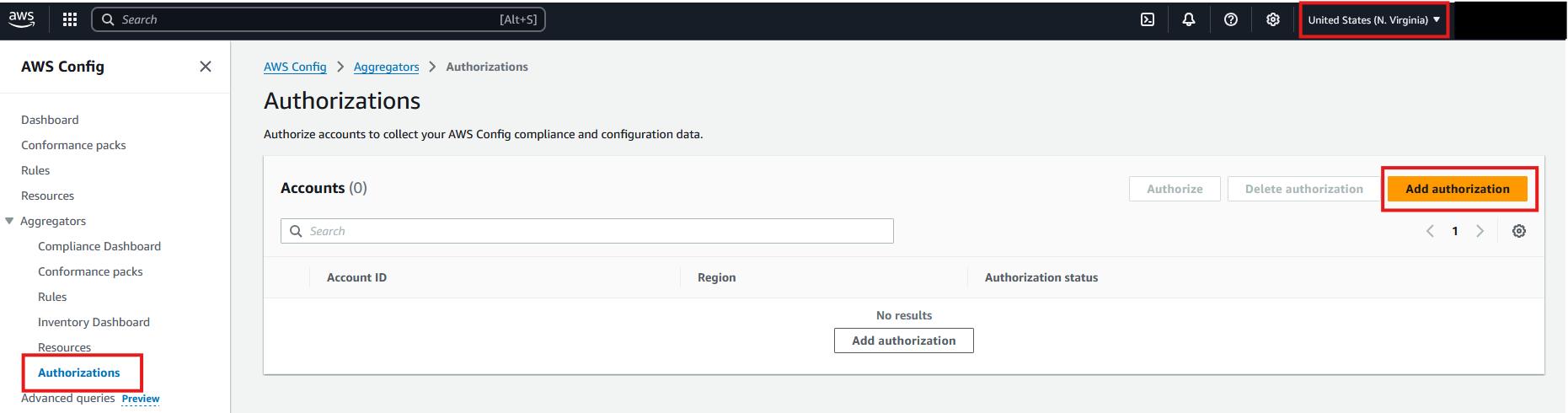
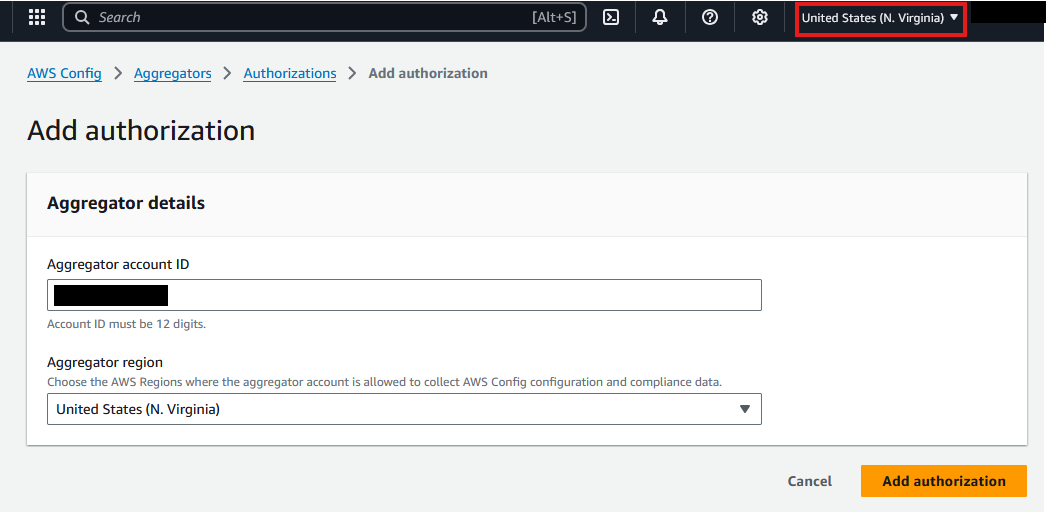
Navigate to the Authorisations page within the new CI Sync Aggregator as shown below.
-
Click the Add Authorization button.
-
Review the details:
-
The Account ID should be your AWS Account ID.
-
The Aggregator region should be the region in which the AWS Config service was created.
-
Data Capture Note
The Aggregator region and Account ID will be required by the CI Sync Admin when they use instructions further below to add AWS as a Source Connection when CI Sync.
-
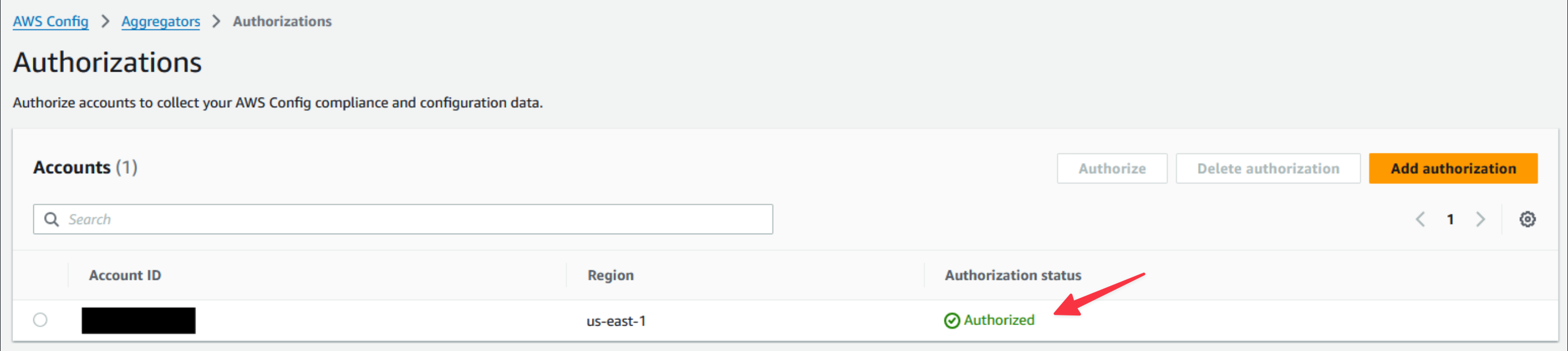
When ready, Click the Add Authorization button. If successful you should see “Authorized” appear for the Authorization Status (this may take a few minutes).
As a reminder, you should have captured the following information when completing the above steps.
-
The Config Aggregator Name (from Step 4 above). This is the CI Sync specific Config Aggregator.
-
The Aggregator Region (from Step 9 above). This is the AWS Region in which the Config Aggregator has been created.
-
The Account ID (from Step 9 above). This will be the AWS Account ID
There are additional values to be collected in Task 2 immediately below dependent on the authentication option selected.
These values will be used later by the person following the instructions in Task 3 below.
Task 2: Configure AWS Authentication
There are two supported methods of authenticating into AWS.
-
Creating an identity provider to grant the CI Sync agent access to AWS Resources via Workload Identity Federation
-
Creating a Service Account with an Access Key & Secret (Not Recommended)
You will need to capture some information when configuring authentication
Option 1: Create an identity provider and grant the CI Sync agent access (WIF)
Expand to see steps for the Identity Provider method
-
Navigate to your CI Sync instance and create a new AWS Connection. Take note of the Configuration Values at the bottom of the page.
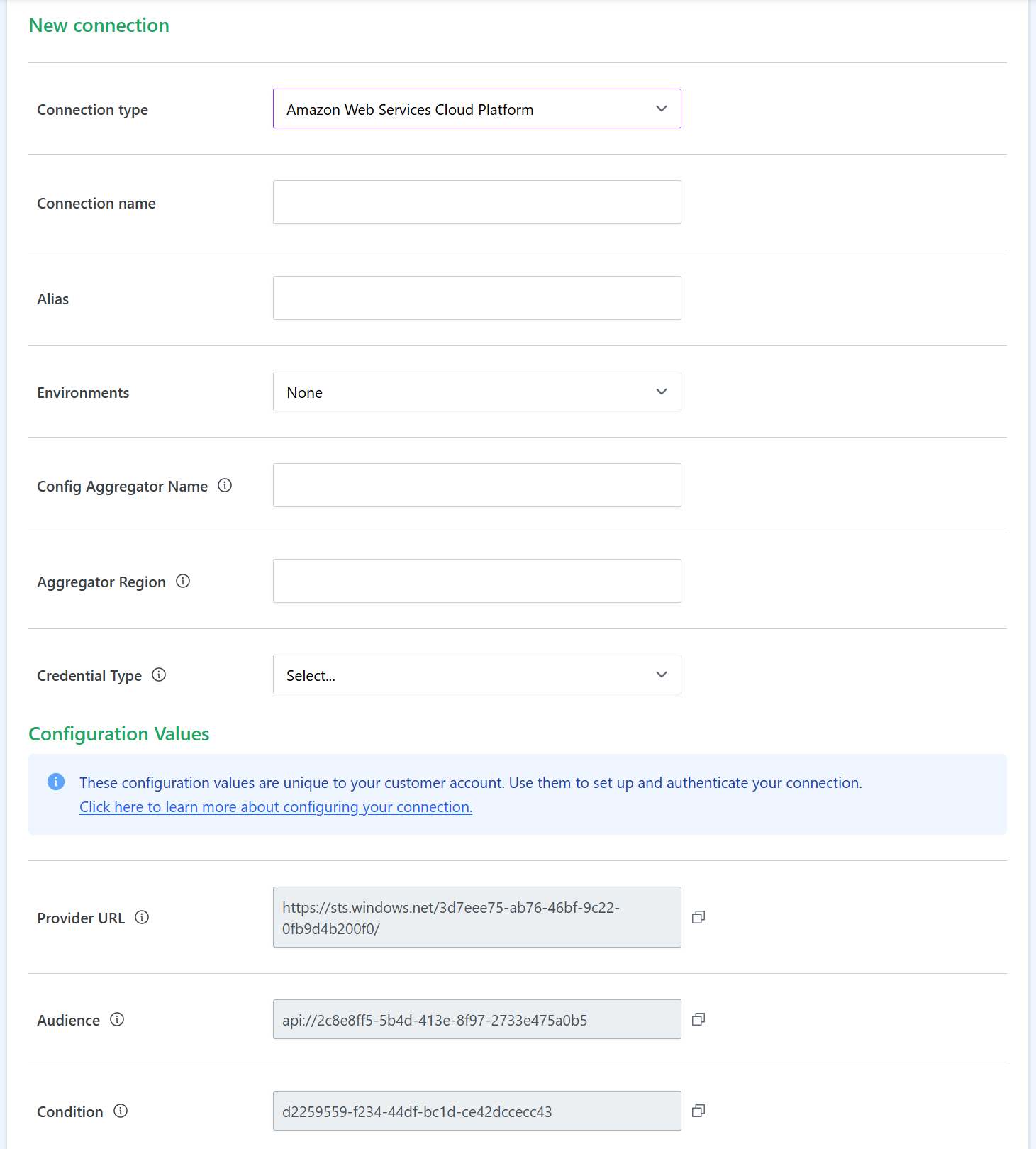
Note: These values are unique to your customer account and will differ to the provided example
-
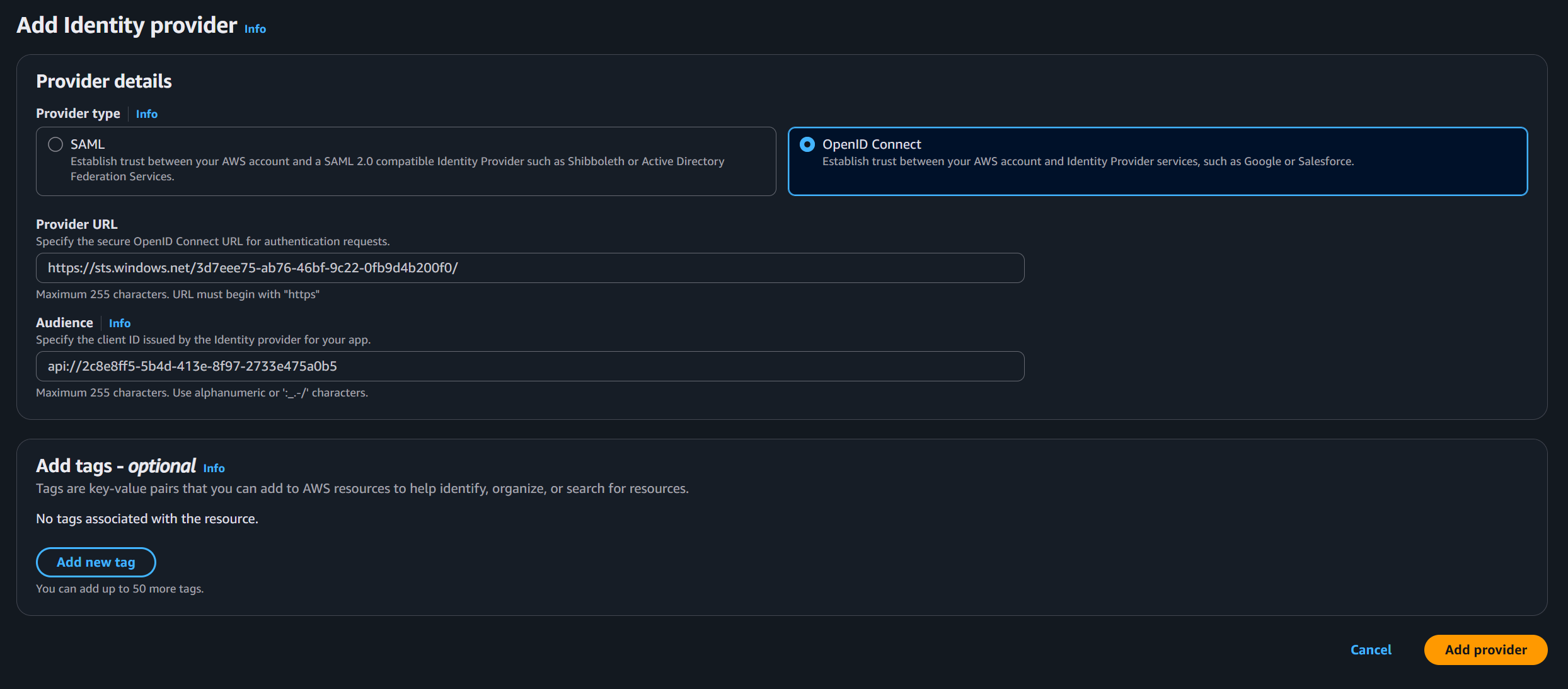
In AWS, Navigate to IAM → Identity Providers. Click Add provider and select OpenID Connect.
-
Enter the Provider URL and Audience from the previous step.
-
-
Open the Provider you have just created and click Assign Role. Create a new Role
-
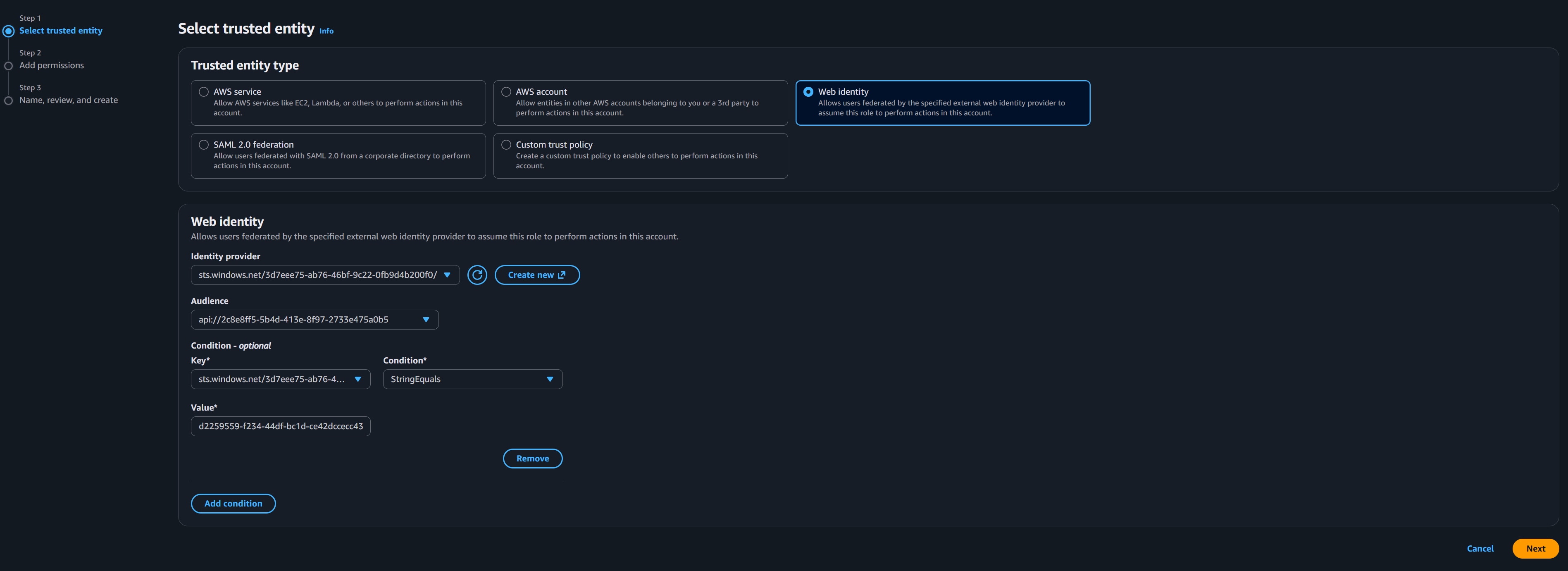
Select Web identity as the Trusted entity type and ensure that the Identity Provider and Audience values are set.
-
Click Add condition and set the :sub key to equal the Condition value displayed in CI Sync
-
-
Create a new Inline Policy with the following configuration:
JSON{ "Version": "2012-10-17", "Statement": [ { "Sid": "ReadAggregatedConfig", "Effect": "Allow", "Action": [ "config:ListAggregateDiscoveredResources", "config:GetAggregateResourceConfig", "config:SelectAggregateResourceConfig" ], "Resource": "*" }, { "Sid": "ListBuckets", "Effect": "Allow", "Action": "s3:ListAllMyBuckets", "Resource": "*" }, { "Sid": "ReadBucketNotifications", "Effect": "Allow", "Action": "s3:GetBucketNotification", "Resource": "*" }, { "Sid": "ReadLambdaConfiguration", "Effect": "Allow", "Action": [ "lambda:ListFunctions", "lambda:ListFunctionEventInvokeConfigs", "lambda:ListEventSourceMappings", "lambda:GetPolicy" ], "Resource": "*" }, { "Sid": "ListSnsSubscriptions", "Effect": "Allow", "Action": "sns:ListSubscriptions", "Resource": "*" } ] }
-
Give the Role a name.
-
Make note of the Role Name
-
-
Review the permissions and click Create
Data Capture Summary
As a reminder, you should have captured the following information when completing the above steps.
-
The Config Aggregator Name (from Task 1, Step 4 above). This is the CI Sync specific Config Aggregator.
-
The Aggregator Region (from Task 1, Step 9 above). This is the AWS Region in which the Config Aggregator has been created.
-
The Role Name of the role created in Step 5 above
These values will be used later by the person following the instructions in Task 3 immediately below.
Option 2: Create a Service Account with an Access Key & Secret (Not Recommended)
Expand to see steps for the Service Account method
-
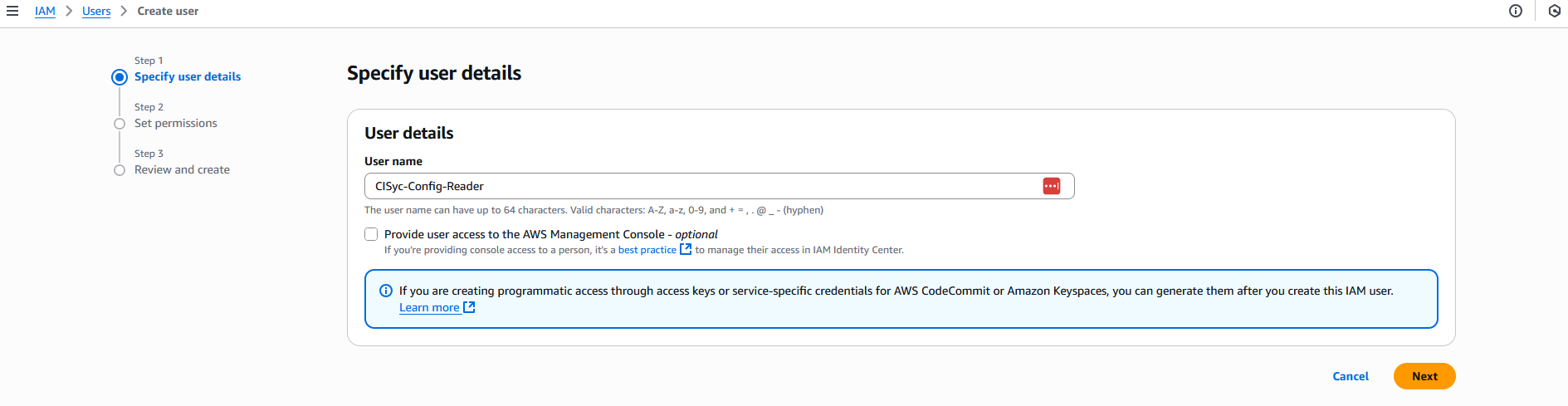
Navigate to AWS IAM, create a new user.
-
Enter a meaningful User name such as “CISync-Config-Reader”.
-
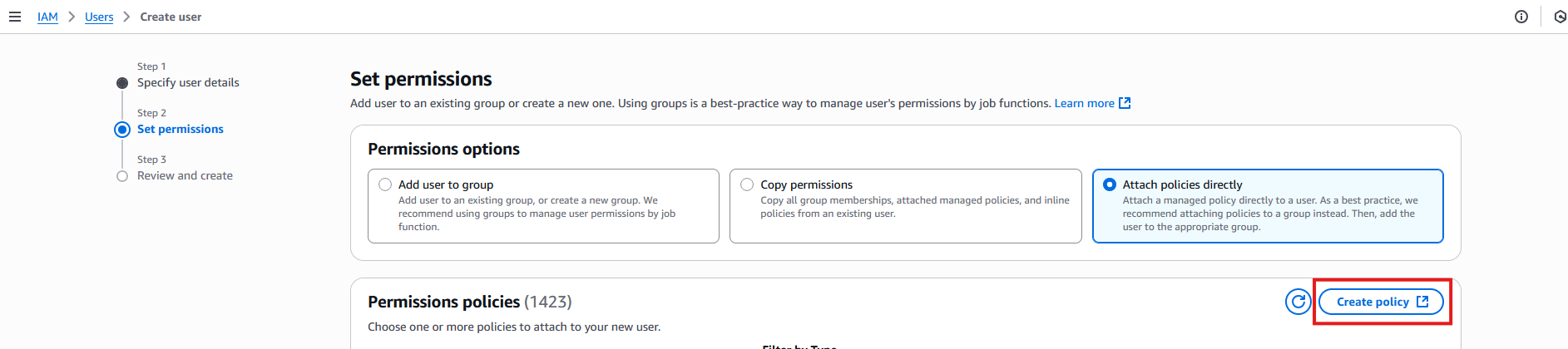
Using the Set permissions page
-
Click Attach policies directly
-
Then click Create policy
-
-
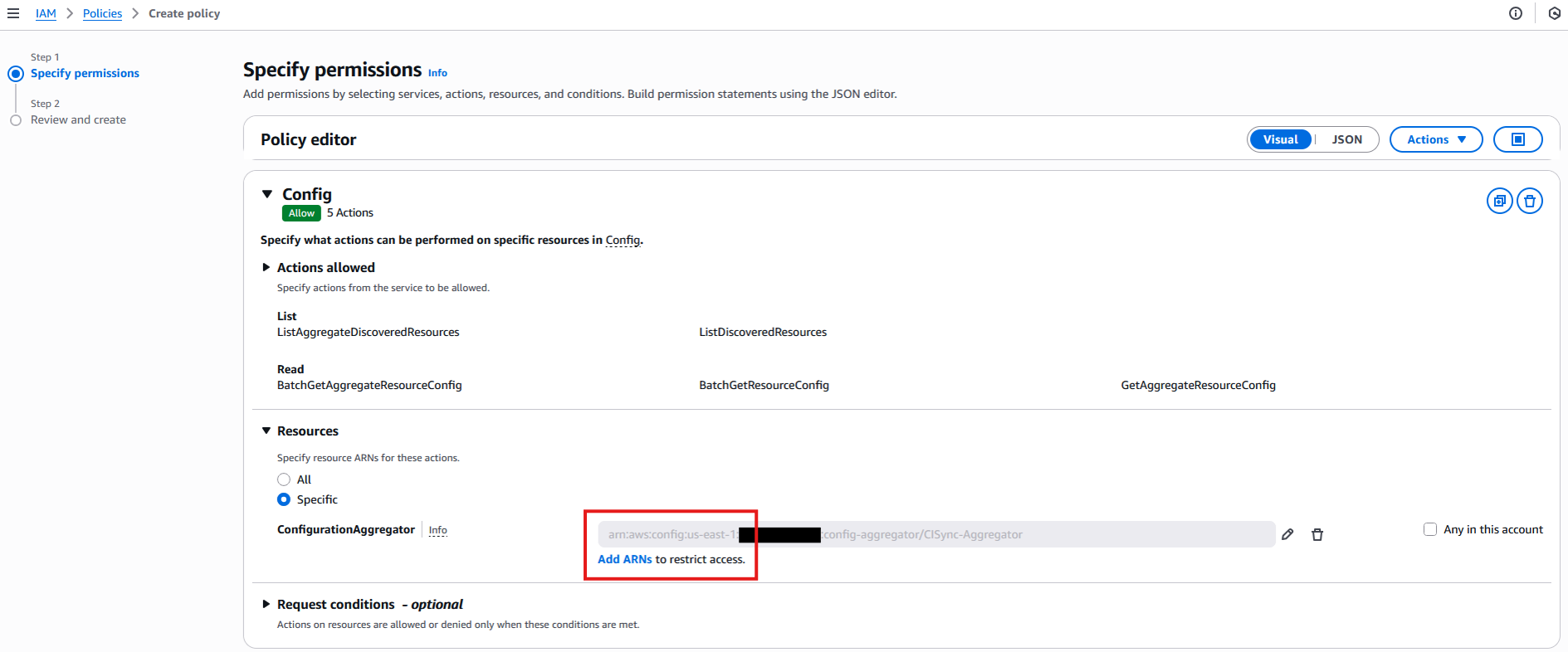
Within the new policy set the following actions only for the Config service:
-
ListDiscoveredResources
-
GetAggregateResourceConfig
-
BatchGetResourceConfig
-
ListAggregateDiscoveredResources
-
BatchGetAggregateResourceConfig
-
-
Ensure the resource policy is scoped appropriately:
-
Click Add ARNs to open the Specify ARNs dialog box
-
Specify the aggregator created in Step 4.
-
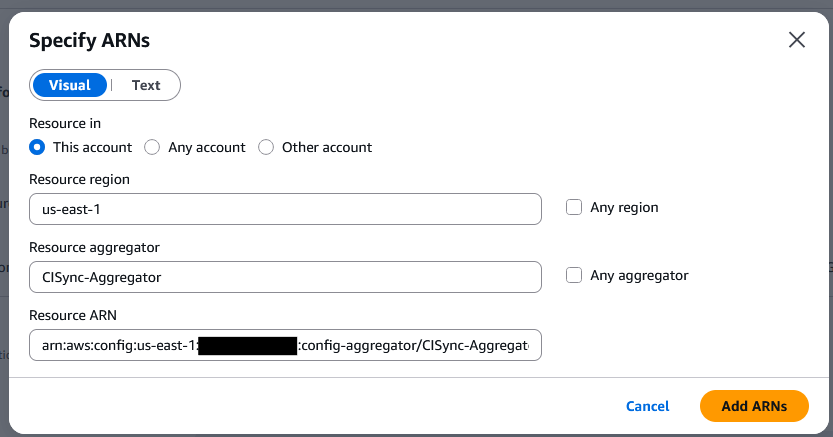
-
Once the user is created, you should be redirected the the user list. Open the newly created user and click Create Access Key.
Note: choose Third-party service as the Use case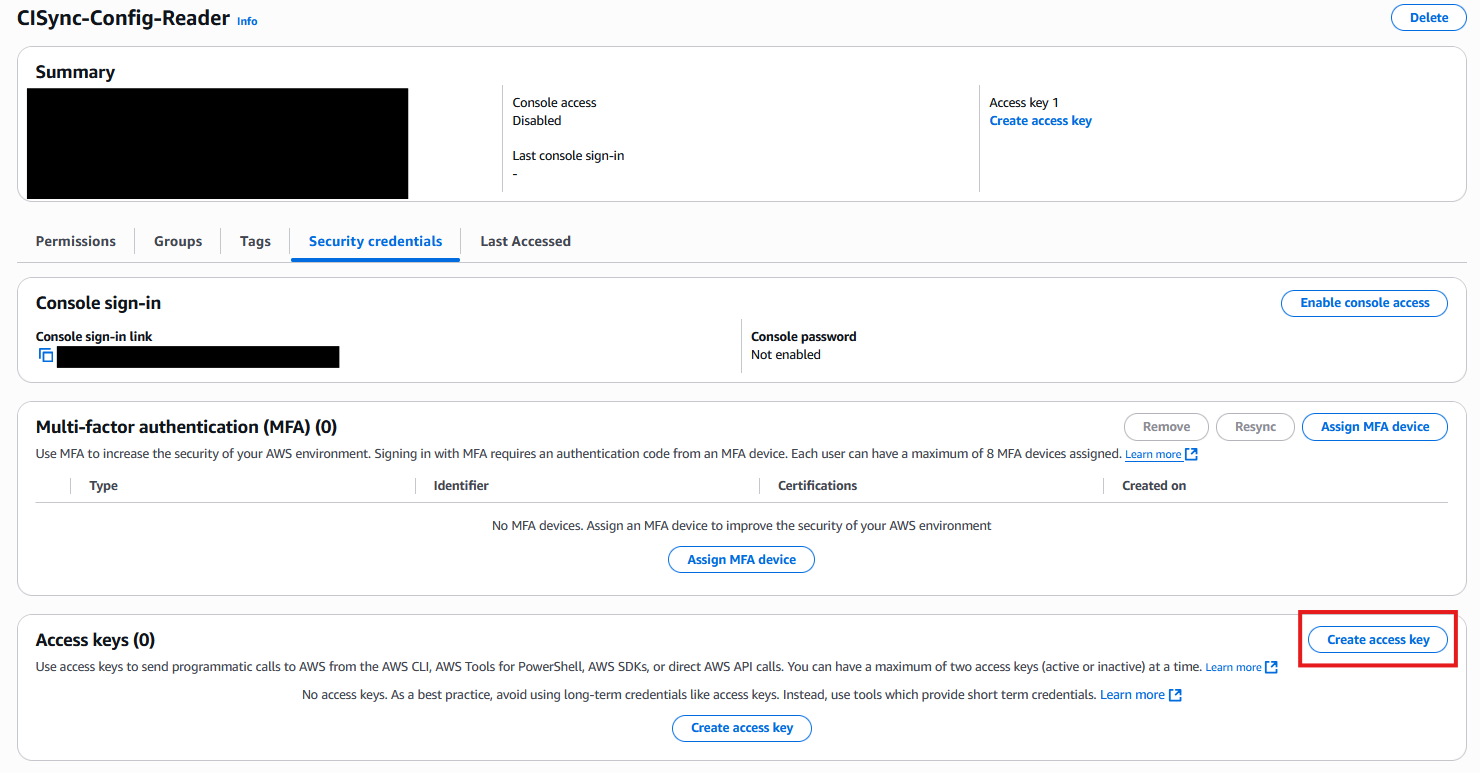
-
Securely record the generated Access Key and Secret Access Key.
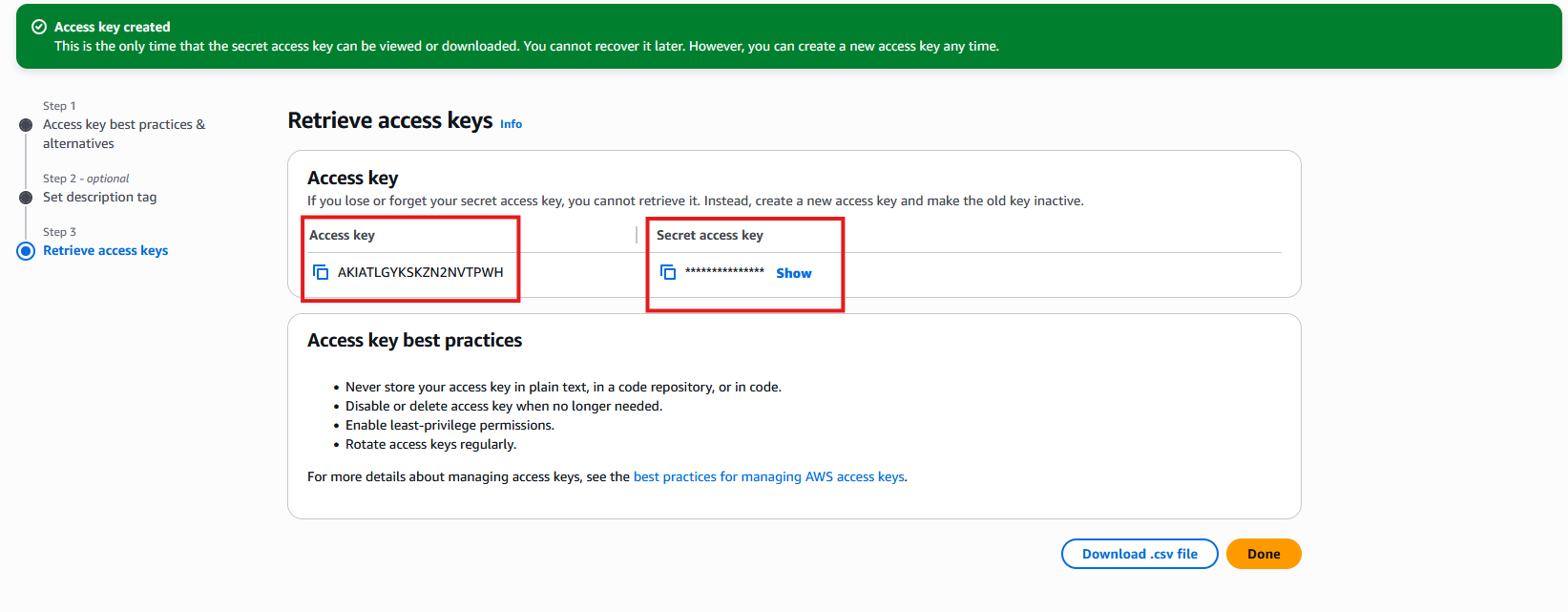
Data Capture Summary
As a reminder, you should have captured the following information when completing the above steps.
-
The Config Aggregator Name (from Step 4 above). This is the CI Sync specific Config Aggregator.
-
The Aggregator Region (from Step 9 above). This is the AWS Region in which the Config Aggregator has been created.
-
The value of the Access Key (from Step 17 directly above).
-
The value of the Secret Access Key (also from Step 17 directly above).
These values will be used later by the person following the instructions in Task 3 immediately below.
Task 2 (Supplement) - Optionally Grant additional permissions in AWS if using the Extended Relationships feature in CI Sync
Context
The default rules in CI Sync create a variety of CI-to-CI Relationships (sometimes called Dependencies in ServiceNow) between the various resources CI Sync reads from AWS.
Customers can optionally enable a CI Sync Connection Setting that triggers CI Sync to create additional or extended relationships between AWS resources. Please read these pages for more information the default relationships and how to enable extended relationships:
-
For Default Relationships see: Rule 2 - AWS CI-to-CI Relationships
-
For the Connection Setting to enable Extended Relationships see: Extended CI Relationships (CI Dependencies) for AWS
If you will be using the Extended Relationships feature of CI Sync you need to add additional permissions to the CI Sync User account using the AWS portal.
Instructions
-
In AWS, navigate to IAM → Policies and open the policy created for CI Sync in Task 2 above.
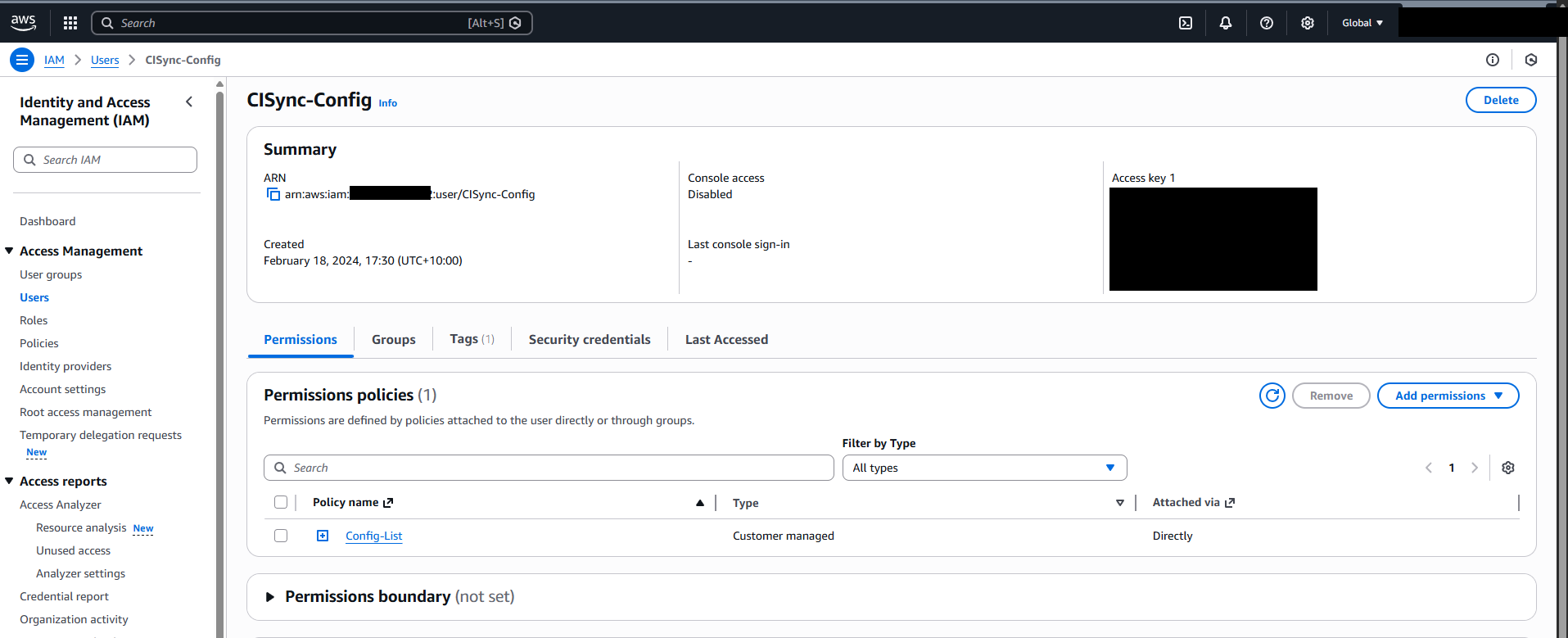
-
Edit the policy to ensure that it contains the following permissions against
*resource:"config:ListDiscoveredResources", "config:GetAggregateResourceConfig", "config:BatchGetResourceConfig", "config:ListAggregateDiscoveredResources", "config:BatchGetAggregateResourceConfig", "sns:ListSubscriptions", "sts:AssumeRoleWithWebIdentity", "lambda:ListFunctions", "lambda:ListFunctionEventInvokeConfigs", "lambda:ListEventSourceMappings", "lambda:GetPolicy" -
In the JSON view of the Policy editor, it should look like the following:
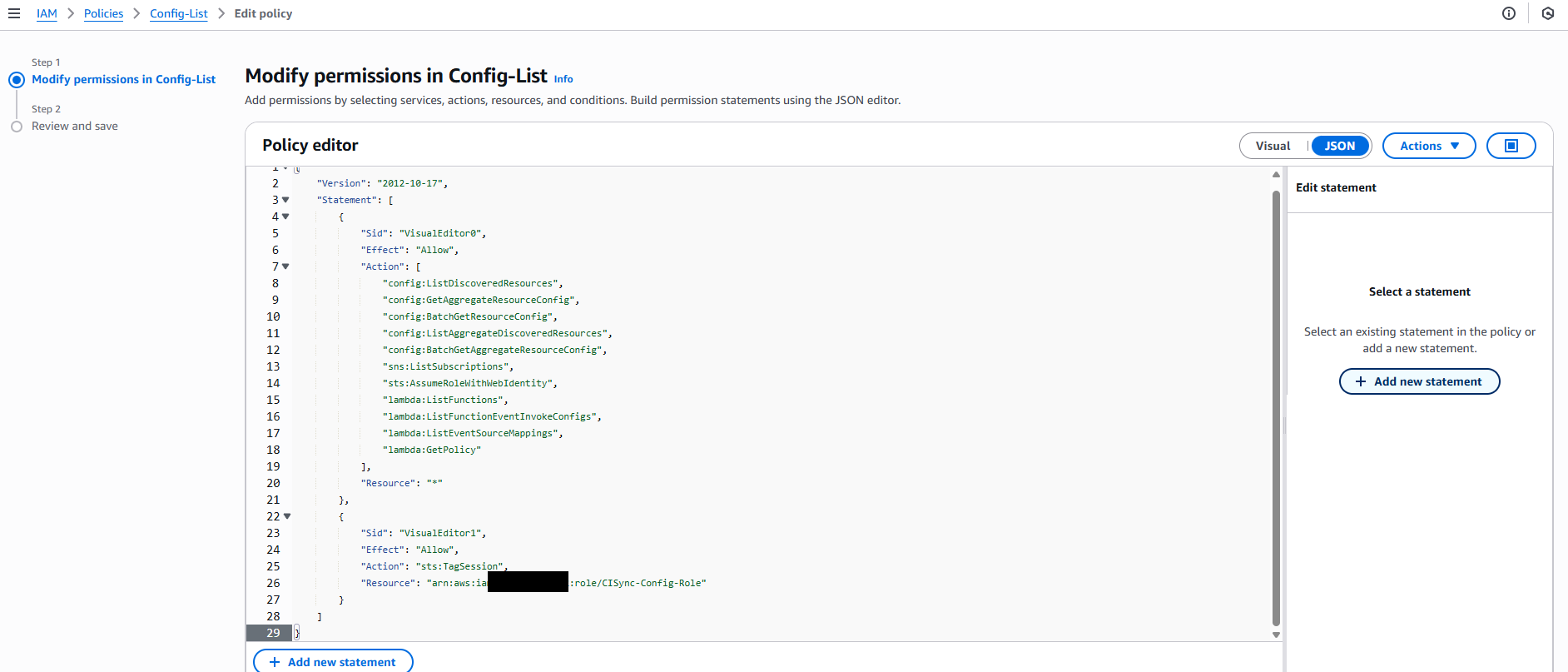
-
The Visual view should look like the following:
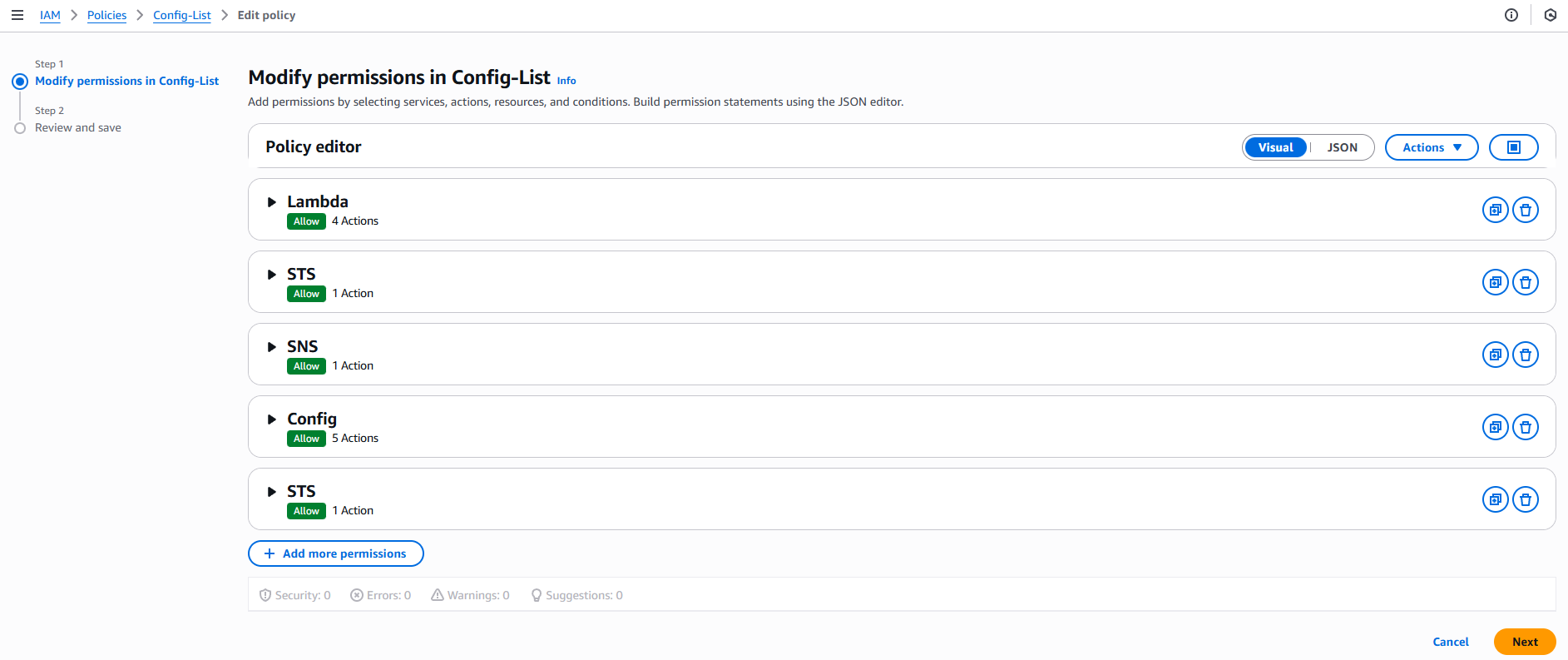
-
Once the permissions have been added to the role, it may take a few minutes for them to apply.
Task 3: Add AWS as a Source System using the CI Sync SaaS UI
-
Login to your CI Sync SaaS instance at https://YourCo.syncfish.app
-
In the CI Sync UI, navigate to Settings > Connections.
-
Find the “SaaS Agent” sub-heading under the Source Connections section. If you don’t see “SaaS Agent” it means your CI Sync instance hasn’t been configured for this feature. Please contact your Sync representative to discuss.
-
On the right hand side of the form, click the +Add button.
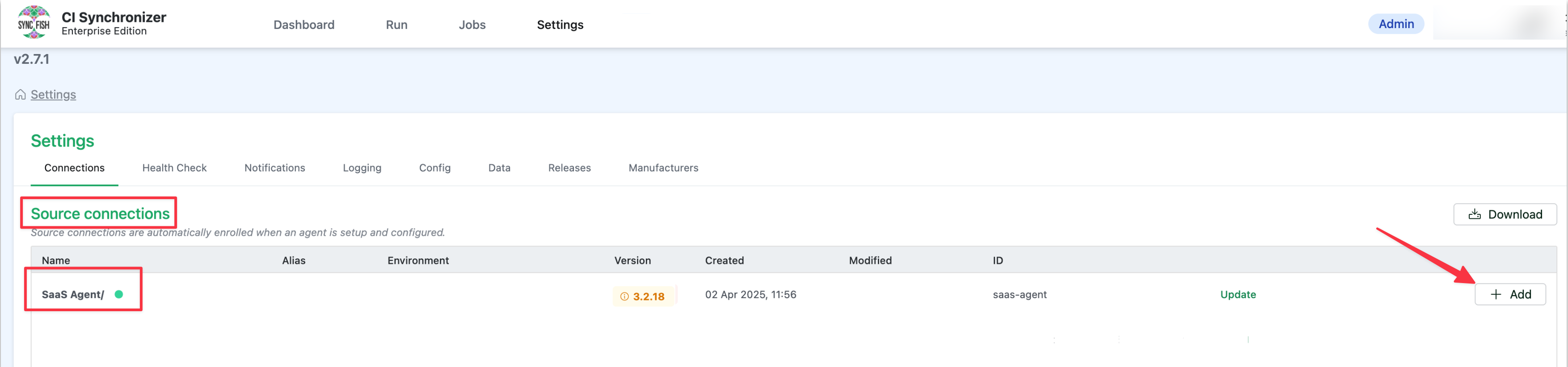
-
The New Connection form now appears. Use the Connection Type drop down list to select the source system you wish to add (in this case Amazon Web Services Cloud Platform).
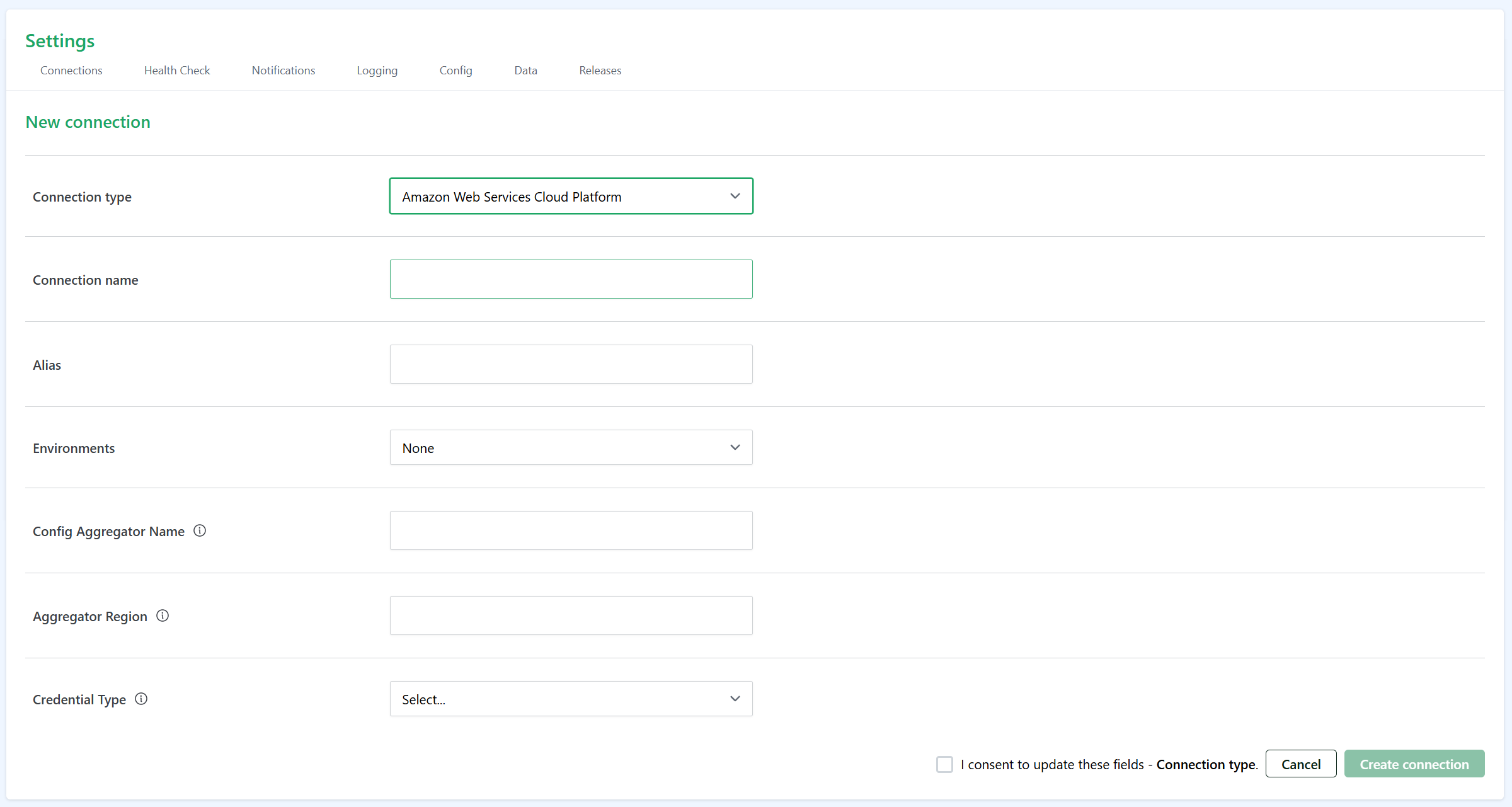
-
Update the fields using these instructions
-
Connection name
-
This is a friendly name that represents the source system connection.
-
The name you enter here will appear when you create a new sync job and are selecting from the available source system list.
-
Note: Syncfish recommend using a textual suffix on the connection name if for any reason you have setup multiple CI Sync Connections to AWS.
-
-
Alias: Please ingore this field (it is not used for the CI Sync Cloud Agent and is being deprecated).
-
Environments
-
Select from the available choices Production, Test, or Production/Test (the latter being both).
-
The selection you make for this field affects which source systems appear when you create a new sync job (i.e. when you are selecting the source system list based on the “Environment” you have chosen for the sync job). See this page for more details on creating a CI Sync job: Run a Small Initial Sync Job (then run more).
-
FYI: CI Sync allows a source system to be both Production/Test because CI Sync only reads from a source system (it doesn’t write to it). Destination systems can only be Test or Production (not both).
-
-
Config Aggregator Name
-
Paste the Config Aggregator Name captured by your AWS Admin in Task 1 above.
-
-
Aggregator Region
-
Paste the Aggregator Region captured by your AWS Admin in Task 1 above.
-
-
Credential Type
-
Select the type of authentication you want to use
-
Workload Identity Federation
-
Service Account (Not Recommended)
-
-
-
Depending on your chosen Credential Type, the following fields will be visible:
-
-
Workload Identity Federation:
-
Account ID
-
Paste the AWS Account ID captured by your AWS Admin in Task 1 above.
-
-
Role Name
-
Paste the Role Name captured by your AWS Admin in Task 2 above.
-
-
-
Service Account
-
Access Key
-
Paste the Access Key captured by your AWS Admin in Task 2 above.
-
-
Secret Access Key
-
Paste the Secret Access Key captured by your AWS Admin in Task 2 above.
-
-
-
Once the fields have been entered: lick the Consent to update fields checkbox and finally click the Create connection button.
You will be returned to the main settings screen and your new source system connection will appear in the list as shown below.

Task 4: Check status of new AWS Source System connection
-
To check the status of the newly added AWS Source System connection click the green Check Status link. This will test whether your CI Sync AWS connection can successfully reach and authenticate to the AWS Entra ID defined in the connection itself.
-

If the connection is successful, you will see a green dot next to the source connection name.
-

To test again in the future, you can click the green Refresh Status button.
-
If the test is unsuccessful, you will see a red dot next to the source connection name and an error message underneath. If you need assistance resolving an error, please contact Syncfish support.
This means you are ready to run a sync job using the new source connection using these high-level instructions: Run a Small Initial Sync Job (then run more).
Task 5: Assess if additional updates are required in ServiceNow
Guidance Note
Syncfish recommend the person setting up the source system described in this guide discusses this particular task with their ServiceNow system administrator.
A ServiceNow administrator will need to perform these steps.
Syncfish recommend following these instructions in your non-production ServiceNow environment for testing synchronization jobs.
Only once exhaustive testing in non-production is complete, repeat this process in your ServiceNow production environment.
In this section your ServiceNow SME will assess various updates to ServiceNow to support this CI Sync connector:
-
Task 4a: Assess if the CMDB CI Class Models plug-in is needed for this connector
-
Task 4b: Assess if any custom tables or attributes are needed for this connector
-
Task 4c: Assess if additional permissions are required for this connector
-
Task 4d: (Optional though recommended) Assess your ServiceNow CI forms and update to include additional Related Lists specific to this connector
-
Task 4e: Read and understand more about the data and functionality related to this connector
Task 5a: Assess if the CMDB CI Class Models plug-in is required for this connector
Context
A number of record sets (asset types/resource types) available to sync using the AWS Connector rely upon CMDB CI Classes that are only available via the CMDB CI Class Models plug-in.
You therefore need to install the CMDB CI Class Models plug-in to your ServiceNow instance.
If you already have the plug-in you may want to upgrade it to the latest version (as ServiceNow occasionally updates the plug-in to include extra CI Classes/tables).
|
Source System |
Specific Record Sets that require the CMDB CI Class Models plug-in |
|
AWS |
|
Instructions
Follow these steps to add this plug-in (and similar steps to locate it and upgrade it if required):
-
Assess the use/inclusion of this plug-in within your ServiceNow (ensure you are comfortable installing this plug-in).
-
Search for Plugins via the ServiceNow navigation menu.
-
Locate the CMDB CI Class Models plug-in.
-
Click Add -> Install and follow the instructions provided.
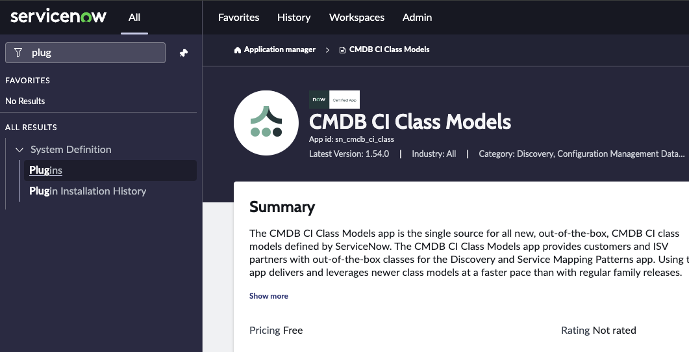
Task 5b: Assess if custom tables or attributes are needed for this connector
No custom tables and no custom attributes are required in ServiceNow to support this CI Sync connector.
You can therefore ignore / skip this task.
Task 5c: Assess if additional permissions are required for this connector
Use Case - If you are planning to use CI Sync to write AWS Tags to the CMDB
Context
CI Sync writes AWS Tags to the cmdb_key_value table in ServiceNow.
The standard/out-of-the-box roles provided by ServiceNow (and recommended by Syncfish during S3 - Configure ServiceNow for CI Sync) do not provide access to the cmdb_key_value table. Therefore, the CI Sync Integration User account created during S3 - Configure ServiceNow for CI Sync requires additional permissions to write to the cmdb_key_value table.
Syncfish provides a ServiceNow updateset to prepare your ServiceNow instance for CI Sync. The updateset does the following:
-
Creates a read/write ACL on the cmdb_key_value table.
-
Applies the ACL on the cmdb_key_value table and assigns the ACL to the ServiceNow role called “Asset” (which is one of the roles granted to the CI Sync Integration Account created during S3 - Configure ServiceNow for CI Sync).
Instructions
Follow these steps to apply the updateset provided by Syncfish:
-
Download the update set from Syncfish at the below URL:
https://downloads.syncfish.app/servicenow/cisync-cmdb-key-value.xml -
Login to your ServiceNow instance with Admin permissions.
-
Open a browser and navigate to your ServiceNow instance
-
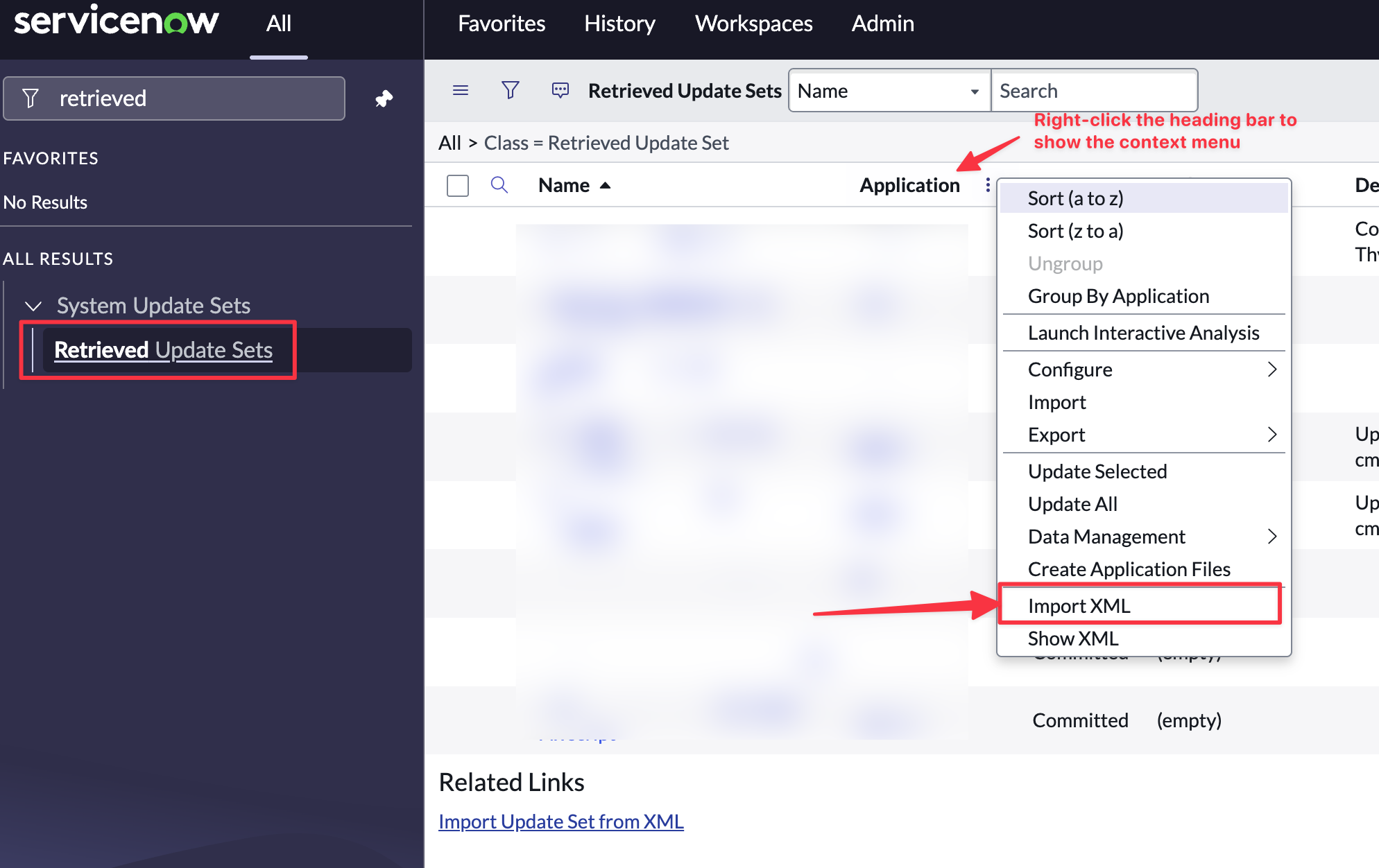
In the left nav menu search for “Retrieved Update Sets” and click to open
-
Right click on the column heading row and select “Import XML”
-
Select “Choose File”
-
Select the downloaded file “cisync-cmdb-key-value.xml”
-
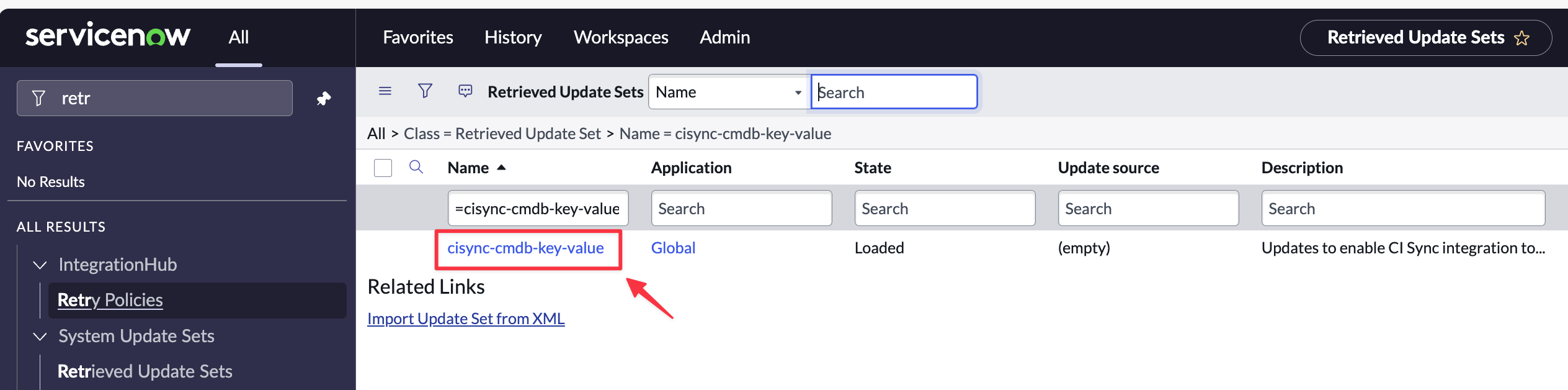
Click to open the Update Set
-
Click “Preview Update Set”
-
If there are no preview errors, Click “Close”.
-
Click “Commit Update Set”.
-
Your ServiceNow instance is now ready to receive Tag data from AWS via sync jobs from CI Sync.
Task 5d: (Optional though recommended) Assess your ServiceNow CI forms and update to include additional Related Lists specific to this connector
Context
CI Sync populates various child tables (related lists) associated with parent CIs. The following table shows the Related Lists (per CI Class) populated by the CI Sync AWS Connector.
|
CI Class |
Related List
|
Related List Name as it appears in the ServiceNow UI when adding it to a CI Form |
|---|---|---|
|
CloudWatch Alarm |
Key Values (Tags) |
Key Value → Configuration Item |
|
DynamoDb Table |
Key Values (Tags) |
Key Value → Configuration Item |
|
EC2 Instance |
Key Values (Tags) |
Key Value → Configuration Item |
|
EC2 Internet Gateway |
Key Values (Tags) |
Key Value → Configuration Item |
|
EC2 Network Interface |
Key Values (Tags) |
Key Value → Configuration Item |
|
EC2 Subnet |
Key Values (Tags) |
Key Value → Configuration Item |
|
EC2 VPC |
Key Values (Tags) |
Key Value → Configuration Item |
|
KMS Alias |
Key Values (Tags) |
Key Value → Configuration Item |
|
KMS Key |
Key Values (Tags) |
Key Value → Configuration Item |
|
Lambda Function |
Key Values (Tags) |
Key Value → Configuration Item |
|
Elastic Load Balancer |
Key Values (Tags) |
Key Value → Configuration Item |
|
RDS DB Instance |
Key Values (Tags) |
Key Value → Configuration Item |
|
S3 Bucket |
Key Values (Tags) |
Key Value → Configuration Item |
|
SNS Topic |
Key Values (Tags) |
Key Value → Configuration Item |
|
SQS Queue |
Key Values (Tags) |
Key Value → Configuration Item |
Instructions
Below are the steps to modify a ServiceNow CI form to expose a new Related List.
-
Login to your ServiceNow instance with Admin permissions.
-
Navigate to any CI in the relevant CI Class (i.e. one/all of those listed in the table in the Context section above). For example, navigate to a Windows Server CI).
-
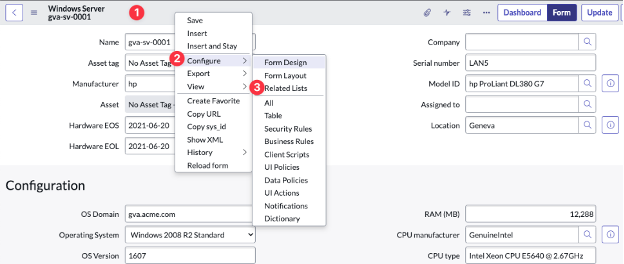
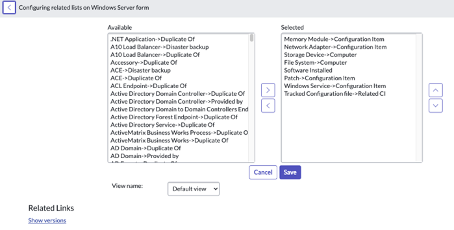
Right-click in the heading area of the form, then click Configure and then Related Lists from the sub-menus.
-
Identify the Related List you want to expose on the CI form using the table in the Context section above.
-
Find the Related List in the left hand column which lists all Available Related Lists.
-
Click the Related List and then click add (the selection arrow) to move the item to the Selected column and then click Save.
-
Repeat for each additional CI Class listed in the table in the Context section above.
Task 5e: Read and understand more about the data and functionality related to this connector
There are no additional data or functionality topics called out for this CI Sync connector.
You can therefore ignore / skip this task.