Task List
|
Task # |
Task |
Performed by |
|---|---|---|
|
1 |
Prepare GCP for use with CI Sync |
GCP Admin |
|
2 |
Add GCP as a Source System using the CI Sync SaaS UI |
CI Sync Admin |
|
3 |
Check status of new GCP Source System connection |
CI Sync Admin |
|
4 |
Assess if additional updates are required in ServiceNow |
ServiceNow Admin |
|
5 |
Grant additional permissions in GCP (if required) |
GCP Admin |
Task 1: Prepare GCP for use with CI Sync
In this Task 1 you will create a new GCP Service Account and then in Task 2 (further below) you will declare the email address of the new Service Account in the CI Sync Web UI.
During Task 1 you will define perimission for the new Service Account. These permissions utlimately limit the range of resources CI Sync can read from GCP to synchronize into the CMDB.
GCP service account permissions are typically as follows:
-
The service account permissions are added to a Single GCP Project.
-
The service account permissions are added to Multiple GCP Projects.
-
The service account permissions are added to the GCP Organization.
For the purpose of CI Sync organisations will add permissions for the service account at the GCP Organization level. This allows CI Sync to read all resources within the GCP Organization (unless additional GCP controls/ACLs have further limited access).
The instructions in Task 1 assume permissions are being added to the GCP Organization.
-
Either create a new CISync Project or navigate to an existing GCP project.
-
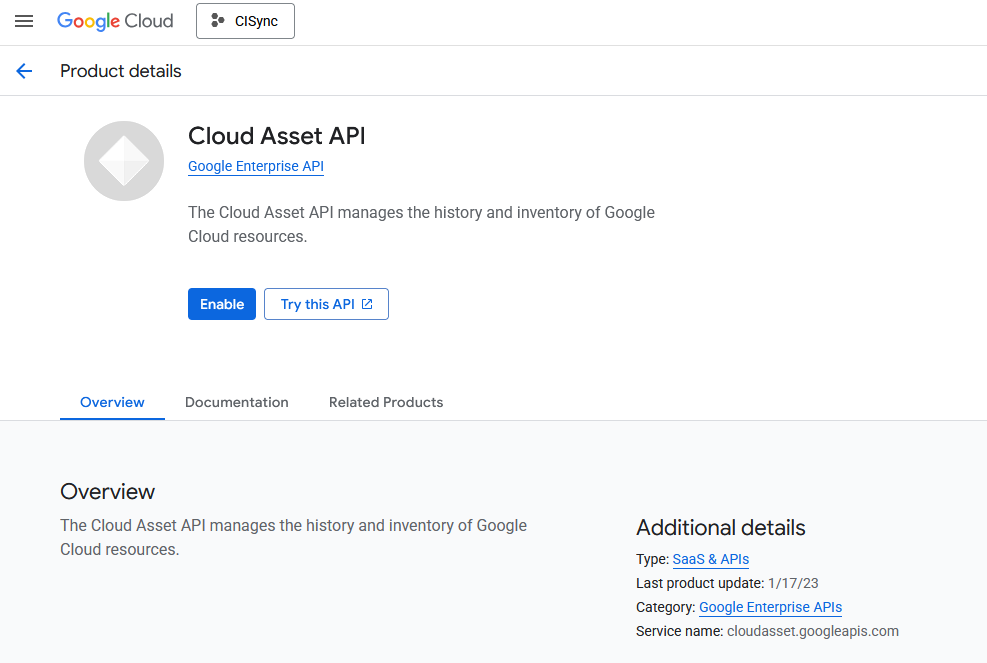
With the project, enable the Cloud Assets API as follows:
-
Navigate to APIs & Services and click the Enable APIs and services button
-
Search for and enable the Cloud Asset API
-
-
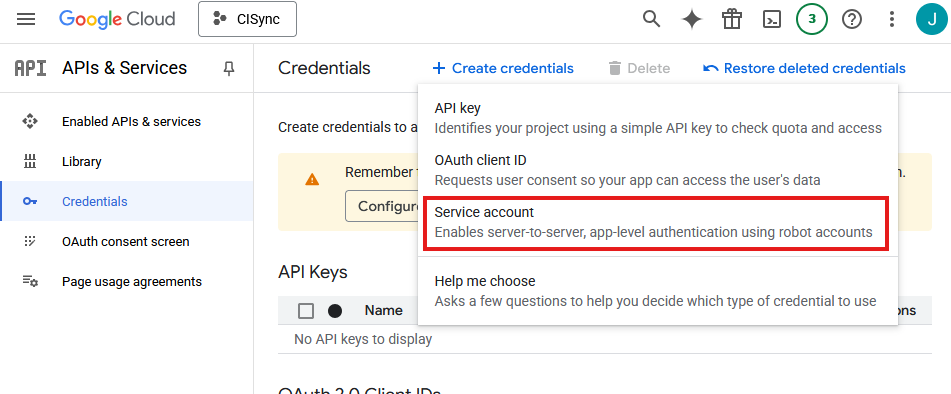
Create a Service Account credential to grant CISynchronizer access.
-
Under APIs & Services, navigate to Credentials and create a new Service Account credential.
-
Give the service account a valid name
-
-
Now navigate back to Service Accounts and locate the Email address assigned to the newly created Service Account.
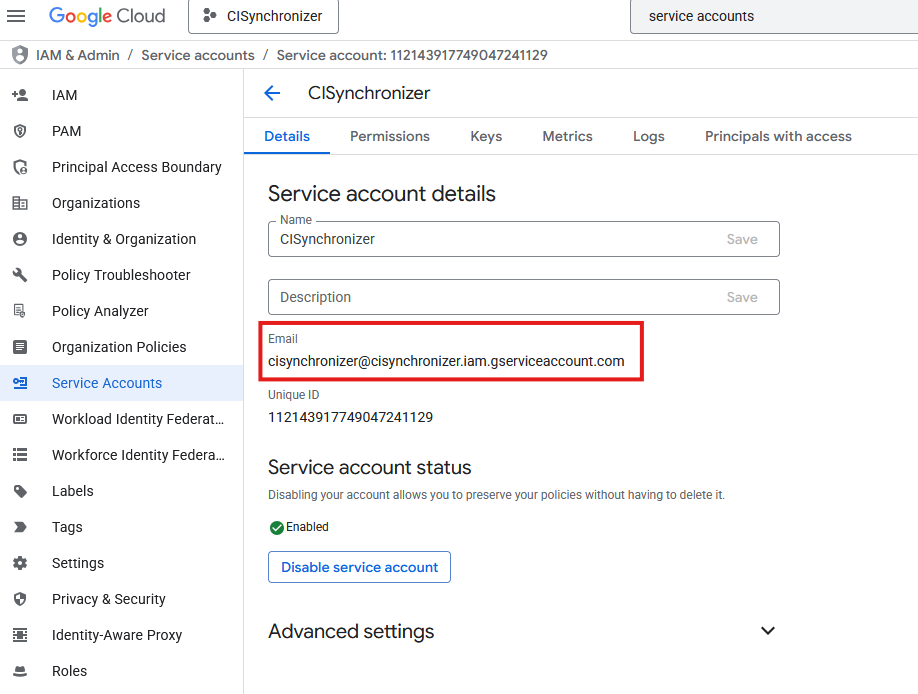
Data Capture Note
The Service Account Email address will be required by the CI Sync Admin when they use instructions further below to add GCP as a Source Connection when CI Sync.
-
Add permission for the Service Account at the Organization level
-
Navigate to your Organization
-
Go to IAM and click Grant access
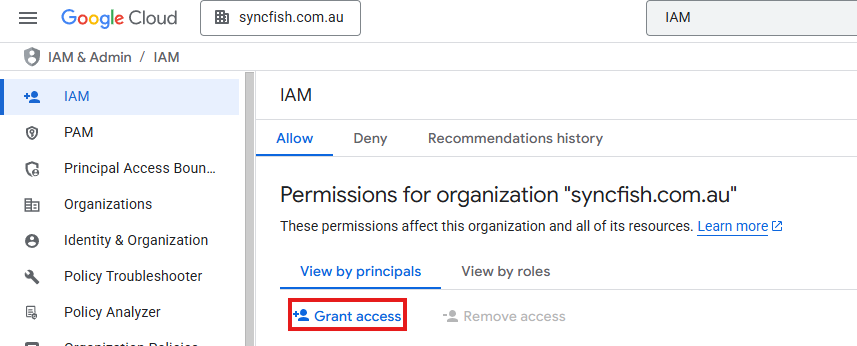
-
Enter the email address of the service account as the Principal and assign the following permissions:
-
Cloud Asset Service Agent
-
Cloud Asset Viewer
-
Viewer
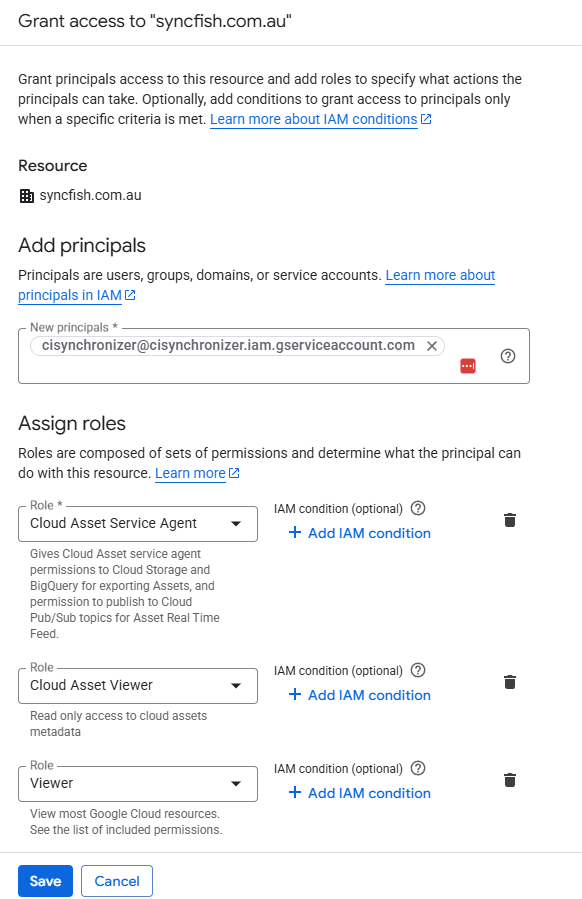
-
-
-
Setup Authentication for the Service Account (Expand options below)
Instructions for Workload Identity Federation (OIDC)
Authenticate Via Workload Identity Federation (OIDC)
-
Navigate to the settings page of your CI Sync instance and create a new GCP Connection. If you have an existing connection you would like to configure, you can open that.
-
There should be a Configuration Values section at the bottom of the page. Take note of these values as they will be used to configure your GCP instance
Note: The values below are examples - Your values will be different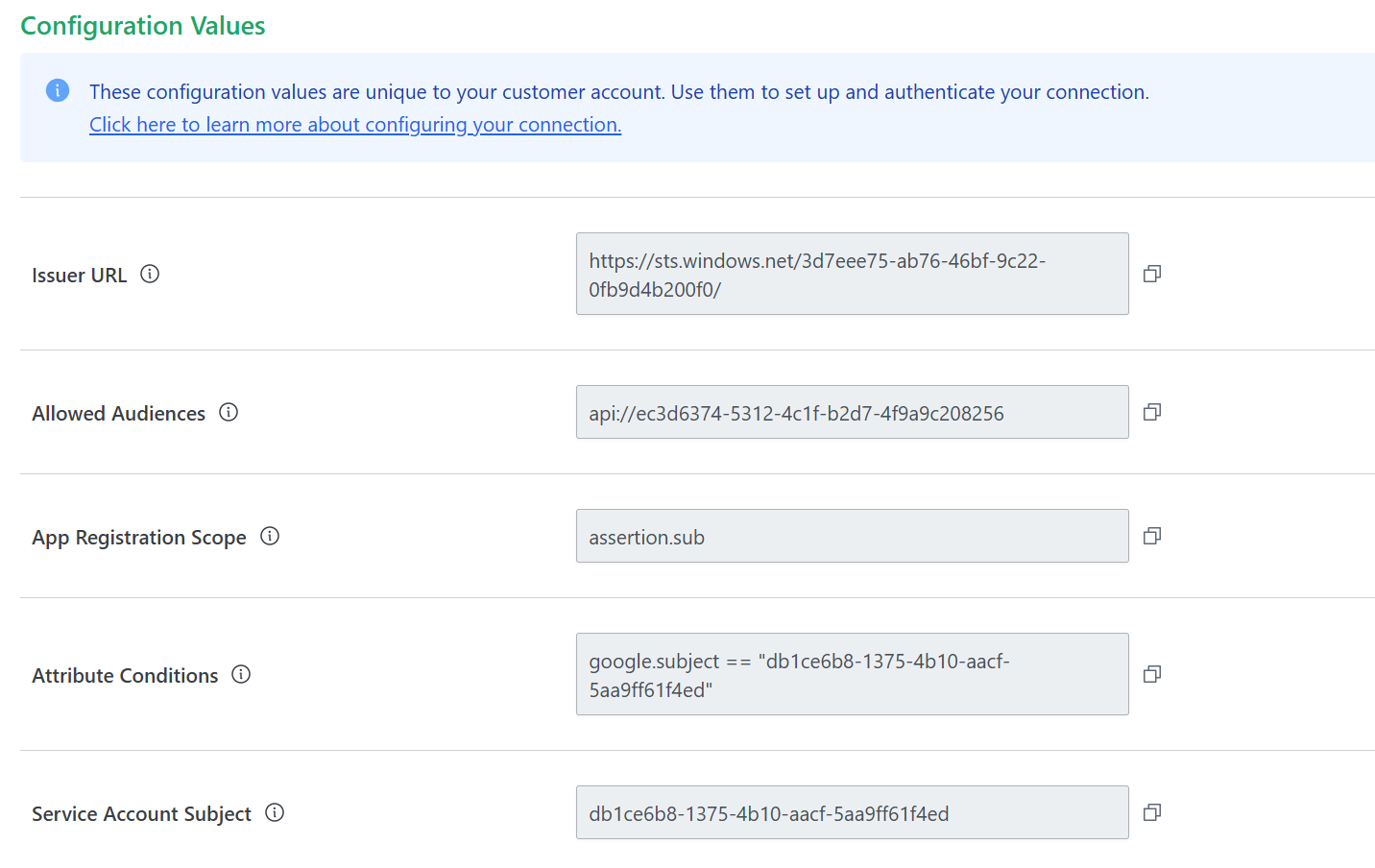
-
-
In your Google Cloud Console, navigate to the project your service account was created in. Take note of your Project Number. It should look like:
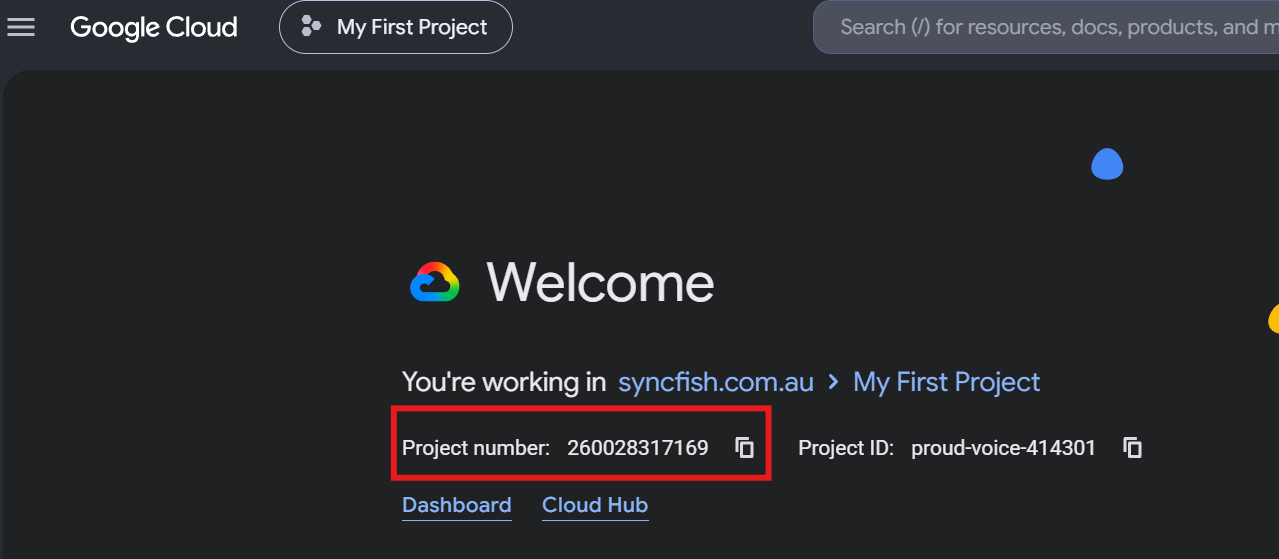
-
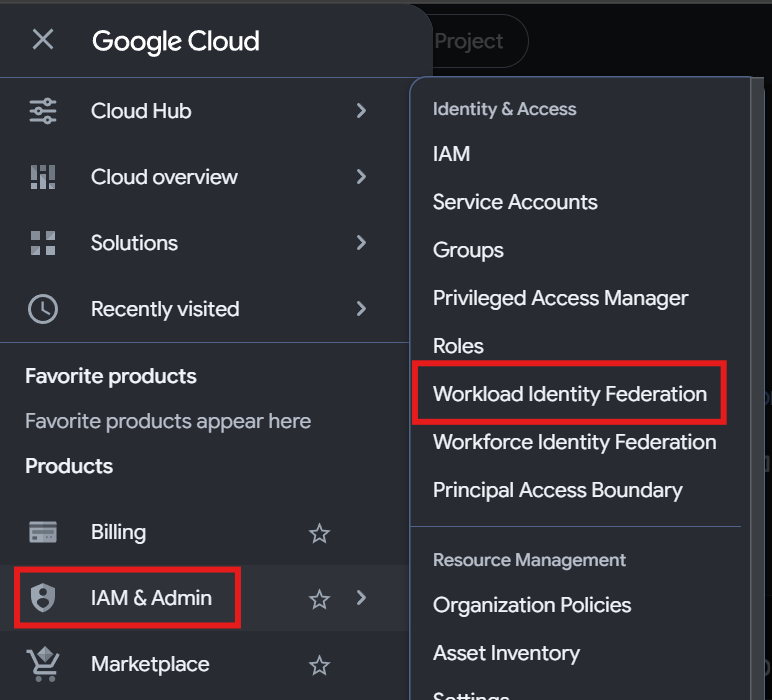
Now navigate to IAM & Admin → Workload Identity Federation
-
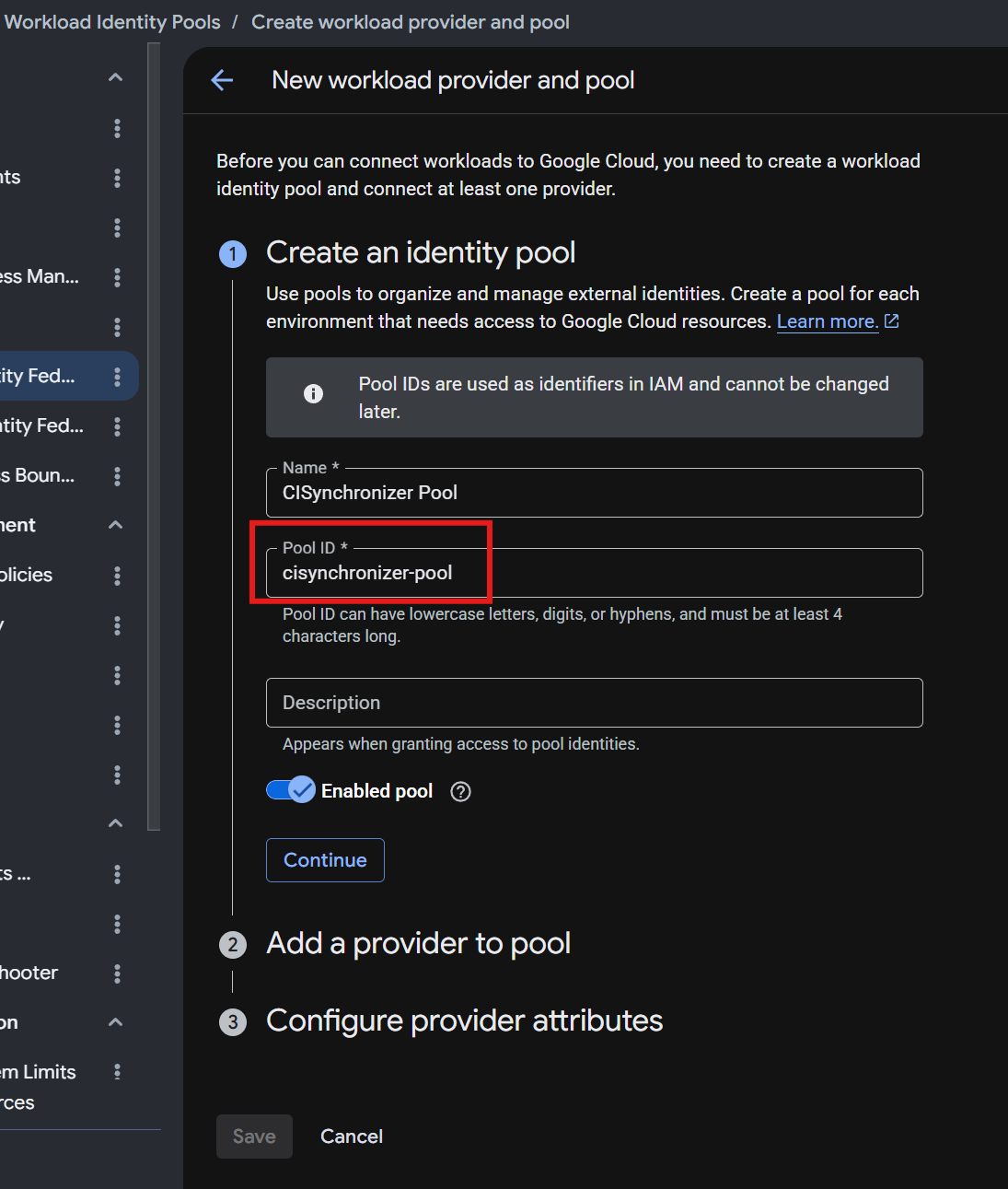
Click Create Pool at the top of the page.
-
Give the Pool a name. Take note of the Pool ID and press Continue
-
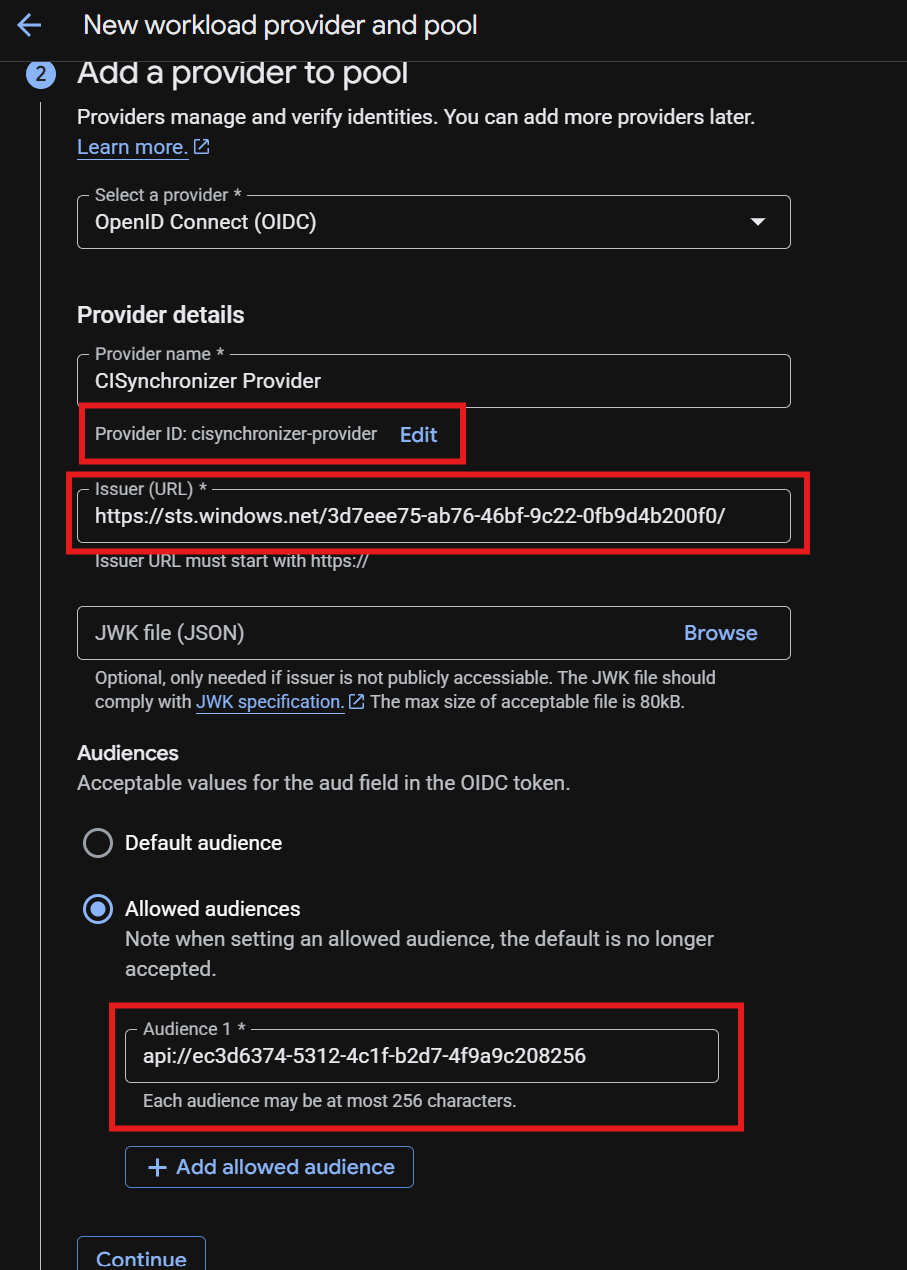
In the next step, select OpenID Connect (OIDC) as the provider type.
-
Give the provider a name. Take note of the Provider ID.
-
Set the Issuer (URL) to be the value that is displayed in your CISynchronizer connection settings page.
-
Enable Allowed audiences and set the value to what is displayed as Allowed audiences in your CISynchronizer connection settings page
-
-
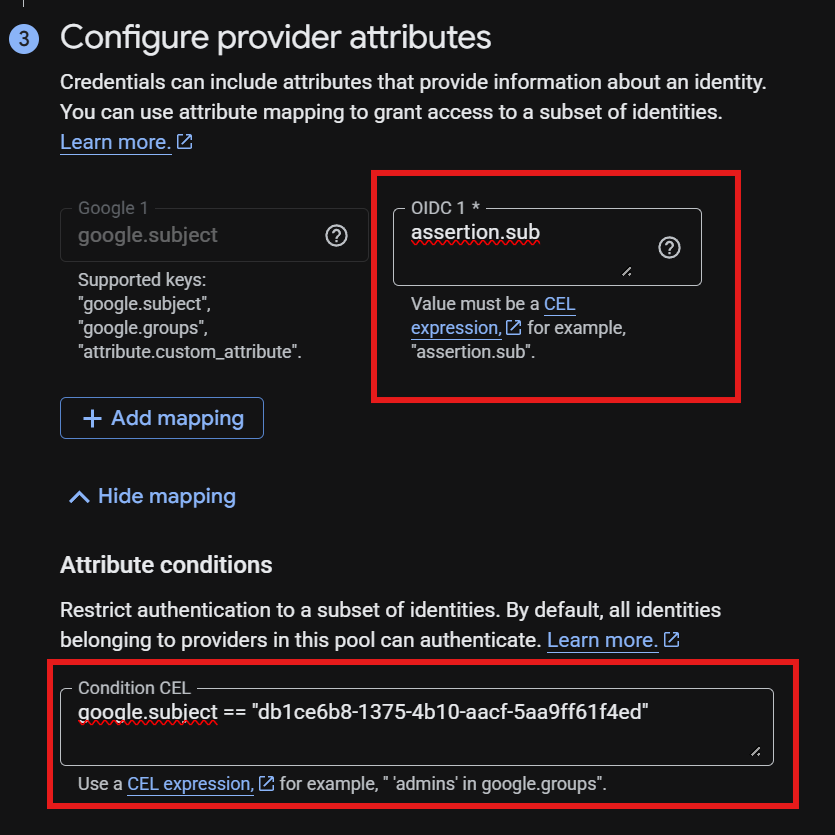
In the Configure provider attributes section:
-
set OIDC 1 value to be what is displayed in your CISynchronizer connection settings page’s App Registration Scope value
-
Click add attribute condition, and set the value to what is displayed in the CISynchronizer connection settings page’s Attribute Conditions value
-
-
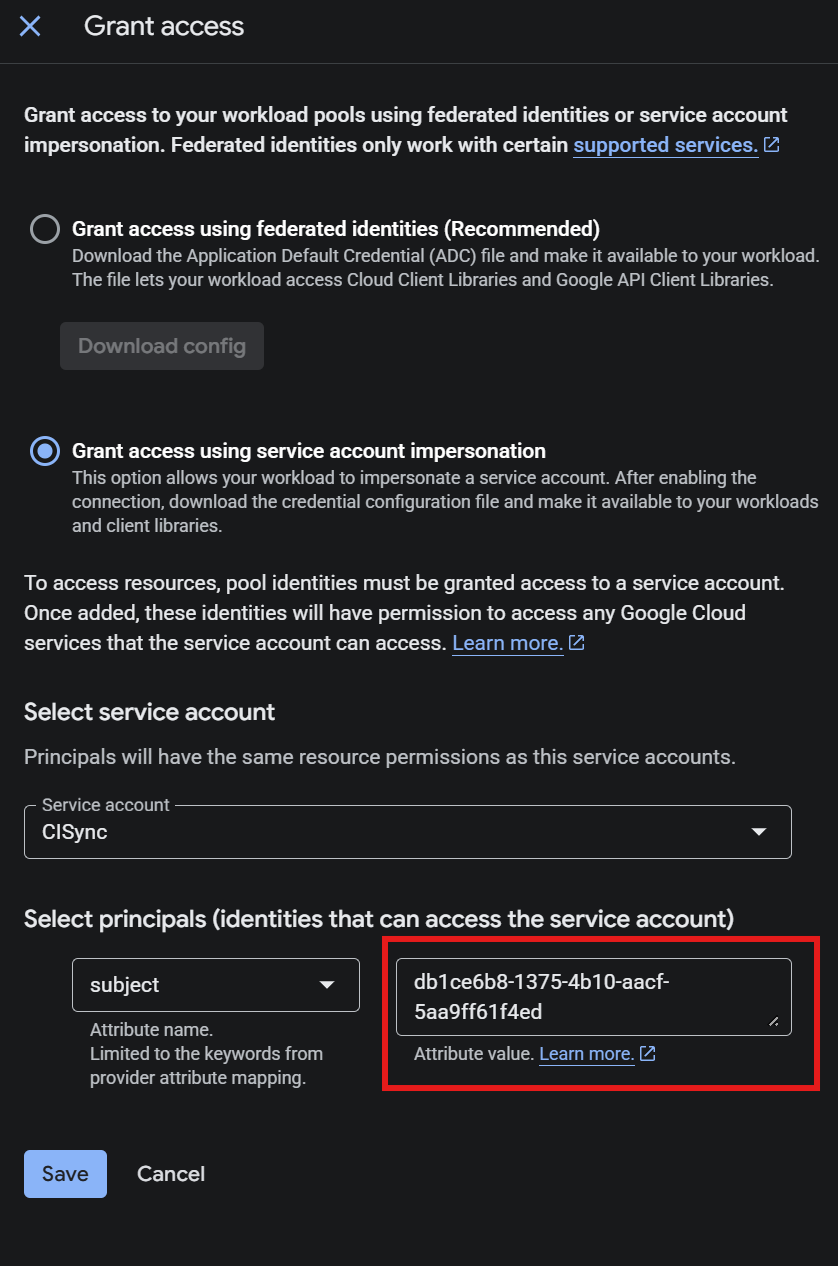
Once the pool is created, open the pool and click Grant Access.
-
Then select Grant access using service account impersonation
-
Select your Service Account created in Step 3 Above
-
Select subject under Select principals and then enter the Service Account Subject from your CI Synchronizer instance
-
-
Click Save. You can dismiss the popup that then appears.
You should have gathered the following details:
-
-
Project Number
-
Pool ID
-
Provider ID
-
Instructions for Certificate-Based Authentication (Not Recommended)
Authenticate Via Certificates (Not Recommended)
-
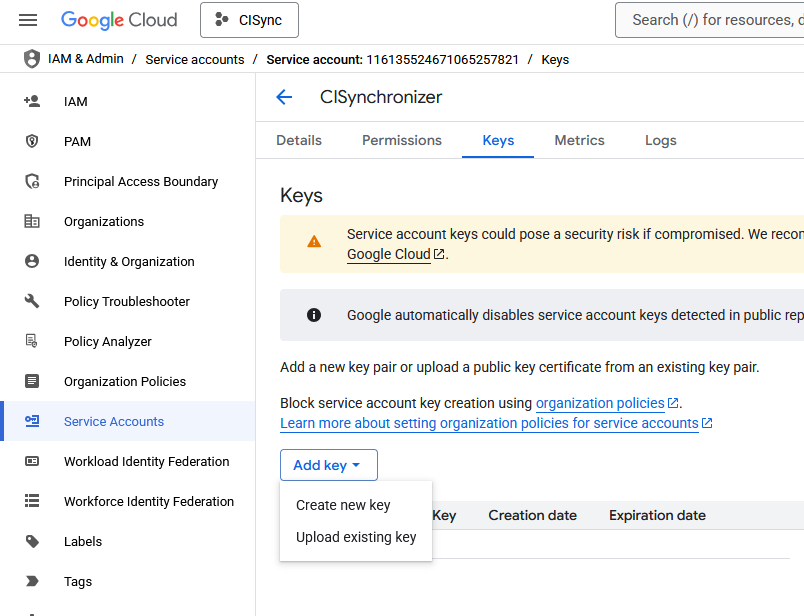
Generate a Key for the Service Account
-
Navigate to the newly created Service Account and press Add key > Create new key
-
-
Make sure it is a JSON type and click Create
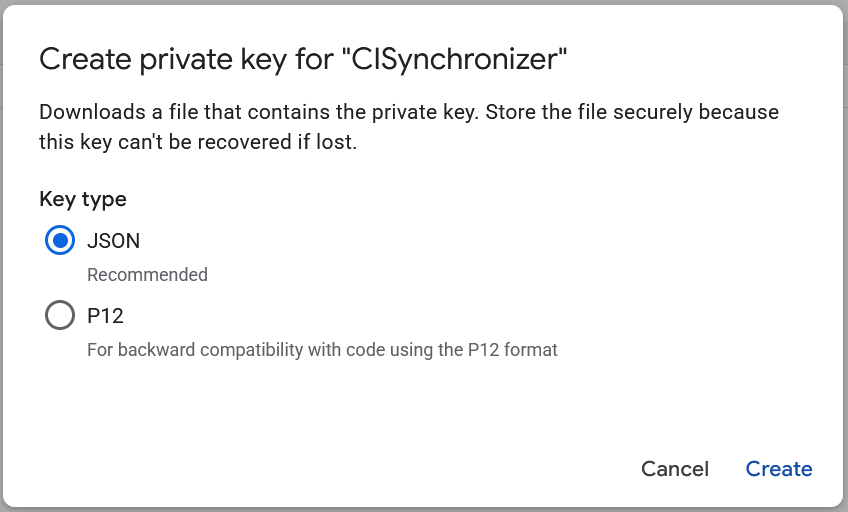
Your browser will download the private key as a file to your local computer.
The contents of the downloaded file (i.e. the private key value) will be needed by the CI Sync Admin when they use instructions further below to add GCP as a Source Connection when CI Sync.
Make sure the downloaded file (i.e. the private key) is stored securely and in a way that can be shared with the CI Sync Admin so they can use it when following the instructions later in this page.
The contents of the downloaded JSON file should contain a private_key value
-
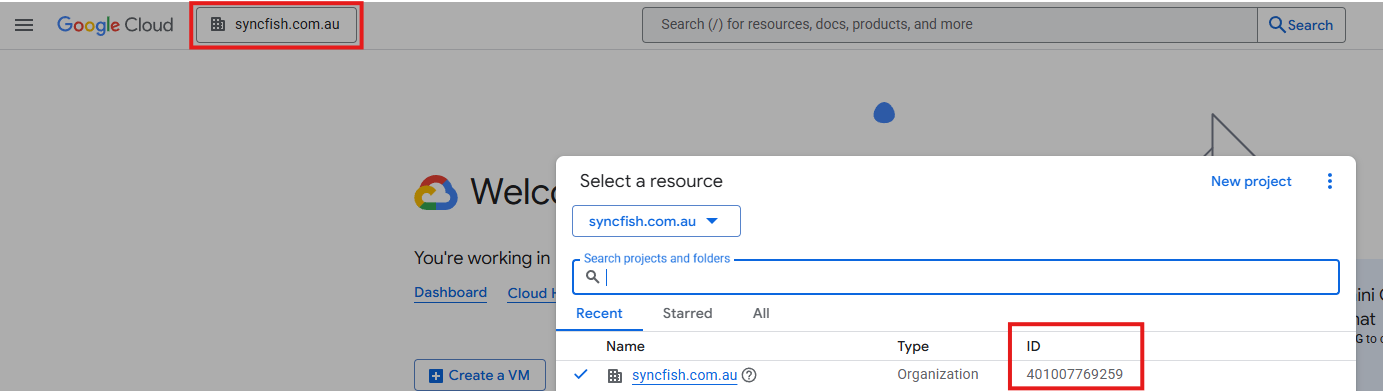
Finally, make sure you capture the Organization ID so it can be provided to the CI Sync Admin when they use instructions futher below. One way of retrieving this Organization ID is to open the Project Picker and to find the organization in the resource list.
Data Capture Summary
As a reminder, you should have captured the following information when completing the above steps.
-
The Service Account Email address (from Step 4 above). This is the email that is assigned to the CI Sync Service Account.
-
The Organization ID (from Step 7 directly above). This represents the GCP Scope when inputting into the CI Sync Web UI later in these instructions.
If you have configured Workload Identity Federation (OIDC) authentication, you should have also captured these values:
-
Project Number (From Step 2). This is the Project Number for the project the service account was created in. NOTE: This is NOT the Project ID
-
Pool ID (From Step 5)
-
Provider ID (From Step 6)
If you have configured Certificate-Based Authentication (Not Recommended), you should have also captured these values:
1. Private Key File
These values will be used later by the person following the instructions in Task 2 immediately below.
Task 2: Add GCP as a Source System using the CI Sync SaaS UI
-
Login to your CI Sync SaaS instance at https://YourCo.syncfish.app
-
In the CI Sync UI, navigate to Settings > Connections.
-
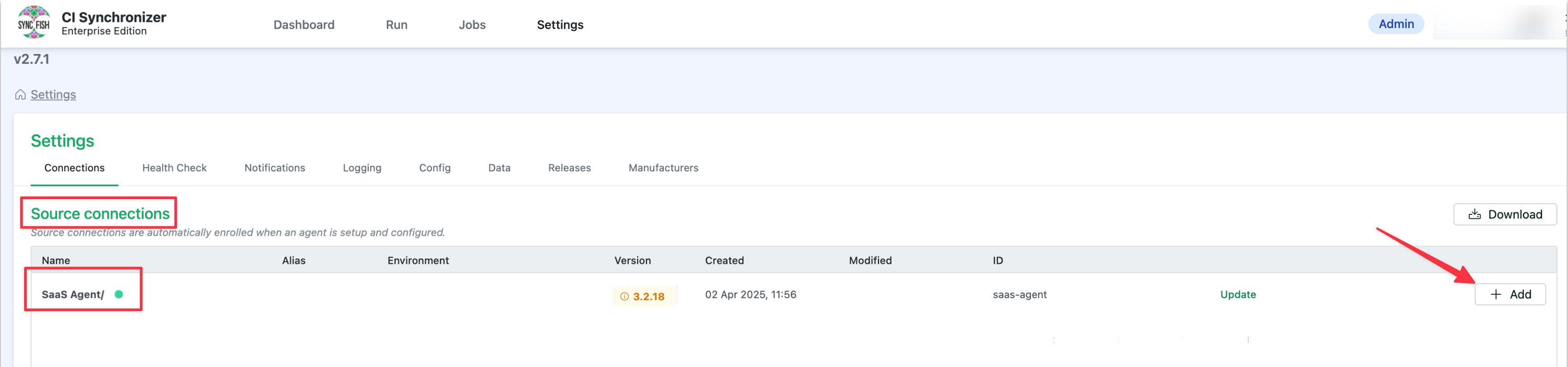
Find the “SaaS Agent” sub-heading under the Source Connections section. If you don’t see “SaaS Agent” it means your CI Sync instance hasn’t been configured for this feature. Please contact your Sync representative to discuss.
-
On the right hand side of the form, click the +Add button.
-
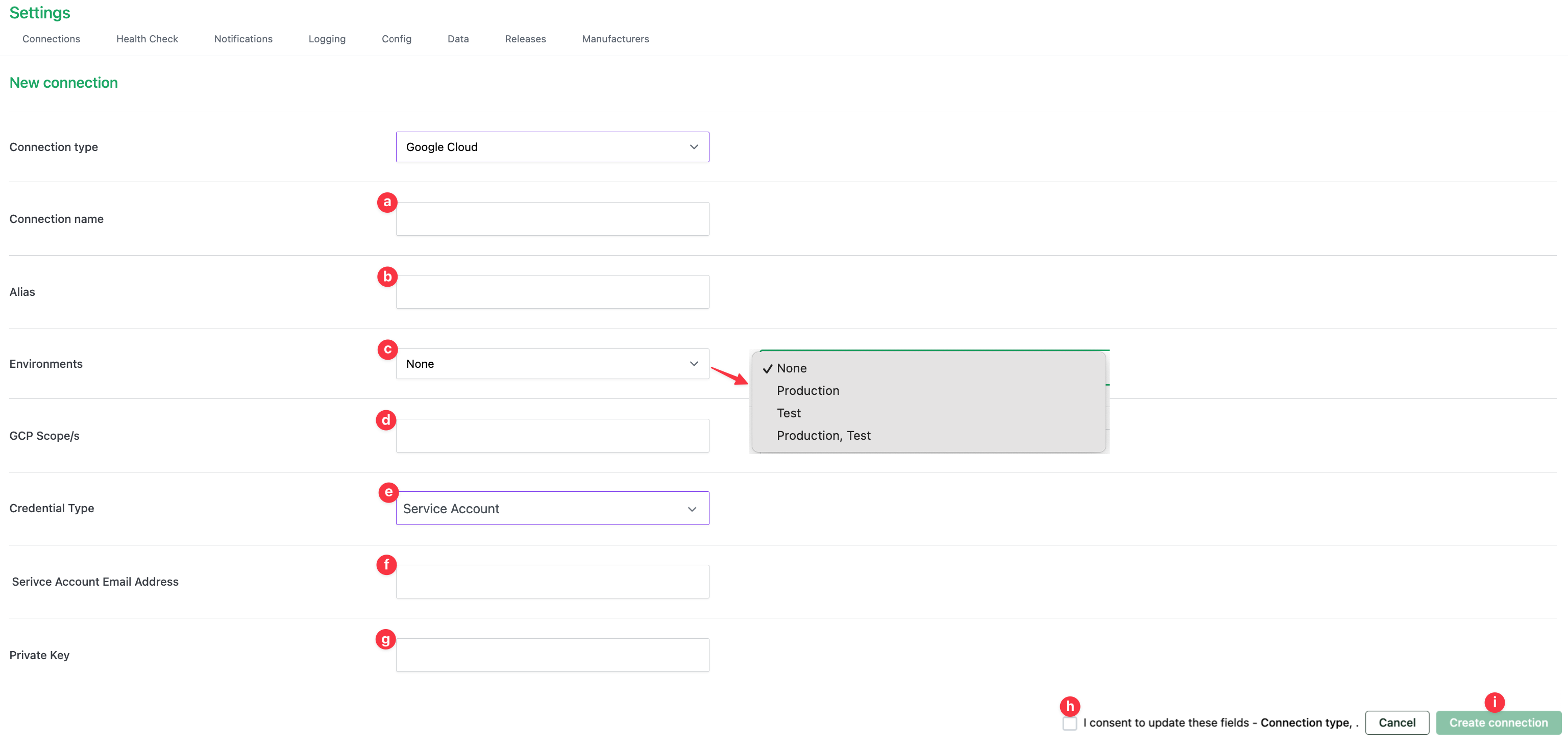
The New Connection form now appears. Use the Connection Type drop down list to select the source system you wish to add (in this case Google Cloud).
-
Update the fields using these instructions
-
Connection name
-
This is a friendly name that represents the source system connection.
-
The name you enter here will appear when you create a new sync job and are selecting from the available source system list.
-
Note: Syncfish recommend using a textual suffix on the connection name if for any reason you have setup multiple CI Sync Connections to AWS.
-
-
Alias: Please ingore this field (it is not used for the CI Sync Cloud Agent and is being deprecated).
-
Environments
-
Select from the available choices Production, Test, or Production/Test (the latter being both).
-
The selection you make for this field affects which source systems appear when you create a new sync job (i.e. when you are selecting the source system list based on the “Environment” you have chosen for the sync job). See this page for more details on creating a CI Sync job: Run a Small Initial Sync Job (then run more).
-
FYI: CI Sync allows a source system to be both Production/Test because CI Sync only reads from a source system (it doesn’t write to it). Destination systems can only be Test or Production (not both).
-
-
GCP Scope/s
-
Paste the GCP Organization ID captured by your GCP Admin in Task 1 above.
-
The format of the value to paste into this field must be as follows:
organizations/1234567890
-
-
Service Account Email Address
-
Paste the CI Sync GCP Service Account Email address captured by your GCP Admin in Task 1 above.
-
Ensure that when pasting this value, there is no whitespace character at the end.
-
-
-
Credential Type
-
This value depends on which authentication type you have configured in GCP. Additional fields will appear depending on the selection
-
Select Workload Identity Federation (OIDC) OR Service Account Private Key
-
-
-
If you have selected Workload Identity Federation (OIDC):
If you have selected Service Account Private Key:
-
Then click the Consent to update fields checkbox.
-
Finally click the Create connection button.
You will be returned to the main settings screen and your new source system connection will appear in the list as shown below.

Task 3: Check status of new GCP Source System connection
-
To check the status of the newly added GCP Source System connection click the green Check Status link. This will test whether your CI Sync GCP connection can successfully reach and authenticate to the GCP Entra ID defined in the connection itself.
-

If the connection is successful, you will see a green dot next to the source connection name.
-

To test again in the future, you can click the green Refresh Status button.
-
If the test is unsuccessful, you will see a red dot next to the source connection name and an error message underneath. If you need assistance resolving an error, please contact Syncfish support.
This means you are ready to run a sync job using the new source connection using these high-level instructions: Run a Small Initial Sync Job (then run more).
Task 4: Assess if additional updates are required in ServiceNow
Guidance Note
Syncfish recommend the person setting up the source system described in this guide discusses this particular task with their ServiceNow system administrator.
A ServiceNow administrator will need to perform these steps.
Syncfish recommend following these instructions in your non-production ServiceNow environment for testing synchronization jobs.
Only once exhaustive testing in non-production is complete, repeat this process in your ServiceNow production environment.
In this section your ServiceNow SME will assess various updates to ServiceNow to support this CI Sync connector:
-
Task 4a: Assess if the CMDB CI Class Models plug-in is needed for this connector
-
Task 4b: Assess if any custom tables or attributes are needed for this connector
-
Task 4c: Assess if additional permissions are required for this connector
-
Task 4d: (Optional though recommended) Assess your ServiceNow CI forms and update to include additional Related Lists specific to this connector
-
Task 4e: Read and understand more about the data and functionality related to this connector
Task 4a: Assess if the CMDB CI Class Models plug-in is required for this connector
Context
A number of record sets (asset types/resource types) available to sync using the GCP Connector rely upon CMDB CI Classes that are only available via the CMDB CI Class Models plug-in.
You therefore need to install the CMDB CI Class Models plug-in to your ServiceNow instance.
If you already have the plug-in you may want to upgrade it to the latest version (as ServiceNow occasionally updates the plug-in to include extra CI Classes/tables).
|
Source System |
Specific Record Sets that require the CMDB CI Class Models plug-in |
|
GCP |
|
Instructions
Follow these steps to add this plug-in (and similar steps to locate it and upgrade it if required):
-
Assess the use/inclusion of this plug-in within your ServiceNow (ensure you are comfortable installing this plug-in).
-
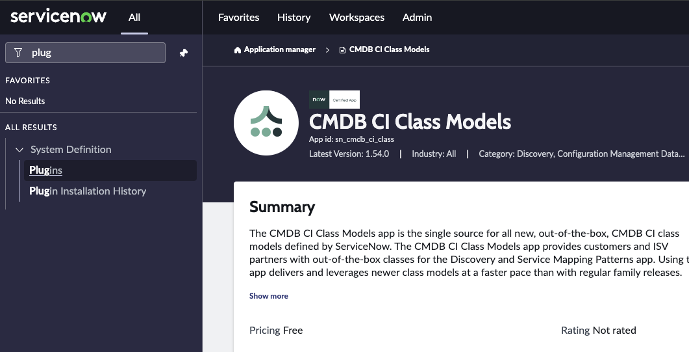
Search for Plugins via the ServiceNow navigation menu.
-
Locate the CMDB CI Class Models plug-in.
-
Click Add -> Install and follow the instructions provided.
Task 4b: Assess if custom tables or attributes are needed for this connector
No custom tables and no custom attributes are required in ServiceNow to support this CI Sync connector.
You can therefore ignore / skip this task.
Task 4c: Assess if additional permissions are required for this connector
Use Case - If you are planning to use CI Sync to write GCP Labels to the CMDB
Context
CI Sync writes GCP Labels to the cmdb_key_value table in ServiceNow.
The standard/out-of-the-box roles provided by ServiceNow (and recommended by Syncfish during S3 - Configure ServiceNow for CI Sync) do not provide access to the cmdb_key_value table. Therefore, the CI Sync Integration User account created during S3 - Configure ServiceNow for CI Sync requires additional permissions to write to the cmdb_key_value table.
Syncfish provides a ServiceNow updateset to prepare your ServiceNow instance for CI Sync. The updateset does the following:
-
Creates a read/write ACL on the cmdb_key_value table.
-
Applies the ACL on the cmdb_key_value table and assigns the ACL to the ServiceNow role called “Asset” (which is one of the roles granted to the CI Sync Integration Account created during S3 - Configure ServiceNow for CI Sync).
Instructions
Follow these steps to apply the updateset provided by Syncfish:
-
Download the update set from Syncfish at the below URL:
https://downloads.syncfish.app/servicenow/cisync-cmdb-key-value.xml -
Login to your ServiceNow instance with Admin permissions.
-
Open a browser and navigate to your ServiceNow instance
-
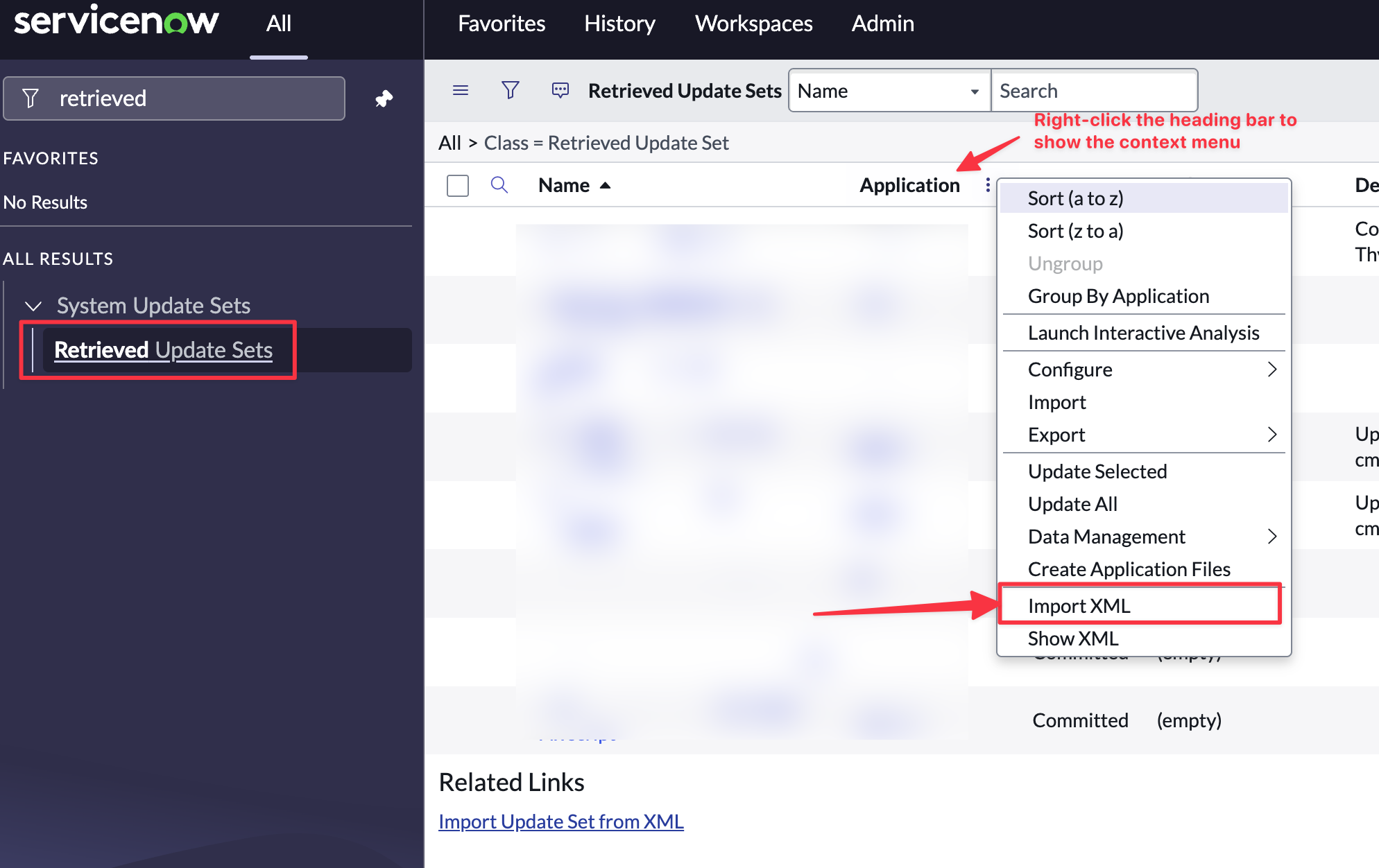
In the left nav menu search for “Retrieved Update Sets” and click to open
-
Right click on the column heading row and select “Import XML”
-
Select “Choose File”
-
Select the downloaded file “cisync-cmdb-key-value.xml”
-
Click to open the Update Set
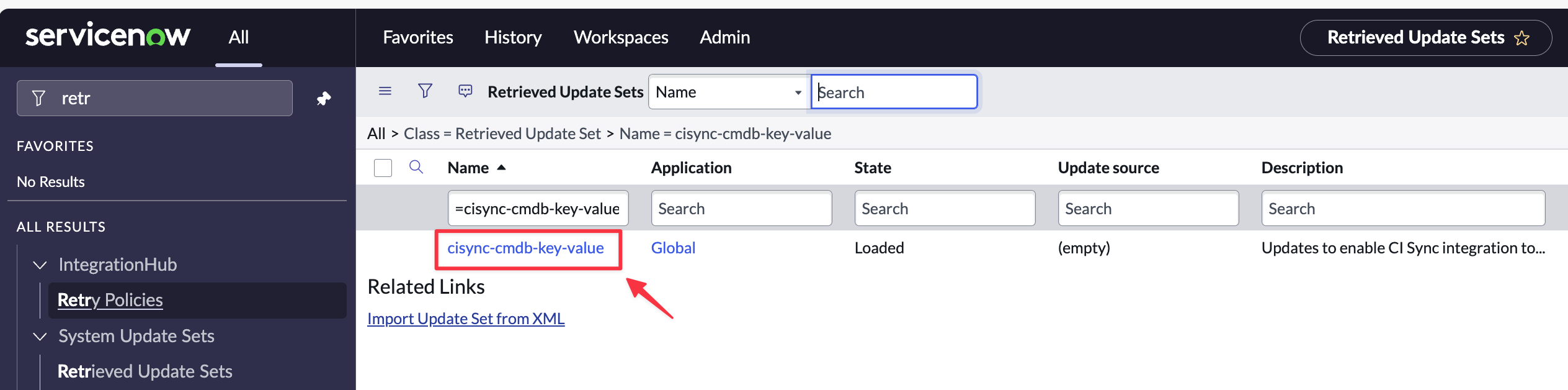
-
Click “Preview Update Set”
-
If there are no preview errors, Click “Close”.
-
Click “Commit Update Set”.
-
Your ServiceNow instance is now ready to receive Label data from GCP via sync jobs from CI Sync.
Task 4d: (Optional though recommended) Assess your ServiceNow CI forms and update to include additional Related Lists specific to this connector
Context
CI Sync populates various child tables (related lists) associated with parent CIs.
The following table shows the Related Lists (per CI Class) populated by this CI Sync connector.
|
CI Class |
Related List
|
Related List Name as it appears in the ServiceNow UI when adding it to a CI Form |
|---|---|---|
|
Network |
Key Values (Labels) |
Key Value → Configuration Item |
|
Projects |
Key Values (Labels) |
Key Value → Configuration Item |
|
Redis |
Key Values (Labels) |
Key Value → Configuration Item |
|
Storage Bucket |
Key Values (Labels) |
Key Value → Configuration Item |
|
Subnet |
Key Values (Labels) |
Key Value → Configuration Item |
|
VM Instance |
Key Values (Labels) |
Key Value → Configuration Item |
Instructions
Below are the steps to modify a ServiceNow CI form to expose a new Related List.
-
Login to your ServiceNow instance with Admin permissions.
-
Navigate to any CI in the relevant CI Class (i.e. one/all of those listed in the table in the Context section above). For example, navigate to a Windows Server CI).
-
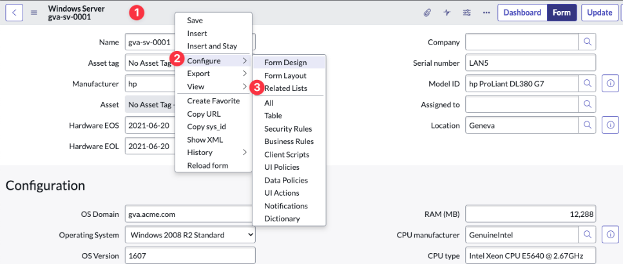
Right-click in the heading area of the form, then click Configure and then Related Lists from the sub-menus.
-
Identify the Related List you want to expose on the CI form using the table in the Context section above.
-
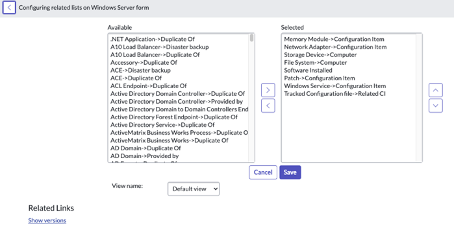
Find the Related List in the left hand column which lists all Available Related Lists.
-
Click the Related List and then click add (the selection arrow) to move the item to the Selected column and then click Save.
-
Repeat for each additional CI Class listed in the table in the Context section above.
Task 4e: Read and understand more about the data and functionality related to this connector
There are no additional data or functionality topics called out for this CI Sync connector.
You can therefore ignore / skip this task.
Task 5a: Additional permissions required for reading the GCP datacenter and zone records
-
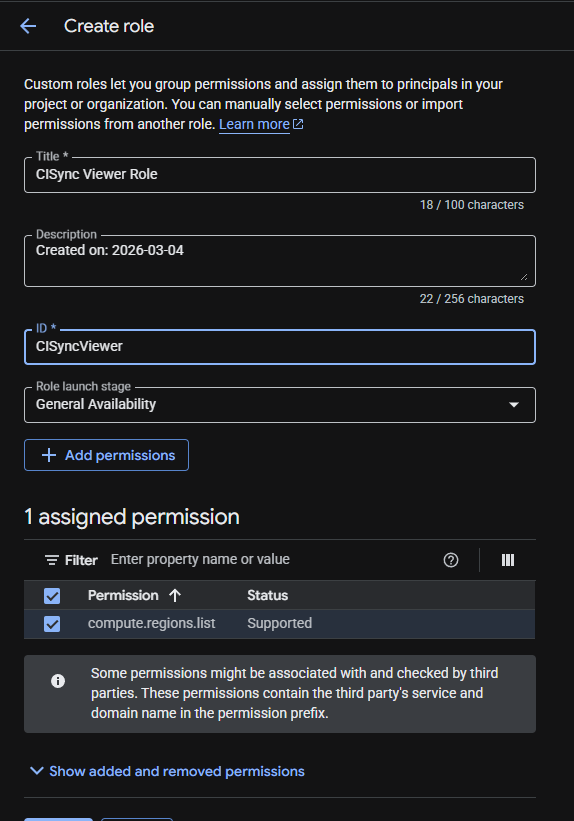
First create a new custom role with just the “compute.regions.list” permission:
.png?cb=e43716ea8cae8f3773777d44ecd3d9db)
-
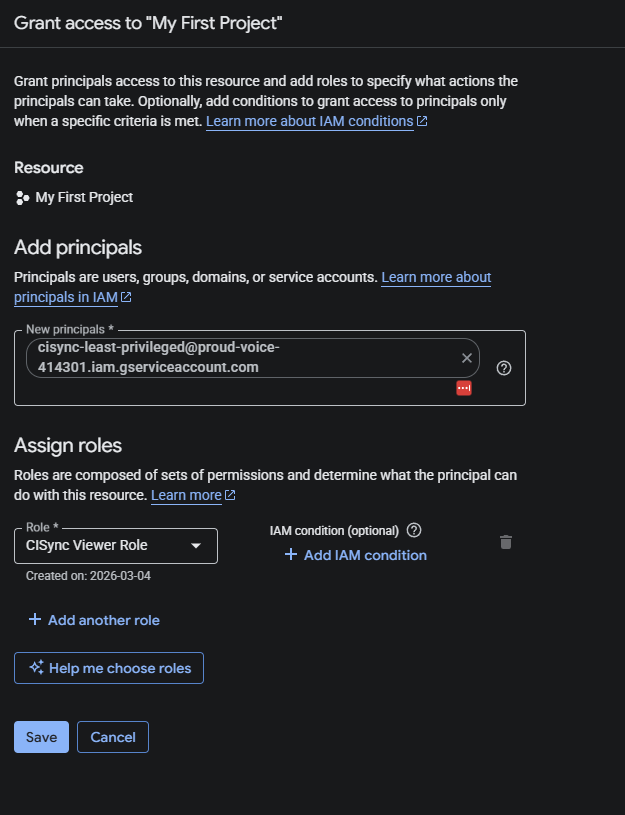
Grant the service account this role for the project the service account belongs to:
-
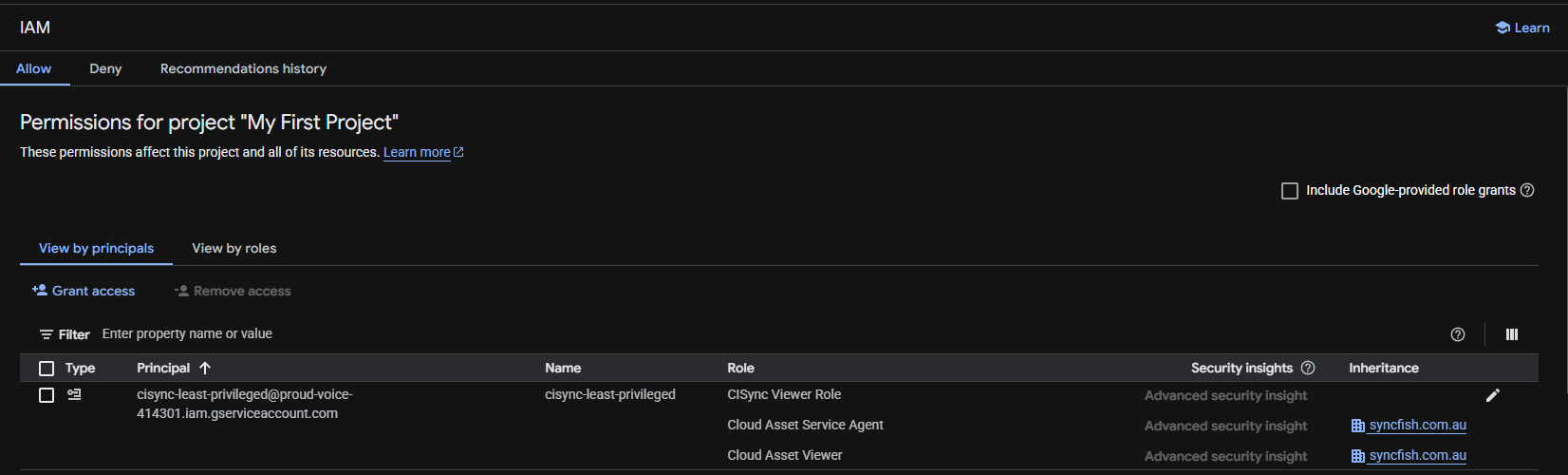
Once complete this is what the project’s IAM page looks like:
Task 5b: Additional permissions required to add Organization mapping for GCP
-
Using an OoB Role: The following permission must be granted to the CI Sync Service Account in GCP for CISync to have access to the Organization's API:
roles/resourcemanager.organizationViewer-
NB: This role must be added at the Organization (not Project) level
-
To add this permission, select the Organization from the Project Picker:
-
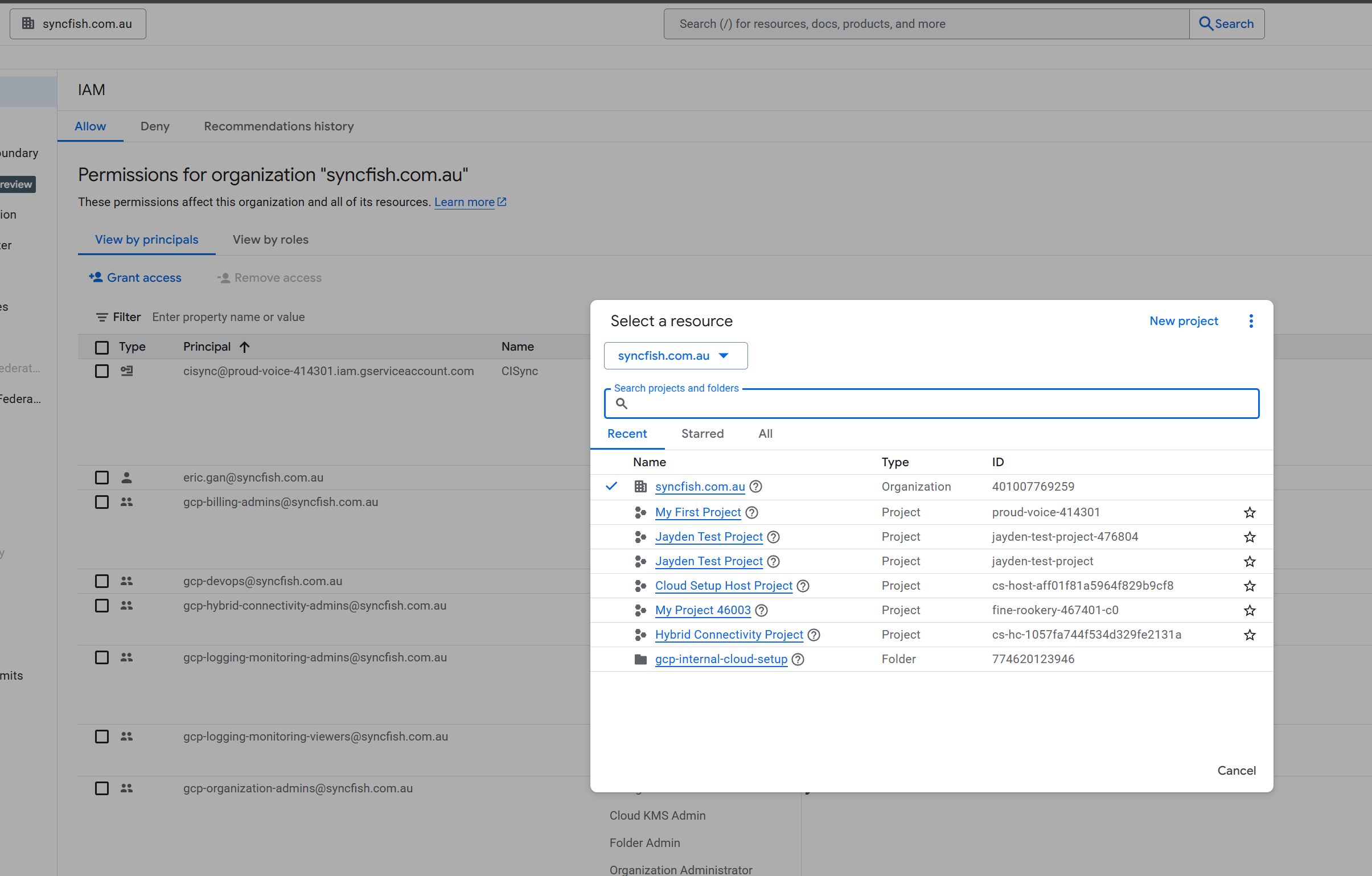
c. Then navigate to IAM
d. Click Grant Access:
i. Select the User Principal
ii. Select the Role: “Organization Viewer”
-
Using a custom Role: If you need to implement a more granular security policy for this, you can create a custom role containing only the
compute.regions.listpermission and assign the same way as in step 1.