
Task 1: Create new client secret for Intune source connection
-
In the Azure Portal, navigate to Azure Active Directory -> App Registrations
-
Select the CI Sync (EE) Agent Connector for Intune
-
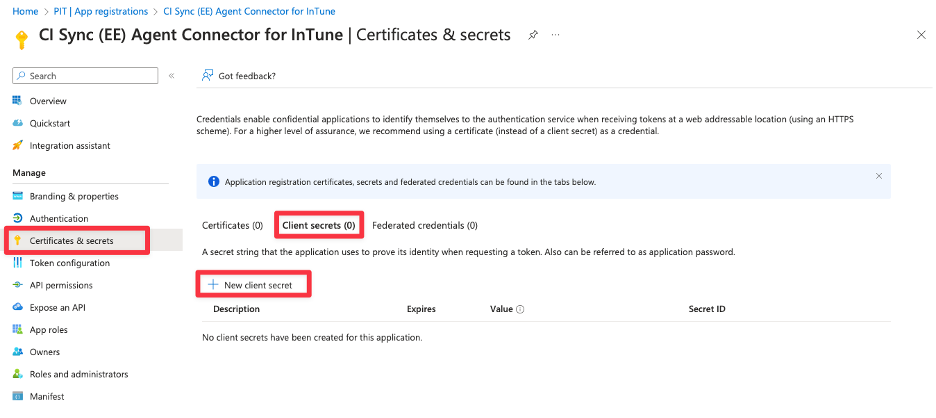
Using the left-hand menu, navigate and select Certificates & secrets. Select “Client secrets (1)” in the middle of the form and then click the “New client secret” button. n.b. the existing expired client secret should be visible.
-
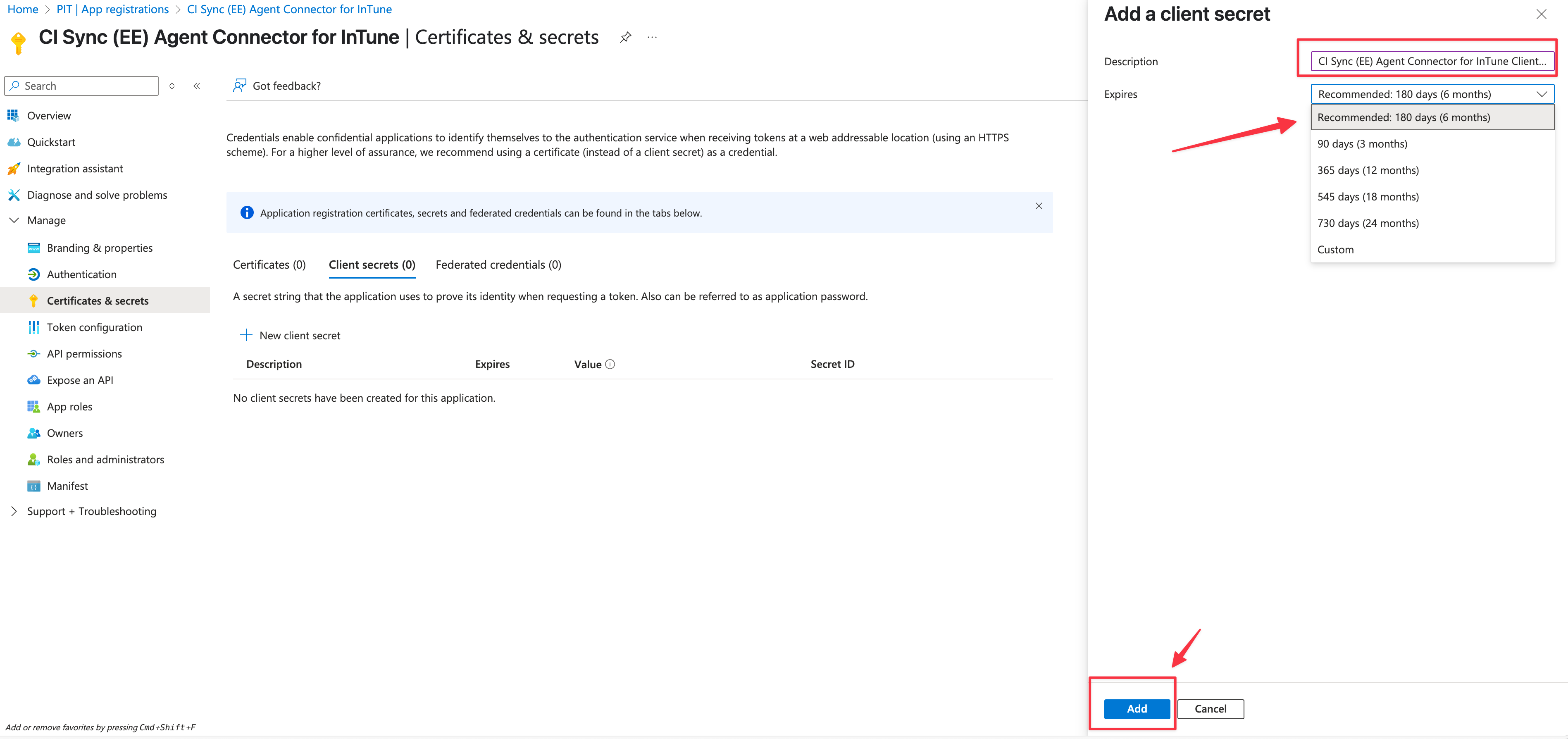
Enter a unique Description for the secret associated with this CI Sync Agent Connector for Intune App Registration (e.g. “CI Sync Agent Connector for Intune Client Secret”).
-
Then, select a suitable Expires duration based on your organizational policy. Finally click the Add button.
Guidance Note
It is recommended you set a reminder prior to the expiry date of the Secret (i.e. a reminder to regenerate and update the Secret in the CI Sync Agent configuration.
-
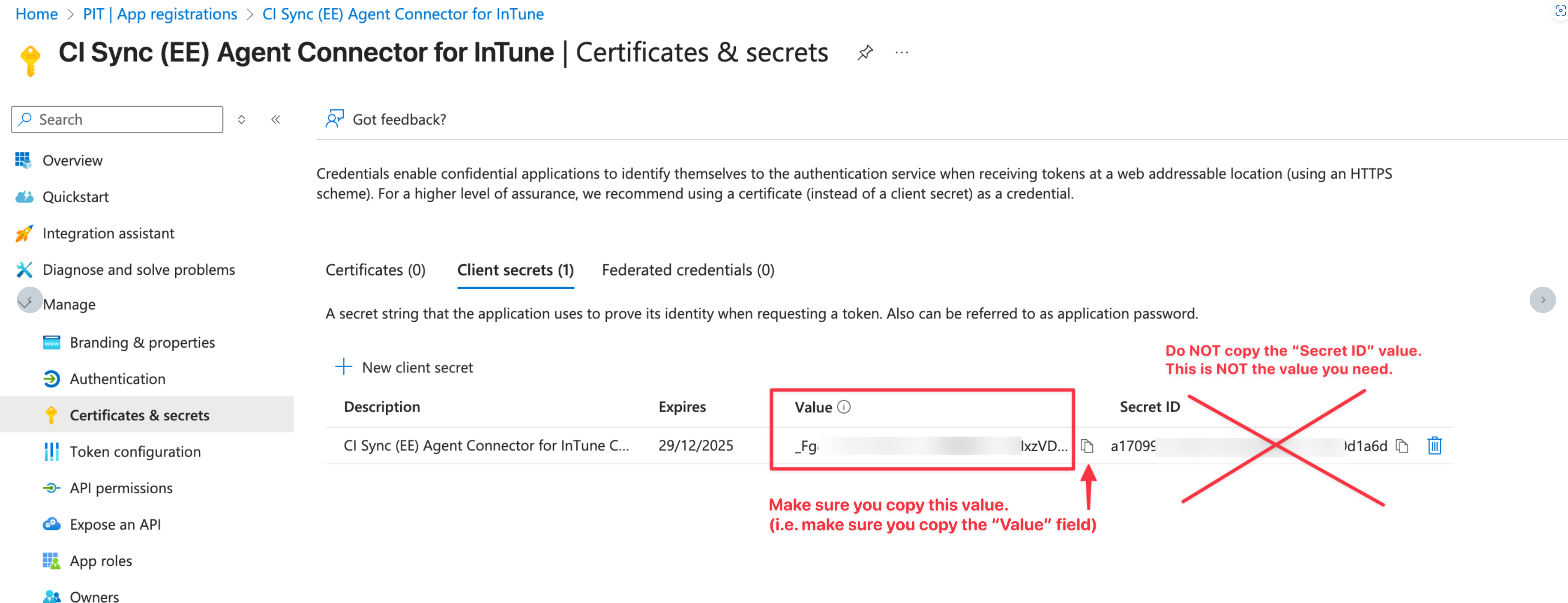
The form now displays the newly generated secret value (shown in the Value field). Use the copy option to make a copy of the value in the Value field.
Data Capture Note
-
The Value is only available while you remain on this screen. You must make a copy of the Value before leaving this form.
-
Make sure you copy the “Value” and NOT the “Secret ID”.
Task 2: Update the client secret for Intune source connection in the CI Sync Agent Config Utility
-
On the server where the CI Sync Agent is installed (referred to as the “CI Sync Agent Server”).
-
Locate and run the “CISynchronizerAgent Config Utility” program.
-
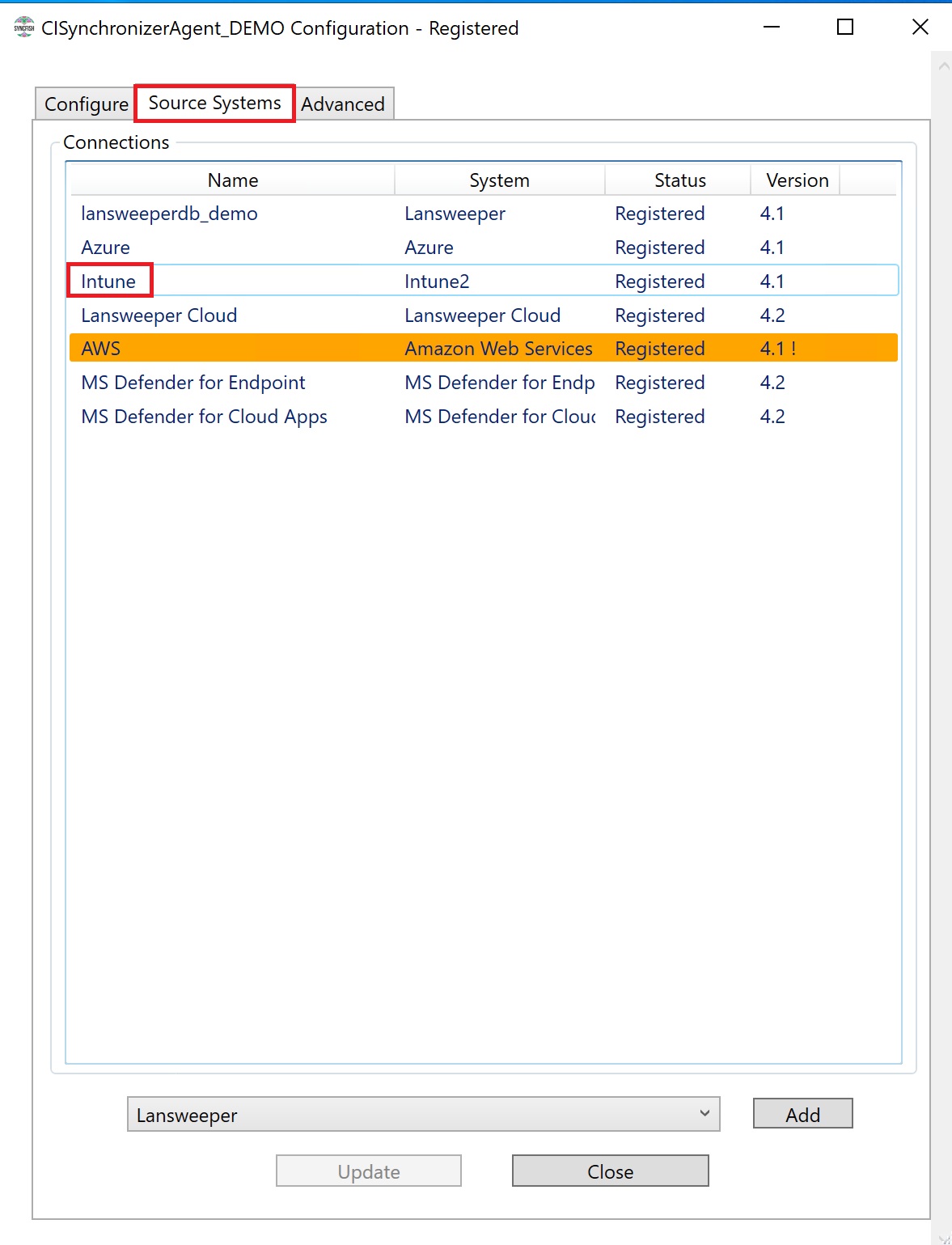
Click the Source Systems tab.
-
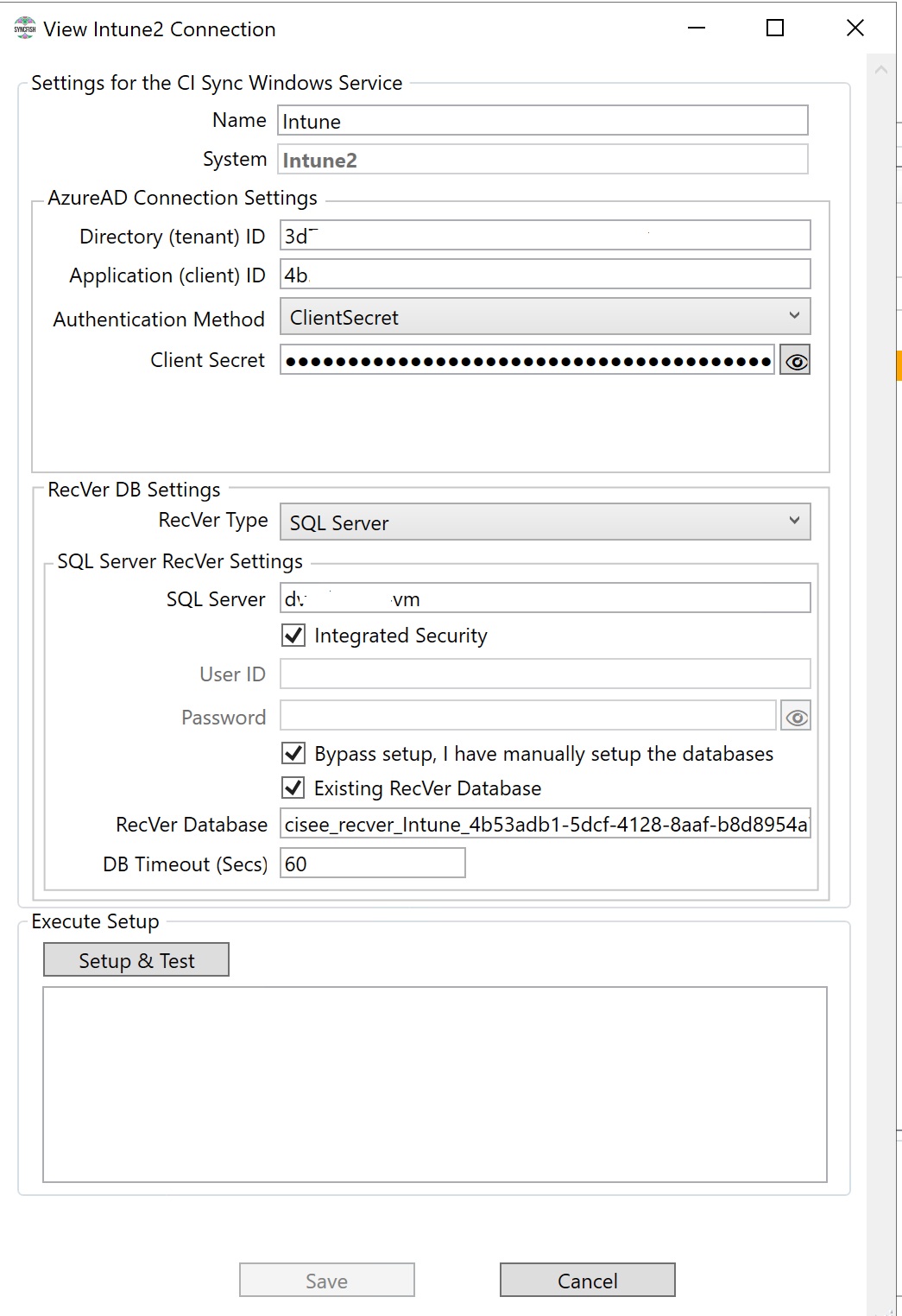
Double click the Intune connection.
-
Replace the client secret with the one you previously generated and copied above.
-
Click the Setup & Test button.
-
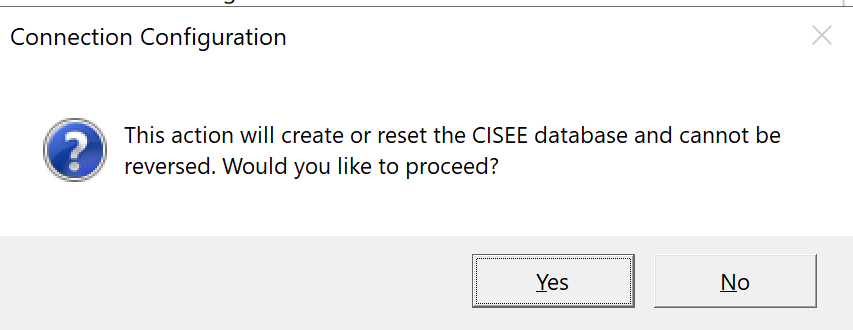
Click Yes.
-
Then click Save.