
Aim
“How do I trace a Configuration Item (CI) from Lansweeper to ServiceNow.”
or
“How do I trace a Configuration Item (CI) from ServiceNow to Lansweeper.”
Process
This article outlines how to trace an Asset both:
-
from Lansweeper to ServiceNow and
-
from ServiceNow to Lansweeper.
To do this - we will be referencing some key values:
-
Lansweeper Asset ID - the Asset ID generated by Lansweeper on Asset creation
-
ServiceNow SYS_ID - the GUID identifier of the Configuration Item within ServiceNow
-
Correlation ID - the identifier CI Sync uses to identify the Asset between Lansweeper and ServiceNow.
It may be useful to Enable Metadata Logging to trace the values above.
How-to - Enable Meta-data logging to reconcile synced data between Lansweeper and ServiceNow
Tracking an Asset - Lansweeper → ServiceNow
-
Within Lansweeper, navigate to the specific Asset you want to track and click into the details page for that Asset. Within the browser URL for Lansweeper, you will see the URL parameter of the AssetID.
Note this value down - “2235” in the example below.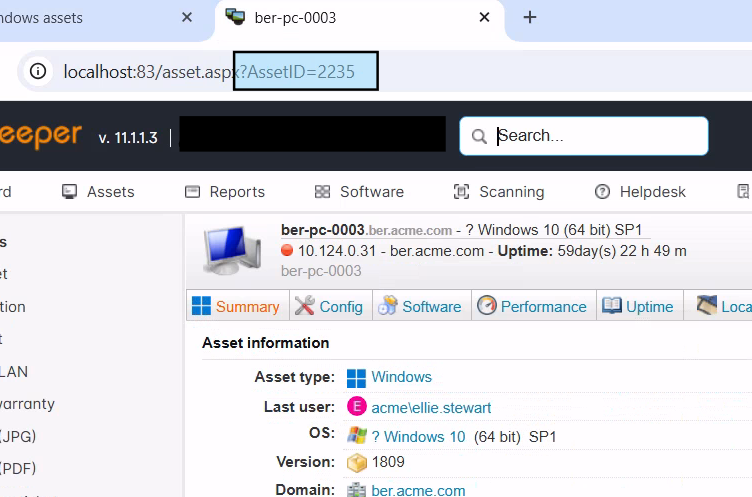
-
Within CI Sync, navigate to the Jobs menu to see a list of recent Jobs executed.

-
Click into the CI Sync Job that has been run that should contain the Asset of interest.
-
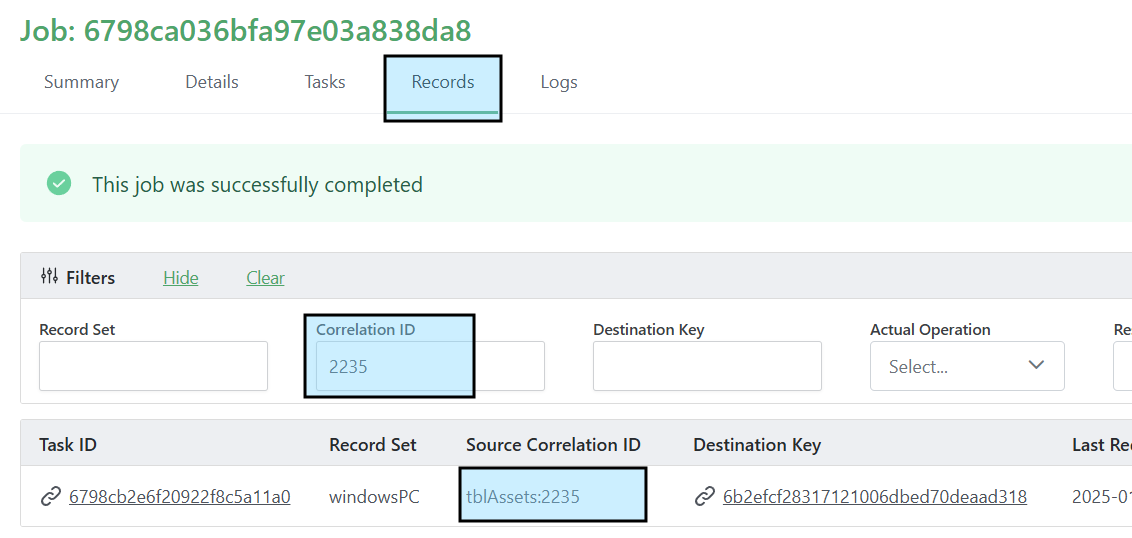
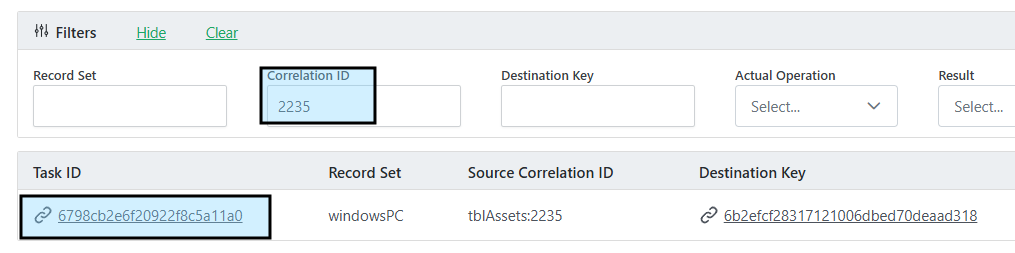
Click the Records tab to bring up all the Assets that were synced as part of that Job. Using the Asset ID you recorded in Step 1, enter this value into the Correlation ID filter as shown below.
-
The Lansweeper Assets synced in that Job will be filtered to display the Asset of interest.
The Destination Key column will link directly to the CI in the Target ServiceNow instance.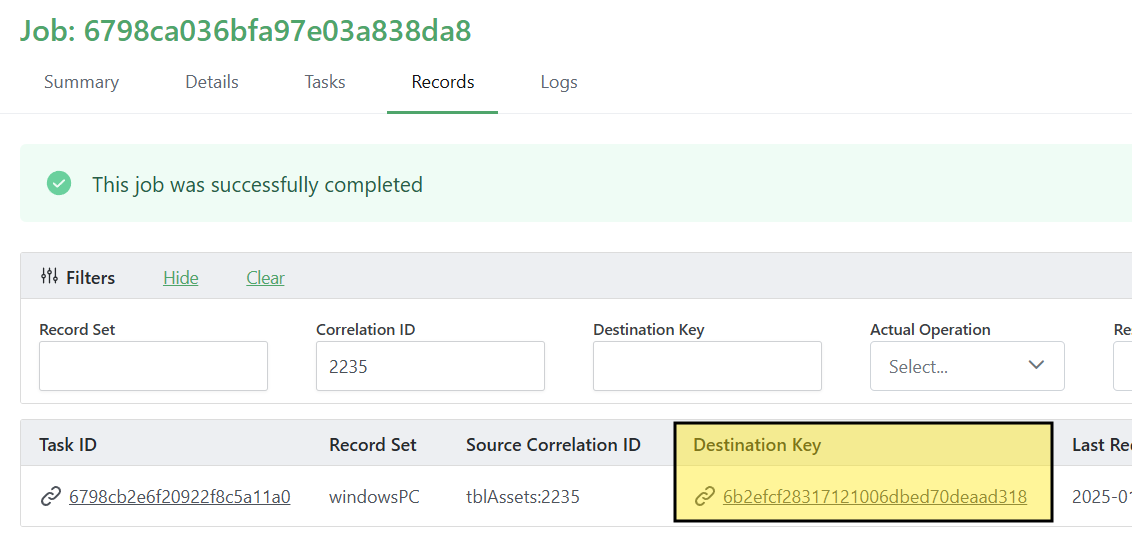
-
Following the hyperlink, you can see the synced Asset in ServiceNow, mirroring the Asset details from Lansweeper. The Correlation ID field may also store tblAssets:xxxx where xxxx is the Lansweeper AssetID.
Important - the Correlation ID file will only contain the Lansweeper Asset ID if Lansweeper is the Discovery Source of the Asset. If the CI in ServiceNow was populated manually or from another system, the Correlation ID may be blank or have the identifier from the other discovery source.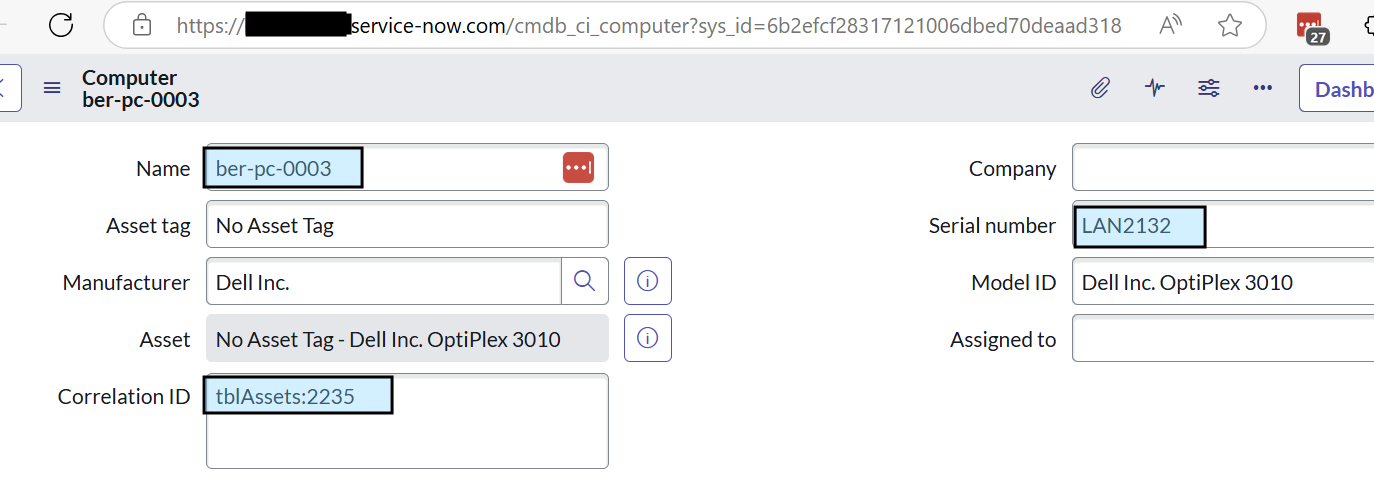
-
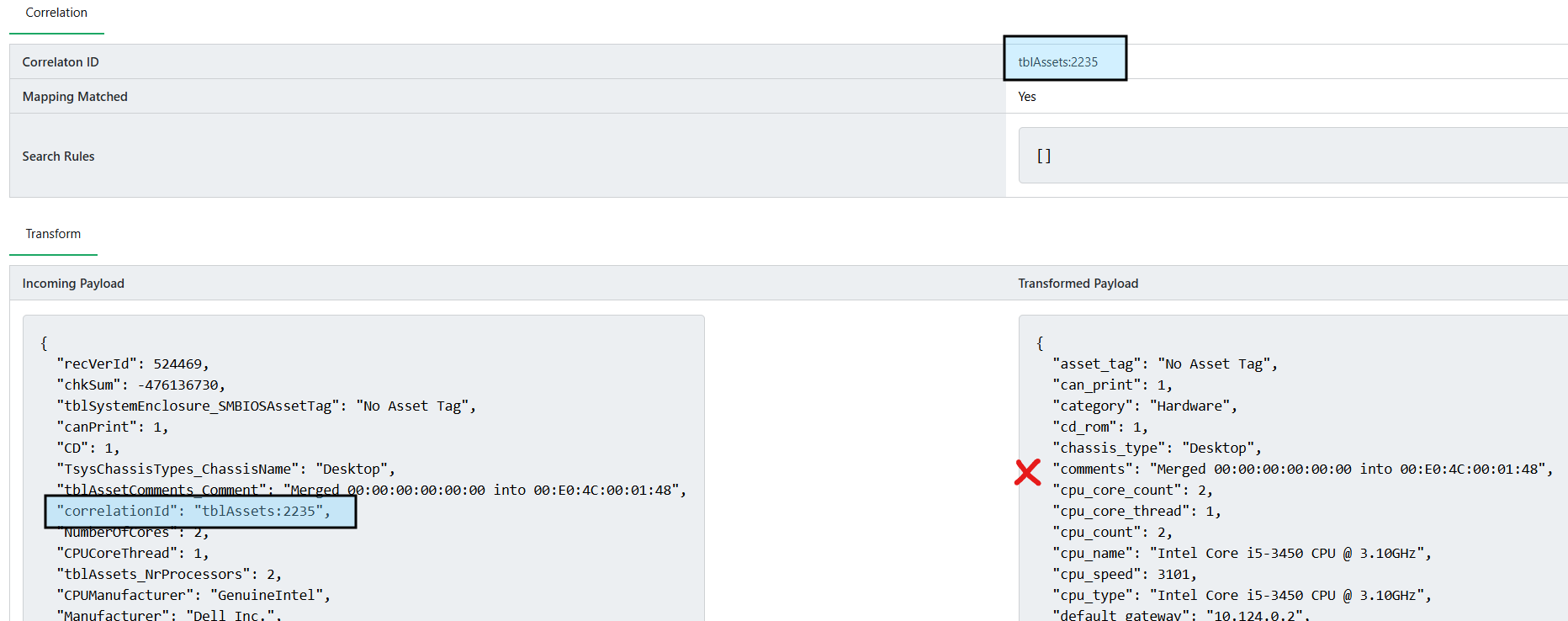
If your CI Sync has Enabled Metadata Logging - clicking into the Task of the Job will also allow you to see the Correlation ID coming both from Lansweeper and into ServiceNow.
Important - the Correlation ID will only be passed to ServiceNow on Insert.
The example below displays an Update/Patch of the asset - the Correlation ID is shown as being retrieved from Lansweeper but NOT passed to ServiceNow as it is an Update operation.
Tracking an Asset - ServiceNow → Lansweeper
-
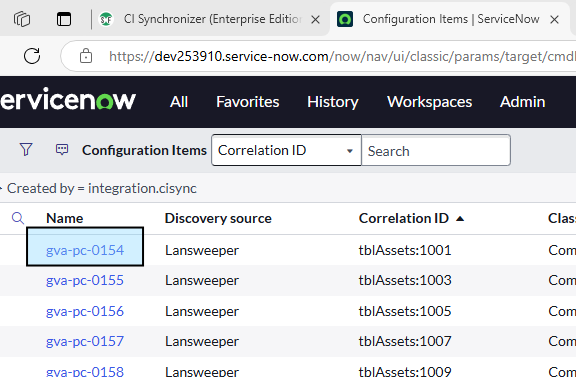
Within ServiceNow, navigate to the Configuration Item you want to track and control-click any of the links on the Configuration Item record into a new browser tab.
-
Within the new browser tab URL - you will be able to see the SYS_ID for that Configuration Item. Copy or record this SYS_ID to search CI Sync in the next step.
Note: Also the Correlation ID field below. Recall however that the Correlation ID may not always be present in ServiceNow, if the Discovery Source for the CI was not Lansweeper.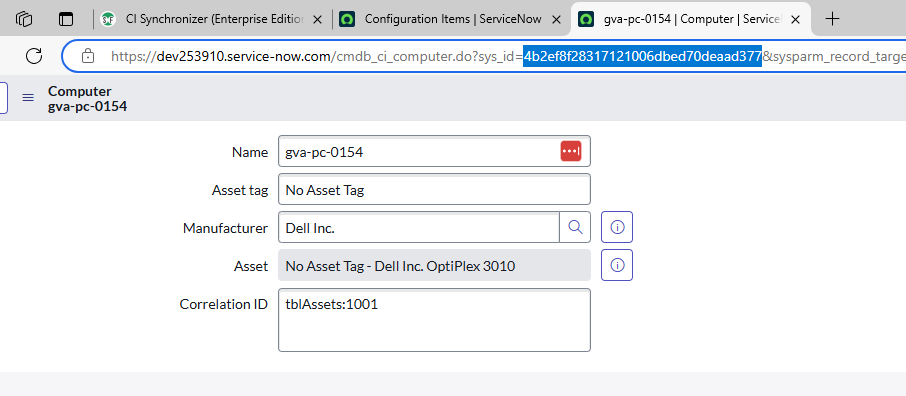
-
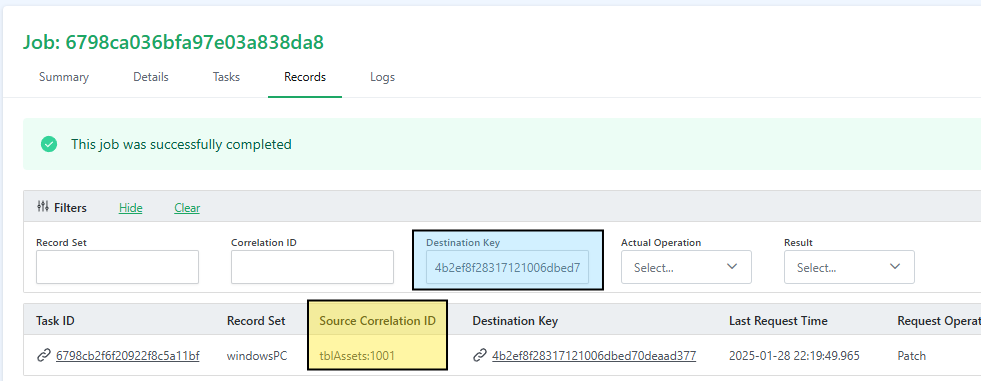
Within CI Sync, navigate to the Job that should contain the Configuration Item you are tracking. Click into the Records tab of the Job and enter the SYS_ID recorded from the previous step into the Destination Key filter field. The Job records will be filtered down to that CI/Asset.
-
Record the value contained in the Source Correlation ID column - this will be the Asset ID of the Asset within Lansweeper. Note down the Asset ID to validate within Lansweeper.
-
Within Lansweeper, navigate to any list of Assets and click into the details page for any Asset.
-
Within the browser URL on the Asset details page, you will see the AssetID URL parameter.
Replace the AssetID parameter value with the Asset ID recorded in Step 3 and reload the page to see the details for the tracked Asset.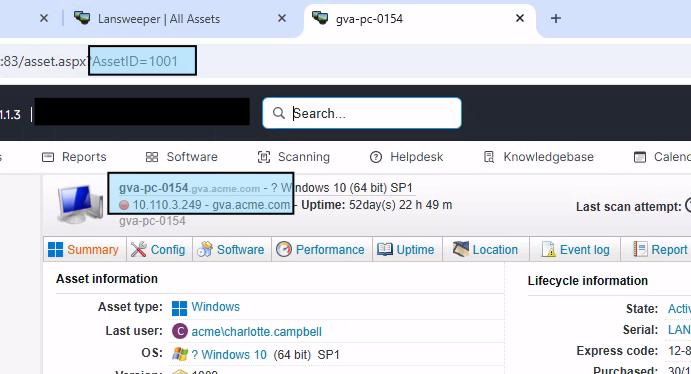
Recap: Important highlights for Correlation ID
-
Correlation ID is only populated into ServiceNow for Assets that are Inserted from Lansweeper.
-
CI Sync Update operations will never pass the Correlation ID to ServiceNow to avoid overwriting.
Related Articles
https://support.syncfish.com.au/cs/ckb045-how-to-enable-meta-data-logging-to-reconcil
Control Information
|
Created |
|
|---|---|
|
Reviewed |
|
|
Data Classification |
PUBLIC
|