
Aim
“I have lots of records in my Lansweeper database and I don’t want to synchronize it all for testing.”
Process
Limiting records to sync is a configuration customisation that can be end-user configured.
The Device Filter is intended to be used in Test as a way of reducing the number of records processed and thereby speeding up the testing process.
Although not intended for Production use, some customers have utilised it in Production to facilitate a progressive asset synchronization. We strongly recommend you contact us to discuss Production filtering before you configure device filtering in Production.
Configuring Device Filtering:
-
Navigate to Settings | Source Connections
-
Locate the Source Connection you wish to filter and click Update
-
Under Additional settings, locate the Filtering section
-
Enable the filter by setting “Filter Devices” to on
NB: if the on/off toggle switch is disabled, tick the checkbox to the right of the switch to enable it (as illustrated below).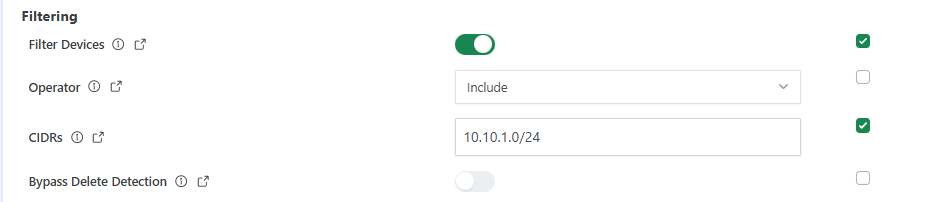
Device Filter configuration settings
-
Select the Filter Operator. By default this is set to “Include” which will synchronize only devices that have an IP Address that is within one of the entered CIDR ranges. Changing the Operator to “Exclude” will synchronize only devices that do NOT have an IP Address in any of the entered CIDR ranges.
-
Enter one or more comma-separated CIDR values in the CIDR input. The extract query will only return records with IP Addresses within the specified scope of CIDRs.
-
If enabled, the Bypass Delete Detection option will skip the delete detection step in the data extraction orchestration process. This may be of use if performing a synchronization for a set of assets that fall outside of the usual filter you apply.
-
Save the configuration changes when finished by consenting and clicking Save connection.
Once the filter has been applied it will be used for all jobs that use the source connector until disabled.
IMPORTANT: Any devices that have been previously synchronized that do not match the defined CIDR filter will be treated as a deletion by CI Sync (Unless the Bypass Delete Detection is enabled).
Examples
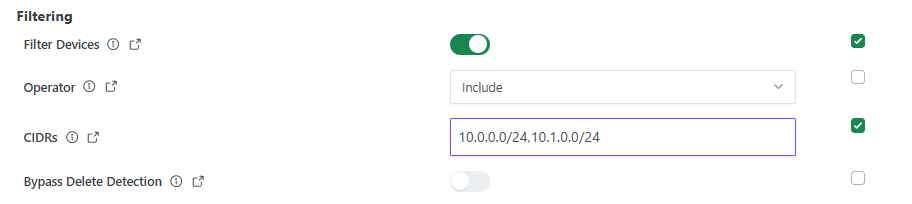
Example 1 - Include 2 subnets
The following example will synchronize devices with an IP Address in either of the ranges:
-
10.0.0.0 - 10.0.0.255
-
10.1.0.0 - 10.1.0.255
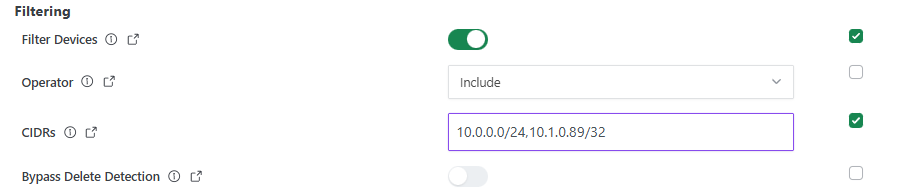
Example 2 - Include one subnet and one additional single IP Address
The following example will synchronize devices with an IP Address in either of the ranges:
-
10.0.0.0 - 10.0.0.255
-
10.1.0.89
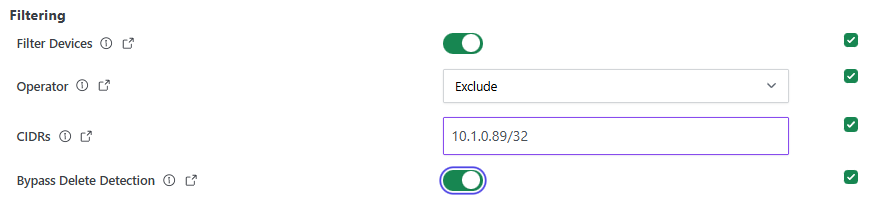
Example 3 - Synchronize a single device
The following example will synchronize the devices with the IP Address:
-
10.1.0.89
Any devices that have previously been synchronized that do not have the IP Address 10.1.89 will NOT be processed as a deletion.
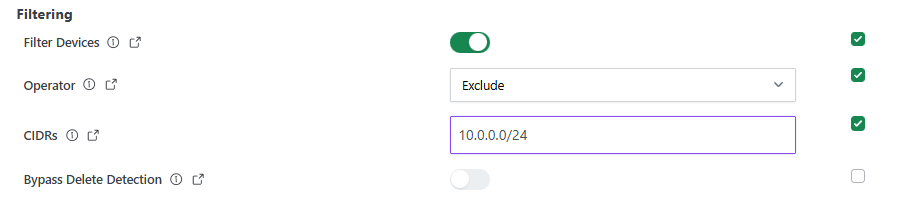
Example 3 - Exclude a single subnet
The following example will synchronize devices with an IP Address NOT in the range:
-
10.0.0.0 - 10.0.0.255
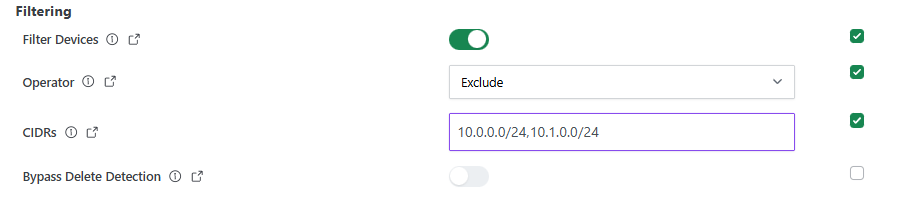
Example 4 - Exclude multiple subnets
The following example will synchronize devices with an IP Address NOT in either of the ranges:
-
10.0.0.0 - 10.0.0.255
-
10.1.0.0 - 10.1.0.255
Related Articles
There are currently no related articles.
Control Information
|
Created |
|
|---|---|
|
Reviewed |
|
|
Data Classification |
PUBLIC
|