Connector Applicability
|
Applies to Source Connectors |
InTune (others coming soon) |
|---|---|
|
Applies to Destination Connectors |
ServiceNow |
Assumptions
These instructions assume you have already setup a source connection in CI Sync for ServiceNow.
Pre-Read
Syncfish recommend customers read the following documentation before changing the Connection Setting/s described below.
Locating and Amending the Connection Setting in the CI Sync UI
-
Navigate to the Settings page
-
Under the Destination Connections heading (list), locate your ServiceNow connection (it will be either a Non-PROD “TEST” connection or the “PROD” connection depending on which one you need to amend).
-
Click the Update link on the right-hand side of the ServiceNow connection.
-
Scroll down and locate the Additional Settings Heading and view the Individual Connection Setting related to this guide.
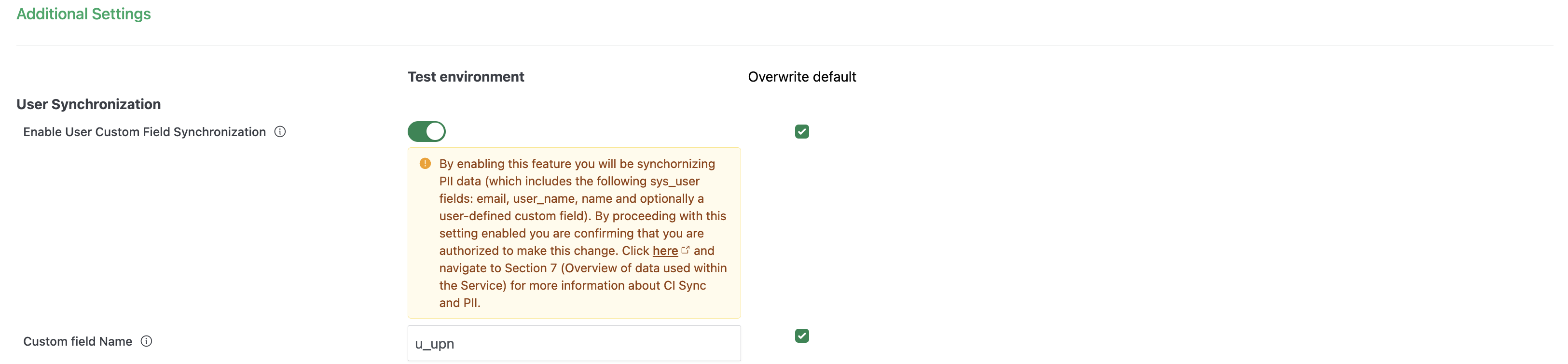
The screen shot is provided only as sample to assist when reading this page. The state of your own CI Sync UI will depend on whether you are starting from the CI Sync default position or if you have already amended one/more of the settings.
-
Tick the Override default box/boxes and then use the sliders related to the individual settings.
-
The following table elaborates any further information about these particular settings.
|
Setting |
Type |
Additional Notes |
|
Enable User Custom Field Synchronization |
Slider |
Note: This setting is only relevant if you have defined “custom” as the ServiceNow correlation field on your Source System Assigned To user synchronization setting. When enabled, The CI Sync UI will expose an addition setting as explained in the next row. Important PII Consideration when enabling this setting When enabling this setting the CI Sync UI will warn of potential PII implications. Please read the message shown and also read Section 7 (Overview of data used within the Service) in the CI Sync Service Specification published here. Section 7 explains the impact of enabling this setting for both persisted data and transited data. |
|
Custom field name |
String |
Note: This setting is only relevant if you have defined “custom” as the ServiceNow correlation field on your Source System Assigned To user synchronization setting. Enter the name of the custom field (from your ServiceNow sys_user table) that you want CI Sync to correlate incoming user related values from your Source System. |
-
After modifying the settings, scroll to the bottom of the page, tick the “I consent…” checkbox and finally click the Save connection button.
-
You can now run a sync job and the amended settings will be applied causing the CI Sync Data Sync rules to be modified accordingly.
Importantly
Make sure you consciously override the setting against either your TEST or PROD environment (i.e. your TEST vs PROD sync jobs).
For more information on how to use TEST vs PROD Connection Settings please read Understanding the use of CI Sync Connection Settings.
Syncfish strongly recommend making changes for TEST environment/sync jobs first. Only modify PROD related settings after thoroughly validating the intended results in TEST.