
What are CI Sync Connection Settings?
Context
The SaaS component of CI Sync is essentially a data processing and rules engine responsible for synchronizing data from one/more source systems (like Lansweeper, InTune, SCCM, etc etc) to one/more destination systems (like the ServiceNow CMDB). It is the rules engine functionality that can be influenced by CI Sync Connection Settings.
Customers create Source System Connections and Destination System Connections using the CI Sync UI (either/both the CI Sync Agent UI or the CI Sync SaaS UI).
Explanation of CI Sync Connection Settings
CI Sync Connection Settings allow customers to modify the default data sync rules of their customer specific instance of CI Sync.
Because the CI Sync rules are applied on a connection-by-connection basis (i.e. each source or destination connection have their own specific rules), the CI Sync Connection Settings feature is also applied to each individual connection.
Customers can use the CI Sync Web UI to view, and if required modify their Connection Settings. Connections Settings can be modified in the context of TEST sync jobs seperately to PROD sync jobs (this topic is covered further below).
Things to do before modifying CI Sync Connection Settings
-
Understand the Default Configuration/Data Sync Rules of CI Sync. Read this page tree: Default Configuration Guides.
-
Discuss your planned changes with Syncfish. Either reach out to your Syncfish contact/rep or log a support ticket.
-
Read the Connection Setting Guides (i.e. the guide specific to the setting/s you want to change). Read this page tree: Connection Setting Guides.
Where do you locate CI Sync Connection Settings?
CI Sync Connection Settings are shown in the CI Sync Web UI. You can view and modify Connection Settings via these steps:
-
Navigate to the Settings page and Connections tab. The page has two sub-headings/sections, one for Source connections and one for Destination connections.
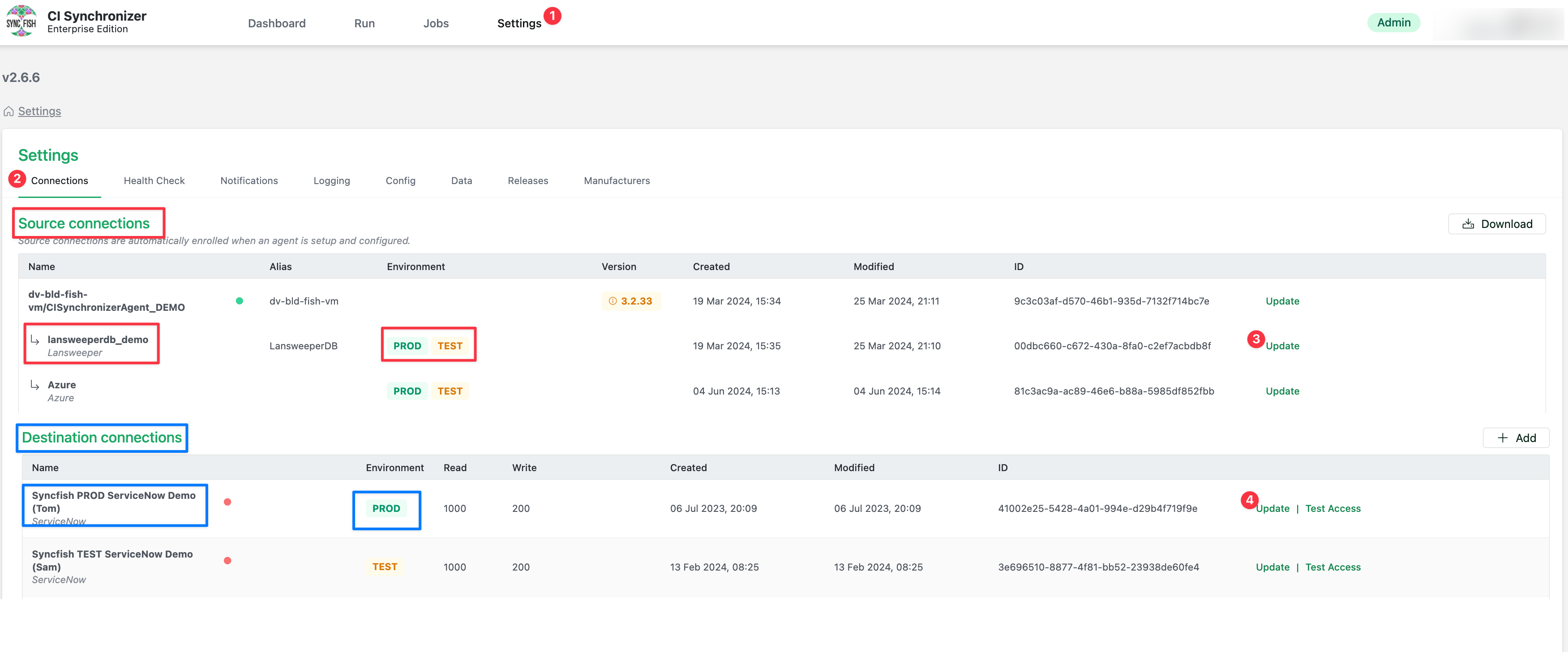
Take note of the following elements on the page
-
Make sure you are clear if a given system is defined as a source connection vs a destination connection.
-
Make sure you are clear whether a given connection is tagged as TEST only, PROD only or both TEST and PROD. The Environment attribute/column indentifies this.
-
CI Sync Source connections can be both TEST, PROD or both TEST and PROD (because sources are read only for CI Sync).
-
CI Sync Destination connections can only be TEST or PROD, not both (because destinations are read/write for CI Sync).
-
The Update link on the right right hand side of the page (beside each source/destination connection).
-
To view/modify a Connection Setting, click the Update link on a given source/destination connection.
-
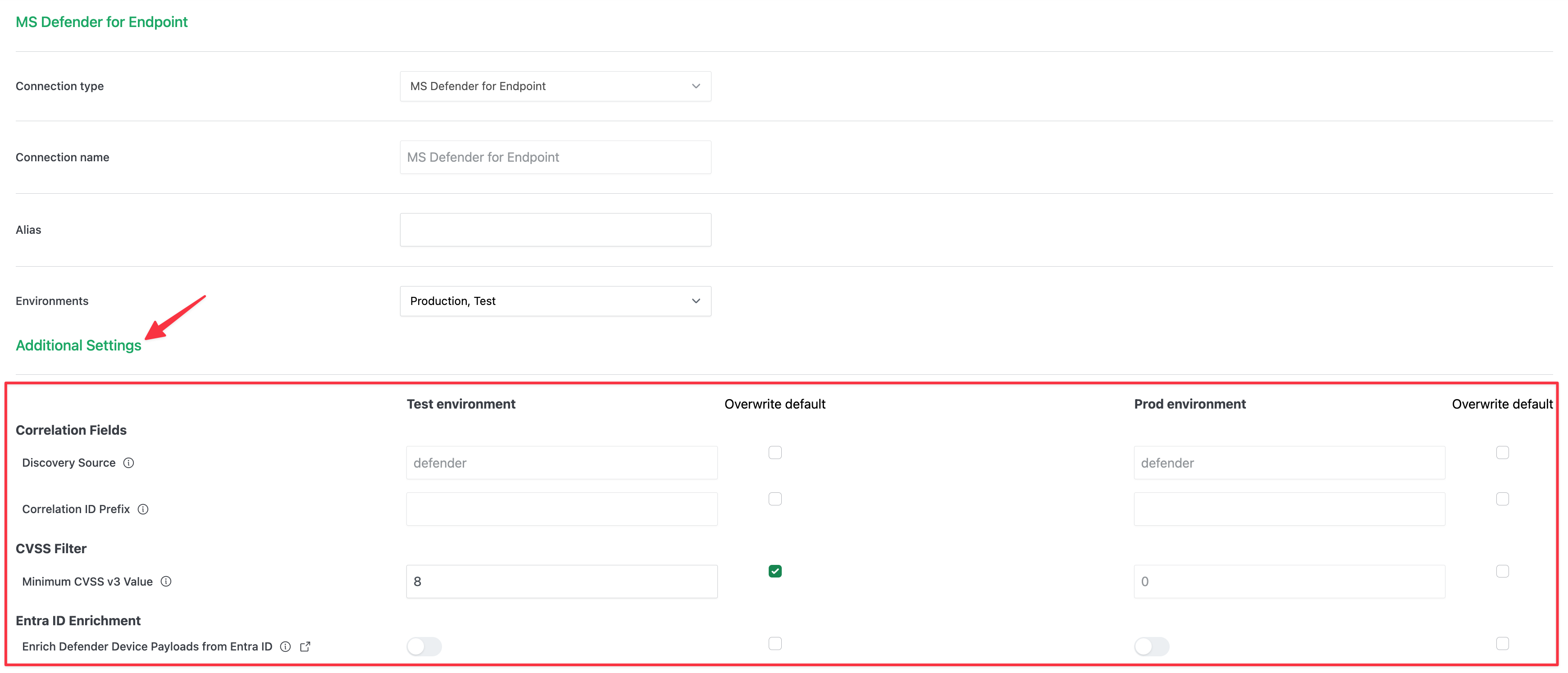
On the subsequent page (which is specific to the given source/destination connection), scroll down to the and locate Additional Setttings heading. It is within this section you see Connection Settings.
General UI layout and functionality of Connection Settings?
Using the screen shot above you will notice the following:
-
Connection Settings are shown in groups with a given sub-heading (e.g. Correlation Fields or CVSS Filter, or Entra ID Enrichment as shown in the MS Defender for Endpoint example below). The list of Connection Settings are specific to the source/destination system itself so what you see will differ on a connection-by-connection basis.
-
Withing a given sub-heading you will see the individual connection settings.
-
If the Environments value is TEST and PROD (shown as “Production, Test”) you will see two sets of columns containing the setting content/values and Overwrite default checkbox. One set of columns is for TEST Sync Jobs and the other is for PROD Sync Jobs.
-
If the Environmentts value is TEST only, or PROD only, you will see one set of columns only for the setting content/values and Overwrite default checkbox.
How should I implement setting changes first in TEST and then subsequently in PROD?
Syncfish strongly recommend the following sequence when making changes to Connection Settings:
-
Firstly, make sure you understand a given settting and the implications of changing it (read the associated CI Sync documentation and/or talk with Syncfish).
-
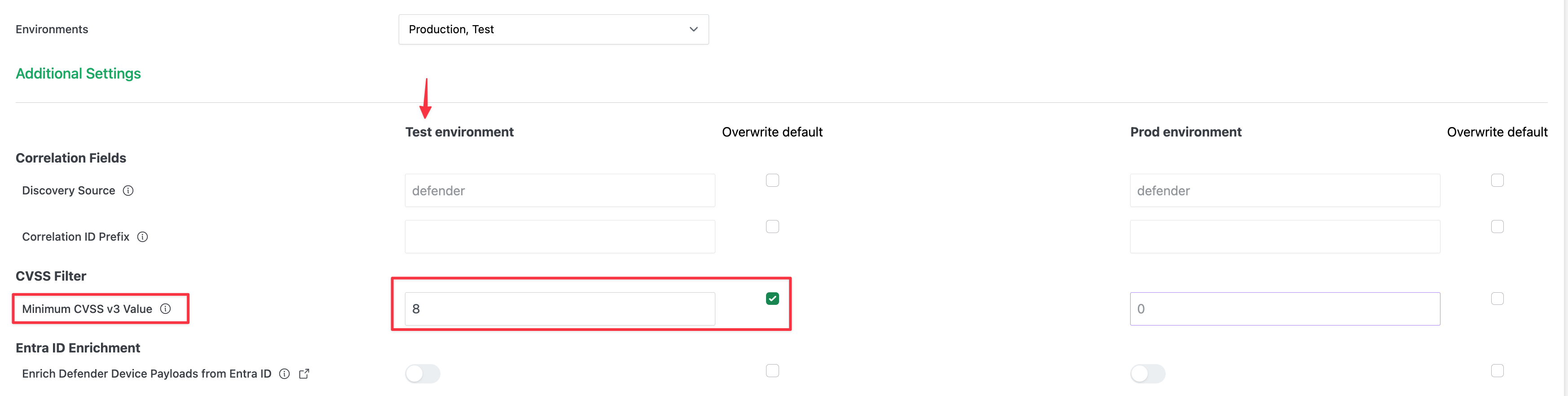
Next, update the TEST version of the individual setting.
-
Tick the Overwrite default checkbox under the Test environment column heading.
-
Amend the setting value itself. The way you amend the value depends on the setting itself. Settings can be as simple as an on/off slider (enabled/disabled), a string value, a numeric value or even a RegEx expression.
-
Scroll down and click the Save connection button.
-
-
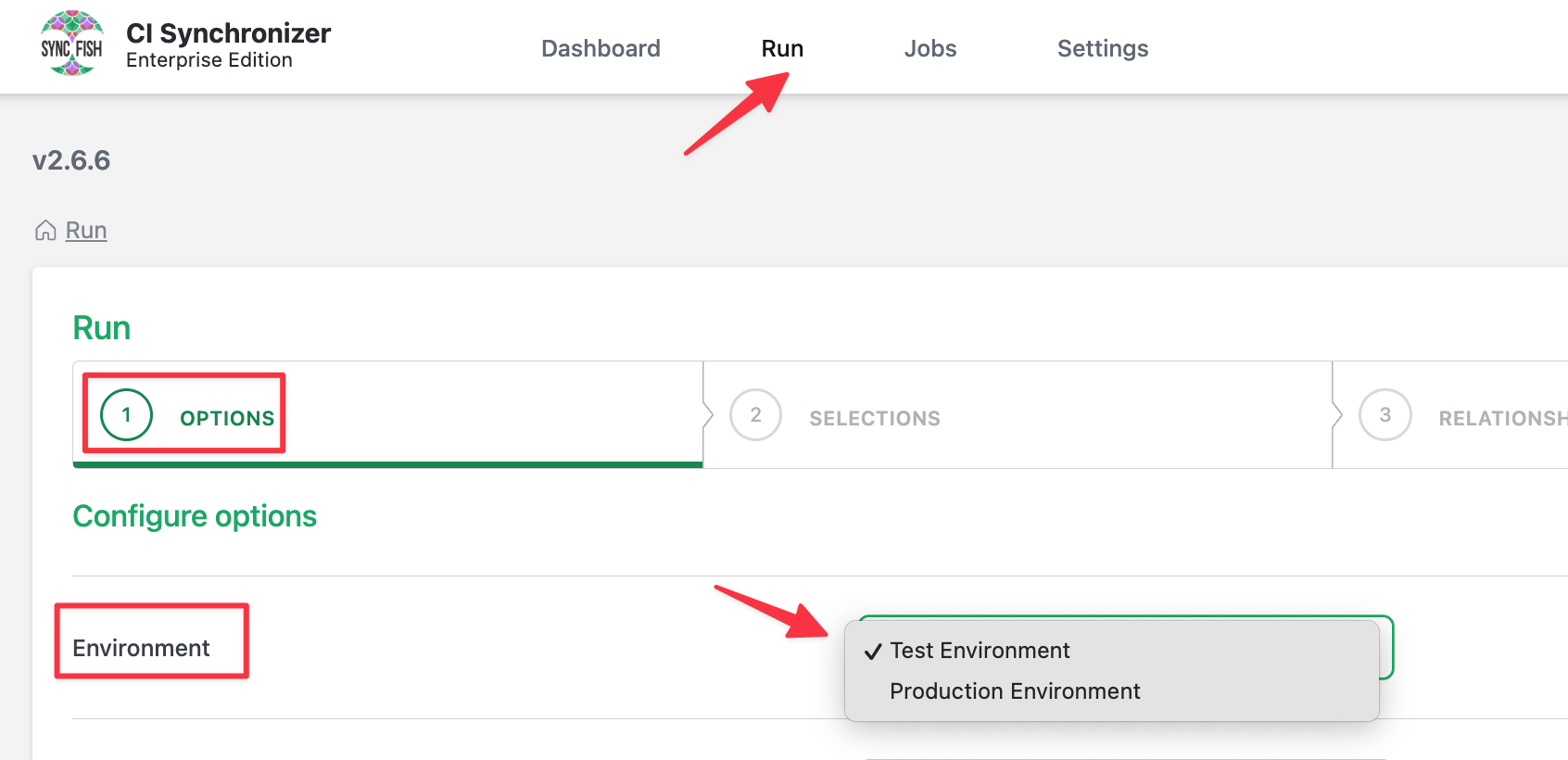
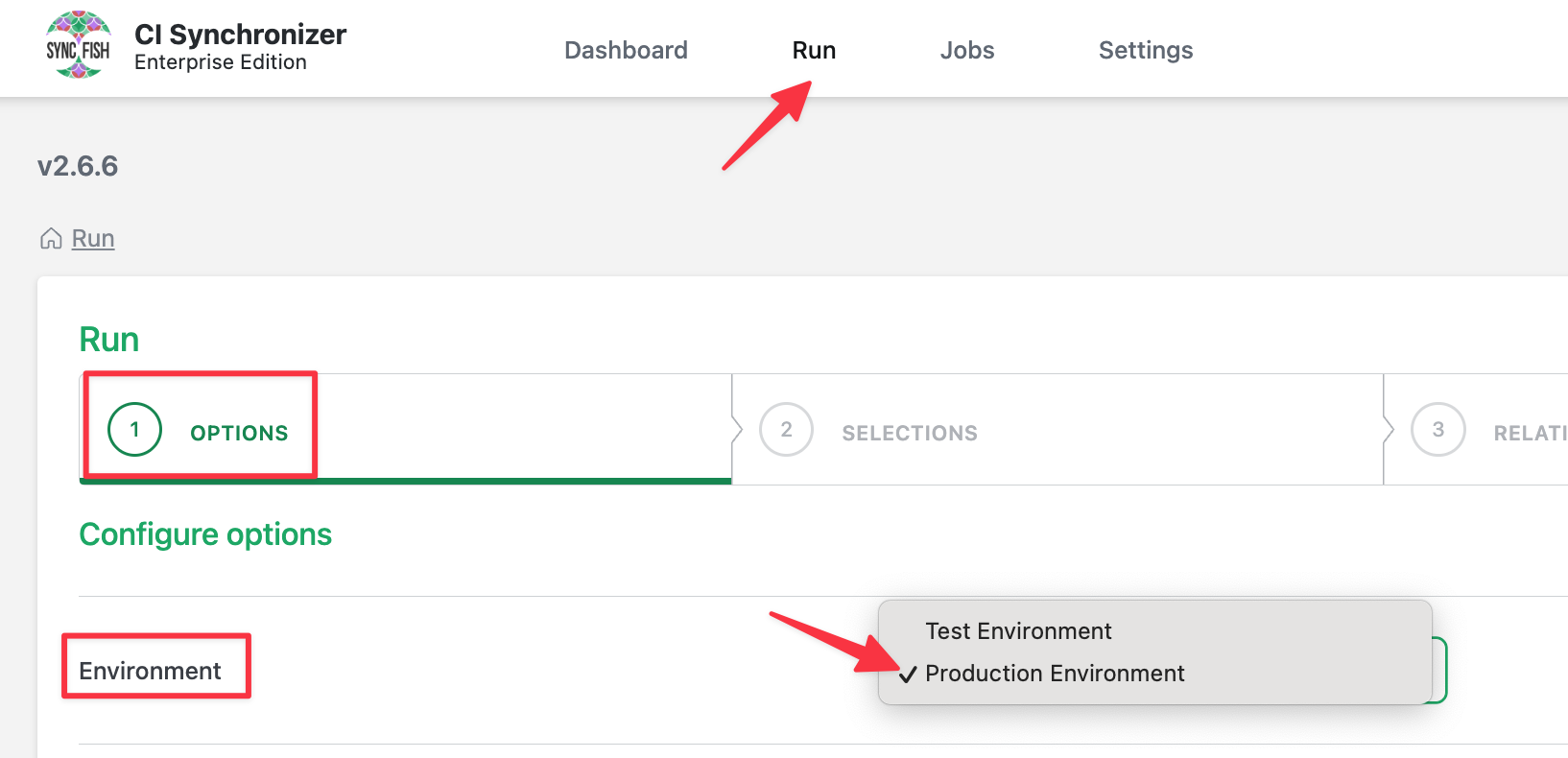
Next, run one or more TEST Sync Jobs by selecting the Test Environment on Step 1 (Options) from the Run page in the CI Sync Web UI.
-
Finally, once you have thoroughly tested the setting change, revisit the Connection Settings for the given connection and update the PROD version of the individual setting (to match the value/setting you used against TEST).
-
Tick the Overwrite default checkbox under the Test environment column heading.
-
Amend the setting value itself. The way you amend the value depends on the setting itself. Settings can be as simple as an on/off slider (enabled/disabled), a string value, a numeric value or even a RegEx expression.
-
Scroll down and click the Save connection button.
-
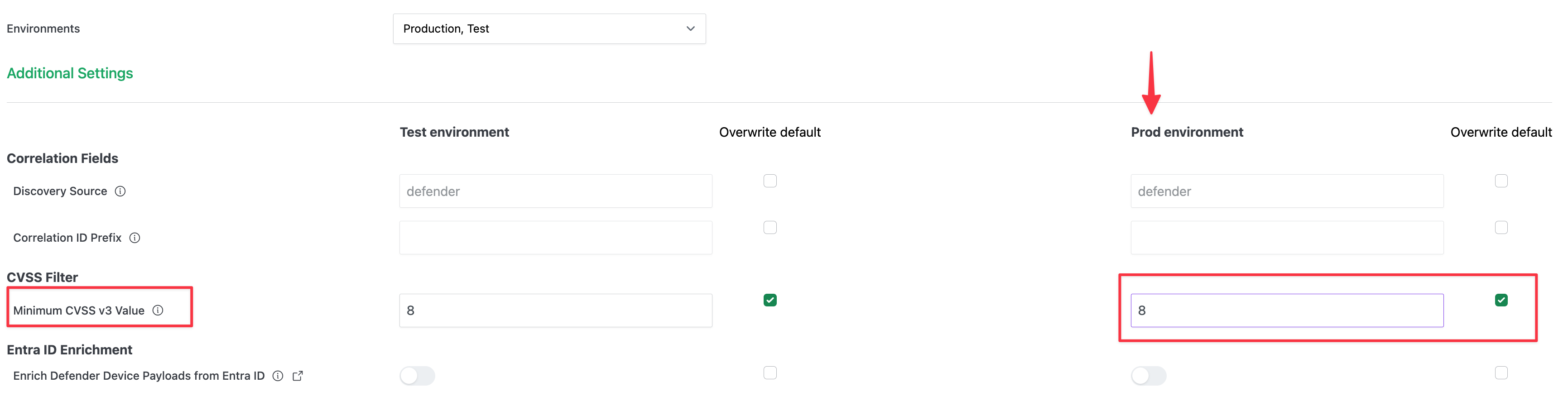
After making the setting change for Prod, any sync jobs run with the Environment set to Production will use the production version of the Connection Settting on the specific connector.
What can I read to understand the Default Data Sync Rules and how to update an Individual Connection Setting?
Syncfish strongly recommend reading the following documention.
Firstly, learn about the Default Configuration/Data Sync Rules of CI Sync. Visit this page tree Default Configuration Guides and locate the rules related to the relevant system of interest.
Next, understand the individual Connection Setting. Visit this page tree Connection Setting Guides and locate the documentation related to the relevant system of interest.