
Connector Applicability
|
Applies to Source Connectors |
MS Defender for Endpoint |
|---|---|
|
Applies to Destination Connectors |
All |
Assumptions
These instructions assume you have already setup a source connection in CI Sync for MS Defender for Endpoint using the CI Sync instructions here: Add MS Defender for Endpoint.
Pre-Read
Syncfish recommend customers read the following documentation before changing the Connection Setting/s described below.
Locating and Amending the Connection Setting in the CI Sync UI
-
Navigate to the Settings page
-
Under the Source Connections heading (list), locate your MS Defender for Endpoint connection.
-
Click the Update link on the right hand side of the MS Defender for Endpoint connection.
-
Scroll down and locate the Section Heading and view the Individual Settings.
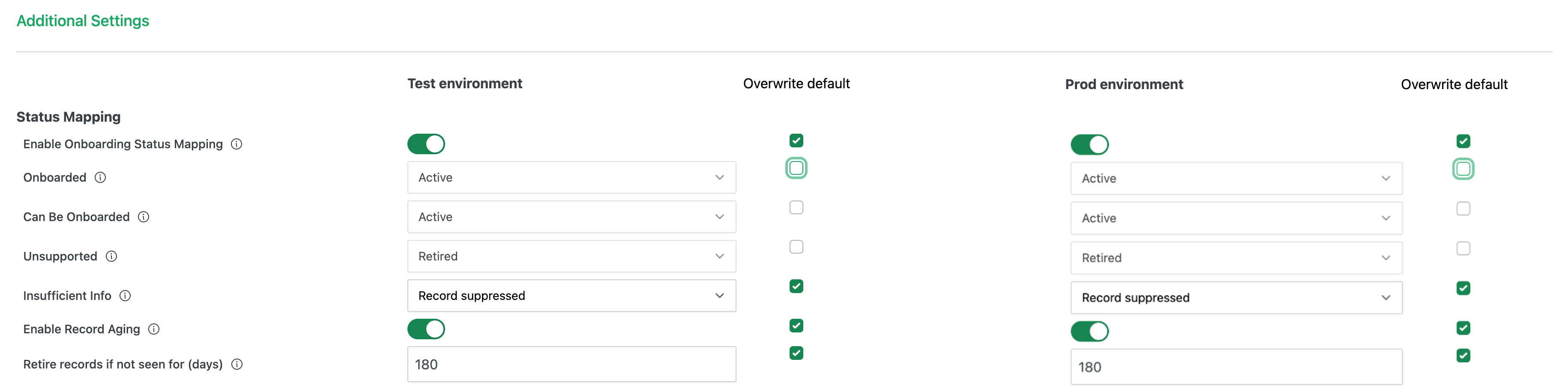
The screen shot is provided only as sample to assist when reading this page. The state of your own CI Sync UI will depend on whether you are starting from the CI Sync default position or if you have already amended one/more of the settings.
-
Tick the Override default box/boxes and then use the sliders related to the individual settings. The following table elaborates any further information about these particular settings.
|
Setting |
Type |
Additional Notes |
|
Enable Onboarding Status Mapping |
Slider |
If enabled, CI Sync will use the native “Onboarding Status” value held in Microsoft Defender for Endpoint (this attribute and the value assocaited with each asset are visible in the Defender for EndPoint portal). Once enabled, all subsequent settings below (i.e. multiple choicelist options) become available. If disabled, CI Sync will use a status mapping table held internally within CI Sync. |
|
Onboarded |
Choicelist |
Defines the status value CI Sync will set on the CI in ServiceNow when the status of the asset is “Onboarded” in Defender for Endpoint asset. Three options are available:
Active is the CI Sync Default Value for this setting |
|
Can Be Onboarded |
Choicelist |
Defines the status value CI Sync will set on the CI in ServiceNow when the status of the asset is “Can Be Onboarded” in Defender for Endpoint asset. Three options are available:
Active is the CI Sync Default Value for this setting |
|
Unsupported |
Choicelist |
Defines the status value CI Sync will set on the CI in ServiceNow when the status of the asset is “Unsupported” in Defender for Endpoint asset. Three options are available:
Retired is the CI Sync Default Value for this setting |
|
Insufficient Info |
Choicelist |
Defines the status value CI Sync will set on the CI in ServiceNow when the status of the asset is “Insufficient Info” in Defender for Endpoint asset. Three options are available:
Recod suppressed is the CI Sync Default Value for this setting |
|
|
||
|
Enable Record Aging |
Slider |
If enabled, CI Sync will “age out” (i.e. retire) Microsoft Defender for Endpoint related CIs based on how long the asset has not been seen in the Defender for Endpoint portal. Once enabled, the setting below become available. If disabled, CI Sync will not “age out” (i.e. retire) Microsoft Defender for Endpoint related CIs based on a not seen value. Instead, CI Sync will retire Microsoft Defender for Endpoint related CIs when the asset is removed from the Defender for Endpoint portal. |
|
Retire records if not seen for (days) |
Number |
Enter the number days after which, if the asset is not seen in the Defender for Endpoint portal, CI Sync will retire the related CI in ServiceNow. |
-
After modify the settings, scroll to the bottom of the page, tick the “I consent…” checkbox and finally click the Save connection button.
-
You can now run a sync job and the amended settings will be applied causing the CI Sync Data Sync rules to be modified accordingly.
Importantly
Make sure you consciously override the setting against either your TEST or PROD environment (i.e. your TEST vs PROD sync jobs).
For more information on how to use TEST vs PROD Connection Settings please read Understanding the use of CI Sync Connection Settings.
Syncfish strongly recommend making changes for TEST environment/sync jobs first. Only modify PROD related settings after thoroughly validating the intended results in TEST.