
Rule Synopsis
These are the rule/s that control how CI Sync handles Azure locations as follows:
-
Option 1 - Whether CI Sync creates CI-to-CI relationships between each Azure Resource CI and the related Azure Datacentre (where the Datacentre is used to represent Azure locations). This creates a CI-to-CI relationship/dependency style of location reference.
-
Option 2 - Whether CI Sync sets the Location attribute on each Azure Resource CI and create a foreign key (i.e. sys_id) reference between each CI and an associated Location record in the ServiceNow cmn_location table. This creates a CI to master data style of location reference in ServiceNow.
CI Sync can be used to create either or both of the above options.
Syncfish recommend creating one type of location reference only, however customers are able to create both if this meets individual business needs.
Rule Details and Default
-
By default:
-
For Option 1 (above) - CI Sync does not create CI-to-CI relationships between each Azure Resource CI and the related Azure Datacentre.
-
For Option 2 (above)
-
CI Sync does not set the Location attribute on each Azure Resource CI (i.e. does not create a foreign key (i.e. sys_id) reference between the Location attribute on each Azure Resource CI and an associated Location record in the ServiceNow cmn_location table).
-
CI Sync does not extend the cmn_location table (which is described in Azure Rule 11 - Automatic Creation of new Location Master Data Records in ServiceNow for Azure)
-
-
Override Options
Context
Customers may consider overriding the default rules so that CI Sync does create one or both type of location references.
That is, the default rules can be overriden for Option 1 and/or Option 2 above so that CI Sync does create either/both CI-to-CI relationship/dependency style location references in ServiceNow or a CI to master data style location references in ServiceNow.
Options
-
For Option 1 - Customers use a CI Sync Connection Setting to instruct CI Sync to do either or both of the following:
-
Set the Location attribute on each Azure Resource CI as a foreign key (i.e. sys_id) reference between the CI and the associated Location record in the ServiceNow cmn_location table.
-
Create additional Location records in the cmn_location table in ServiceNow.
-
-
For Option 2 - Customers use the CI Sync Web UI (when creating a Sync Job) to instruct CI Sync to create CI-to-CI relationships between each Azure Resource CI and the related Azure Datacentre.
ServiceNow Configuration Tip
If you include Latitude and Longitude values to the ‘cmn_location’ records in ServiceNow this can be leveraged on mapping features to show your CIs by geographical location (for example on a Google Map using the ServiceNow CMDB Health Dashboard).
Setting up the CMDB Health Dashboard in ServiceNow can add significant value to your Lansweeper/CI Synchronizer subscription.
Syncfish can provide professional service packages to assist customers with the setup of CMDB Health Dashboard (and other ServiceNow features to leverage your automated CMDB).
Overriding via Connection Settings
Instructions for Option 1 - Use the CI Sync Connection Setting/s to instruct CI Sync to set the Location attribute on each Azure Resource CI as a foreign key (i.e. sys_id) reference between the CI and the associated Location record in the ServiceNow cmn_location table, and create additional Location records in the cmn_location table in ServiceNow.
Customers can perform these location overrides using a “Connection Setting” via the CI Sync User Interface (i.e. customers can perform the overrides themselves). Additional information for this is available via the following documentation:
-
For a general overview of CI Sync Connection Settings please read Understanding the use of CI Sync Connection Settings.
-
For the specific CI Sync Connection Setting/s related to the rule described on this page please readLocation Data Handling for Azure
For documentation on all CI Sync Connection Settings please visit the page tree Connection Setting Guides.
Additional Information
Instructions for Option 2 - using the CI Sync Web UI (when creating a Sync Job) to instruct CI Sync to create CI-to-CI relationships between each Azure Resource CI and the related Azure Datacentre.
-
Navigate to the CI Sync Web UI and visit the Run page.
-
Complete the various fields/options on the first step (the Options page), in particular set the Source System to Azure. Then click Next.
-
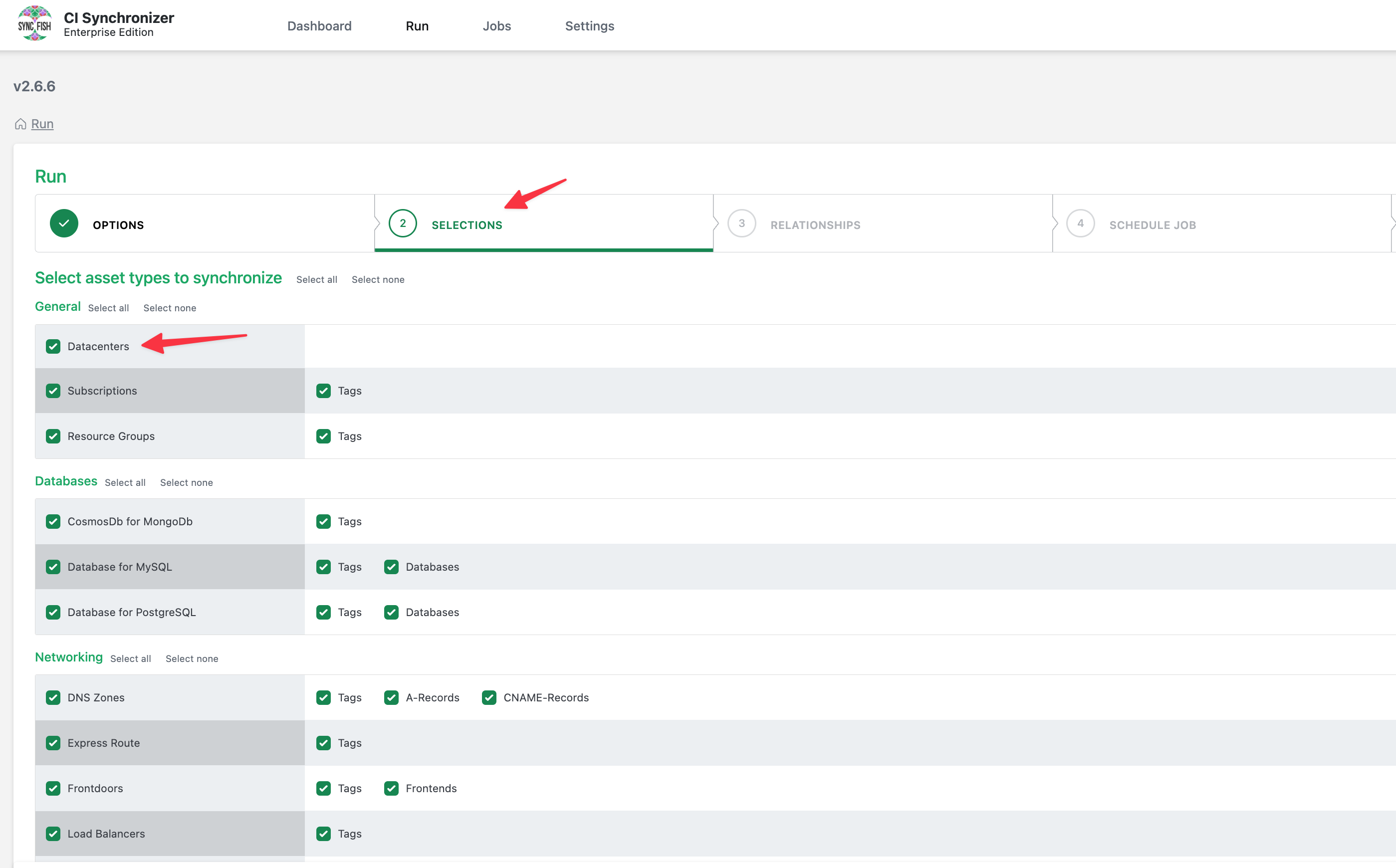
On the second step (the Selections page), ensure you select “Datacentres” as part of the sync job. Then click Next.
-
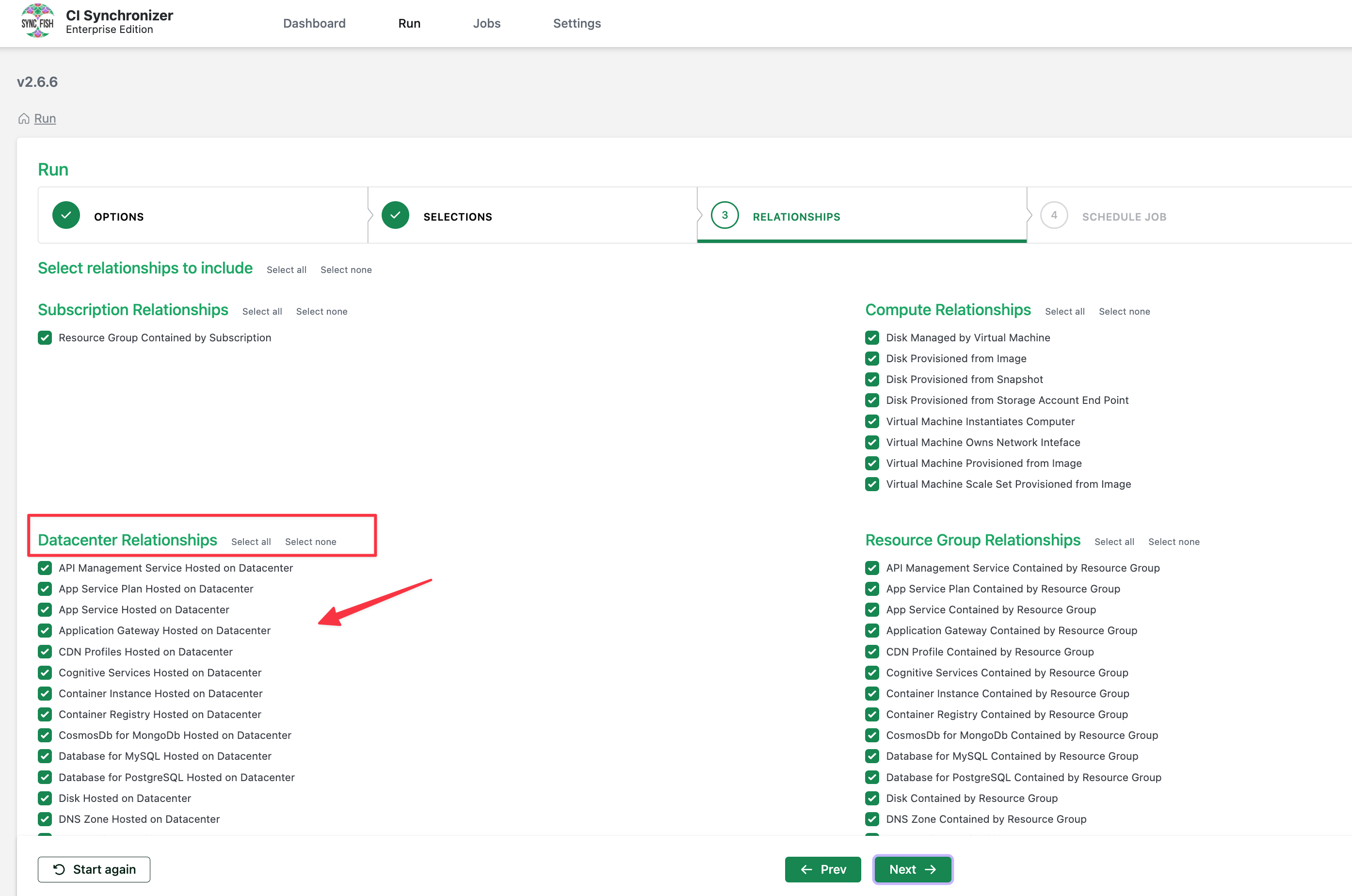
On the third step (the Relationships page) the “Datacentre Relationships” will be selected by default. Leave all relationships selected (or deselect any that you don’t require).
-
Click Next and either perform a Run Now (to start the sync job immediately) or create a Scheduled Job.
-
As a result of the above steps, the Sync Job with create CI-to-CI relationships between \each Azure Resource CI and the related Azure Datacentre.