
Summary: The document below contains the necessary instructions to install the Grafana Alloy agent on Windows. (amd64)
-
Requirements
-
Default Automated Installation
-
Dedicated Service Account/Least Privilege user installation
-
Restrict sent data to only CI-Sync logs
-
Troubleshooting
Requirements:
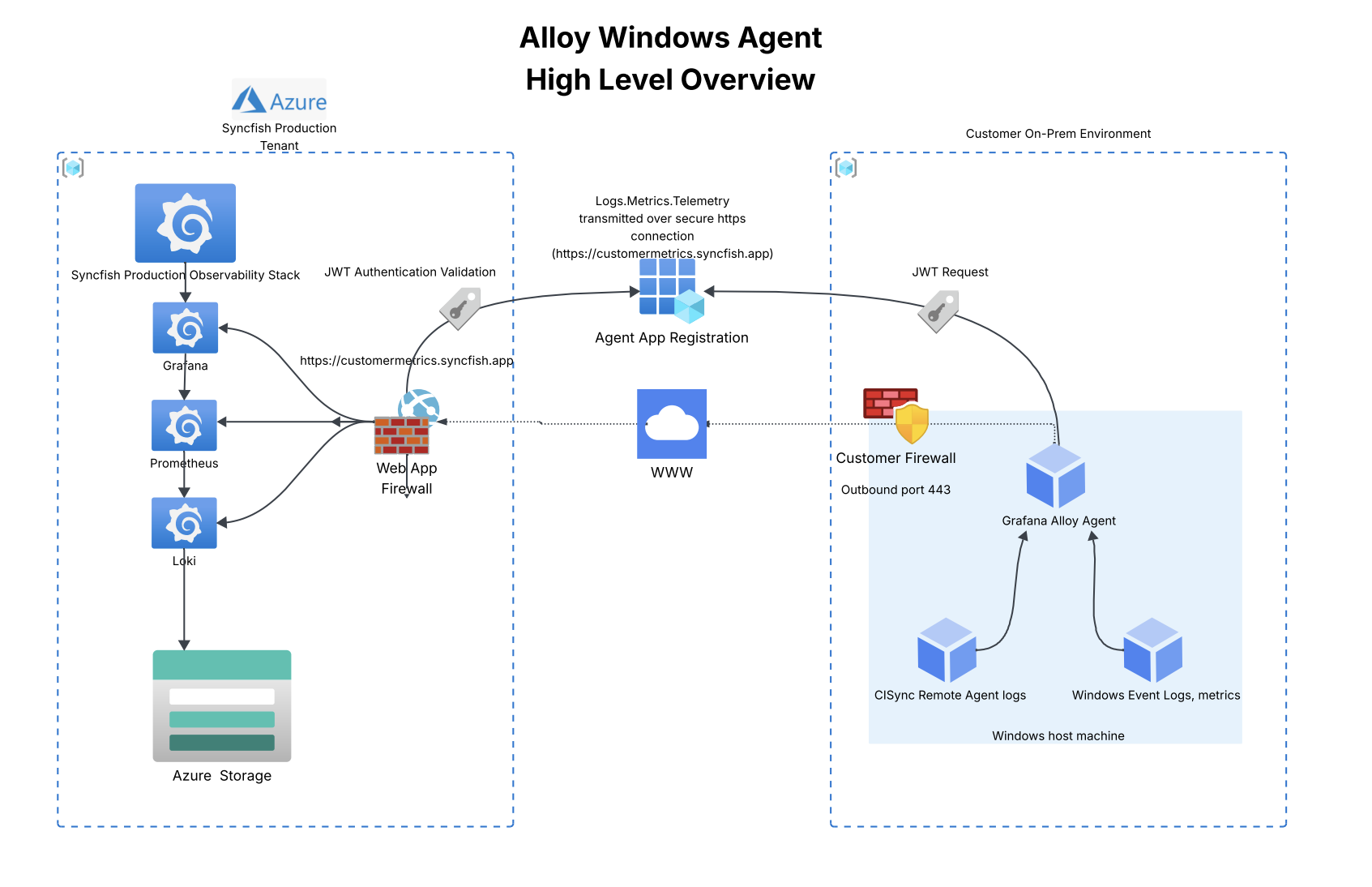
ClientSecret Token:
Client secret created in Remote agent Agent App registration
Files:
Download and extract the files from following URL:
URL : https://downloadsprod.syncfish.app/sfproduct/alloy/alloyprod.zip
Network/Firewalls:
Outbound https traffic on port 443 to https://customermetrics.syncfish.app on all firewalls, application and perimeter.
Install User permissions:
**Please note the user installing the Alloy agent will require Administrator level permissions or the equivalent elevated permisions on the target host system.
Also make sure you have read the document in full before doing the installation to make sure you have selected the appropriate installation option.
Default Automated Installation:
-
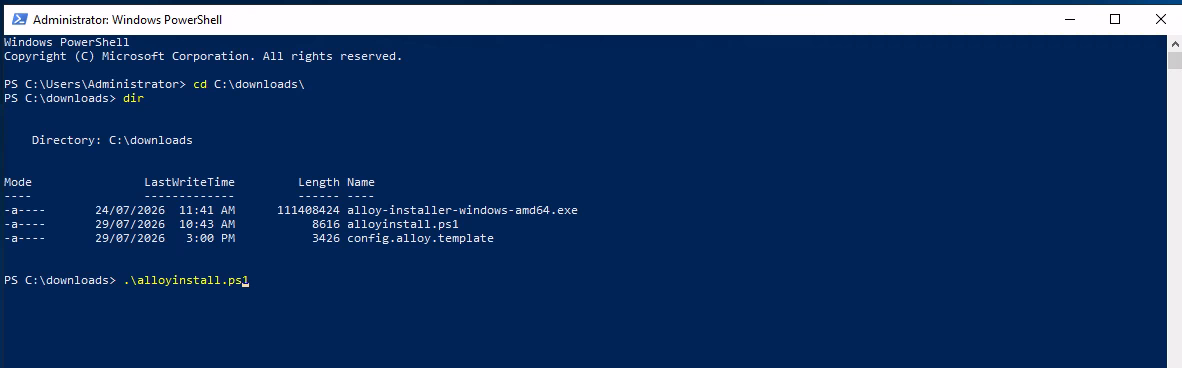
Open an administrative powershell window on the target host system and change to the folder location where the alloyprod.zip was extracted to.
-
In that folder run the following command
./alloyinstall.ps1
-
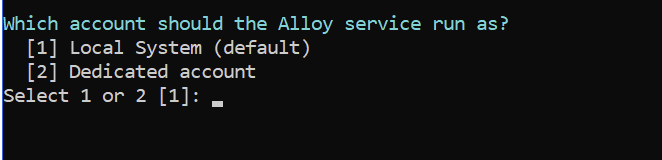
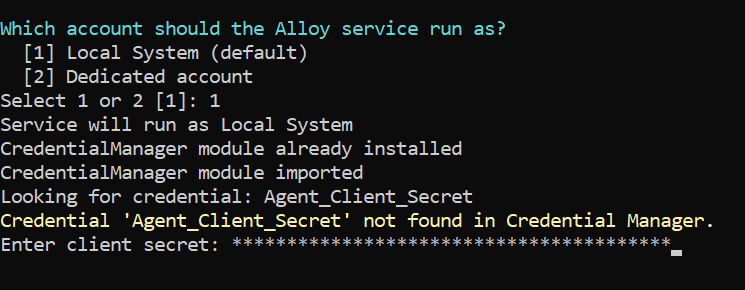
You can choose the default or dedicated service account from the menu. Select 1 for default in this case.
-
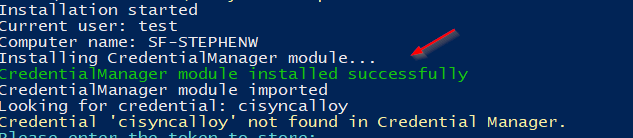
If the powershell credential manager module is not installed, the script it will try and install it first and depending on your security settings will prompt you to continue.
-
Enter or copy and paste your agent app registration client secret when prompted.
-
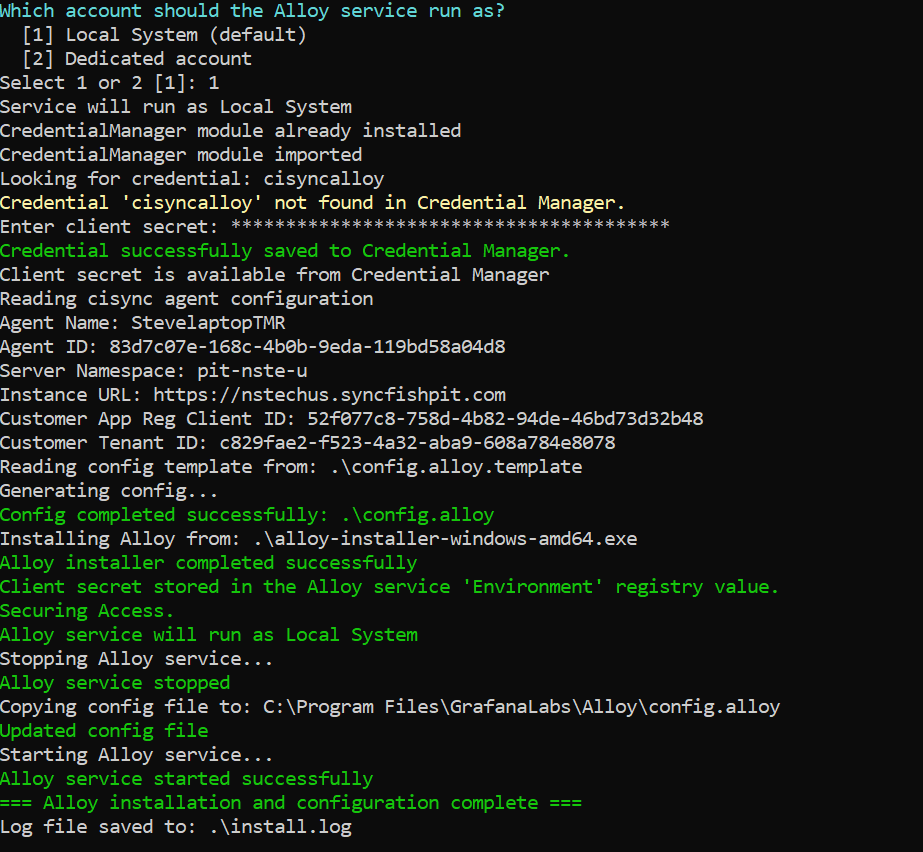
When successfully installed you should see the output similar to the below
-
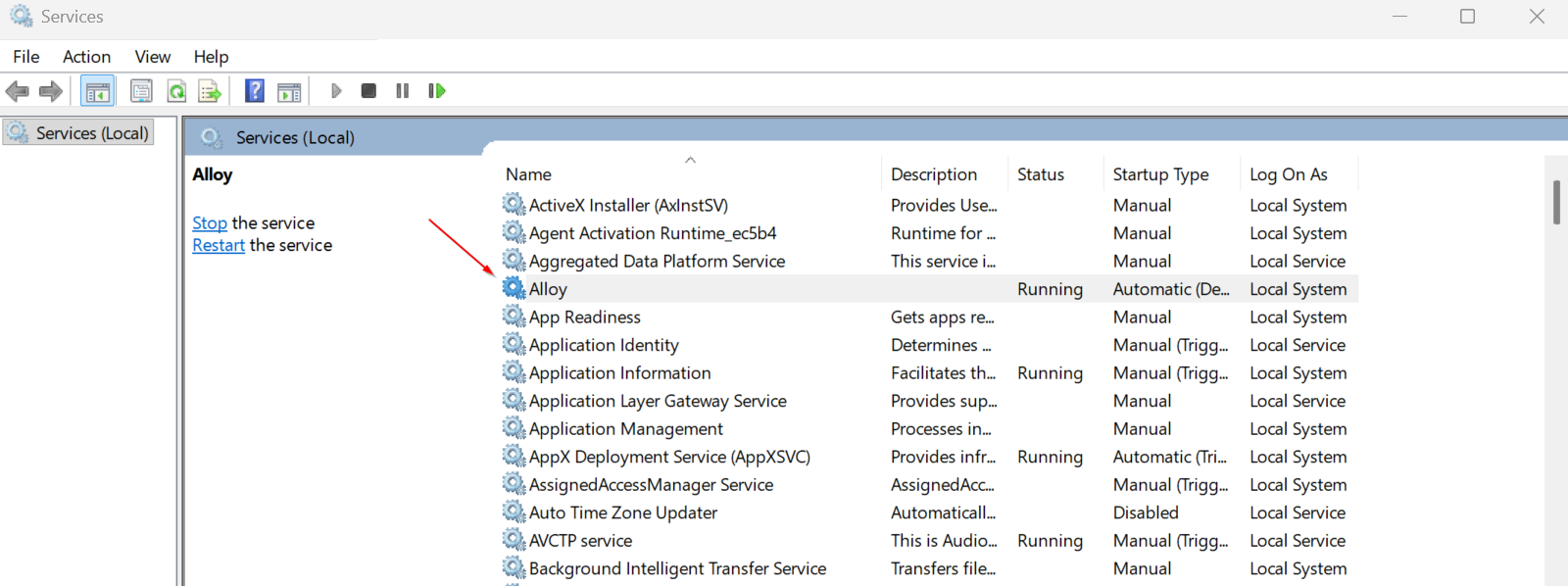
You should also confirm the service is up and running by checking the service console (services.msc)
Dedicated/Least privileged user Installation:
Alloy requires read access to the CISync agent log files, Windows Event Logs and Windows performance counters. The installer by default registers the Alloy service to run as LOCAL SYSTEM, which already has read access to the above.
This also assumes you have already created a dedicated windows service account E.G alloyservice. (domain user or local acount)
Run the .\alloyinstall.ps1 script and select option2 .
Result:
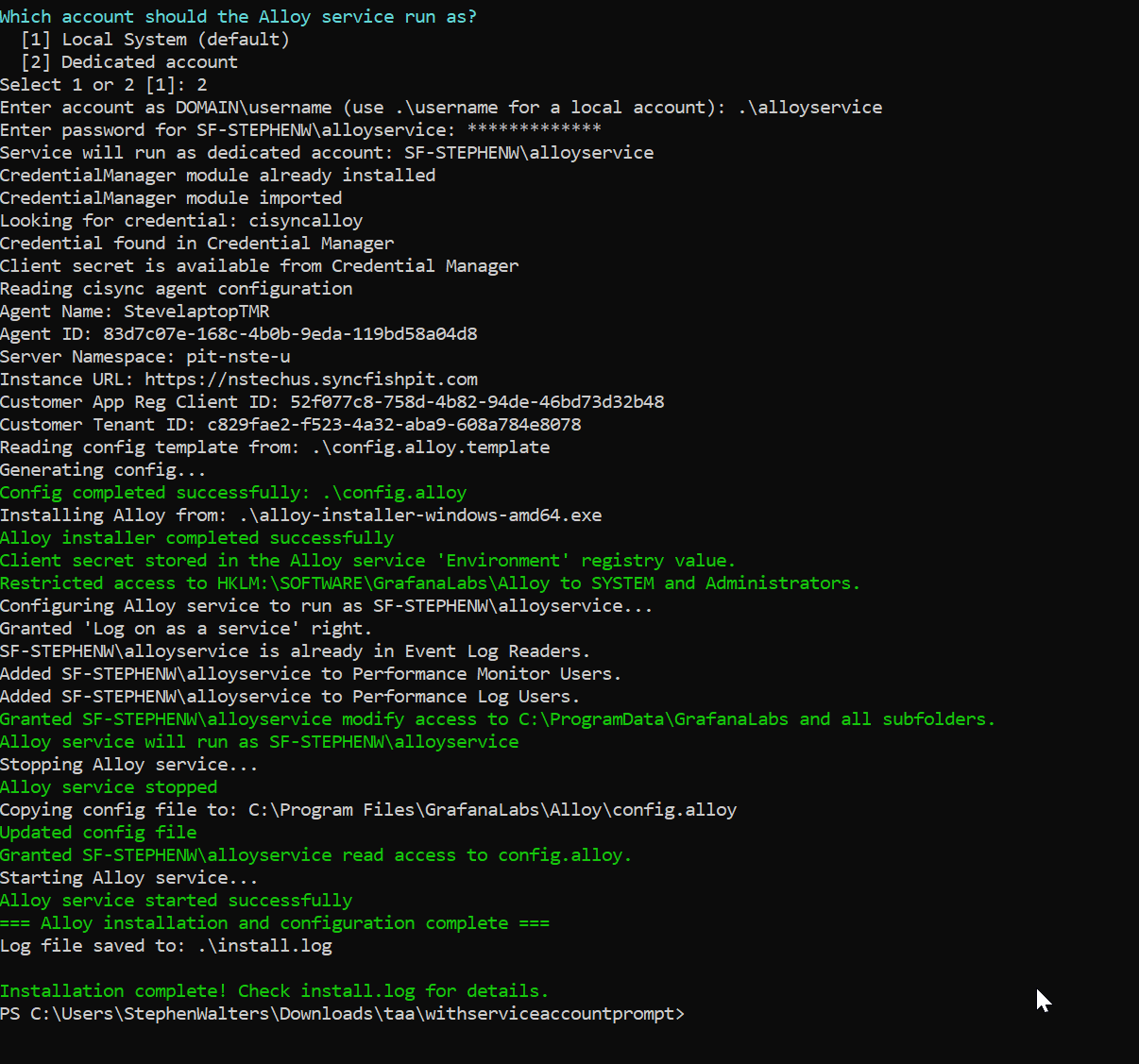
The script will make all the security changes below.
-
User Rights:
The service account needs the LOGON AS A SERVICE user right. Windows requires this right for any account that runs a service.
Assign the right in the Local Security Policy editor at SECPOL.MSC under Security Settings > Local Policies > User Rights Assignment.
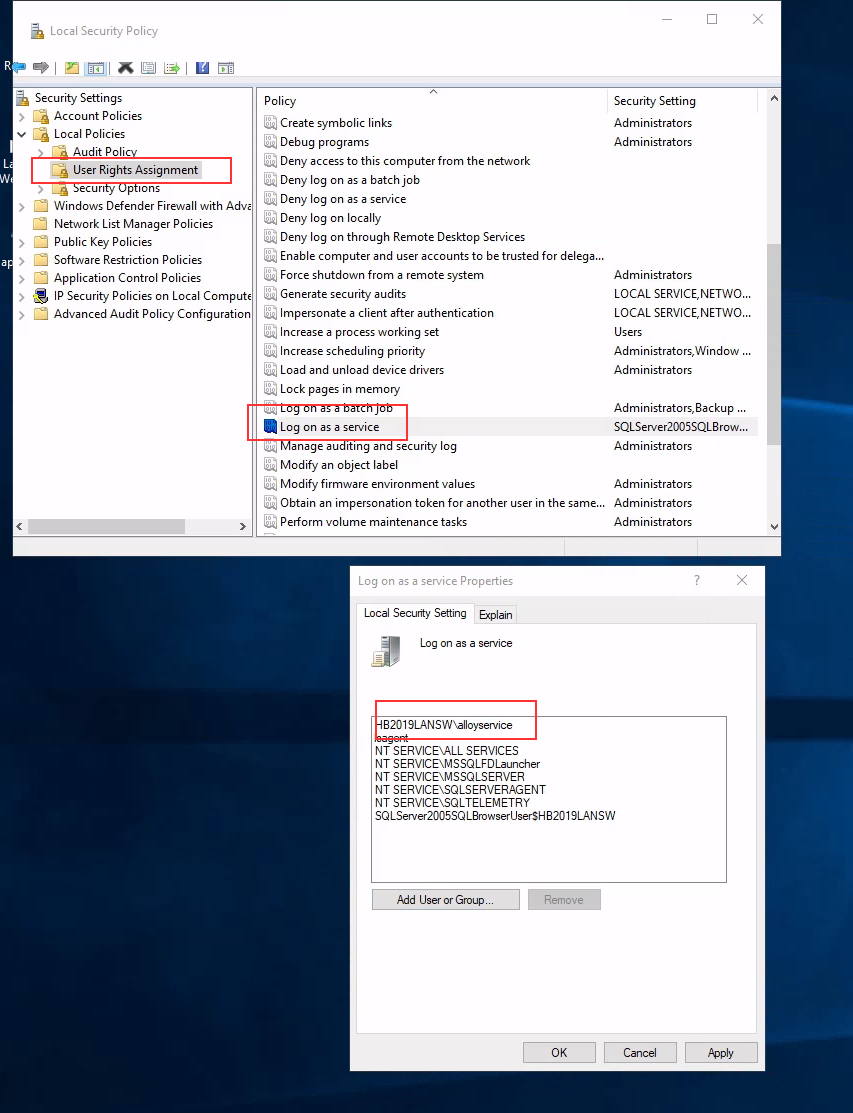
-
Security Groups
Add the service account to the following local security groups on the target system:
-
Event Log Readers: Read Application, System, Security, and custom event logs. Required for Windows Event Log collection.
-
Performance Monitor Users: Read performance counter data for CPU, memory, disk I/O, and network usage. Required for Windows performance metrics.
-
Performance Log Users: Manage Data Collector Sets and performance counter logs. Required for advanced or historical data collection.
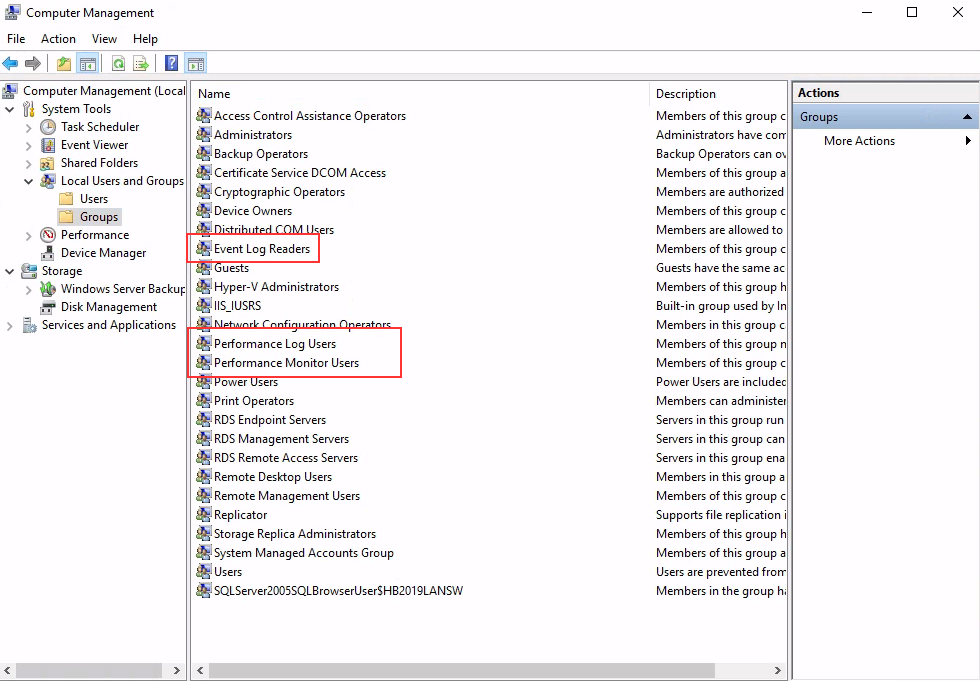
-
Filesystem permissions (make sure file permissions are inherited by subfolders)
Grant read, write, and modify permissions on the alloy programdata folder %PROGRAMDATA%\GrafanaLabs\Alloy\data, where Alloy stores log and runtime data.
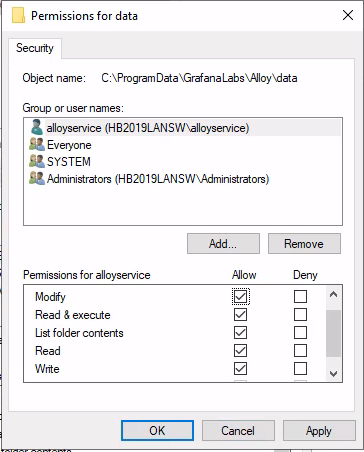
Grant read, write, and modify permissions on the default install folder
C:\Program Files\GrafanaLabs. ( or custom path is used)
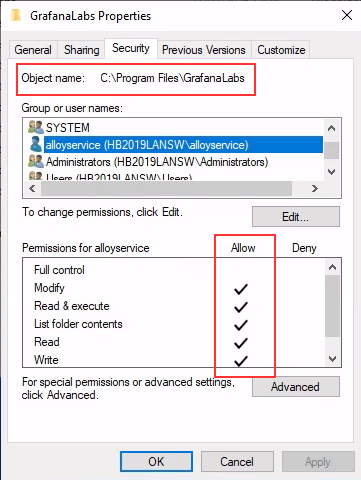
** Grant read, write, and modify on the alloy.config file explicity
C:\Program Files\GrafanaLabs\Alloy\config.alloy
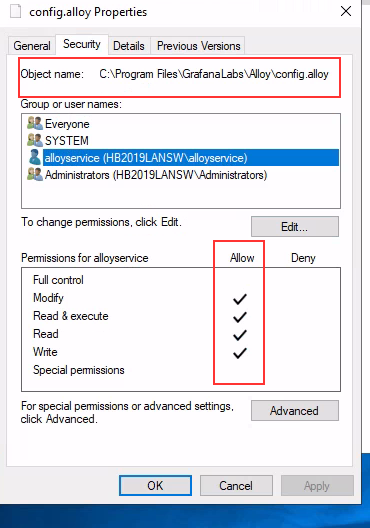
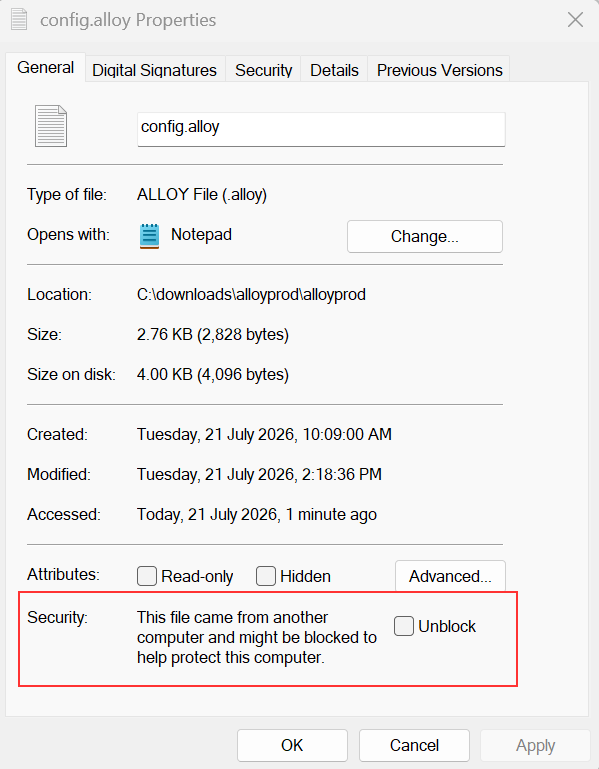
and check the file securty attribute is unblocked on the file properties. Tick Unblock and apply to remove block if present.
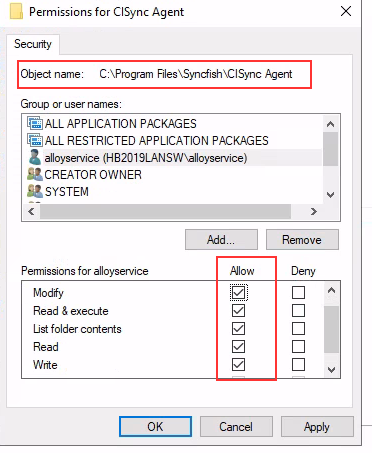
Grant read, write, and modify permissions on the CISync Agent install folder
C:\Program Files\Syncfish\CISync Agent
-
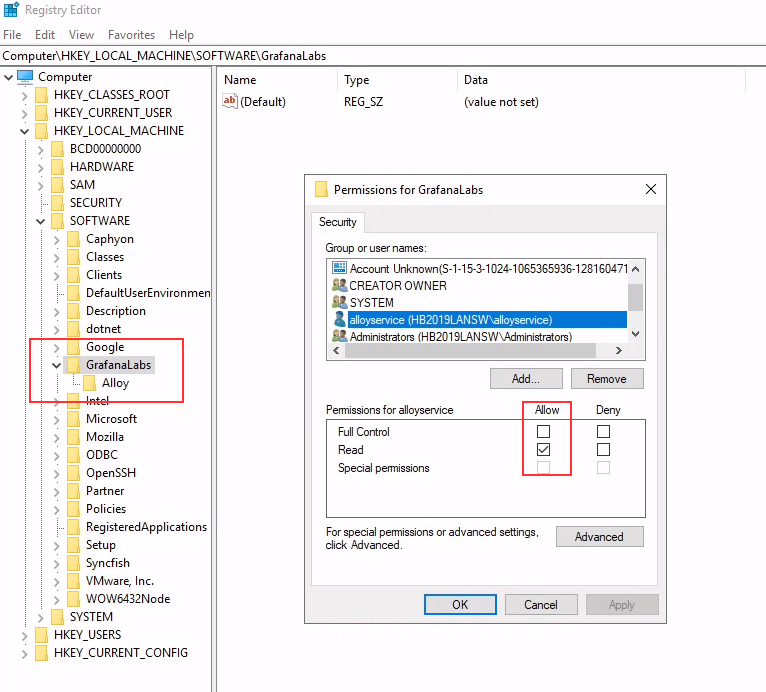
Windows Registry
-
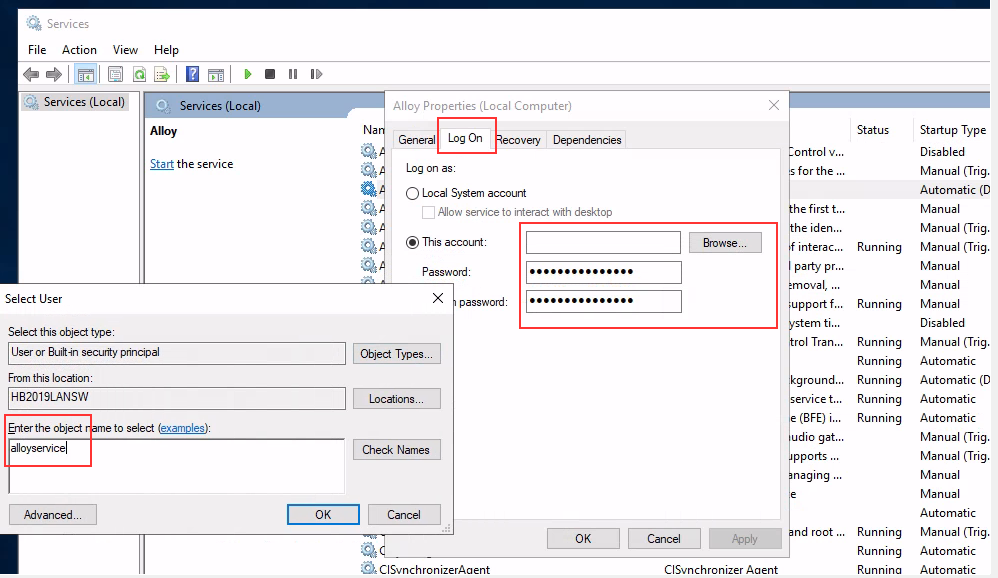
Update service credentials
Change the credentials for the alloy service to the required domain or local account you created and start the service.

Restricting Data to only CI-Sync logs
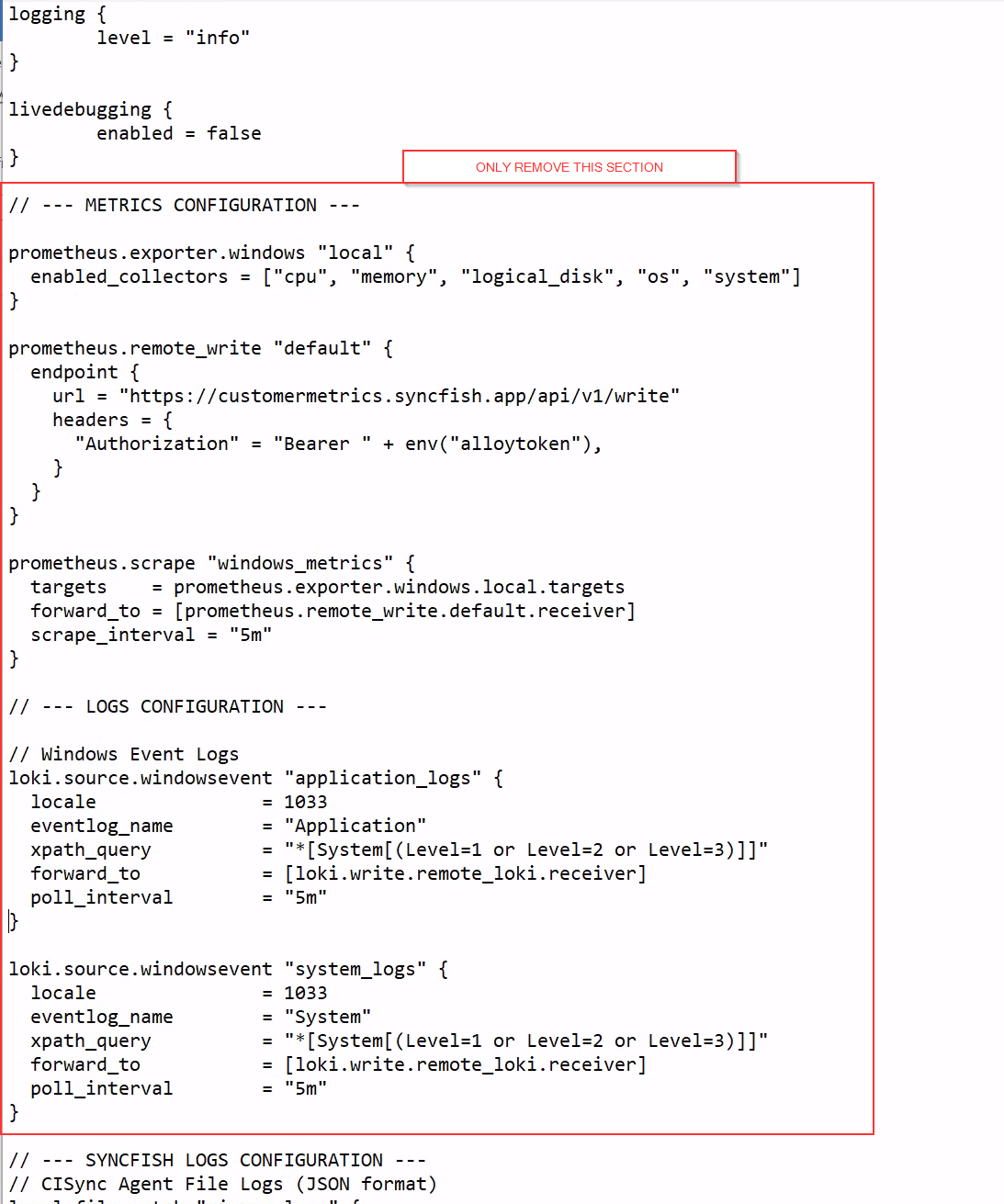
If you do not want to send the Windows host machine Application,System logs and Performance metrics to Syncfish, you will need to perform the steps below to the config.alloy file:
-
Stop the Alloy Windows service.
-
Make a copy of the file below first as a backup and store in another folder.
-
Edit the alloy configuration file
C:\Program Files\GrafanaLabs\Alloy\config.alloy and remove the section highlighted below.
-
Save the changes above, then start the Windows Alloy Service again and make sure its in the status is running.
Troubleshooting:
-
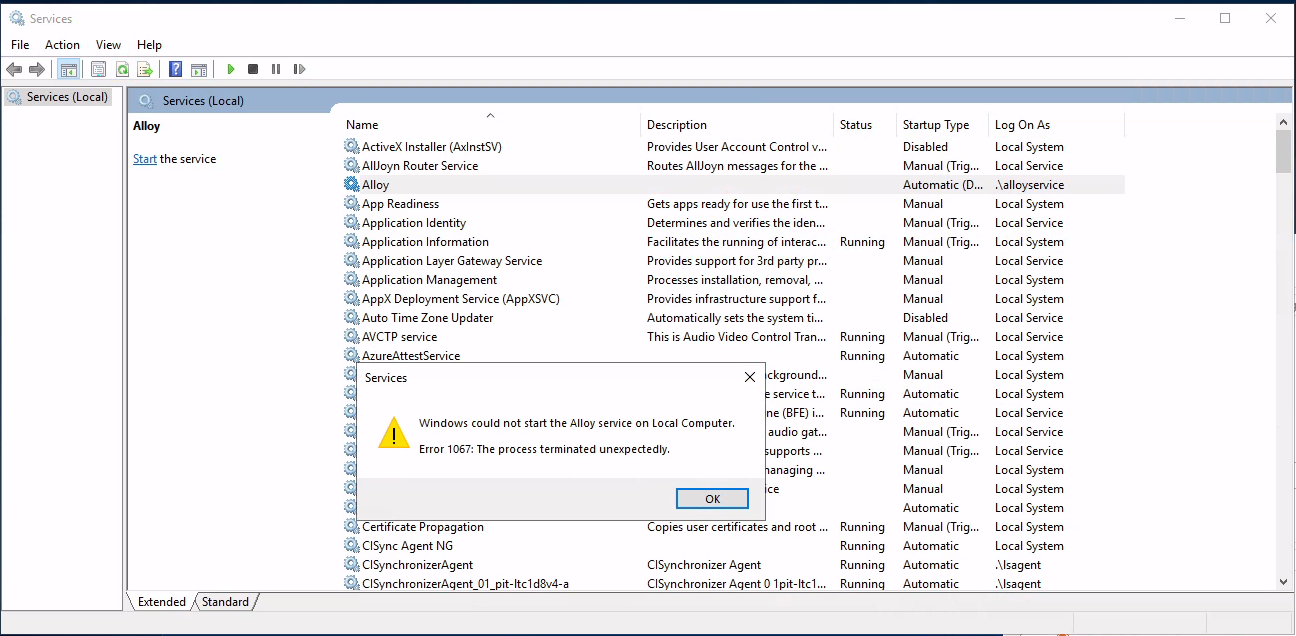
If the service does not start and you have an error 1067 like the image below, it is most likely due to the fact that you have not assigned the permissions above correctly or there is an issue reading the configuration file. Make sure you have explicitly assigned read/write permissions to the config.alloy file and check the security attribute is unblocked.
-
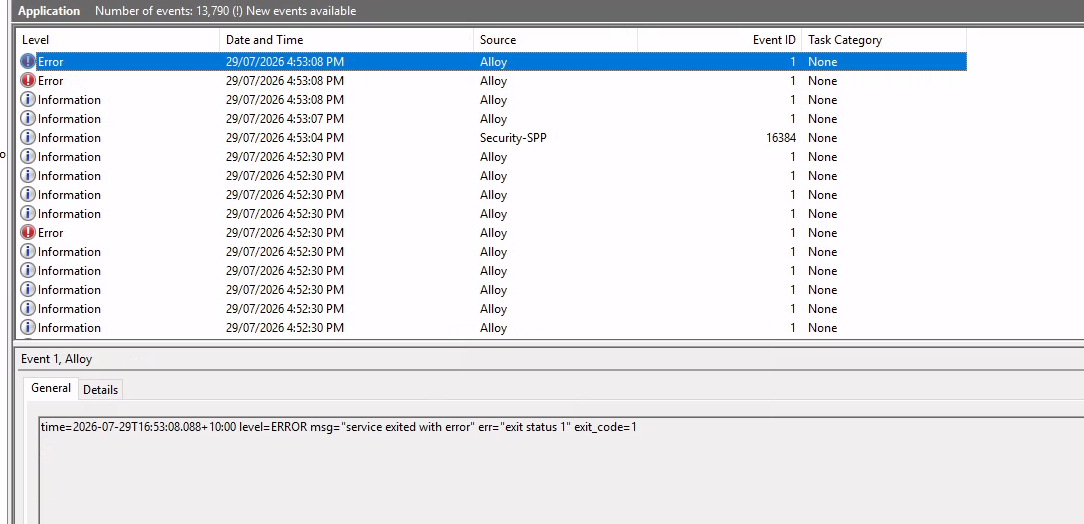
Alloy also logs service events in the Windows application log that can help diagnose issues.Typically exit code 1 reflects a formating issue in the config.alloy file
-
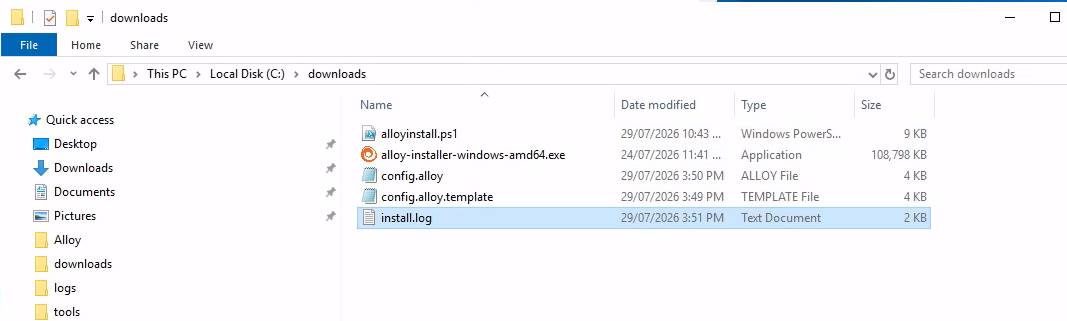
An Install.log is also created in the folder the that you ran the powershell script from that can be used for further analysis or send to syncfish support.
Security Information:
A service-only environment value keeps the secret out of other processes' environments, and is restricted to SYSTEM and Administrators. If you run the service under a custom account, grant that account read access to the key too.