CI Sync Agent - Installation Guide
This guide is an interim solution before our new agent installer process is complete. The link to download the agent files will be provided by Syncfish.
What You’re Installing
The CI Sync Agent runs as a Windows service that connects to your Temporal server and executes scheduled workflows. Installation takes about 5 minutes and requires local administrator access. This is the next generation CI Sync agent.
Prerequisites
-
Windows 10/11 or Windows Server (64-bit)
-
Local administrator rights on the machine
-
PowerShell (built in to Windows)
-
Network access from this machine to your Temporal server address
-
The following values ready to enter during setup:
-
Agent name – a friendly name for this agent instance
-
Instance URL – your organization's instance URL (e.g.
<https://yourcompany.syncfish.app)> -
Temporal server address – e.g.
aksause01-temporal.syncfish.app:443 -
Temporal namespace
-
Authentication type – either:
-
Client secret: Application (client) ID, Tenant ID, Client ID, and Client Secret, or
-
Certificate: Certificate store (
CurrentUserorLocalMachine) and certificate name
-
-
Step 1 - Extract the Package
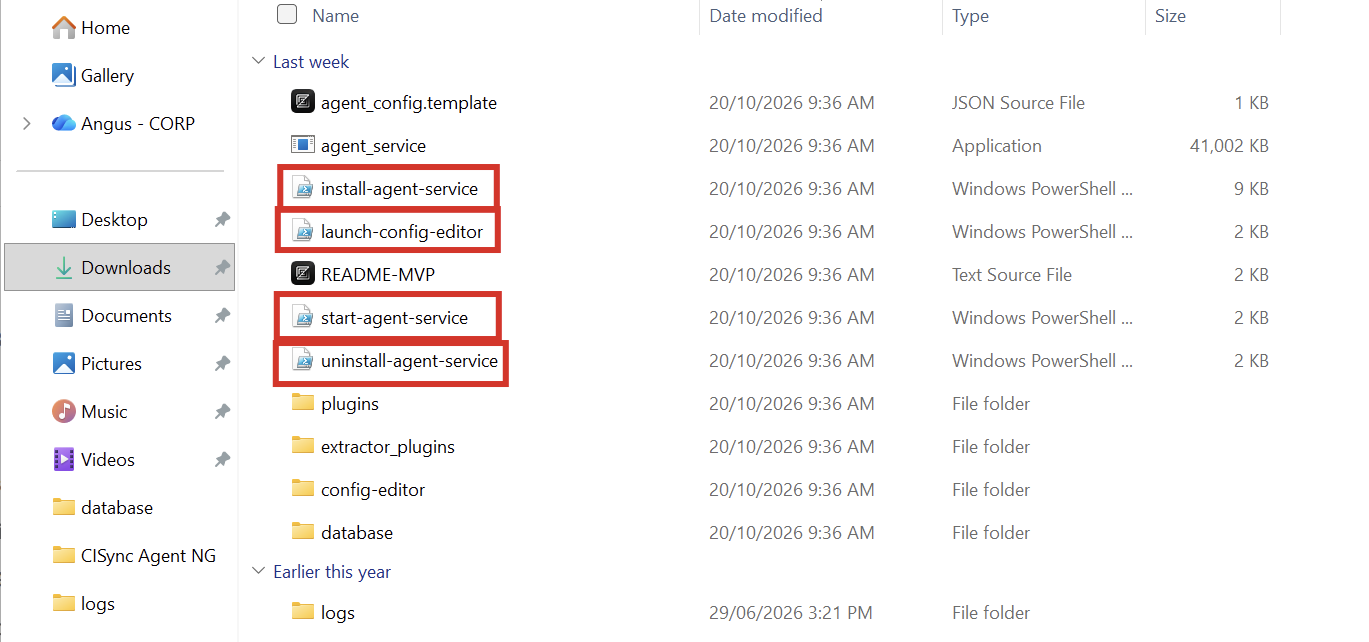
Extract the provided .zip file to a folder of your choice (e.g. C:\\temporal-remote-agent).
Step 2 - Install the Service
-
Right-click PowerShell and choose Run as Administrator.
-
Navigate to the extracted folder:
PowerShellcd "C:\temporal-remote-agent" -
Run the installer:
PowerShellpowershell -ExecutionPolicy Bypass -File .\install-agent-service.ps1
This copies the agent files to C:\Program Files\syncfish\CISync Agent NG\ and registers the CISync Agent NG Windows service (the service is created but not started yet).
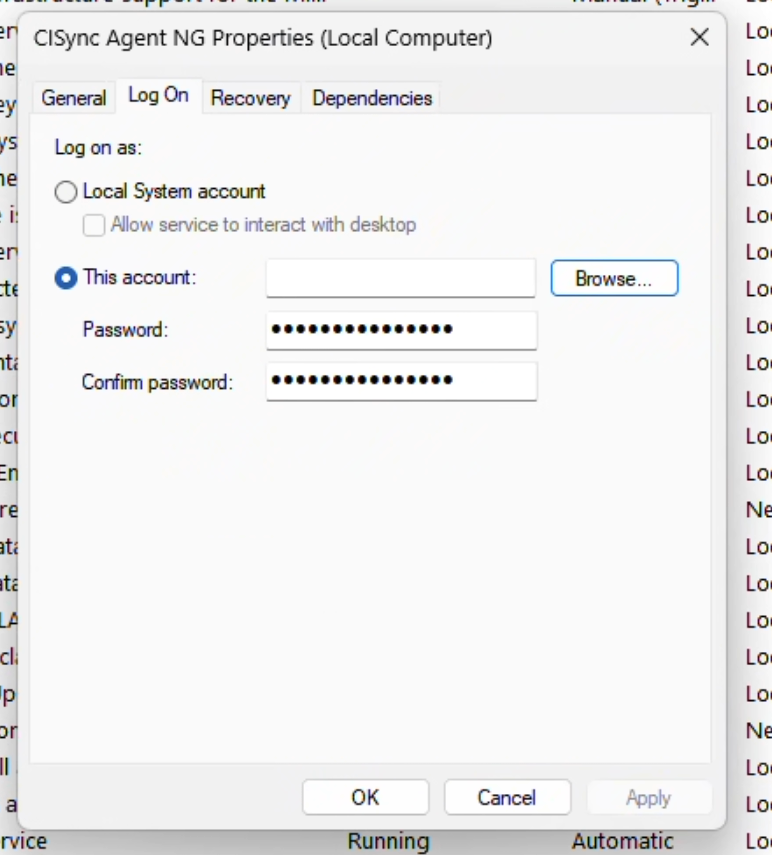
Optional: If your organization requires the service to run under a specific Windows account, change the service "Log On" identity in Services (services.msc) now. That account will need Modify permission on the install folder and
permission on the plugins and extractor_plugins subfolders.
Step 2.1 - Change the service “Log On” identity
-
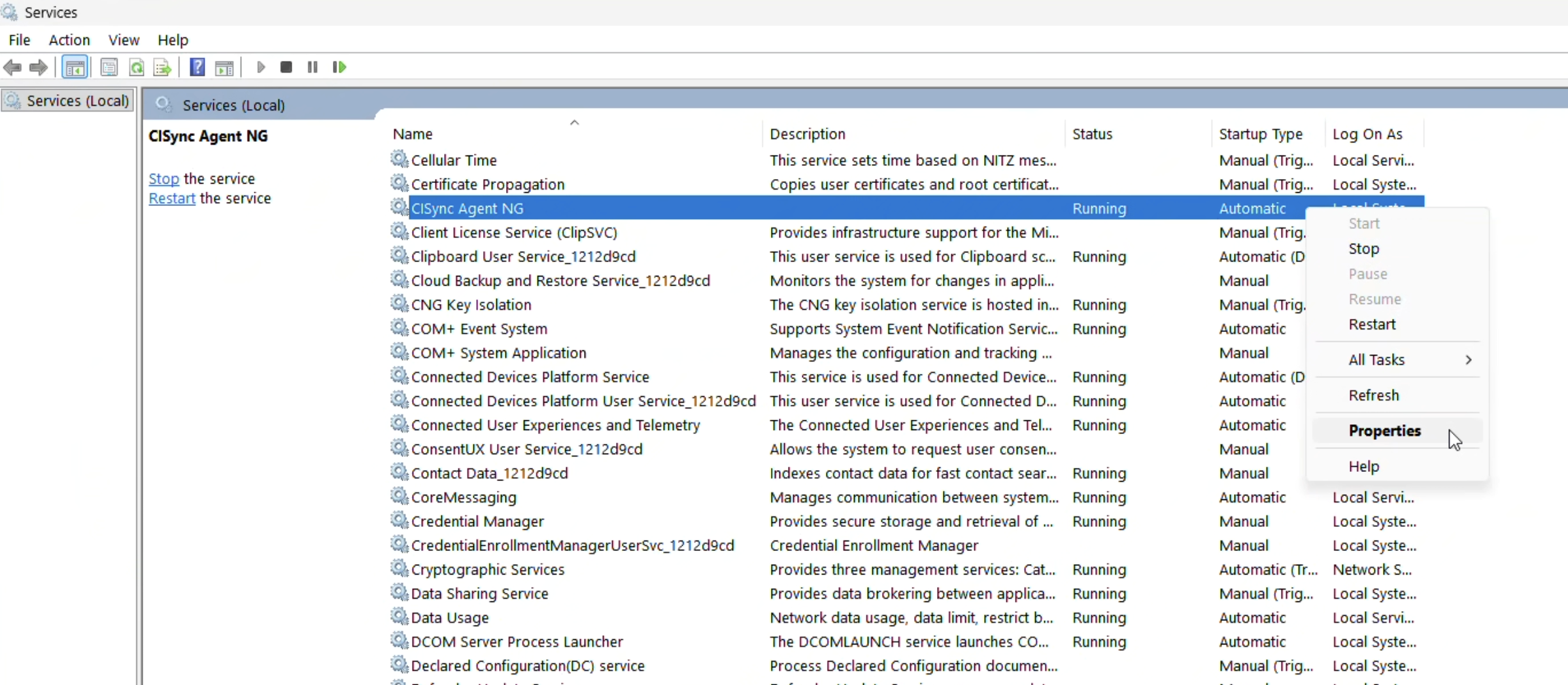
Open Services
-
Right click CISync Agent NG and choose properties
-
Click the Log On tab
-
Configure the required account
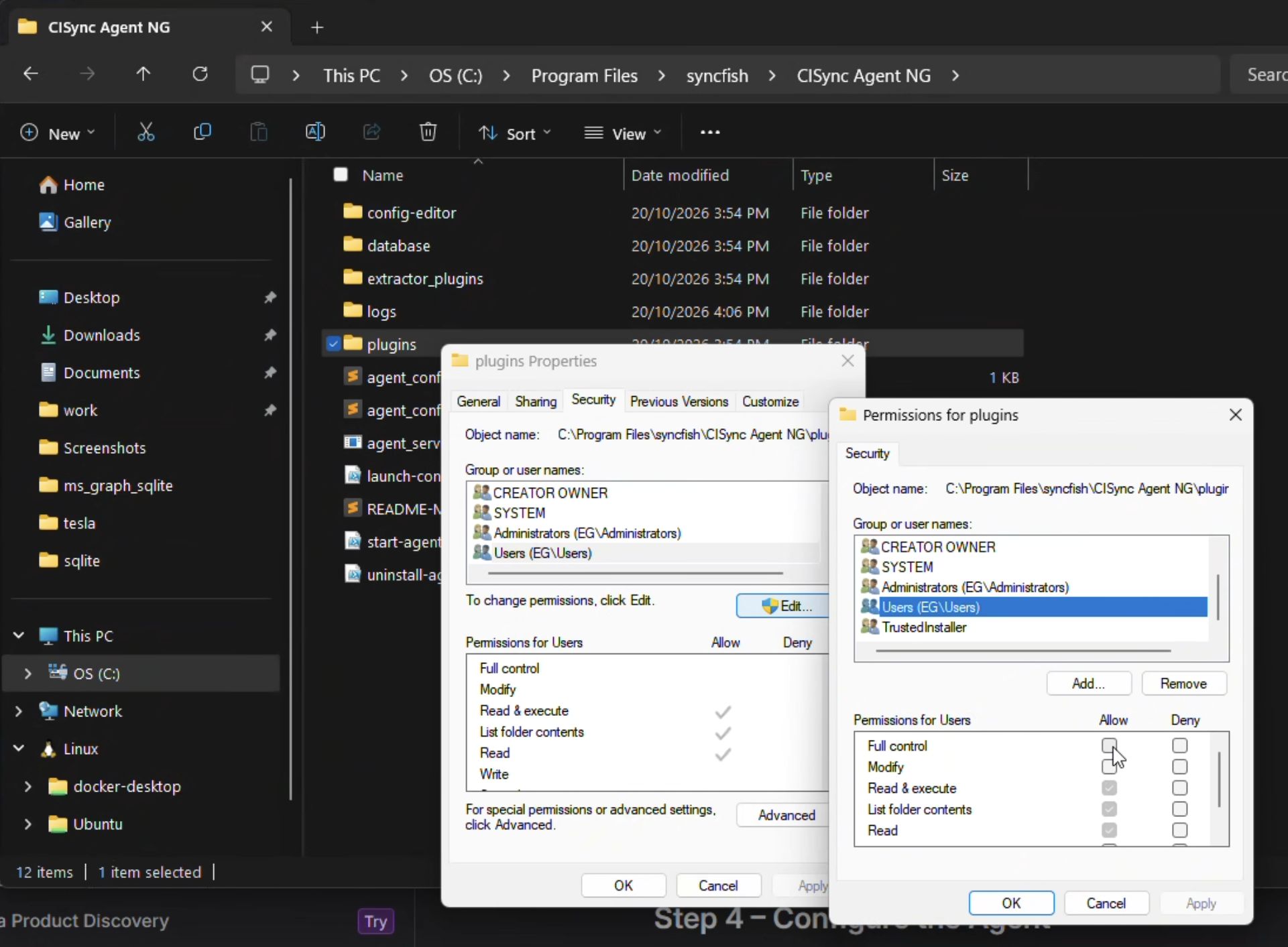
Step 2.2 - Update the permissions on plugins and extractor_plugins folders
-
Navigate to where CISync Agent NG is installed
C:\Program Files\syncfish\CISync Agent NG -
For each of the folders (
pluginsandextractor_plugins)-
Right click the folder and choose properties
-
Click the Security tab
-
Click edit
-
Find and and select the correct user
-
Tick allow for Full control
-
Click Apply and then OK
-
Step 3 - Start the Service and Open the Config UI
Still in the elevated PowerShell window:
powershell -ExecutionPolicy Bypass -File .\start-agent-service.ps1
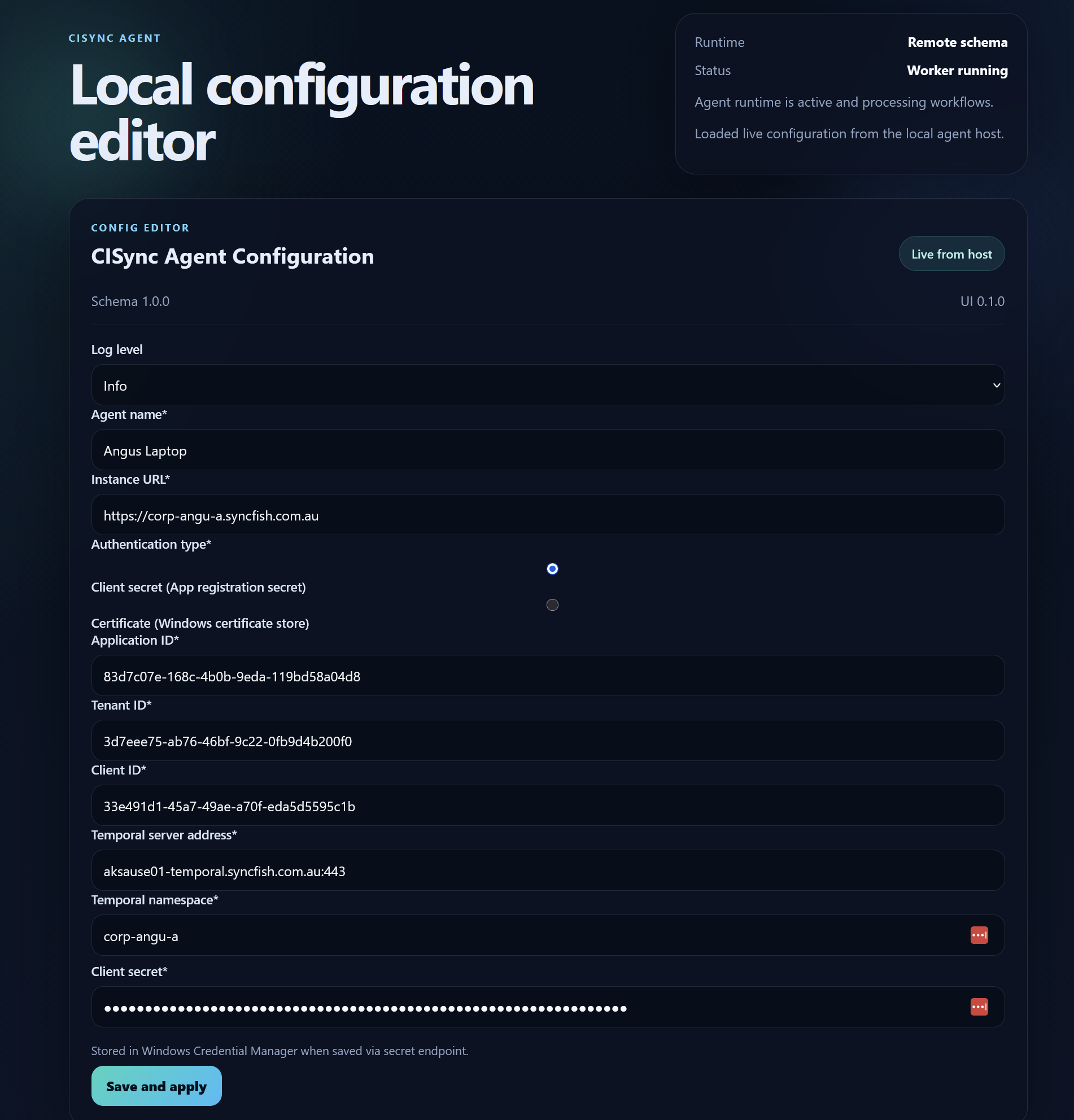
This starts the service and automatically opens the configuration page at **http://127.0.0.1:8787** in your browser.
Step 4 - Configure the Agent
In the Config UI, fill in the following fields:
|
Field |
Description |
|---|---|
|
Log level |
Leave as |
|
Agent name |
A friendly identifier for this agent |
|
Instance URL |
Your organization's instance URL |
|
Authentication type |
|
|
Application ID |
App registration (client) ID |
|
Tenant ID |
Azure AD / identity provider tenant ID |
|
Client ID |
Client ID for authentication |
|
Client secret (if using Client secret auth) |
Stored securely; hidden after saving |
|
Certificate store / name (if using Certificate auth) |
e.g. |
|
Temporal server address |
e.g. |
|
Temporal namespace |
e.g. |
Click Save and apply. The page will show the agent's runtime status, confirming the worker has started.
Verifying the Install
-
Service status: open Services (
services.msc) and confirm CISync Agent NG shows Running. -
Logs:
C:\\Program Files\\syncfish\\CISync Agent NG\\logs\\
Uninstalling
From an elevated PowerShell session in the same folder:
powershell -ExecutionPolicy Bypass -File .\uninstall-agent-service.ps1
Add -KeepFiles if you want to remove the service but keep the installed files for diagnostics:
powershell -ExecutionPolicy Bypass -File .\uninstall-agent-service.ps1 -KeepFiles
Support
If you run into issues during install, send us:
-
The log file at
C:\\Program Files\\syncfish\\CISync Agent NG\\logs\\cisync_agent.log -
The Windows version and whether the service account was changed from the default